
1. Setup
1.1 Package Contents
Before you begin, please ensure all items are present in the package:
- Akko MonsGeek FUN60 Ultra Mechanical Gaming Keyboard
- USB-C Cable
- 2.4Ghz USB Receiver (for Tri-mode versions)
- Keycap Puller
- Switch Puller
1.2 Initial Connection
The FUN60 Ultra keyboard supports wired, 2.4G wireless, and Bluetooth connectivity.
Mode Switch Location
The mode switch for the FUN60 Ultra is located under the Caps Lock key. Adjust it to your desired connection mode (Mac, USB, or Win).

Wired Connection
- Set the mode switch to 'USB'.
- Connect the provided USB-C cable to the keyboard and your computer.
- The keyboard will be automatically recognized and ready for use.
2.4G Wireless Connection (for Tri-mode versions)
- Set the mode switch to 'Win' or 'Mac' (depending on your OS).
- Insert the 2.4G USB receiver into an available USB port on your computer.
- After powering on the keyboard, press and hold Fn + Y for 3 seconds to initiate 2.4G pairing. The indicator light will flash.
- Once paired, the indicator light will become solid.
Bluetooth Connection (for Tri-mode versions)
The keyboard can connect to up to three Bluetooth devices.
- Set the mode switch to 'Win' or 'Mac'.
- After powering on the keyboard, press and hold Fn + E (for Device 1), Fn + R (for Device 2), or Fn + T (for Device 3) for 3 seconds to initiate Bluetooth pairing. The indicator light will flash.
- On your device (computer, tablet, phone), search for Bluetooth devices and select 'MonsGeek FUN60 Ultra'.
- Once paired, the indicator light will become solid.
- To switch between paired Bluetooth devices, short press Fn + E, Fn + R, or Fn + T.
1.3 Software Installation
To unlock the full customization potential of your keyboard, download and install the MonsGeek Driver software or use the web-based driver.
- MonsGeek Driver: Available for download from the official MonsGeek website.
- Web-Based Driver: Access directly via your web browser at https://web.monsgeek.com/.

2. Operating Instructions
2.1 Combination Keys (Fn Functions)
The FUN60 Ultra utilizes an Fn layer for various functions:
| Combination | Function |
|---|---|
| Fn + 1 to Fn + 7 | F1 to F7 |
| Fn + 8 | F8 (Play/Pause) |
| Fn + 9 | F9 (Previous Track) |
| Fn + 0 | F10 (Next Track) |
| Fn + - | F11 (Volume Down) |
| Fn + = | F12 (Volume Up) |
| Fn + M | Mute |
| Fn + < | Print Screen |
| Fn + > | Insert |
| Fn + ? | Delete |
| Fn + P | PrtSc |
| Fn + I | Insert |
| Fn + U | L_WIN+R_APP Reset |
| Fn + ESC | Reset |
| Fn + O | For wired models, press and hold for 3 seconds to switch between MAC/WIN modes. |
| Fn + Enter | Adjust lighting modes |
| Fn + \ | Adjust the backlit color to 7 single colors and RGB cycle in all RGB Lighting modes. |
| Fn + L_WIN | Lock/Unlock Windows Key |
2.2 Battery Level Check (for Tri-mode versions)
To check the battery level, press the Fn + Spacebar combination key. The Esc key will indicate the battery status:
- Below 30%: Esc glows red.
- 30-50%: Esc glows blue.
- 50-70%: Esc glows purple.
- 70-90%: Esc glows yellow.
- 90-100%: Esc glows green.

2.3 Advanced Customization (via MonsGeek Driver)
The MonsGeek Driver software (or web-based driver) allows for extensive customization of your keyboard's performance and lighting.
Rapid Trigger (RT)
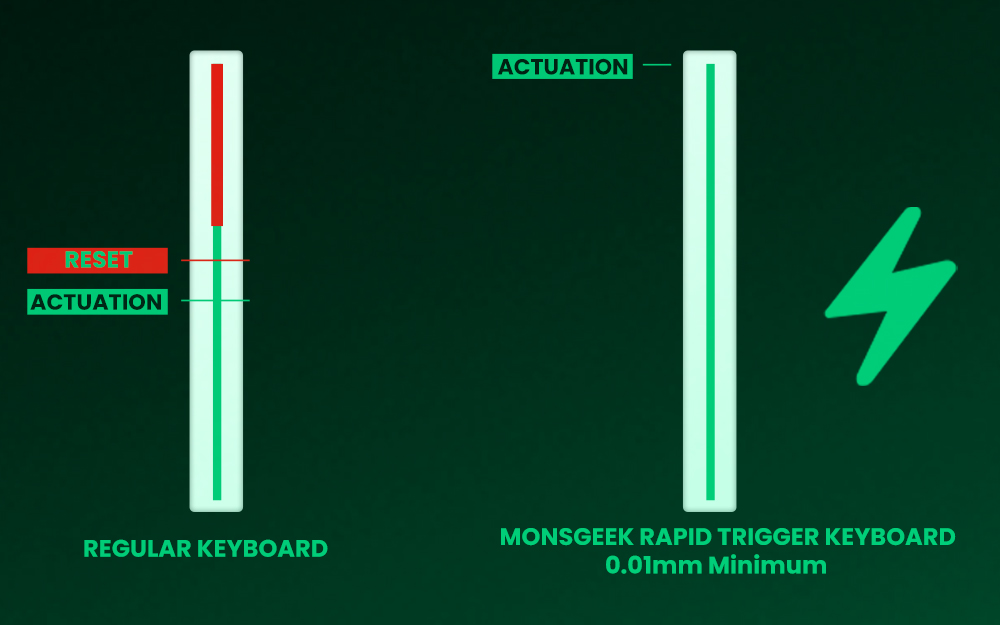
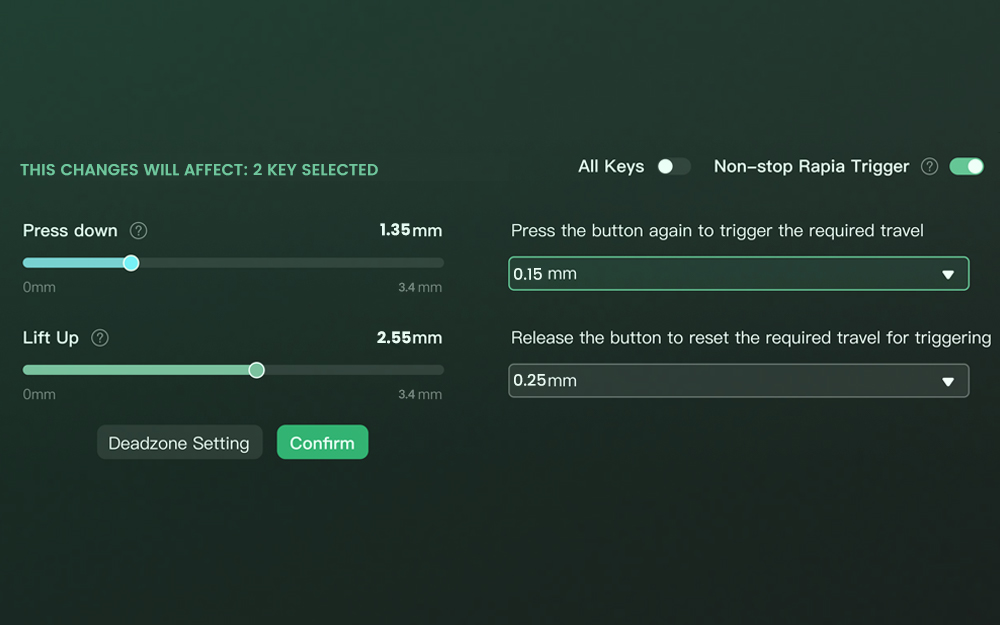
Rapid Trigger dynamically changes the keys’ actuation and deactivation points. This feature is crucial for competitive gaming, allowing for near-instant key response.
- Precision: Achieve ultra-accurate 0.01mm Rapid Trigger.
- Adjustable Actuation: Set actuation distance in 0.01mm steps from 0.1mm to 3.4mm.
- Customization Modes: Choose “All Buttons” or “Per Button” customization.
- Non-stop Rapid Trigger: Activate for continuous rapid key response.
Dynamic Keystrokes (DKS)
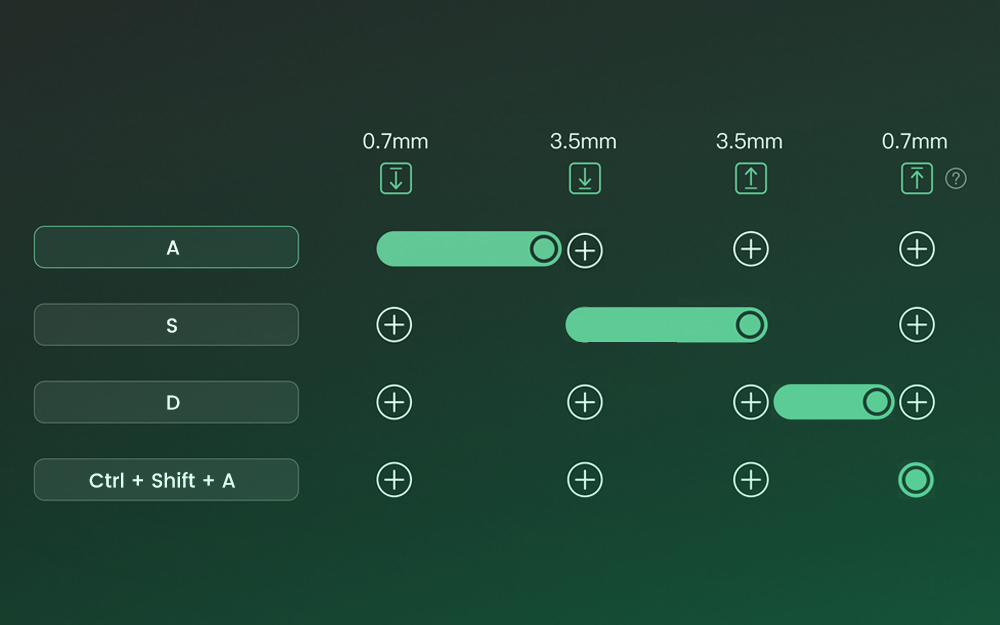
DKS allows a single keypress to trigger up to four different key operations based on the force and release of the press. A light press triggers one action, a deeper press another, and the release also supports two-stage settings.
Toggle Key (TGL)
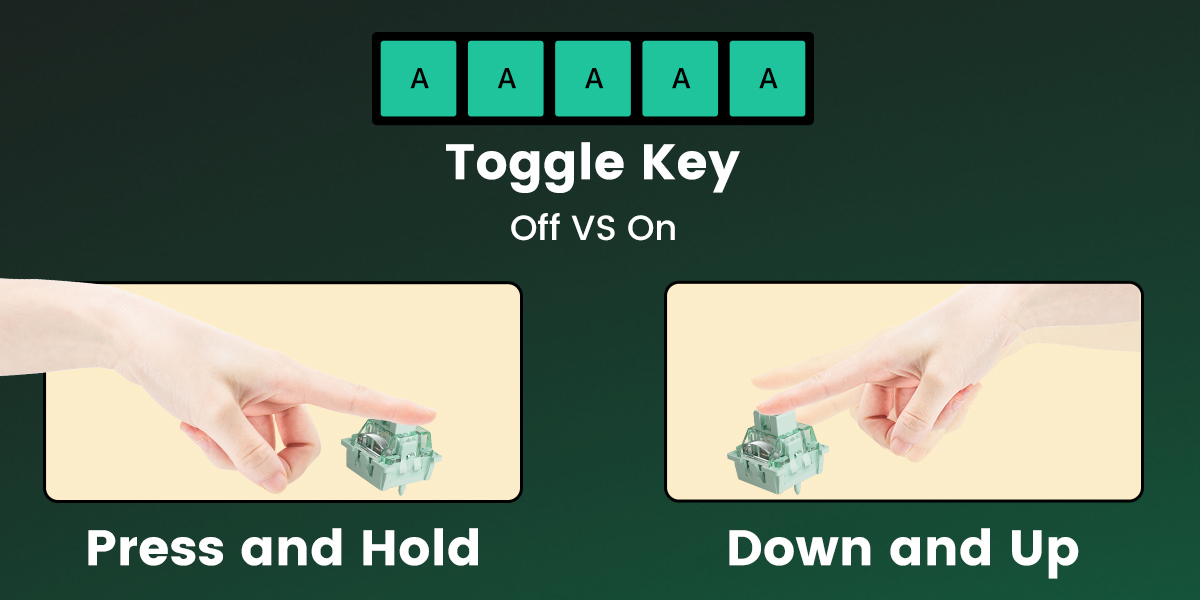
TGL transforms a key into a toggle switch. Pressing it can either continuously hold down a function or trigger it multiple times at a high frequency.
Mod-Tap
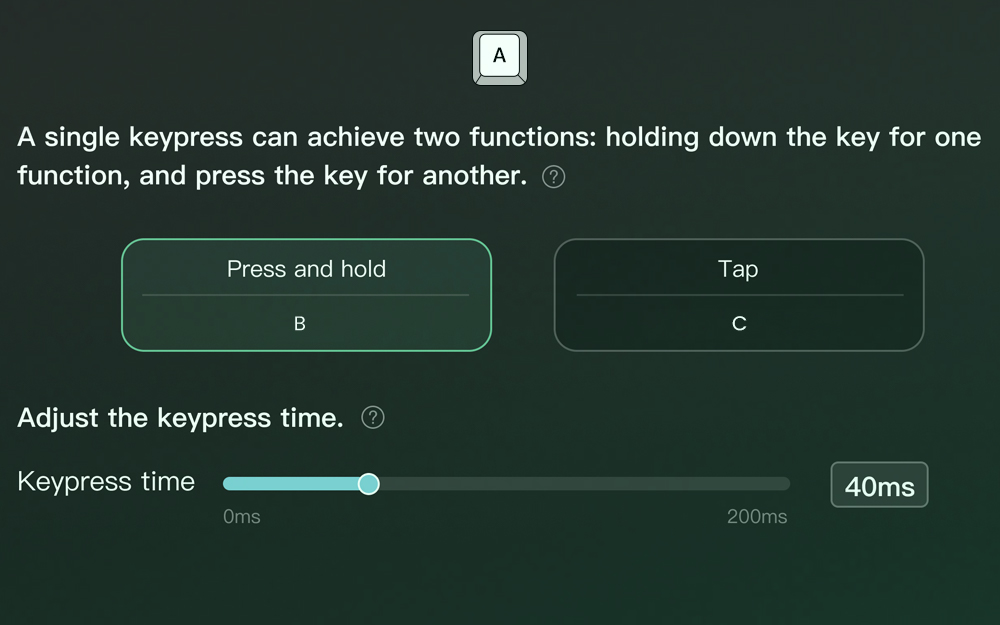
Mod-Tap provides convenience for gaming by creating dedicated or dual-functional keys based on key press behavior. Holding a key performs one function, while tapping it performs another.
Keys Remapping
The MonsGeek Driver allows you to remap any key on the keyboard, optimizing your layout for efficiency and comfort in various applications or games.
Switch Compatibility and TMR Sensor
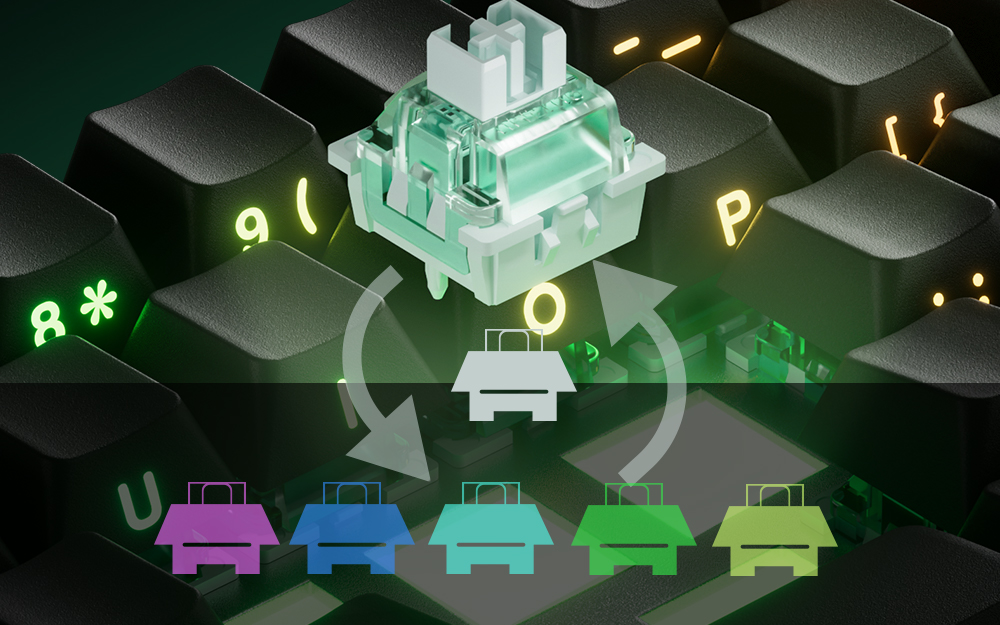
The FUN60 Ultra (TMR version) is cross-compatible with mainstream magnetic switches and also supports 5-pin mechanical switches, offering unprecedented customization.
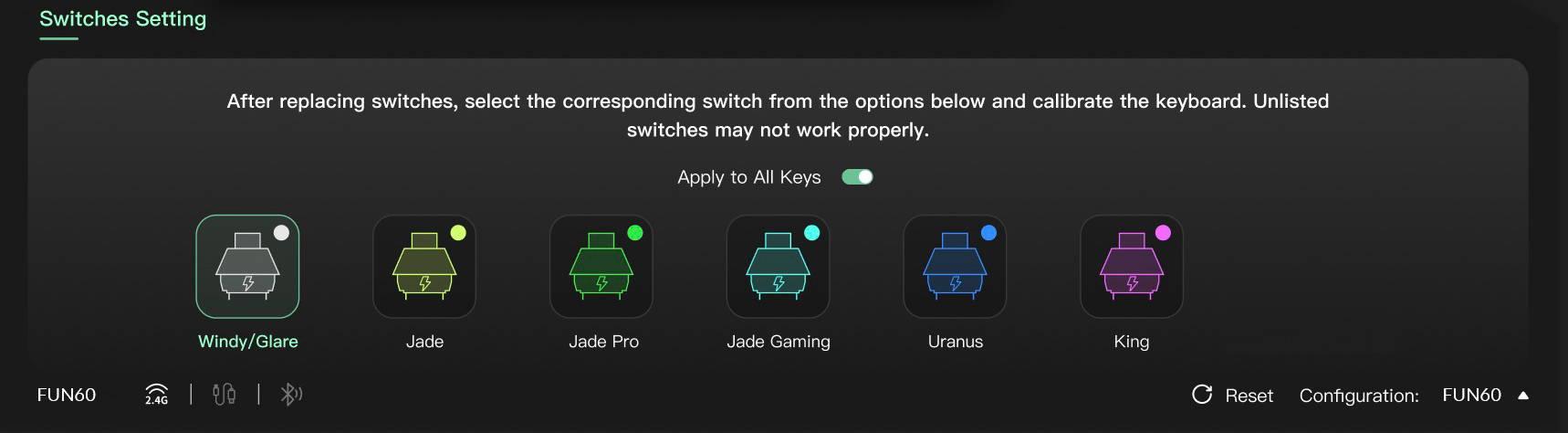
- Magnetic Switches: Support mixing and matching different magnetic switches simultaneously. After replacing switches, select the corresponding switch in the MonsGeek Driver and calibrate the keyboard.
- Mechanical Switches (TMR Version Only): The TMR sensor allows you to use any 5-pin mechanical switches alongside magnetic switches.
2.4 RGB Backlight
The FUN60 Ultra features ARGB (addressable RGB) with individually controlled LEDs, offering smooth, flicker-free lighting and rich dynamic effects.
- Lighting Modes: Use Fn + Enter to cycle through preset lighting effects.
- Color Adjustment: Use Fn + \ to adjust the backlit color to 7 single colors and RGB cycle in all RGB Lighting modes.
- Customization: Further customize brightness, speed, and effects via the MonsGeek Driver.

3. Maintenance
3.1 Cleaning
To maintain optimal performance and appearance, regularly clean your keyboard:
- Use a soft, lint-free cloth to wipe down the keycaps and case.
- For deeper cleaning, remove keycaps and use compressed air to clear debris from between switches.
- Avoid using harsh chemicals or abrasive materials.
3.2 Switch and Keycap Replacement
The FUN60 Ultra (TMR version) supports hot-swappable switches, allowing for easy replacement without soldering.
- Keycap Removal: Use the provided keycap puller to gently remove keycaps.
- Switch Removal: Use the provided switch puller to carefully extract switches. Ensure proper alignment when inserting new switches.
Caution: The switch puller can be sharp. Use it carefully to avoid scratching the keyboard or switches.
3.3 Stabilizers
The keyboard features specialized stabilizers for enhanced performance:
- Lubed Stabilizers: Pre-lubed stabilizers reduce rattle and enhance key stability for a smoother typing experience.
- Demagnetized Stabilizer: The stabilizer wire is demagnetized to reduce magnetic interference, improving trigger accuracy and long-term stability.
- RT Stabilizer: This mode helps prevent unintended inputs or disconnections from slight hand tremors, especially useful with 0.01mm Rapid Trigger precision. It can be activated via the MonsGeek Driver with 4 different filtering levels.

4. Troubleshooting
4.1 Connectivity Issues
- Wired: Ensure the USB-C cable is securely connected to both the keyboard and the computer. Try a different USB port or cable.
- 2.4G Wireless: Ensure the 2.4G receiver is properly inserted and the keyboard is in 2.4G mode (Fn + Y). Re-pair if necessary.
- Bluetooth: Ensure the keyboard is in Bluetooth mode (Fn + E/R/T) and discoverable. Forget the device on your computer and re-pair. Ensure your device's Bluetooth is enabled.
4.2 Software and Customization Issues
- Switches not working properly after replacement: Calibrate the keyboard using the MonsGeek Driver after replacing switches.
- Customization not applying: Ensure the MonsGeek Driver is running and the settings are saved/applied. Try restarting the software or the keyboard.
- Unintended inputs/disconnection: Activate the 'RT Stabilizer' mode in the MonsGeek Driver to filter out slight hand tremors.
4.3 Keyboard Not Responding
- Try resetting the keyboard by pressing Fn + ESC.
- Ensure the battery (for wireless versions) is charged.
- If using a wireless connection, try switching to wired mode to rule out wireless interference or battery issues.
5. Specifications
| Feature | Specification |
|---|---|
| Model | MonsGeek FUN60 Ultra |
| Layout | 60% (61 Keys) |
| Case Material | Aluminum CNC |
| Keycap Material | PBT plastic, Doublshot Shine-through |
| Connectivity | USB-C Wired / Bluetooth / 2.4G Wireless (Tri-mode versions) |
| Polling Rate | 8K (Wired and 2.4G Mode) |
| Switches | Magnetic Switch (Akko Glare Magnetic Switch with LED Diffuser), Cross-compatible with Mainstream Magnetic Switches. TMR version supports 5-pin Mechanical Switches. |
| Actuation | 0.01mm Rapid Trigger (RT), Adjustable Actuation Distance (0.1mm to 3.4mm) |
| CPU | ARM 32-bit Cortex-M4 |
| Battery | 4000mAh (for Tri-mode versions) |
| RGB | ARGB, 500Hz Refresh Rate |
| Structure | Tray-mounted |
| Stabilizer | Pre-Lubed Plate-Mounted Stabilizer, Demagnetized Stabilizer, RT Stabilizer |
| Software | MonsGeek Driver & Web-Based Driver |
| Origin | Mainland China |
| Certification | CE, WEEE |
| Dimensions | Approx. 102.5 × 293 × 28.5 mm (for FUN60 Tri-mode) |

6. Warranty and Support
6.1 Warranty Information
MONSGEEK provides a one-year warranty for customers in mainland China. For warranty policies in other regions, please contact your local MONSGEEK distributor or seller.
- Repair costs may apply after the warranty period expires.
- Instructions for self-repair may be provided, but users are solely responsible for any damages incurred during self-repair.
- Disassembling the keyboard without explicit instructions from the manufacturer/seller will immediately void the warranty.
6.2 Customer Support
- Customer Service Hotline: 0755-23216420
- Website: www.monsgeek.com
- Support Hours: Monday to Friday, 10:00 AM to 6:00 PM (excluding national holidays).
- Manufacturer: Shenzhen Yinchen Technology Co., Ltd.
Please note that return and warranty policies may vary depending on the platform and specific dealer at the time of purchase.
7. User Tips
- Switch Puller Caution: The included switch puller can be sharp. Exercise caution when using it to avoid leaving marks on your keycaps or keyboard.
- Adjusting to Rapid Trigger: The 0.01mm actuation point of the Rapid Trigger is almost instant. It may take some time to get accustomed to this highly responsive input, especially if you are new to magnetic switch keyboards.
- Reliable Wireless Connectivity: Users have reported no noticeable delay with the 2.4G wireless connection, making it suitable for gaming.
- TMR Versatility: Leverage the TMR technology to swap between magnetic and mechanical switches on different keys to create a personalized typing and gaming experience.
8. Frequently Asked Questions (FAQ)
Q: Is the Akko MonsGeek FUN60 Ultra gasket mounted?
A: No, the Akko MonsGeek FUN60 Ultra features a tray-mounted structure, which provides better stability and a consistent typing experience.
Q: What keycap profile does the keyboard support?
A: The keyboard comes with PBT plastic, double-shot shine-through keycaps. While it doesn't specify a particular profile (like Cherry, OEM, etc.), it supports standard keycap sets compatible with mechanical switches.