
1. Introduction
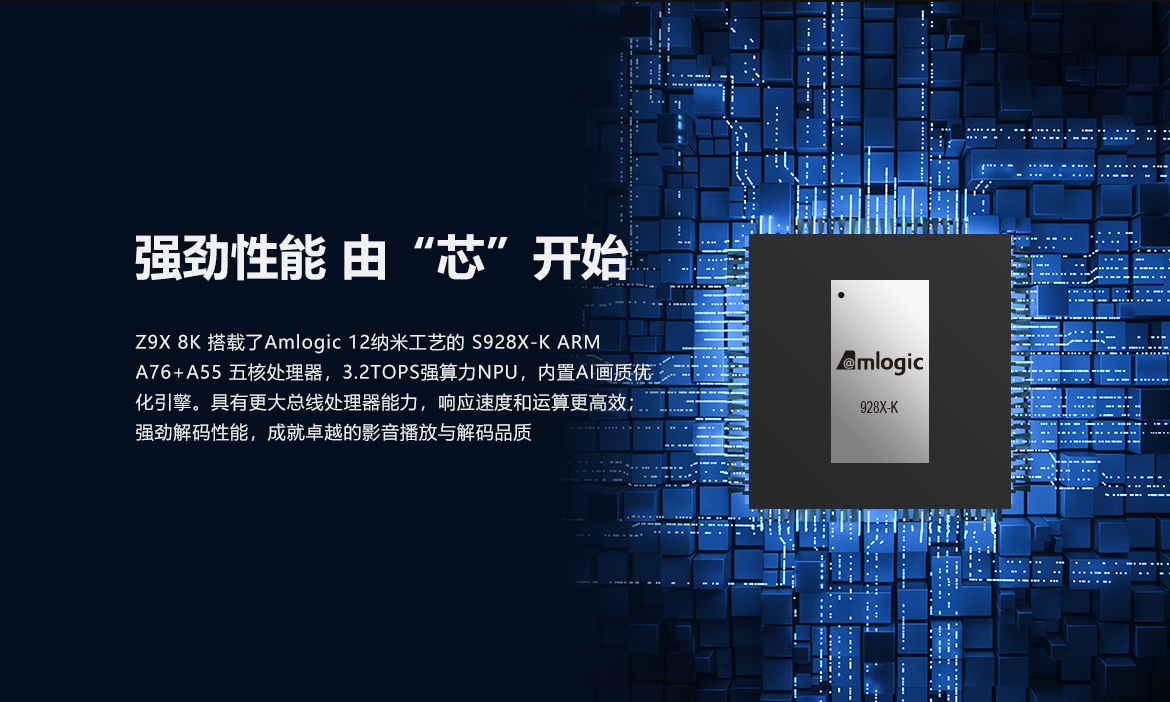
The ZIDOO Z9X 8K V11 is a high-performance HDR Media Player designed to deliver an exceptional home theater experience. Powered by Android 11 OS and an Amlogic S928X-K Processor, it features 6GB RAM and 64GB eMMC storage, along with advanced VPU Video Engine and VS10 Image Engine technologies for stunning 8K visuals and immersive audio.

2. Package Contents
Please check the package for the following items:
- ZIDOO Z9X 8K Media Player
- Remote Control
- Power Adapter (AU/US/EU/UK plug, depending on region)
- HDMI Cable
- Wi-Fi Antennas (2x)
- User Manual (this document)

3. Setup Guide
3.1 Connecting the Player
Before powering on, connect all necessary cables:
- Power Connection: Connect the provided power adapter to the DC 12V port on the rear of the player and then to a power outlet. Ensure the power switch is in the 'OFF' position before connecting.
- HDMI Connection: Connect one end of the HDMI cable to the HDMI OUT port on the player and the other end to an HDMI input on your TV or AV receiver.
- Audio Connection (Optional): For digital audio, connect an optical cable to the OPTICAL port. For analog audio, use the AUDIO output.
- Network Connection: For wired internet, connect an Ethernet cable to the GIGABIT LAN port. For wireless internet, screw the two Wi-Fi antennas onto the connectors on the rear of the player.
- USB Devices: Connect external hard drives, USB flash drives, or other USB peripherals to the USB 3.0 or USB 2.0 ports.
- SATA Drive (Optional): If installing an internal SATA drive, follow the instructions for opening the device and connecting the drive.
- RS232 (Optional): For integration with home automation systems, connect to the RS232 port.

3.2 Initial Power On
- After connecting all cables, switch the power button on the rear of the player to 'ON'.
- Turn on your TV and select the correct HDMI input source.
- The ZIDOO logo will appear, followed by the initial setup wizard. Follow the on-screen instructions to configure language, network, and display settings.
4. Operating Instructions
4.1 User Interface and Navigation
The ZIDOO Z9X 8K features a user-friendly 4K UI. Navigate using the included IR remote control or the dedicated mobile app (available for iOS/Android).

4.2 Media Playback
The player supports a wide range of media formats and sources:
- Local Playback: Play media files from connected USB drives, internal SATA drives, or network storage.
- Network Streaming: Supports NFS, SMB v1/v2/v3, UPnP, WebDAV, OneDrive, Dropbox, and Emby for seamless access to your media library across your network. It also supports Tidal Connect and DLNA for high-quality audio streaming.
- Video Features: Enjoy stunning 8K UHD resolution, HDR10+, and Dolby Vision for vibrant colors and incredible contrast. The device features automatic frame rate switching (23.976, 59.94, 25, 30, 50, 60Hz) for smooth playback without judder.
- Audio Features: Experience immersive sound with support for Dolby Atmos and DTS:X. It also offers lossless music playback for DSD, APE, FLAC, and WAV formats.
- Subtitles: The player offers a robust subtitle system, supporting various formats (internal/external ASS, SUP, PGS). You can adjust subtitle size, position, and brightness.

4.3 Local Music Library
The ZIDOO Z9X 8K includes a powerful local music library management system:
- Automatically retrieves music information from the cloud.
- Matches artists, albums, and CUE files.
- Supports Gapless playback and Playback GAIN control.
- Organize your music by genre, artist, album, and more.
4.4 Poster Wall
The Poster Wall feature intelligently organizes your movie and TV show collection:
- Automatically generates movie posters and trailers.
- Supports highly customizable classification and sorting.
- Offers batch processing and convenient collection creation and management.

4.5 File Management
The Z9X 8K includes a comprehensive file management system for local and network storage. You can perform standard operations like copying, pasting, cutting, and deleting files.
4.6 Smart Control
Control your ZIDOO Z9X 8K using various methods:
- IR Remote Control: Use the included infrared remote for direct control.
- Mobile App: Download the official ZIDOO control app for iOS and Android devices to manage playback, browse content, and control settings.
- IP/RS232/Control 4: Integrate the player into advanced home control systems.
- Wake On LAN (WOL): The device supports WOL, allowing you to power it on remotely via your network (requires a wired connection).

5. Maintenance
5.1 Cleaning
To maintain the player's appearance and performance, clean it regularly with a soft, dry cloth. Do not use liquid cleaners or abrasive materials.
5.2 Firmware Updates
ZIDOO regularly releases firmware updates to improve performance, add features, and fix bugs. It is recommended to keep your player updated. Check for updates via the system settings menu on your device.
5.3 Storage Management
Periodically review and delete unused applications or media files to free up internal storage and ensure optimal system performance.
6. Troubleshooting
If you encounter issues with your ZIDOO Z9X 8K, please refer to the following common solutions:
- No Power: Ensure the power adapter is securely connected to both the player and a working power outlet. Check that the power switch on the rear of the device is in the 'ON' position.
- No Video Output: Verify that the HDMI cable is correctly connected to both the player and your TV/receiver. Ensure your TV is set to the correct HDMI input source. Try a different HDMI cable or port.
- No Audio Output: Check all audio connections (HDMI, Optical, Analog). Ensure your TV or AV receiver's audio input is correctly selected and not muted. Verify the audio output settings on the ZIDOO player.
- Network Connection Issues: For wired connections, ensure the Ethernet cable is properly connected. For Wi-Fi, check that the antennas are securely attached and that the Wi-Fi network is selected and the password entered correctly in the settings. Restart your router and the media player.
- Remote Control Not Responding: Replace the batteries in the remote control. Ensure there are no obstructions between the remote and the player's IR receiver.
- Incorrect Language Displayed: If the user interface is in an unexpected language, navigate to the system settings (usually represented by a gear icon) and locate the 'Language' or 'System' settings to change it to your preferred language.
7. Specifications
| Feature | Specification |
|---|---|
| Model Number | ZIDOO Z9X 8K |
| Operating System | Android 11 |
| Processor | Amlogic S928X-K (12nm, ARM A76+A55, 3.2TOPS NPU) |
| RAM | 6GB DDR4 |
| Internal Storage | 64GB eMMC |
| Video Engine | VPU Video Engine & VS10 Image Engine (Dolby Vision) |
| Video Output | 8K@60Hz, 12-bit color depth (68 billion colors) |
| HDR Support | HDR10+, Dolby Vision |
| Audio Support | Dolby Atmos, DTS:X, DSD/APE/FLAC/WAV Lossless Playback |
| Wi-Fi | WiFi 6 (2.4G + 5G, 2R2T MIMO, up to 1201Mbps) |
| Bluetooth | Bluetooth 5.2 |
| Ethernet | Gigabit LAN |
| Ports | HDMI 2.1, USB 3.0 (x2), USB 2.0 (x2), Optical S/PDIF, Analog Audio, RS232, SATA, DC 12V Power |
| Control Methods | IR Remote, Mobile App (iOS/Android), IP/RS232/Control 4 |
| Certification | CE |
8. User Tips
- Language Settings: If the interface is not in your preferred language, navigate to system settings to change it. The device supports multiple languages.
- Optimal Performance: For the best video and audio experience, use high-quality HDMI 2.1 cables and ensure your display and audio receiver are compatible with 8K, HDR10+, Dolby Vision, Dolby Atmos, and DTS:X.
- Network Streaming: Utilize the Gigabit LAN or WiFi 6 for stable and high-bandwidth streaming of local and online content. A strong and stable network connection is crucial for 8K streaming.
- Remote App: Download the ZIDOO Controller app for your smartphone to gain more versatile control over the media player, including browsing media and managing settings.
9. Warranty and Support
The ZIDOO Z9X 8K Media Player is covered by a standard manufacturer's warranty. Please refer to the warranty card included in your package for specific terms and conditions. For technical support, firmware updates, or service inquiries, please visit the official ZIDOO website or contact your retailer.
This product is CE certified, indicating compliance with European health, safety, and environmental protection standards.