
1. Introduction
Thank you for purchasing the Mocute 053 Bluetooth Gamepad. This wireless controller is designed to enhance your gaming experience on various platforms. Please read this manual carefully to ensure proper setup and operation.
Note: The Mocute 053 gamepad is not officially supported for iOS devices. Connecting to a PC can be complex and is not recommended for general use.
2. Package Contents
- 1 x Mocute 053 Game Controller
3. Product Overview
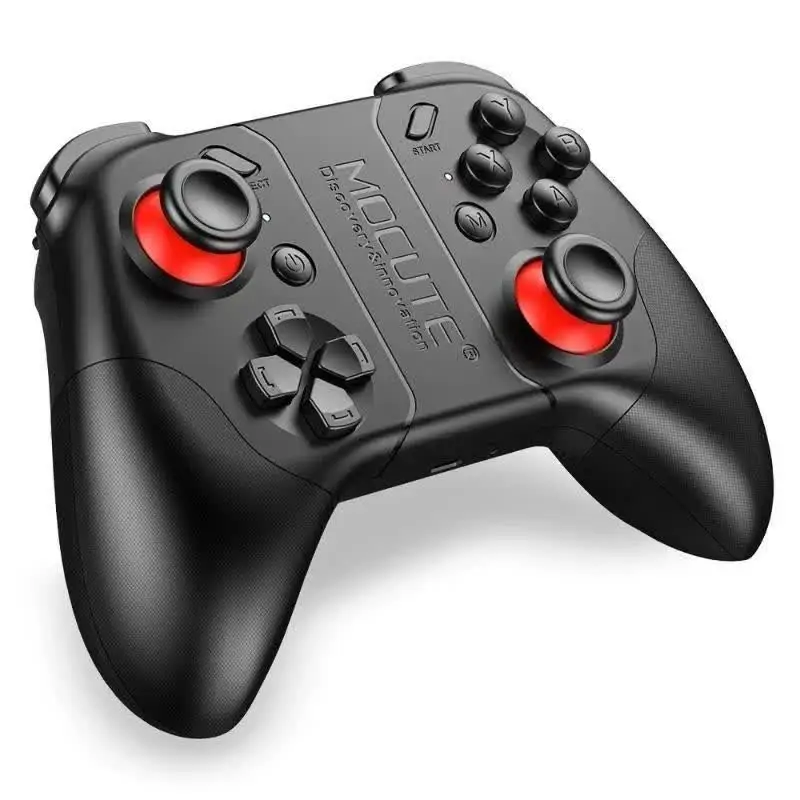
Familiarize yourself with the layout and functions of your Mocute 053 Gamepad:

The gamepad features a robust design with 48-channel exquisite craft, ensuring durability and responsive control.

4. Specifications
| Feature | Detail |
|---|---|
| Model | MOCUTE 053 |
| Bluetooth Version | 3.0 |
| Material | ABS Plastic |
| Compatible Platforms | Android (Smartphones, Tablets, Smart TV Boxes) |
| Battery | 400mAh Li-ion battery (Included) |
| Transmission Distance | 2-8 meters |
| Working Time | 20-30 hours (continuous gaming) |
| Charging Time | 2-3 hours |
| Standby Time | 30 days (fully charged) |
| Dimensions | 170 x 140 x 60 mm |
| Weight | 226g |
| Certification | CE |
5. Setup and Connection
5.1 Bluetooth Pairing (Android Devices)
- Ensure your Mocute 053 Gamepad is charged.
- Turn on the gamepad by pressing the POWER button. The Work LED will indicate power status.
- On your Android smartphone, tablet, or smart TV box, navigate to the Bluetooth settings.
- Enable Bluetooth and search for available devices.
- Select "MOCUTE 053" from the list of found devices to pair.
- Once paired, the Mode LED on the gamepad will indicate a successful connection.
5.2 Important Note for PC Connection
Connecting the Mocute 053 gamepad to a PC is generally not recommended due to the complexity of the process and potential compatibility issues. This device is primarily designed for Android platforms.
6. Operating Modes and Key Customization
The Mocute 053 supports various operating modes and allows for key customization to suit different games and applications.
6.1 Default Modes
The gamepad typically operates in a standard Bluetooth gamepad mode for Android devices. Specific modes may be activated by holding certain key combinations during power-on or connection.
6.2 Key Customization
Some games and emulators allow for in-app key mapping. Additionally, the gamepad may support specific key combinations for predefined functions:
- Newgame Mode: Press and hold
M+START+L1simultaneously. - HANDJOY Mode: Press and hold
START+R1simultaneously.

Refer to your game's settings or the specific application's instructions for detailed key mapping and mode selection.
7. Charging and Battery Information
The Mocute 053 Gamepad is equipped with a 400mAh Li-ion battery.
- Charging: Connect the gamepad to a USB power source using the provided USB cable. The charging time is approximately 2-3 hours.
- Battery Life: A full charge provides 20-30 hours of continuous gaming.
- Standby Time: The gamepad can remain in standby for up to 30 days on a full charge.
- Power Saving: The gamepad incorporates power-saving technology to maximize battery life.
8. Troubleshooting
- Gamepad not connecting/pairing:
- Ensure the gamepad is charged.
- Make sure Bluetooth is enabled on your device.
- Try restarting both the gamepad and your device.
- If previously paired, try unpairing and re-pairing the device.
- Check if the gamepad is in the correct operating mode for your device/game.
- Buttons not responding:
- Verify the gamepad is properly connected.
- Check in-game settings for controller support and key mapping.
- Some games may require specific modes (e.g., Newgame, HANDJOY).
- Lag or delayed response:
- Ensure you are within the optimal transmission distance (2-8 meters).
- Minimize interference from other wireless devices.
- Close unnecessary background applications on your device.
- Gamepad not turning on:
- Charge the gamepad for at least 2-3 hours.
- If still unresponsive, try pressing the Reset button (refer to Product Overview diagram for location).
9. User Tips
- For optimal performance, ensure your device's operating system is up to date.
- Experiment with different key customization options within your games to find the most comfortable setup.
- Always fully charge the gamepad before extended gaming sessions.
10. Maintenance
- Keep the gamepad clean by wiping it with a soft, dry cloth.
- Avoid exposing the gamepad to extreme temperatures, humidity, or direct sunlight.
- Do not attempt to disassemble or repair the gamepad yourself, as this may void any potential warranty and cause damage.
- Store the gamepad in a cool, dry place when not in use.
11. Warranty and Support
For any questions, concerns, or technical support regarding your Mocute 053 Gamepad, please contact the seller or retailer from whom you purchased the product. They will be able to provide assistance in accordance with their support policies.