
Introduction
The ESSGOO Portable 7" Touchscreen Universal Wireless Car Stereo Radio is designed to enhance your driving experience by integrating smart features like Apple CarPlay and Android Auto into any vehicle. This manual provides essential information for setup, operation, maintenance, and troubleshooting to ensure optimal performance and user satisfaction.

Safety Information
- Always operate the device responsibly and in accordance with local traffic laws. Distracted driving can lead to accidents.
- Do not attempt to install or repair the device if you are not qualified. Refer to professional assistance if needed.
- Ensure the device is securely mounted and does not obstruct your view of the road or interfere with vehicle controls.
- Avoid exposing the device to extreme temperatures, direct sunlight for prolonged periods, or excessive moisture.
- Use only the provided power cable and accessories to prevent damage or fire hazards.
Package Contents
Please check the box for the following items:
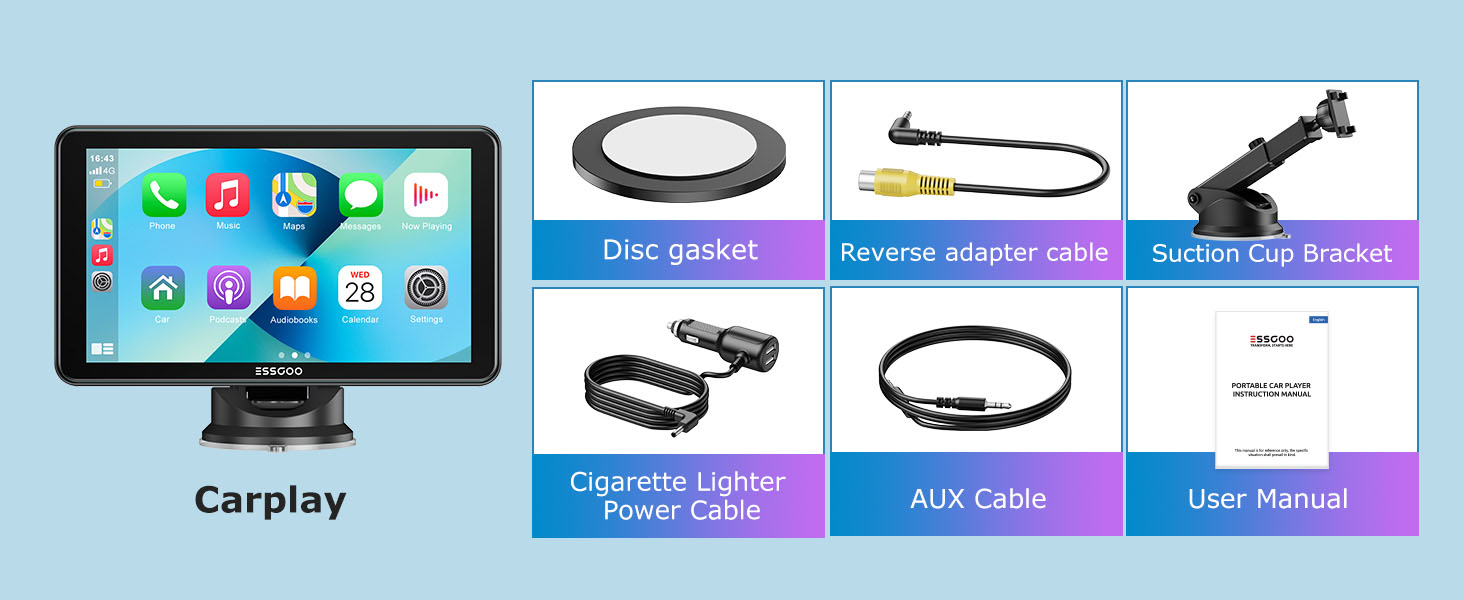
- ESSGOO Carplay Unit (7-inch Touchscreen)
- Suction Cup Bracket
- Disc Gasket
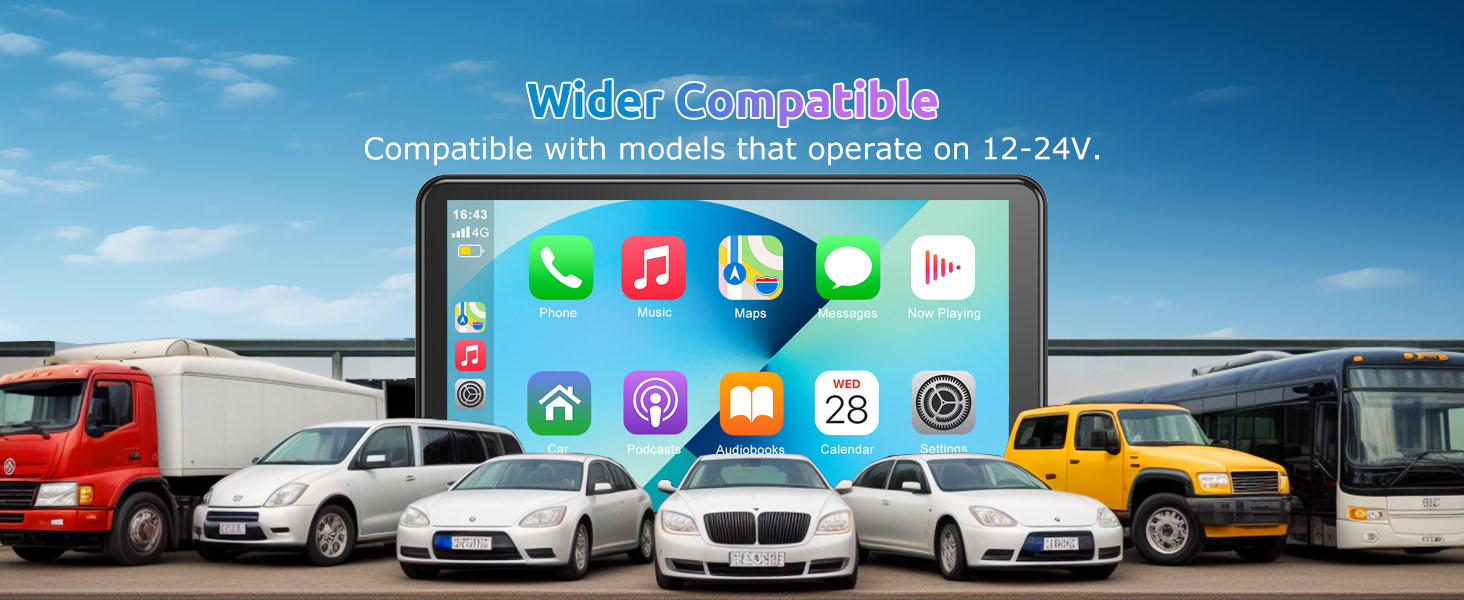
- Cigarette Lighter Power Cable (12-24V compatible)
- AUX Cable
- Reverse Adapter Cable
- User Manual
Specifications
| Feature | Specification |
|---|---|
| Model | 743CP |
| Display Size | 7" |
| Resolution | 1024*600 |
| Touch Screen | Yes (HD IPS + 2.5D) |
| Built-in Screen | Yes |
| Special Features | CarPlay, Android Auto, Mirror Link, Voice Control, GPS Navigation |
| Interface | AUX, USB |
| Voltage | 12 V (Compatible with 12-24V systems) |
| Digital Media Format | Mp3, MP4, WMA, JPEG |
| OSD Language | Polish, German, Russian, Portuguese, Spanish, Italian, English |
| Built-in DVD Player | No |
| Built-in CD Player | No |
| Certification | CE, FCC |
| DVR Support | Yes |
| FM Frequency | 87.5-108MHz |
Setup
1. Mounting the Device
- Attach the disc gasket to a clean, flat surface on your dashboard or windshield.
- Secure the suction cup bracket to the disc gasket or directly to the windshield. Ensure it is firmly attached.
- Mount the Carplay unit onto the suction cup bracket, adjusting the angle for optimal viewing without obstructing your driving view.
2. Power Connection
- Connect the Cigarette Lighter Power Cable to the Carplay unit.
- Plug the other end of the power cable into your vehicle's cigarette lighter socket. The unit supports 12V-24V vehicle power systems.

3. Audio Output Connection
You have several options for audio output:
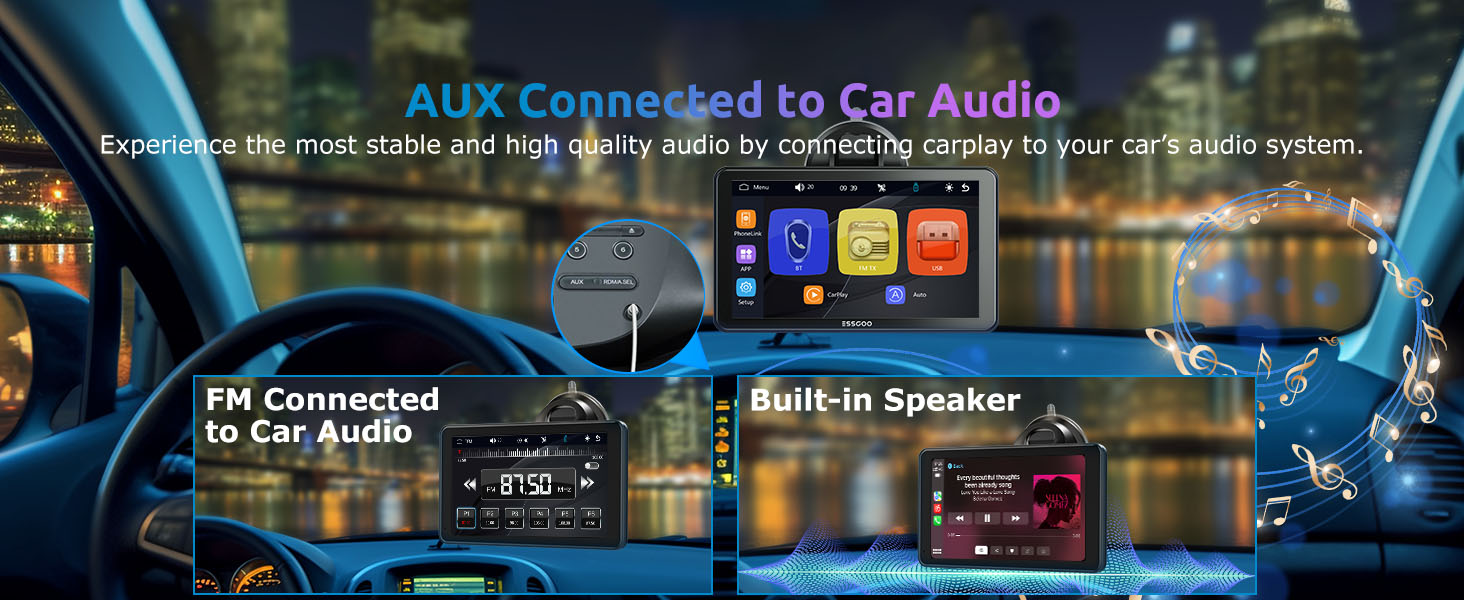
- Built-in Speaker: The unit has an integrated speaker for direct audio output.
- AUX Connection: Connect the provided AUX cable from the Carplay unit to your car's AUX input for stable, high-quality audio.
- FM Transmitter: Tune the Carplay unit to an unused FM frequency, then tune your car radio to the same frequency to transmit audio wirelessly.
4. Reverse Camera Connection (Optional)
If you have a compatible reverse camera, connect it to the Carplay unit using the Reverse Adapter Cable. The unit supports DVR functionality.

Operating Instructions
1. Power On/Off
- The unit will power on automatically when your vehicle's ignition is turned on.
- To power off, turn off your vehicle's ignition or disconnect the power cable.
2. Touchscreen Operation
The 7-inch HD IPS touchscreen allows for intuitive control. Tap, swipe, and pinch gestures are supported for navigating menus and applications.
3. Wireless Apple CarPlay / Android Auto
- Ensure Bluetooth and Wi-Fi are enabled on your smartphone.
- On the Carplay unit, select the 'CarPlay' or 'Android Auto' icon.
- Follow the on-screen prompts to pair your phone via Bluetooth. Once paired, the system will automatically connect via Wi-Fi for wireless CarPlay/Android Auto functionality.
- You can now access compatible apps like Google Maps, Spotify, and make calls directly from the unit's screen.

4. Mirror Link
Connect your smartphone via USB to enable Mirror Link, allowing you to display your phone's screen directly on the Carplay unit. This is useful for apps not natively supported by CarPlay or Android Auto.
5. Voice Control (Siri / Google Assistant)
Once connected to your smartphone, activate Siri or Google Assistant by saying "Hey Siri" or "Hey Google" (or the designated activation phrase). You can then issue voice commands for navigation, music playback, calls, and more, keeping your hands on the wheel.
6. Dual USB Ports
The included car charger features dual USB ports, allowing you to charge multiple mobile devices simultaneously while using the Carplay unit.
7. Smart Light Sensing
The unit's screen brightness automatically adjusts based on ambient light conditions, ensuring optimal visibility during both day and night driving.
Maintenance
- Cleaning: Use a soft, dry cloth to clean the screen and exterior. For stubborn smudges, slightly dampen the cloth with water or a screen-safe cleaner. Avoid abrasive materials or harsh chemicals.
- Storage: If storing the device for an extended period, disconnect it from power and store it in a cool, dry place.
- Software Updates: Periodically check the manufacturer's website for any available software updates to ensure optimal performance and compatibility.
Troubleshooting
| Problem | Possible Solution |
|---|---|
| Unit does not power on. | Check if the power cable is securely connected to both the unit and the cigarette lighter socket. Ensure the vehicle's ignition is on and the socket is receiving power. |
| Cannot connect to Apple CarPlay/Android Auto wirelessly. | Ensure Bluetooth and Wi-Fi are enabled on your phone. Forget the device in your phone's Bluetooth settings and try pairing again. Make sure your phone's operating system is up to date. |
| No sound or poor sound quality. | Check the volume levels on both the unit and your car stereo. If using AUX, ensure the cable is fully inserted and the car stereo is set to AUX input. If using FM, try a different, clear FM frequency. |
| Touchscreen is unresponsive. | Restart the unit by disconnecting and reconnecting the power. Ensure the screen is clean and free of debris. |
| GPS navigation is inaccurate. | Ensure your phone has a strong GPS signal. Update your navigation app. |
User Tips
- For the best audio experience, use the AUX connection if your car stereo supports it. FM transmission quality can vary based on local radio interference.
- Utilize the voice control features (Siri or Google Assistant) to minimize distractions while driving, especially for navigation and making calls.
- Keep your smartphone's operating system and apps updated to ensure seamless compatibility with CarPlay and Android Auto.
- Consider routing the power cable discreetly to maintain a clean and organized dashboard, as shown in the setup section.
Warranty and Support
ESSGOO provides a comprehensive after-sales guarantee and high-quality service for your product. Your purchase is backed by a one-year warranty.
- Technical Support: Long-term technical support is available to assist with any product-related queries or issues.
- Quality Assurance: The product is certified with CE and FCC, ensuring it meets high safety and quality standards.
For further assistance, please refer to the contact information provided with your purchase documentation or visit the official ESSGOO support website.


