1. Introduction
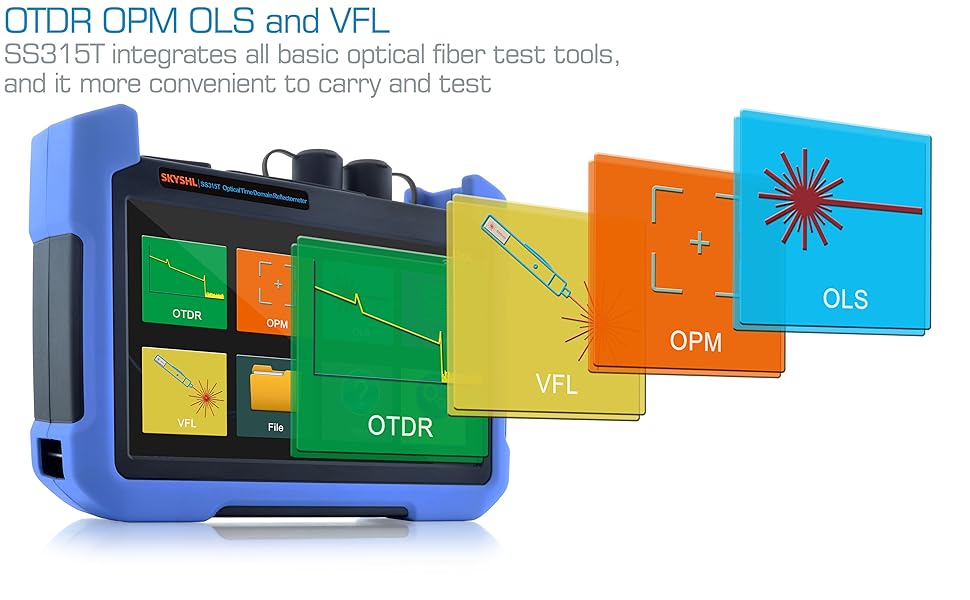
The SKYSHL SS315T Optical Time Domain Reflectometer (OTDR) is a crucial instrument designed for certifying the performance of new fiber optic links and diagnosing issues in existing ones. This device integrates multiple essential fiber optic test tools, including an Optical Power Meter (OPM), Visual Fault Locator (VFL), Optical Light Source (OLS), and an Event Map for graphical analysis. It is engineered to simplify fiber optic testing, making it accessible for both experienced technicians and new users.

2. Specifications
| Attribute | Value |
|---|---|
| Brand Name | SKYSHL |
| Model Number | SS315T-2B1 |
| Size | 190*145*50mm/7.5*5.7*1.97inch |
| Fiber Type | Single Mode |
| Connector Type | FC/UPC |
| Origin | Mainland China |
| Wavelength | 1310nm+1550nm |
| Dynamic range | 35dB+33dB |
| Max Test Distance | 160km/100mi |
| EDZ/ADZ | 1.2m/4.5m |
| Data Storage | 80000 groups of curve |
| Display | 7 inch capacitive touching screen |
| Battery | 12.6V/3250mAh lithium battery |
| Dimension | 190*145*50mm/0.85kg(Include Battery) |
| Optical Power Meter | 850nm~1650nm; -60~+3dB |
| Light Source | 1310nm+1550nm(≥-5dBm/CW, 270Hz, 1kHz and 2kHz) |
| VFL | 2km(650nm±20nm/CW, 1Hz and 2Hz) |
| APP Module | Android and IOS |
3. Package Contents
The SS315T-2B1 SM Fiber OTDR package includes the following items:
- 1 x OTDR Unit
- 5 x Adapters for OTDR/OLS/OPM/VFL (2*FC, 1*SC, 1*LC, 1*ST)
- 2 x Patch Cords (1*SM FC/UPC-FC/UPC, 1*SM FC/UPC-FC/APC)
- 4 x Adapters (1*FC-LC UPC&APC, 1*FC-SC UPC&APC, 1*FC-ST UPC&APC, 1*FC-FC UPC&APC)
- 1 x USB Cable
- 1 x Charger
- 1 x Oxford Backpack
- 1 x User Manual
- 1 x APP Module
- 1 x OTDR Holder
- 1 x 2.5mm Cleaning Rod
- 1 x 1.25mm Cleaning Rod
- 1 x Factory Test Report
- 1 x Memory Card

4. Setup
4.1 Powering On/Off
To power on the device, press and hold the power button located on the side. To power off, press and hold the power button again and confirm shutdown on the screen.
4.2 Connecting Fiber Optic Cables
The SS315T-OTDR supports various connector types including FC, SC, LC, and ST, with both UPC and APC polishing. Ensure you use the correct adapter for your fiber cable.
- Identify the OTDR port on the device.
- Select the appropriate adapter (e.g., SC, LC, FC, ST) for your fiber cable.
- Carefully screw the adapter onto the OTDR port.
- Connect your fiber optic cable to the adapter.

5. Operating Instructions
5.1 Main Interface Overview
Upon powering on, the device displays a main menu with various functions such as OTDR, OPM, OLS, VFL, File, Help, and System settings.

5.2 OTDR Testing Procedure
- Connect Fiber: Connect the testing fiber link to the OTDR port as described in Section 4.2.
- Access OTDR Function: From the main menu, tap the 'OTDR' icon.
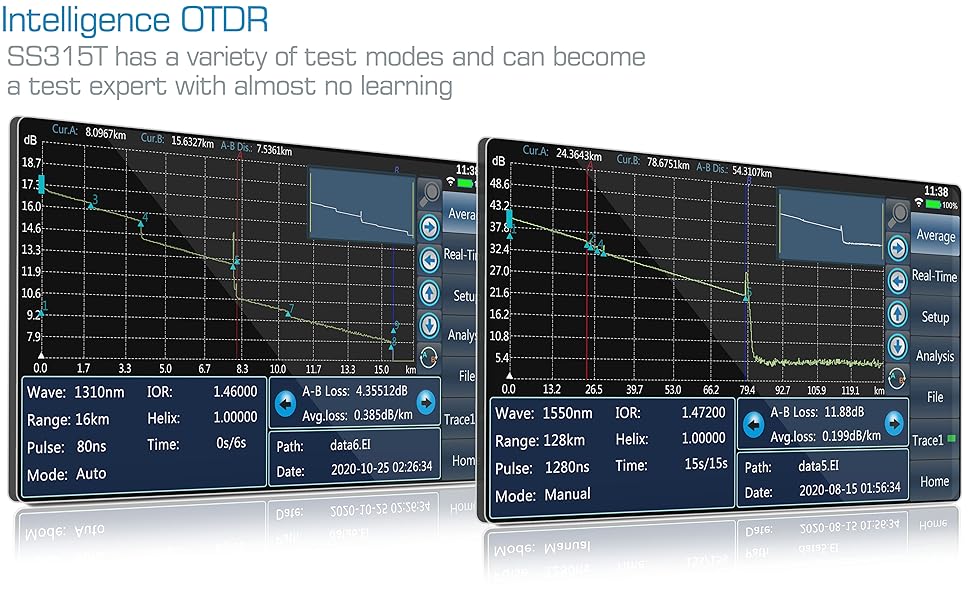
- Set Parameters: In the OTDR interface, tap the lower left corner of the screen to enter the parameter settings. Here you can set:
- Wave: Select 1310nm, 1550nm, or both for testing.
- Time: Set the test duration (e.g., 5s, 15s, 30s, 60s, 120s, 180s).
- Mode: Choose 'Auto' for automatic parameter selection or 'Manual' for custom settings.
- Pulse: Adjust the pulse width (e.g., 5ns, 10ns, 30ns, 80ns, 160ns, 320ns, 640ns, 1280ns).
- Range: Set the test range (e.g., 400m, 800m, 1.6km, 3.2km, 8km, 16km, 32km, 64km, 128km, 256km).
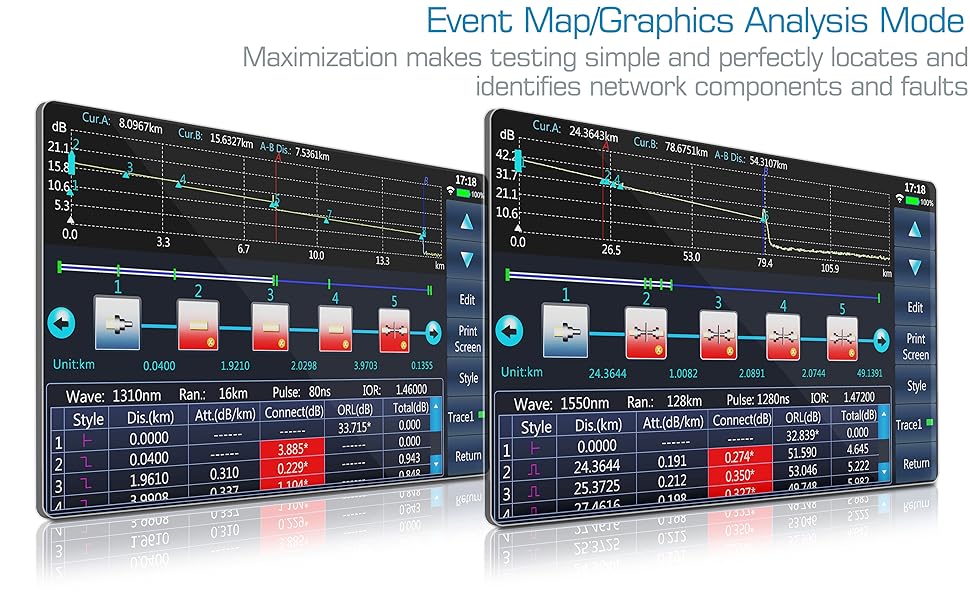
- Open Event Map (Optional): Before starting the test, you can enable the graphical event map. Go to [Setup] -> [Link Def.] -> Click [Graphics] -> [Enter].
- Start Testing: Tap 'Average' to begin the fiber test. The device will display the test curve and calculate average loss. The SS315T supports testing 1310nm/1550nm wavelengths together.
- Zoom and Navigate: Use the zoom-in/out controls on the screen to adjust the view of the test curve.
- Move A/B Cursor: Adjust the A/B cursors to measure specific sections of the fiber for detailed loss analysis.
- View Test Data and Event Map: Click [Analysis] to view detailed test data and the event map. If 'Graphics' was not checked in step 4, the event map will not be available.
- Print Screen: Tap [Print Screen] and then [Enter] to save the current screen as a JPG image.
- Save Test Curve: If 'Auto Save' is checked in the file settings, the test curve will be automatically saved. Otherwise, navigate to [File] -> [Save] to manually save the test curve.
- Generate PDF Test Reports: Go to [File] -> [Print] -> Input [File Name] -> [PDF] to generate a PDF report of the test results.
- Copy/Transfer Files: To transfer files to a U-disk, go to [File] -> [Transfer] -> Select source location/format/target (U Disk) -> [Copy].
- Delete Files: To delete files, go to [File] -> [Delete] -> Select a storage location and file format -> Select files to delete -> [Del. File].
5.3 Integrated Functions (OPM, OLS, VFL)
The SS315T integrates an Optical Power Meter (OPM), Optical Light Source (OLS), and Visual Fault Locator (VFL) for comprehensive fiber testing. Select these functions from the main menu to access their respective interfaces and perform tests.
5.4 Smart APP and PC Software Connectivity
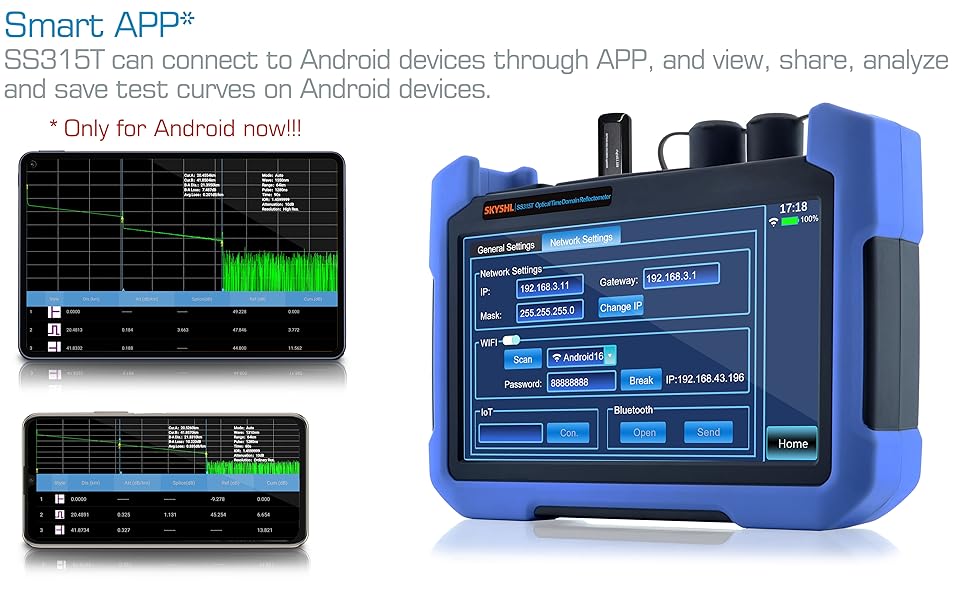
The SS315T can connect to Android devices (currently only Android) and PCs via its APP module. This allows for viewing, sharing, analyzing, and saving test curves through the Android APP and PC software. This feature facilitates remote operation and seamless sharing of test data and reports.
6. Maintenance
6.1 Connector Cleaning
Regularly clean fiber optic connectors and adapters to ensure accurate measurements and prevent damage. Use the provided 2.5mm and 1.25mm cleaning rods for proper maintenance.
6.2 Battery Care
The device is powered by a 12.6V/3250mAh lithium battery, providing 8-10 hours of continuous operation. Charge the battery using the provided charger. Avoid fully discharging the battery frequently to prolong its lifespan. Store the device in a cool, dry place when not in use for extended periods.
6.3 Software Updates
Check the manufacturer's website periodically for software updates to ensure optimal performance and access to new features. Follow the provided instructions for any update procedures.
7. Troubleshooting
| Problem | Possible Cause | Solution |
|---|---|---|
| No signal or inaccurate readings | Dirty or damaged connectors/adapters, incorrect fiber type, wrong test parameters. | Clean all connectors and adapters. Ensure correct fiber type (single mode) and appropriate test parameters (wavelength, pulse, range) are selected. |
| Device not powering on | Low battery, faulty charger/cable. | Charge the device fully. Check charger and cable for damage. |
| App/PC software not connecting | Incorrect settings, incompatible device, outdated software. | Ensure correct network settings (IP, Gateway, WiFi/Bluetooth). Verify device compatibility (Android/Windows only). Update APP/PC software to the latest version. |
| Event map not displaying faults clearly | High noise, incorrect pulse width, fiber issues. | Adjust pulse width for better resolution. Ensure fiber is clean and properly connected. Re-run the test. |
8. User Tips
- For optimal results, always clean fiber connectors before each test.
- Utilize the 'Auto Test' mode for quick and easy link characterization, especially for new users.
- When detailed fault location is needed, switch to 'Manual' mode and adjust pulse width for higher resolution.
- Regularly back up your test data to a U-disk or connected PC to prevent data loss.
- Keep the device's software updated to benefit from performance improvements and new features.
9. Applications
The SKYSHL SS315T OTDR Tester is suitable for a wide range of fiber optic applications, including:
- Characterizing point-to-point access & metro fiber networks.
- Qualifying and troubleshooting FTTH/PON networks.
- Qualifying and troubleshooting singlemode FTTA/DAS front haul.
- Fiber Optic Lab Testing.
- LAN, WAN for the purpose of telecommunication networks.
- CATV systems.
- Long distance optical networks.
- FTTH Testing.
- Other Fiber Optic Measurements.
10. Warranty and Support
For warranty information, technical support, or service inquiries, please refer to the contact information provided in your product packaging or visit the official SKYSHL website. Keep your purchase receipt as proof of purchase for warranty claims.


