

1. Introduction
The Eufy Smart 4K UHD Home Cam Dual Home Camera S350-T8416 is an advanced indoor security camera designed to provide comprehensive surveillance and peace of mind. Featuring dual lenses, 4K UHD resolution, 360° pan and tilt capabilities, and intelligent AI motion tracking, this camera offers superior clarity and smart monitoring for your home. This manual provides essential information for setting up, operating, and maintaining your Eufy S350 camera.
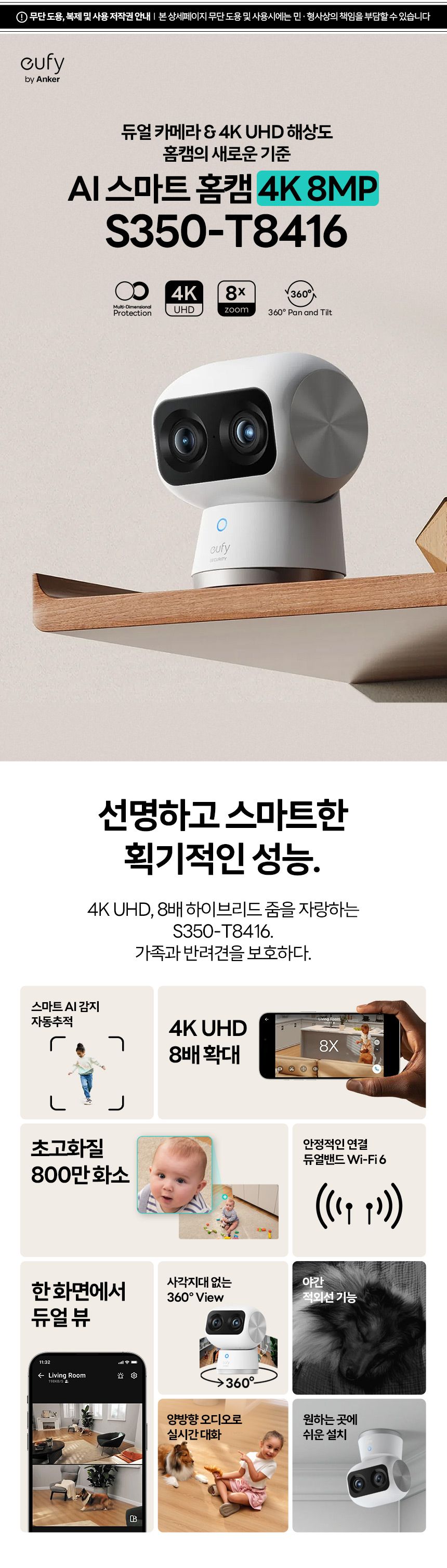
Figure 1: Eufy S350-T8416 Dual Home Camera
2. Package Contents
Please check that all items are included in your package:
- Eufy S350-T8416 Dual Home Camera
- USB-C Cable
- Power Adapter
- Mounting Plate
- Screws
- Wall Anchors
- Quick Start Guide (not included in this manual)

Figure 2: Camera components and basic installation overview. The image illustrates the camera, USB-C cable, power adapter, mounting plate, screws, and anchors.
3. Setup
3.1 Initial Placement
Choose a suitable indoor location for your camera. Ensure it has a clear line of sight to the area you wish to monitor and is within range of your Wi-Fi network. The camera supports both 2.4GHz and 5GHz Wi-Fi bands for flexible connectivity.
3.2 Powering On
- Connect the USB-C cable to the camera's charging port.
- Plug the other end of the USB-C cable into the power adapter.
- Plug the power adapter into a wall outlet. The camera will power on and indicate its status with an LED light.
3.3 App Installation and Pairing
- Download the Eufy Security app from your smartphone's app store (iOS or Android).
- Create a Eufy Security account or log in if you already have one.
- Follow the in-app instructions to add your S350 camera. This typically involves scanning a QR code on the camera or manually selecting the device and connecting it to your home Wi-Fi network.
3.4 Mounting the Camera (Optional)
If you choose to wall-mount your camera, follow these steps:
- Select Location: Choose a flat surface on a wall or ceiling.
- Mark Holes: Use the mounting plate to mark the positions for drilling.
- Drill Holes: Drill holes at the marked positions.
- Insert Anchors: Insert the wall anchors into the drilled holes.
- Attach Mounting Plate: Secure the mounting plate to the wall using the provided screws.
- Mount Camera: Attach the camera to the mounting plate, ensuring it is securely fastened.
4. Operating Instructions
The Eufy S350 camera is operated primarily through the Eufy Security app.
4.1 Live View and Recording
- Open the Eufy Security app and select your S350 camera to view the live feed.
- You can manually record video or take screenshots directly from the live view interface.
- The camera automatically records events based on your detection settings.
4.2 Pan and Tilt Control
The camera offers 360° horizontal pan and 75° vertical tilt for comprehensive coverage.
- In the live view, swipe your finger across the screen to control the camera's pan and tilt movements.
- Utilize the preset positions feature in the app for quick navigation to frequently monitored areas.
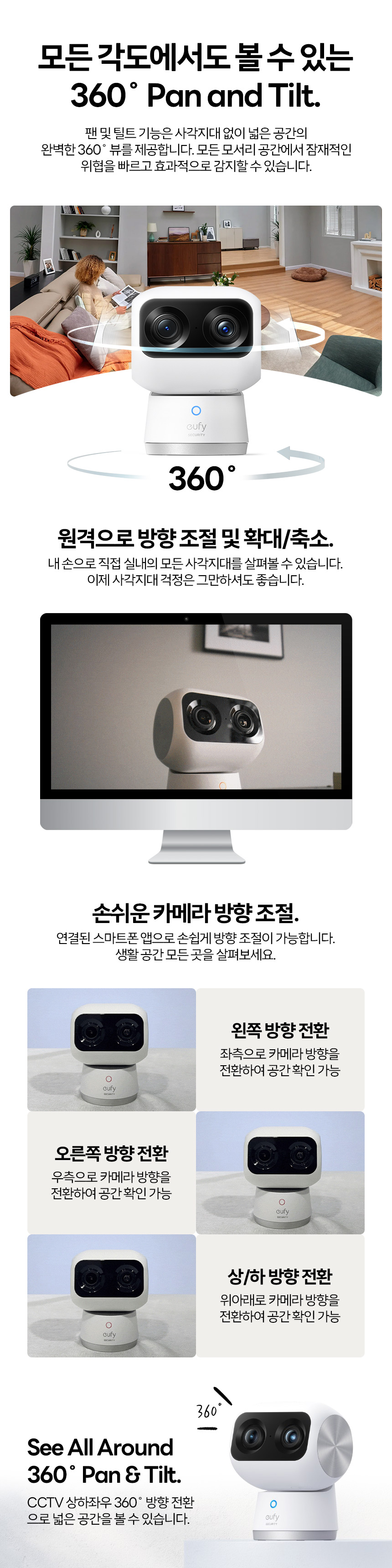
Figure 3: 360° Pan and Tilt functionality.
4.3 8x Hybrid Zoom
The S350 features an 8x hybrid zoom, combining a 4K wide-angle lens and a 2K telephoto lens to provide detailed views.
- Pinch-to-zoom on the live view screen to digitally zoom in on specific areas.
- The dual-lens system enhances clarity even at higher zoom levels.
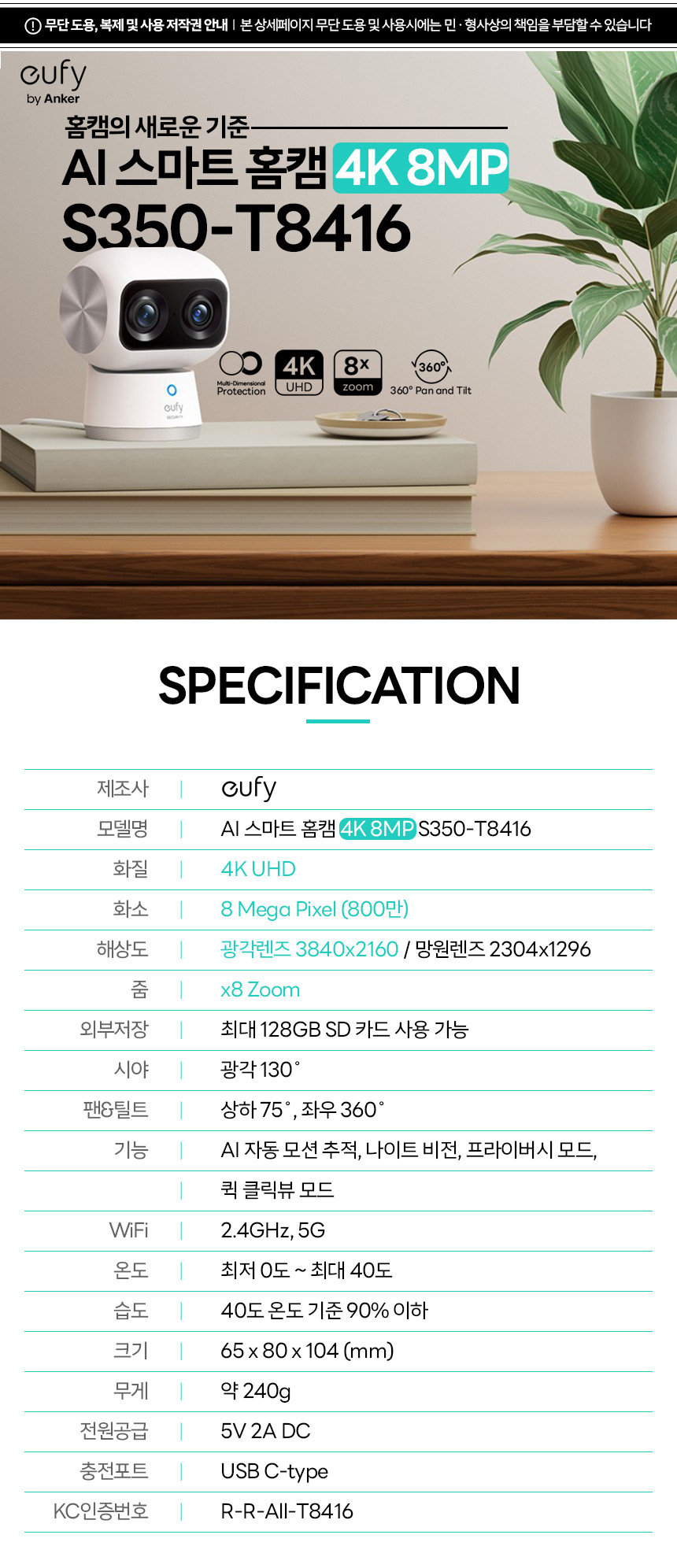
Figure 4: 8x Hybrid Zoom capability.
4.4 AI Motion Tracking and Detection
The camera uses AI to detect and track human and animal movement, reducing false alarms.
- Enable AI motion tracking in the app settings to have the camera automatically follow detected subjects.
- Customize detection zones and sensitivity to focus on critical areas.
- The camera can differentiate between humans and pets, sending relevant alerts.

Figure 5: AI Human and Animal Detection.
4.5 Night Vision
Equipped with high-output infrared LEDs and an f/1.6 lens, the S350 provides clear night vision up to 10 meters, even in complete darkness.
- Night vision activates automatically in low-light conditions.
- The advanced optics ensure minimal noise and rich detail in nighttime footage.
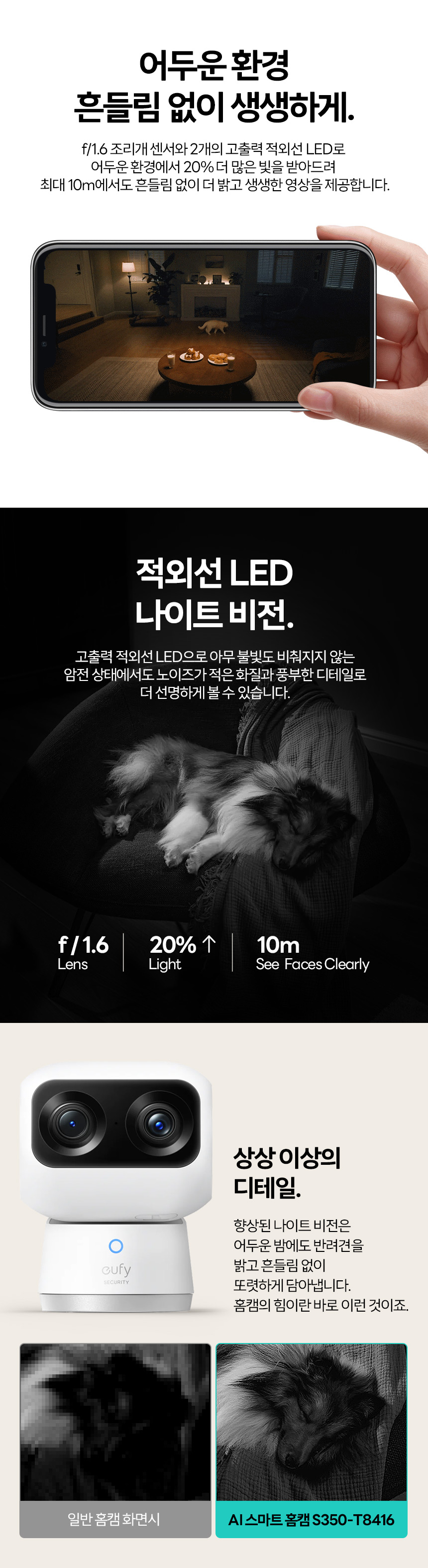
Figure 6: Enhanced Night Vision capabilities.
4.6 Two-Way Audio
Use the built-in microphone and speaker for two-way communication through the app.
- Tap the microphone icon in the live view to speak through the camera.
- Listen to audio from the camera's environment.
4.7 Local Storage
The camera supports up to a 128GB microSD card for local storage of recordings.
- Insert a compatible microSD card into the designated slot on the camera.
- Manage recordings and storage settings via the Eufy Security app.
5. Maintenance
- Cleaning: Gently wipe the camera lens and body with a soft, dry cloth. Avoid using harsh chemicals or abrasive materials.
- Firmware Updates: Regularly check for and install firmware updates through the Eufy Security app to ensure optimal performance and security.
- Power Supply: Use only the original power adapter and USB-C cable provided with the camera.
- Environmental Conditions: Ensure the camera operates within the specified temperature and humidity ranges to prevent damage.
6. Troubleshooting
- Camera Not Connecting to Wi-Fi:
- Ensure your Wi-Fi network is 2.4GHz or 5GHz and within range.
- Check Wi-Fi password accuracy.
- Restart your router and the camera.
- Try moving the camera closer to the router during setup.
- Poor Video Quality:
- Check your internet connection speed.
- Ensure the camera lens is clean.
- Adjust video quality settings in the Eufy Security app.
- Motion Detection Not Working:
- Verify motion detection is enabled in the app.
- Adjust sensitivity settings.
- Check detection zones to ensure they cover the desired areas.
- Camera Offline:
- Check if the camera is powered on.
- Verify your Wi-Fi network is active.
- Restart the camera and your router.
7. Specifications
| Feature | Specification |
|---|---|
| Model Name | S350-T8416 |
| Resolution | 4K UHD (3840x2160) |
| Pixels | 8 Megapixel |
| Lens Type | Wide-angle (3840x2160), Telephoto (2304x1296) |
| Zoom | 8x Hybrid Zoom |
| External Storage | Max 128GB MicroSD card |
| Field of View | 130° |
| Pan/Tilt | Pan 360°, Tilt 75° |
| AI Functions | AI Motion Tracking, Human/Animal Detection, Privacy Mode |
| Wi-Fi Connectivity | Dual-Band Wi-Fi 6 (2.4GHz, 5GHz) |
| Operating Temperature | 0°C to 40°C (32°F to 104°F) |
| Operating Humidity | Below 90% at 40°C |
| Dimensions (L x W x H) | 65 x 80 x 104 mm (2.56 x 3.15 x 4.09 inches) |
| Weight | Approx. 240g (0.53 lbs) |
| Power Input | 5V 2A DC |
| Charging Port | USB Type-C |

Figure 7: Eufy S350-T8416 Specifications.
8. User Tips
- Optimal Wi-Fi: For the best 4K streaming and responsiveness, ensure your camera is connected to a strong Wi-Fi 6 network, preferably the 5GHz band if available and stable.
- Privacy Zones: Utilize the privacy zone feature in the app to black out areas within the camera's view that you do not wish to record, enhancing personal privacy.
- AI Customization: Experiment with AI detection sensitivity and activity zones to minimize unnecessary alerts and optimize battery life (if applicable, though this is a wired camera, it helps with notification fatigue).
- Regular Checks: Periodically check the live feed and recorded events to ensure the camera is functioning as expected and covering the desired areas.
9. Warranty and Support
Eufy products typically come with a limited warranty. For specific warranty details and duration, please refer to the warranty card included with your product or visit the official Eufy support website. Keep your proof of purchase for warranty claims.
For technical support, troubleshooting assistance, or to report any issues, please contact Eufy customer service through their official website or the Eufy Security app. You may also find helpful FAQs and community forums on their support pages.
Manufacturer: Eufy (by Anker)
KC Certification No: R-R-All-T8416