
Introduction
The K11 Security Camera is a versatile 1080P HD wireless camera designed for home and office surveillance. It features advanced functionalities such as AI human detection, real-time app alarms, two-way intercom, and multiple night vision modes, ensuring comprehensive monitoring and communication capabilities. This manual provides detailed instructions for setting up, operating, and maintaining your K11 camera.
Setup Guide
Package Contents
Before you begin, please ensure all items are present in your package:
- 1 x K11 Security Camera (Host)
- 1 x User Manual (Chinese and English instructions)
- 1 x USB Cable
- 1 x Power Adapter (5V/1.5A)
- 1 x Fixing Bracket
- 1 x Screw Kits
Physical Installation and Mounting
The K11 camera offers flexible mounting options to suit various environments:
- Lay Flat: Place the camera on any flat surface like a table or shelf.
- Wall Hanging: Use the provided fixing bracket and screw kits to mount the camera on a wall.
- Inversion: Mount the camera inverted on a ceiling for a wider overhead view. The app typically allows for image rotation if needed.

Powering On
- Connect the USB cable to the camera's power input port.
- Plug the other end of the USB cable into the provided 5V/1.5A power adapter.
- Plug the power adapter into a standard electrical outlet. The camera will power on and typically indicate its status with an LED light.
App Installation and Pairing
- Download the recommended companion app from your smartphone's app store (e.g., Google Play Store or Apple App Store). Refer to the included instructions for the specific app name.
- Register for a new account or log in if you already have one.
- Follow the in-app instructions to add a new device. This usually involves scanning a QR code on the camera or manually selecting the camera model.
- Connect the camera to your home or office Wi-Fi network as prompted by the app. Ensure your Wi-Fi signal is strong in the camera's location.
Operating Instructions
Live View and Recording
Once paired, open the app to access the live video feed from your K11 camera. You can typically initiate manual recordings or capture screenshots directly from the live view interface.
Panoramic View and Gimbal Rotation
The K11 camera features a dual PTZ (Pan-Tilt-Zoom) design, allowing for a 360° panoramic view horizontally and 90° vertical rotation. Use the controls within the mobile app to remotely adjust the camera's viewing angle, eliminating blind spots and providing comprehensive coverage.

One-Touch Calling
The camera is equipped with a call button for simple and fast operation. When elderly individuals or children are alone at home without a mobile phone, they can gently press the button on the camera to initiate a remote call to contact family members outside. Ensure that out-of-town family members have enabled app notification permissions to receive these call alerts.
Two-Way Intercom
The K11 camera supports a voice call function, allowing you to communicate with individuals near the camera in real-time. It provides ultra-high-definition video and two-way high-quality voice calls, making communication seamless and clear.

AI Human Detection and Automatic Tracking
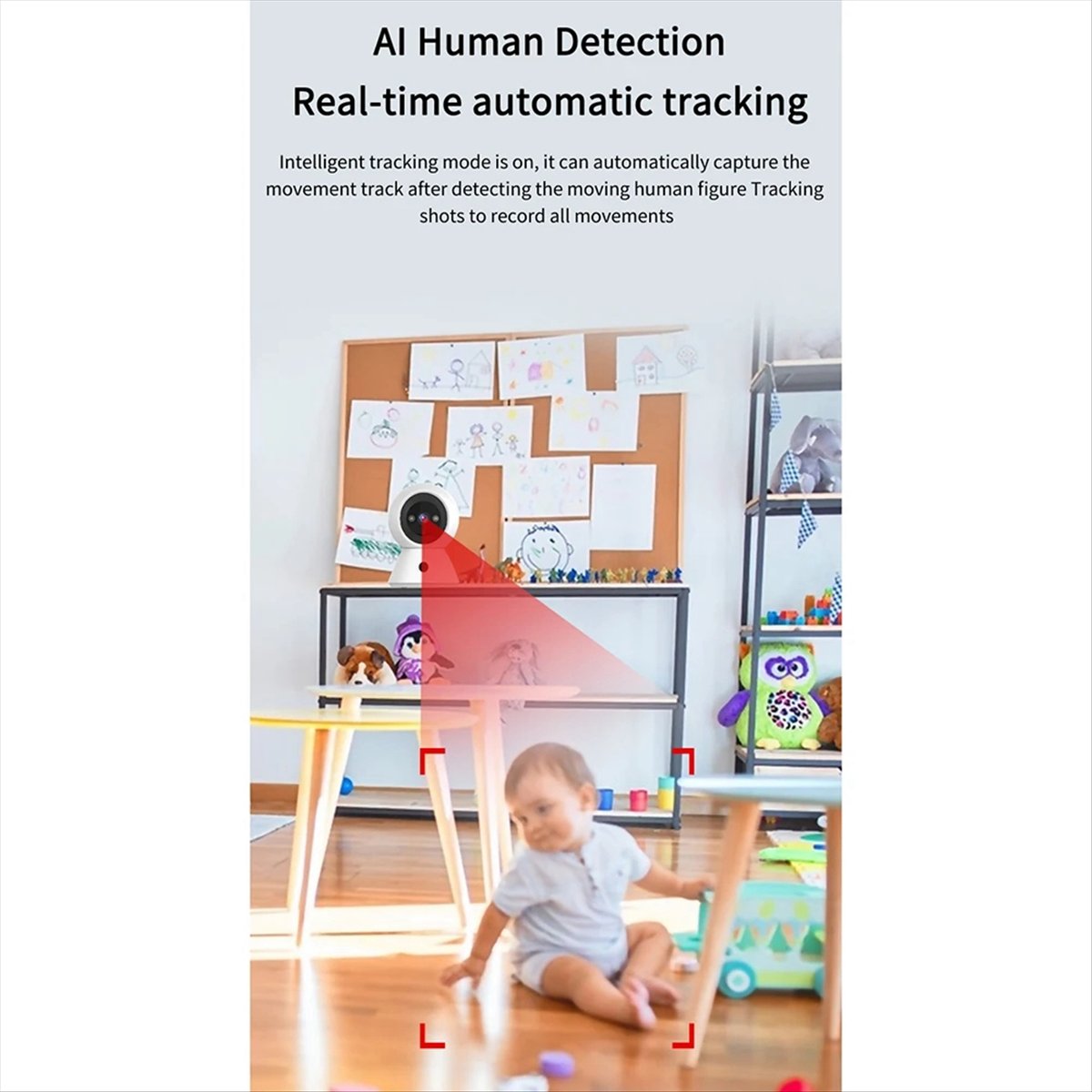
With intelligent tracking mode enabled, the camera can automatically capture the movement track of a detected human figure. It records all movements, providing real-time monitoring and alerts for any human activity within its field of view.

Customized Zoning
The app allows for personalized drawing of electronic fence monitoring areas. You can define specific activity zones, such as a kitchen balcony or other sensitive areas. If movement is detected within these zones, the camera will sound an alarm in real-time and send a notification to your mobile phone.

Night Vision Modes
The K11 camera supports multiple night vision modes to ensure clear visibility in low-light conditions:
- Smart Night Vision: Automatically adjusts between infrared and full-color based on ambient light.
- Full Color Night Vision: Provides color images even in low light.
- Infrared Night Vision: Standard black and white night vision using infrared LEDs.
- Starlight Night Vision: Enhanced low-light performance for clearer images in very dim conditions.
Alarm Mode
When an event is detected (e.g., motion in a customized zone), the camera triggers an alarm. The system will push alarm information directly to your mobile app and record event video for review.
Maintenance
Cleaning
To maintain optimal performance, periodically clean the camera lens and body. Use a soft, dry cloth to gently wipe away dust and smudges. Avoid using harsh chemicals or abrasive materials that could damage the camera's surface or lens.
Firmware Updates
Regularly check the companion app for available firmware updates. Keeping your camera's firmware up-to-date ensures you have the latest features, security patches, and performance improvements.
Troubleshooting
Common Issues and Solutions
- Camera not connecting to Wi-Fi:
Ensure your Wi-Fi password is correct. Place the camera closer to your Wi-Fi router. Check if your Wi-Fi network is 2.4GHz, as many security cameras do not support 5GHz networks. Restart both the camera and your router. - Poor image quality:
Clean the camera lens. Ensure there is adequate lighting. Check your internet connection speed, as a slow connection can affect streaming quality. - Motion detection not working or too sensitive:
Adjust the motion detection sensitivity settings in the app. Define specific activity zones to reduce false alarms. Ensure the camera's view is not obstructed. - No app notifications:
Check your phone's notification settings for the camera app and ensure they are enabled. Verify that the camera is connected to the internet and that alarm mode is activated in the app. For one-touch calling, ensure app notification permissions are granted to all relevant family members. - Two-way intercom audio issues:
Ensure your phone's volume is up and the camera's microphone/speaker are not obstructed. Check app settings for audio input/output.
Specifications
| Feature | Detail |
|---|---|
| Product Name | K11 Security Camera |
| Pixel Quality | 1080P HD |
| Video Processing | H.265 / H.264 / MJPEF / JPEG |
| Power Input | 5V/1.5A |
| Working Humidity Range | 10% - 90% |
| Operating Temperature Range | -10°C - 55°C |
| Material | Plastic |
| Color | White |
| Alarm Mode | APP push alarm information, detection event video |
| Night Vision Mode | Smart / Full color / Infrared / Starlight night vision |
| Rotation | 360° Horizontal, 90° Vertical |
| Detection | AI Human Detection, Automatic Tracking |
| Communication | Two-way intercom, One-touch calling |
User Tips
- Optimal Placement: For best motion detection and tracking, place the camera in a location with a clear, unobstructed view of the area you wish to monitor. Avoid placing it directly facing strong light sources.
- Secure Your Wi-Fi: Always use a strong, unique password for your Wi-Fi network to protect your camera and home network from unauthorized access.
- Regular App Checks: Periodically check the camera's companion app for recorded events, live view, and any system notifications to ensure continuous monitoring.
- Power Stability: Ensure the camera is connected to a stable power source to prevent interruptions in recording or monitoring.
Warranty and Support
For warranty information, technical support, or service inquiries, please refer to the specific warranty card included with your product or contact the seller directly. Keep your purchase receipt as proof of purchase.