
1. Introduction
Thank you for choosing the LEEDOAR H6 Video Doorbell. This smart video doorbell provides enhanced home security with features such as 2.4G WiFi connectivity, two-way audio, HD infrared night vision, and cloud storage. This manual will guide you through the setup, operation, and maintenance of your new device to ensure optimal performance and security for your home.

Figure 1: H6 Video Doorbell and Chime with app interface.
2. Key Features
- PIR Motion Detection & Human Detection: Advanced sensors reduce false alarms and send real-time alerts.
- Two-way Audio: Communicate with visitors or deter unwanted guests from anywhere.
- HD Infrared Night Vision: Clear visibility day and night, even in complete darkness.
- Ultra Wide Angle Lens: Provides a broad view of your doorstep.
- Cloud Storage: Supported for secure storage of video recordings.
- IP65 Weather Resistance: Designed to withstand various weather conditions (rain, shine, snow, dust) with a working temperature range of 14-140°F (-10°C to 60°C).
- Free Chime: Hear notifications anywhere in your home when someone presses your doorbell.
- Capture Face Images: Records images of visitors.
- Wireless Connectivity: Operates on 2.4G WiFi for easy installation.

Figure 2: Visual representation of key features.
3. Package Contents
Please check the package for the following items:
- LEEDOAR H6 Video Doorbell Unit
- Wireless Chime Unit
- Mounting Bracket
- Mounting Screws and Wall Anchors
- USB Charging Cable (for chime, if applicable)
- User Manual (this document)
Note: Batteries (3 AAA) are typically not included and must be purchased separately.

Figure 3: H6 Video Doorbell and Chime units.
4. Specifications
| Attribute | Specification |
|---|---|
| Brand Name | LEEDOAR |
| Model | H6 |
| Item Type | VIDEO DOORBELL |
| Power Source | Dry battery (3 AAA batteries) |
| Communication Interface | Wireless (2.4G WIFI) |
| Intercom | Yes (Two-way Voice Intercom) |
| Display | Color |
| Feature | Photograph, Night Vision, Free Cloud Storage, Capture Face Images |
| Alarm | Yes |
| Cloud Storage | Supported |
| Charging Method | Battery |
| Weather Resistance | IP65 |
| Working Temperature | 14-140°F (-10°C to 60°C) |
| Certifications | CE, FCC, RoHS, UL |
| Smart Home Platform | Other |
| Origin | Mainland China |
| Doorbell Dimensions (approx.) | 14.65 cm (H) x 5.05 cm (W) x 2.83 cm (D) / 5.74 in (H) x 1.98 in (W) x 1.11 in (D) |
| Chime Dimensions (approx.) | 4.45 cm (H) x 4.15 cm (W) x 2.3 cm (D) / 1.75 in (H) x 1.63 in (W) x 0.9 in (D) |
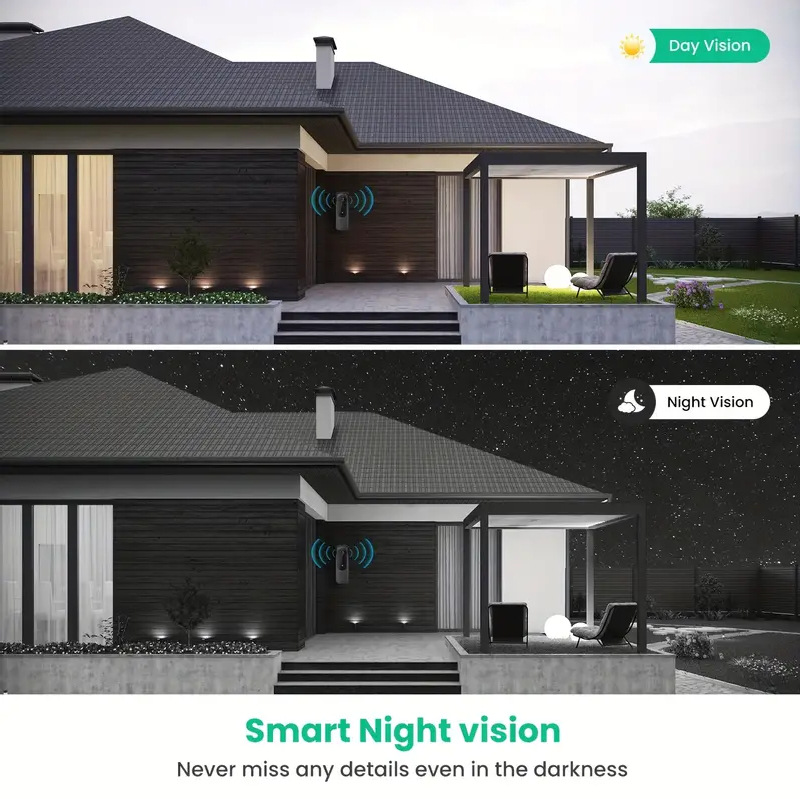
Figure 4: Product dimensions for doorbell and chime.
5. Setup Guide
Follow these steps to set up your LEEDOAR H6 Video Doorbell:
5.1. App Download and Installation
- Download the 'weihome' App: Search for 'weihome' in your device's App Store (for iOS) or Google Play Store (for Android).
- Grant Permissions: During installation, the app will request various permissions. Please allow access to track activity, send notifications, use wireless data (WLAN & Cellular recommended), and connect to devices on your local network. These permissions are necessary for the doorbell's full functionality.
- Register/Log In: For new users, input your email address and register directly with a password. Existing users can log in with their email and password.
5.2. Device Pairing and WiFi Configuration
- Add Device: Open the 'weihome' app. Click the '+' icon in the top right corner, then select 'Add Device' and choose 'Doorbell Camera'.
- Power On and Reset: Ensure the doorbell is powered on (insert 3 AAA dry batteries). Press and hold the doorbell button for 10 seconds to reset the device. You will hear a voice alert indicating power and the indicator light will flash with a beep sound. The blue light on the doorbell will continuously flash, indicating a successful reset.
- Connect to WiFi: In the app, click 'Next' to set up WiFi. The app should automatically jump to your phone's WiFi list. If not, manually navigate to your phone's WiFi settings. Find and connect to the network starting with 'Care-APxxxxxxxxx'.
- Enter Home WiFi Password: Return to the 'weihome' app. Select your home wireless network (2.4GHz only) and enter its password. The device will then connect to your home network.
- Name Your Device: Once connected, you can edit the device name (e.g., 'Living room', 'Front Door') and select an application scenario. Click 'Done'.
5.3. Chime Pairing
- Reset Chime: Open the back cover of the chime unit. Long press and hold the reset button for 5-8 seconds.
- Pair with Doorbell: While holding the setting key on the chime, simultaneously press the doorbell button. A 'Dingdong' sound from the chime indicates successful pairing.
Video 1: Step-by-step guide for app setup, device pairing, and WiFi configuration.
6. Operation
6.1. Live View and Two-Way Audio
- Open the 'weihome' app to view the live feed from your doorbell camera.
- When a visitor presses the doorbell, both the main device and any shared devices will receive a notification. You can then answer the call and engage in two-way audio communication.
- Use the microphone and speaker icons in the app to talk and listen to visitors.
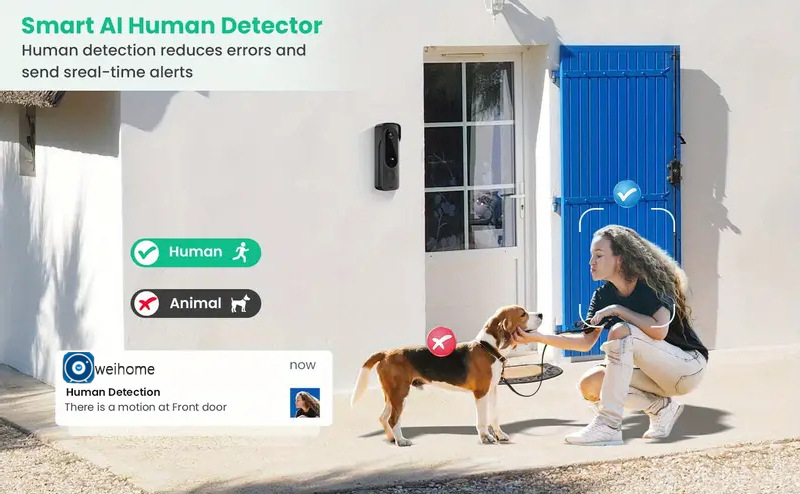
Figure 5: Example of two-way audio interaction.
6.2. Motion Detection and Alerts
- The doorbell features PIR motion detection and AI human detection to identify movement at your door.
- When motion is detected, you will receive real-time alerts on your smartphone.
- Review recorded events in the app's 'Events' section.
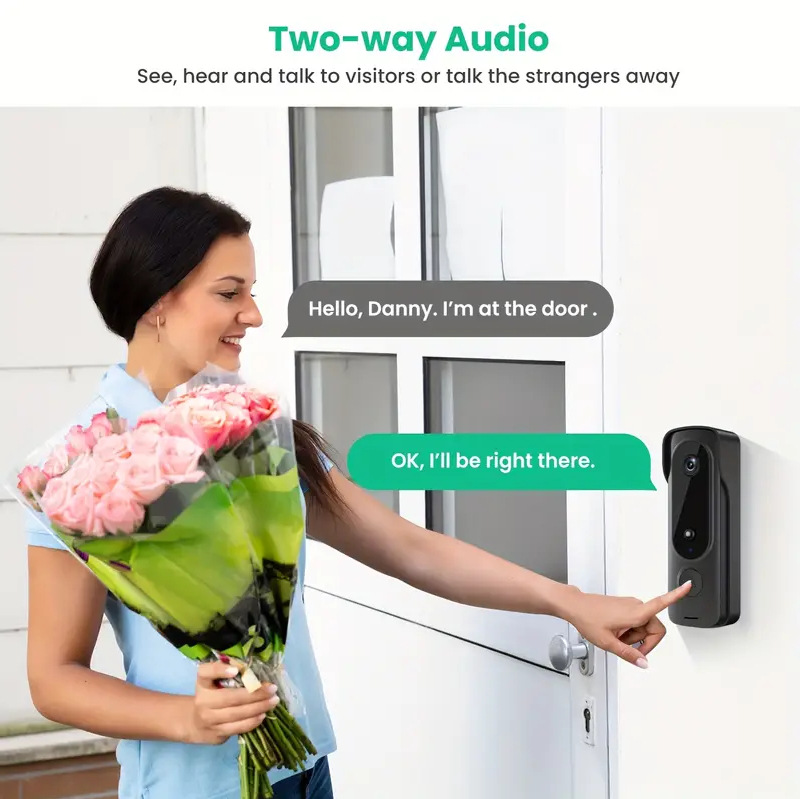
Figure 6: Smart AI Human Detection distinguishing between humans and animals.
6.3. Night Vision
- The doorbell automatically switches to night vision mode in low-light conditions.
- Infrared technology ensures clear video footage even in complete darkness.

Figure 7: Comparison of day and night vision capabilities.
6.4. Device Sharing
- You can share access to your doorbell with family members or trusted individuals.
- In the app, navigate to the device settings and select the sharing option. You can generate a QR code for others to scan and gain access.
- The main device owner can cancel sharing at any time to prevent shared users from viewing the feed.
7. Maintenance
- Cleaning: Regularly wipe the camera lens and the doorbell's exterior with a soft, damp cloth to remove dust and dirt. Avoid using harsh chemicals.
- Battery Replacement: When the battery level is low, replace the 3 AAA dry batteries promptly to ensure continuous operation.
- Firmware Updates: Check the 'weihome' app periodically for firmware updates. Keeping your device updated ensures optimal performance and security.
- Environmental Conditions: While the doorbell is IP65 weather-resistant, avoid prolonged exposure to extreme conditions outside its specified operating temperature range (14-140°F).
8. Troubleshooting
| Problem | Possible Solution |
|---|---|
| Doorbell not connecting to WiFi | Ensure your WiFi network is 2.4GHz. Check WiFi password. Make sure the doorbell is within range of your router. Try resetting the doorbell and repeating the setup process. |
| No notifications received | Check app permissions to ensure notifications are enabled. Verify your phone's notification settings for the 'weihome' app. Ensure the doorbell is connected to WiFi. |
| Two-way audio not working | Check app permissions for microphone access. Ensure your phone's volume is up. Verify the doorbell's microphone and speaker are not obstructed. |
| Poor video quality or night vision | Clean the camera lens. Ensure sufficient WiFi signal strength. For night vision, check for any obstructions blocking the infrared sensors. |
| Chime not ringing | Ensure the chime is powered and properly paired with the doorbell. Check the chime's volume settings. Try re-pairing the chime if necessary. |
| Doorbell not turning on | Check if the batteries are inserted correctly and are not depleted. Replace with fresh AAA batteries. |
9. User Tips
- For optimal battery life, consider using high-quality alkaline or rechargeable AAA batteries.
- Mount the doorbell at an appropriate height (typically 48 inches or 1.2 meters from the ground) to capture visitors' faces effectively.
- Regularly check your cloud storage for important recordings and manage storage space as needed.
- If experiencing connectivity issues, try moving your WiFi router closer to the doorbell or installing a WiFi extender.
10. Warranty and Support
LEEDOAR products are designed for reliability and performance. For warranty information, technical support, or service inquiries, please refer to the contact information provided with your purchase or visit the official LEEDOAR website. Keep your purchase receipt as proof of purchase for warranty claims.