
1. Introduction
The EWEADN V82 is a transparent mechanical keyboard designed for both gaming and office environments. It offers versatile connectivity options including wired, 2.4G wireless, and Bluetooth, along with customizable RGB backlighting. This manual provides detailed instructions to help you set up, operate, and maintain your keyboard for an optimal user experience.
2. Key Features
- Tri-Mode Connectivity: Seamlessly switch between wired (USB-C), 2.4G wireless, and Bluetooth connections. Supports up to 4 devices simultaneously.
- Transparent Design: Features a frosted or full transparent body with PBT plastic keycaps, offering a distinctive aesthetic.
- Customizable RGB Backlight: Enjoy 16.8 million colors with multi-color adjustable RGB backlighting. Supports driver customization for light and music rhythm synchronization.
- Hot-Swappable Switches: Equipped with Crystal switches that provide a responsive and satisfying typing experience. The hot-swappable design allows for easy switch replacement without soldering.
- Multi-function Knob: An intuitive knob for quick adjustments, such as volume control or backlight settings.
- Durable Keycaps: Patent keycap structure ensures smooth, wear-resistant, and durable long-term use, preventing yellowing.
- Long-lasting Battery: Built-in 3000mAh lithium battery provides extended usage. Up to 30 days with 2.4G wireless and backlight off, or approximately 3 days with backlight on.
- Enhanced Stability: High-precision satellite axes are factory lubricated to reduce key noise and improve typing comfort.
- Broad Compatibility: Supports Windows, macOS, Android, and iOS operating systems.
- Noise Reduction: Features a sandwich silicone and bottom silicone silencing program for a quieter typing experience.

Figure 2.1: EWEADN V82 Transparent Mechanical Keyboard with RGB Backlight

Figure 2.2: Key Features Overview
3. Package Contents
Please check the package for the following items:
- EWEADN V82 Mechanical Keyboard
- USB-C Cable
- 2.4G USB Receiver (Dongle)
- Keycap Puller
- Switch Puller
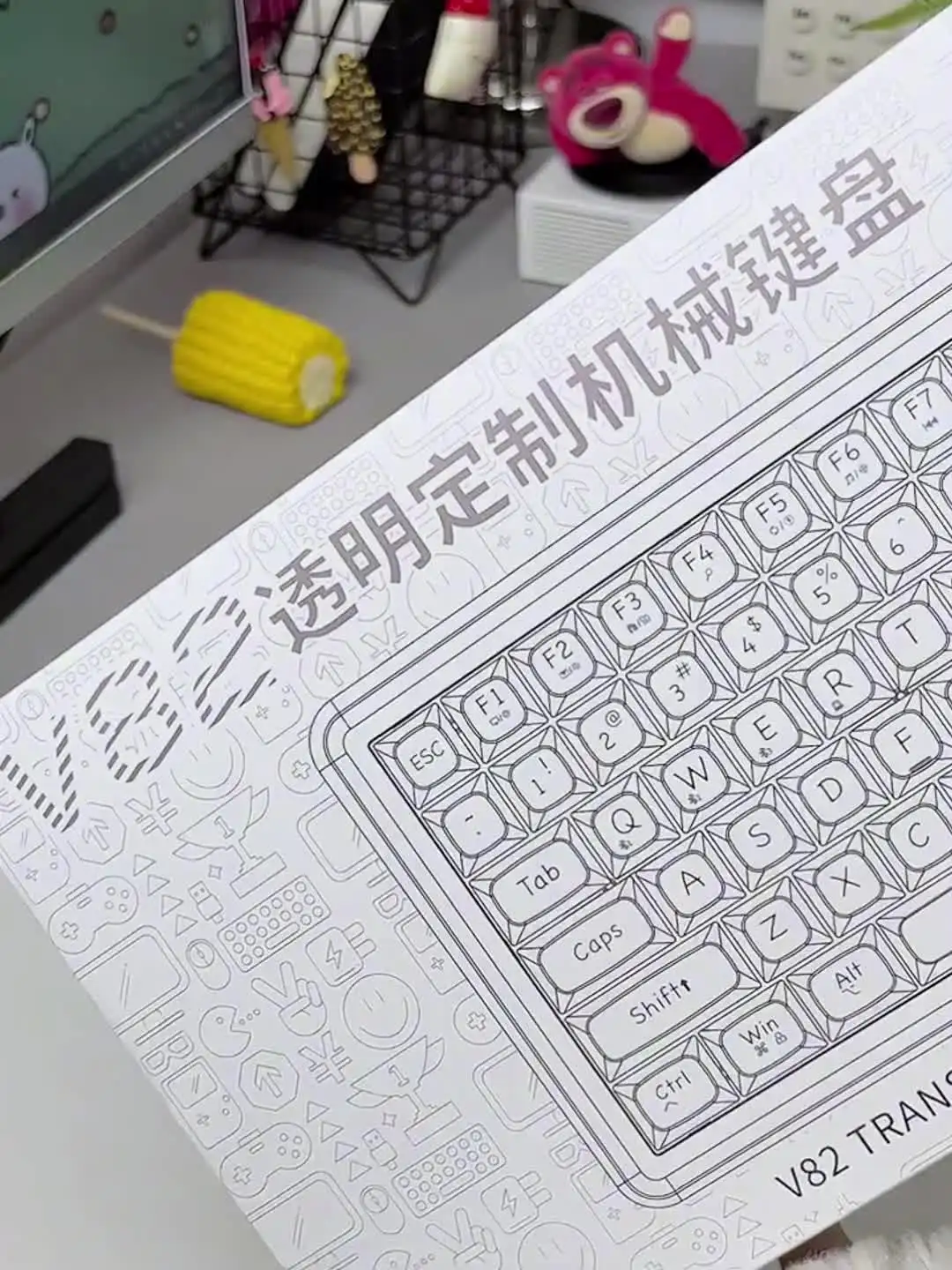
Video 3.1: Unboxing and Feature Demonstration
4. Specifications

Figure 4.1: Product Specification Parameters
| Attribute | Detail |
|---|---|
| Brand | EWEADN |
| Model | V82 |
| Lights | RGB (approx. 16.8 million colors) |
| Axle Body | Crystal Switch |
| Weight | 823 ± 5g |
| Connection Mode | Wired | 2.4G Wireless | Bluetooth |
| Fuselage Material | PC |
| Keycap Material | PBT Plastic |
| Number of Keys | 82 (81+1) |
| Silencing Program | Sandwich Silicone + Bottom Silicone |
| Product Size | 330 x 142 x 40mm |
| Battery Capacity | 3000 mAh |
| Support System | Windows, macOS, Android, Tablet |
| Switches Hot Swap | Yes |
5. Setup Instructions
5.1. Initial Charging
Before first use, it is recommended to fully charge the keyboard. Connect the provided USB-C cable to the keyboard's USB-C port and the other end to a USB power source (e.g., computer USB port, wall adapter). The battery indicator will show charging status.
5.2. Wired Connection
- Connect the USB-C cable directly from the keyboard to an available USB port on your computer.
- The keyboard will automatically switch to wired mode and be ready for use.
5.3. 2.4G Wireless Connection
- Locate the 2.4G USB receiver (dongle) in the package.
- Plug the 2.4G receiver into an available USB port on your computer.
- Switch the keyboard's connection mode to 2.4G. This is typically done via a physical switch on the keyboard or a key combination (refer to your keyboard's specific markings).
- The keyboard should connect automatically.
5.4. Bluetooth Connection
- Switch the keyboard's connection mode to Bluetooth. This is typically done via a physical switch or a key combination (e.g., Fn + BT1/BT2/BT3).
- On your device (PC, laptop, tablet, phone), enable Bluetooth and search for new devices.
- Select "EWEADN V82" (or a similar name) from the list of available devices to pair.
- The keyboard supports connecting to up to 3 Bluetooth devices. You can switch between paired devices using dedicated key combinations (e.g., Fn + 1/2/3).

Figure 5.1: Multi-device Compatibility and Tri-mode Connectivity

Figure 5.2: Triple-Mode Connectivity Across Operating Systems
6. Operating Instructions
6.1. Switching Connection Modes
Use the physical switch located on the keyboard or designated key combinations (e.g., Fn + mode key) to toggle between Wired, 2.4G, and Bluetooth modes as needed.
6.2. RGB Backlight Control
- Brightness Adjustment: Use the multi-function knob (rotate) or specific key combinations (e.g., Fn + Up/Down arrow) to adjust backlight brightness.
- Mode Switching: Use the multi-function knob (press) or key combinations (e.g., Fn + Insert/Delete) to cycle through various RGB lighting effects and patterns.
- Color Customization: Advanced customization of 16.8 million colors and light rhythms may be available through dedicated driver software. Please check the EWEADN official website for software downloads and instructions.

Figure 6.1: RGB Full Color Backlight
6.3. Multi-function Knob
The multi-function knob typically controls volume (rotate) and media playback (press). It may also control backlight brightness or modes depending on the current function or selected profile.

Figure 6.2: Multi-function Knob and Transparent Body Detail
6.4. Keycap and Switch Replacement (Hot-Swappable)
- Use the provided keycap puller to carefully remove the desired keycaps.
- Use the switch puller to gently grip and remove the mechanical switch from its socket on the PCB.
- Align the pins of the new switch with the hot-swap sockets on the PCB.
- Press the new switch firmly until it clicks into place. Ensure it is seated correctly to avoid bent pins.
- Reattach the keycaps by pressing them onto the switch stems.

Figure 6.3: Patent Keycap Structure

Figure 6.4: High Precision Satellite Axes
7. Maintenance
- General Cleaning: Regularly clean the keyboard with a soft, dry, lint-free cloth. For deeper cleaning, remove keycaps and use compressed air to clear dust and debris from between switches.
- Keycap Care: Avoid using harsh chemicals or abrasive materials on the keycaps. If necessary, clean keycaps with a mild soap solution and water, ensuring they are completely dry before reattaching.
- Switch Care: Hot-swappable switches can be removed for individual cleaning or lubrication. When reinserting, ensure proper alignment of the pins with the sockets to prevent damage.
- Battery Care: To prolong battery life, avoid fully discharging the keyboard frequently. Store the keyboard in a cool, dry place when not in use for extended periods.
8. Troubleshooting
- Keyboard not responding:
- Check the battery level and charge the keyboard if low.
- Ensure the correct connection mode (Wired, 2.4G, or Bluetooth) is selected on the keyboard.
- For 2.4G wireless, ensure the USB receiver is securely plugged into your computer.
- For Bluetooth, ensure the keyboard is paired and within range of your device. Try re-pairing if necessary.
- Try connecting via a different mode (e.g., wired) to isolate the issue.
- Backlight not working or flickering:
- Check the backlight brightness settings using the knob or key combinations.
- Ensure the keyboard is sufficiently charged.
- Try resetting the backlight mode.
- Specific keys not registering:
- Ensure keycaps and switches are properly seated.
- If a specific key is not working, try replacing its switch with a spare one (if available) using the switch puller.
- Connectivity issues (2.4G/Bluetooth):
- 2.4G: Ensure there is no significant interference from other wireless devices. Try plugging the USB receiver into a different USB port.
- Bluetooth: Ensure no other Bluetooth devices are causing interference. Try forgetting the keyboard from your device's Bluetooth settings and re-pairing it.
9. User Tips
- Customization: Take full advantage of the hot-swappable switches to experiment with different switch types (linear, tactile, clicky) for a personalized typing feel that suits your preferences.
- Backlight Effects: Explore the various RGB lighting modes and consider using the driver software (if available from EWEADN's website) to create unique lighting profiles that match your setup or mood.
- Multi-Device Workflow: Utilize the tri-mode connectivity to quickly switch between your computer, tablet, and phone, enhancing your productivity and streamlining your workflow.

Figure 9.1: Long Battery Life
10. Warranty and Support
For warranty claims, technical support, or service inquiries, please contact the seller or manufacturer directly. It is advisable to keep your proof of purchase for any claims. Refer to the product packaging or the seller's website for specific warranty terms and contact information.