
1. Introduction
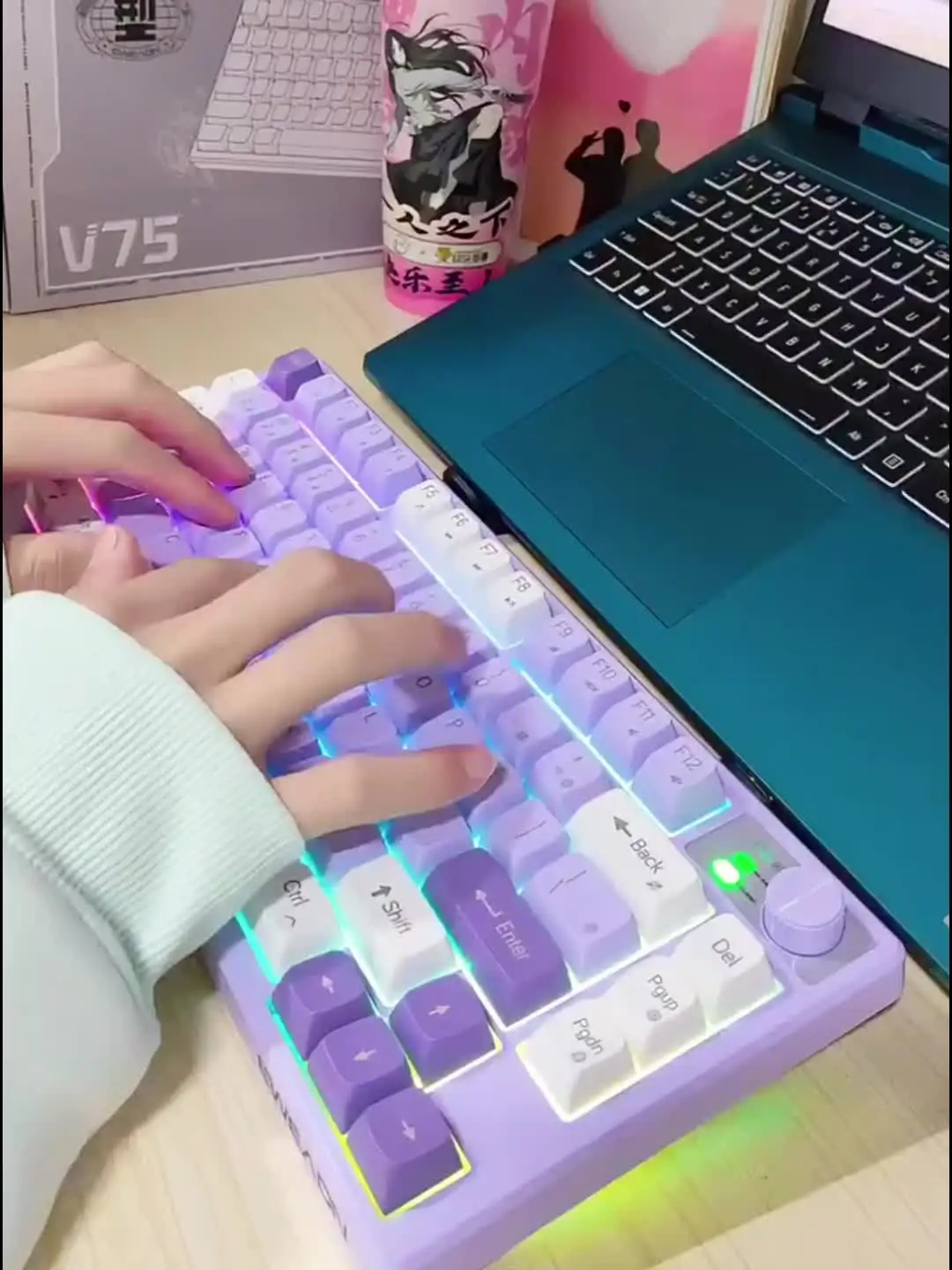
Thank you for choosing the EWEADN V75 Wireless Keyboard. This compact and versatile keyboard is designed to enhance your typing experience across various devices and scenarios. Featuring a 75% layout, dual-mode wireless connectivity (2.4Ghz and Bluetooth 5.0), vibrant RGB backlighting, and a convenient multi-function knob, the V75 offers both functionality and style. This manual provides detailed instructions to help you set up, operate, and maintain your new keyboard.
2. Product Overview
The EWEADN V75 is a 75% layout keyboard, meaning it retains most essential keys in a more compact form factor, saving desk space while remaining highly functional. It supports both 2.4Ghz wireless and Bluetooth 5.0 connections, allowing seamless switching between multiple devices.
Key Features:
- 75% Compact Layout: Efficient design for space-saving and portability.
- Dual-Mode Wireless Connectivity: Connect via 2.4Ghz USB receiver or Bluetooth 5.0.
- RGB Backlighting: Customizable lighting effects with multiple colors and modes.
- Multi-Function Knob: Dedicated knob for quick volume adjustment and mute control.
- Rechargeable Battery: Built-in 1500mAh lithium battery for extended use.
- Wide Compatibility: Supports Desktop, Laptop, Phone, Tablet, Switch, Xbox, and PlayStation.
Product Views:


Product Demonstration Video:
3. Specifications
| Feature | Specification |
|---|---|
| Brand Name | EWEADN |
| Type | 2.4Ghz Wireless |
| Operation Style | Membrane |
| Keyboard Standard | 78 Keys |
| Interface Type | USB |
| Application | Desktop, Laptop, Number, Tablet |
| Style | Ergonomics, Multimedia, Mini, Multifunctional Keyboard |
| Backlight Type | MULTICOLOR (RGB) |
| Full Size keyboard | No (75% layout) |
| Wrist Support | No |
| Switches Hot swap | No |
| Battery Included | Yes (1500mAh Lithium Battery) |
| Language | English |
| Origin | Mainland China |
| Certification | CE, FCC, RoHS, WEEE |
| Package Dimensions (L x W x H) | 38 cm x 22 cm x 8 cm |
| Package Weight | 0.694 kg |
4. Setup
4.1 Charging the Keyboard
Before first use, ensure the keyboard is fully charged. Connect the keyboard to a USB power source using the provided USB cable. The charging indicator will show the charging status and turn off when fully charged.
4.2 Connecting via 2.4Ghz Wireless
- Locate the 2.4Ghz USB receiver, usually stored in a compartment on the keyboard.
- Plug the USB receiver into an available USB port on your computer or compatible device.
- Turn on the keyboard. It should automatically connect to the receiver.
4.3 Connecting via Bluetooth 5.0
- Turn on the keyboard and switch it to Bluetooth mode (refer to the keyboard's physical switch or indicator).
- On your device (PC, Laptop, Phone, Tablet, etc.), enable Bluetooth and search for new devices.
- Select "EWEADN V75" (or similar name) from the list of available devices to pair.
- Follow any on-screen prompts to complete the pairing process.
5. Operating Instructions
5.1 Basic Typing
The EWEADN V75 keyboard functions like a standard QWERTY keyboard. Simply begin typing on your connected device.
5.2 Backlight Control
- Turn ON/OFF Backlight: Press Fn + Back.
- Switch Backlight Colors: Press Fn + [specific key] to cycle through 11 different backlight colors.
- Adjust Light Brightness: Press Fn + Pgup to increase brightness or Fn + Pgdn to decrease brightness (10 levels available).
- Backlight Modes: The keyboard supports 'Always On' and 'Breathing' light modes.
5.3 Multi-Function Knob
The dedicated knob located on the keyboard provides quick access to multimedia controls:
- Press the knob: Mutes or unmutes the audio.
- Rotate counter-clockwise: Decreases the volume.
- Rotate clockwise: Increases the volume.
6. Maintenance
6.1 Cleaning
- Gently wipe the keyboard surface with a soft, damp cloth.
- For deeper cleaning, use compressed air to remove dust and debris from between the keys.
- Avoid using harsh chemicals or abrasive materials that could damage the keyboard's finish.
6.2 Battery Care
- To prolong battery life, avoid fully discharging the keyboard frequently.
- If storing the keyboard for an extended period, charge it to about 50% and store it in a cool, dry place.
7. Troubleshooting
7.1 Keyboard Not Responding
- Check Power: Ensure the keyboard is turned on and has sufficient battery charge. Recharge if necessary.
- Check Connection:
- For 2.4Ghz: Ensure the USB receiver is securely plugged into your device and try a different USB port.
- For Bluetooth: Ensure Bluetooth is enabled on your device and the keyboard is correctly paired. Try unpairing and re-pairing the device.
- Restart Devices: Sometimes, restarting both the keyboard and the connected device can resolve connectivity issues.
7.2 Backlight Not Working
- Ensure the backlight is turned on using Fn + Back.
- Adjust brightness using Fn + Pgup / Pgdn to ensure it's not set to the lowest level.
7.3 Multi-Function Knob Not Working
- Ensure the keyboard is properly connected to your device.
- Check your device's audio settings to ensure volume is not controlled by another application.
7.4 General Issues / Product Not Working / Damaged Package
If you encounter any issues not covered here, or if the product is not working as expected upon receipt, or if the package was damaged, please contact our customer support immediately for assistance. Our support team is responsive and dedicated to resolving your concerns.
8. User Tips
- Membrane vs. Mechanical: The EWEADN V75 uses a membrane operation style, offering a quieter typing experience compared to mechanical keyboards. It does not feature hot-swappable switches.
- iPad Compatibility: Yes, the keyboard is compatible with tablets, including the iPad 10th generation, via Bluetooth connection.
- Multi-Device Use: Take advantage of the dual-mode connectivity to quickly switch between your computer and tablet/phone for seamless workflow.
- Battery Life: With its 1500mAh battery, the keyboard offers good battery life. Remember to turn it off when not in use to conserve power.
9. Warranty and Support
The EWEADN V75 Wireless Keyboard is designed for reliability and performance. For any technical assistance, product inquiries, or support needs, please contact our customer service team:
Email: support@eweadn.com
Our customer service is very responsive and helpful, and we are committed to ensuring your satisfaction.