
Introduction
Welcome to the world of interactive play with your new VEVOR RC Robot Toy! This intelligent robot is designed to provide endless fun and educational experiences for children. Featuring advanced remote control, gesture sensing, and voice command capabilities, it's more than just a toy; it's a companion that can tell stories, sing, dance, and even be programmed. This manual will guide you through the setup, operation, and maintenance of your robot to ensure a safe and enjoyable experience.

The VEVOR RC Robot Toy, ready for interactive play.
Safety Information
- WARNING: Not suitable for children under 36 months due to small parts.
- Adult supervision is recommended during play.
- Keep the robot and its accessories away from water and excessive heat.
- Do not attempt to disassemble or modify the robot or remote control.
- Ensure the charging cable is handled carefully and disconnected when not in use.
Package Contents
Please check the package to ensure all items are present:
- 1 x VEVOR RC Robot Toy (Model: BG1532)
- 1 x 2.4G Long-Range Remote Control
- 1 x USB Type-C Charging Cable
- 1 x Screwdriver
- 1 x Instruction Manual (this document)
Specifications
| Feature | Detail |
|---|---|
| Model Number | BG1532 |
| Brand | VEVOR |
| Theme | Fantasy & Sci-Fi |
| Certification | CE |
| Recommended Age | 6-12 Years (6+) |
| Remote Control | Yes |
| Battery Life | Approximately 40 minutes |
| Charging Port | Type-C |
| Product Weight | 1.94 lbs / 0.88 kg |
| Product Dimensions (L x W x H) | 10.63 in x 4.53 in x 15.75 in (270 mm x 115 mm x 400 mm) |
| Battery Type | Other Battery (Built-in rechargeable) |
| Batteries Included | Yes (for robot) |

Robot dimensions and key features.
Setup
1. Initial Charging
Before first use, fully charge the robot's built-in battery. Use the provided Type-C USB charging cable and connect it to a compatible USB power source (e.g., power adapter, computer, power bank).
- The charging port is located on the robot (refer to the dimensions image for location).
- A full charge provides approximately 40 minutes of play time.
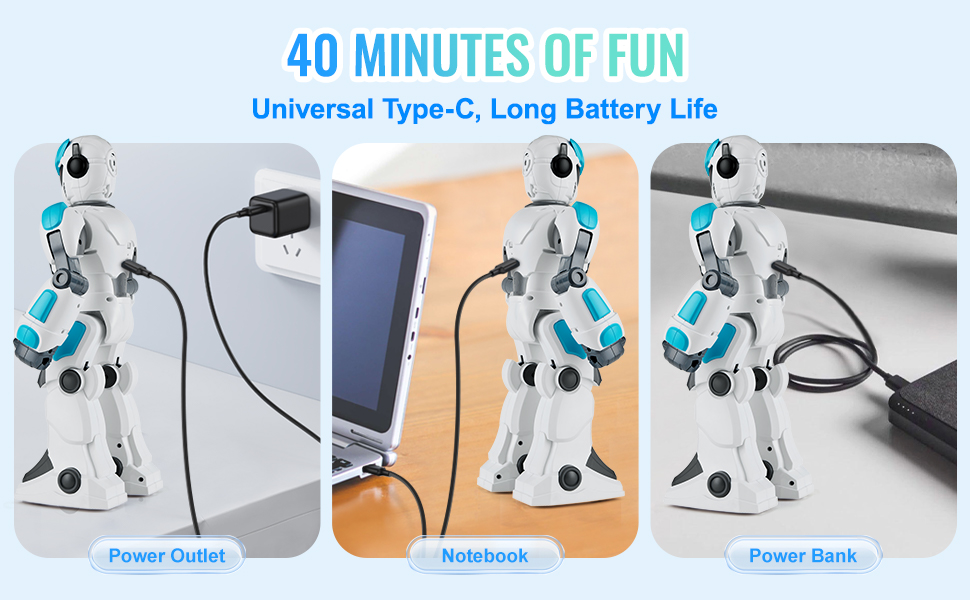
Various options for charging your robot via Type-C USB.
2. Remote Control Batteries
The remote control requires 2x AAA batteries (not included). Use the provided screwdriver to open the battery compartment on the back of the remote, insert the batteries with correct polarity, and close the compartment.
3. Powering On
- Locate the On-off switch on the robot (refer to the dimensions image for location).
- Slide the switch to the 'ON' position. The robot's LED eyes will light up, indicating it's ready.
- Turn on the remote control by pressing its power button.
Operating Instructions
Remote Control Functions
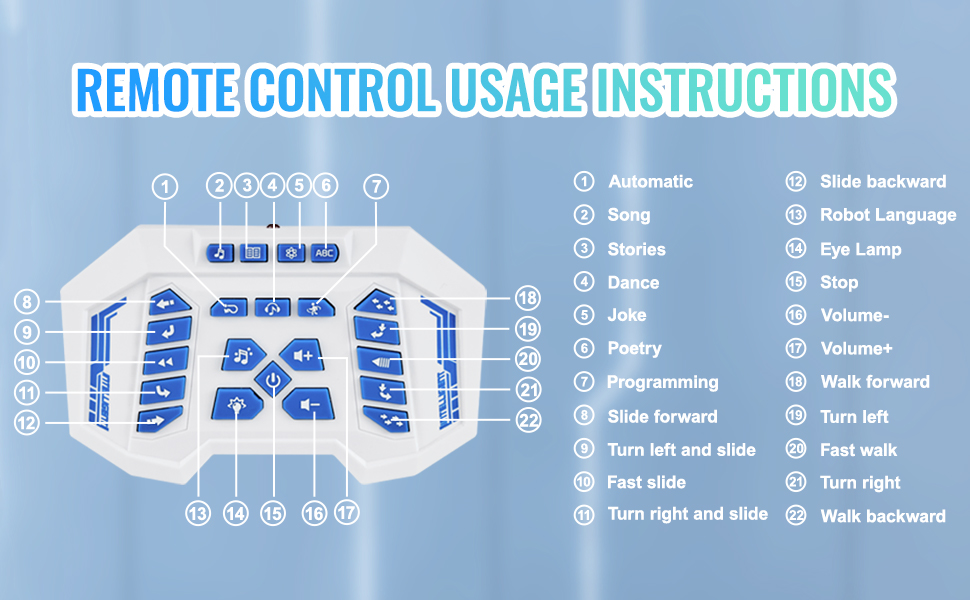
The 2.4G remote control allows for precise command over your robot. Refer to the diagram below for button layout and functions:

Remote Control Usage Instructions.
- Automatic: Initiates an automatic demonstration sequence.
- Song: Plays various songs (8 songs available).
- Stories: Recites stories (5 stories available).
- Dance: Performs dance routines (4 dance routines available).
- Joke: Tells jokes.
- Poetry: Recites poems (5 poems available).
- Programming: Enters programming mode (up to 30 commands can be recorded).
- Slide forward: Makes the robot slide forward.
- Turn left and slide: Turns left while sliding.
- Fast slide: Increases sliding speed.
- Turn right and slide: Turns right while sliding.
- Slide backward: Makes the robot slide backward.
- Robot Language: Changes or activates robot language.
- Eye Lamp: Controls the robot's eye lights.
- Stop: Halts all current actions.
- Volume-: Decreases volume.
- Volume+: Increases volume.
- Walk forward: Makes the robot walk forward.
- Turn left: Turns the robot left.
- Fast walk: Increases walking speed.
- Turn right: Turns the robot right.
- Walk backward: Makes the robot walk backward.
Gesture Control
The robot features motion sensing for intuitive gesture control. Wave your hand in front of the robot's chest sensor to command it.
- Wave left/right: Robot turns left/right.
- Wave forward: Robot slides forward.
- Wave backward: Robot walks backward.
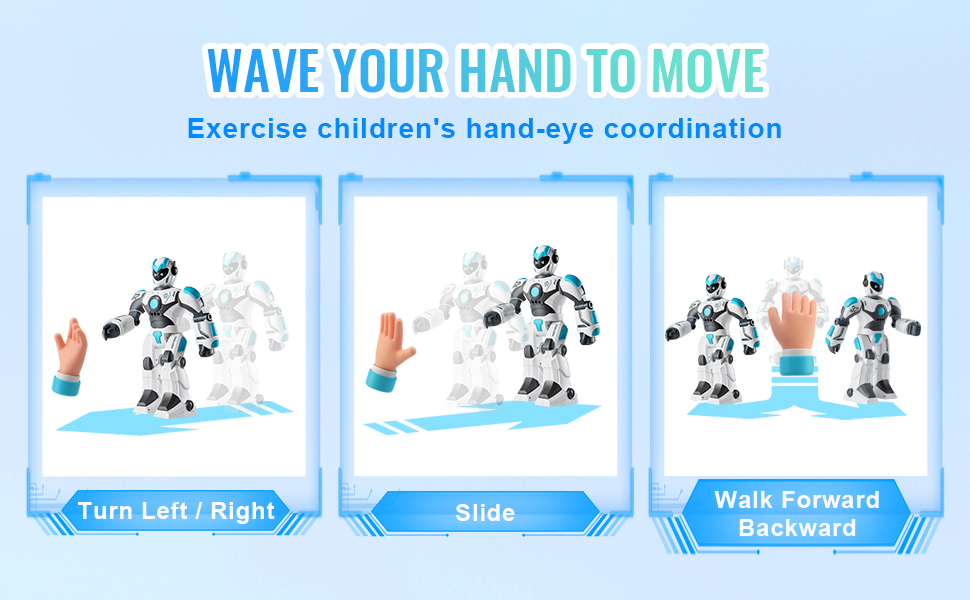
Gesture control allows for intuitive interaction.
Voice Control
Engage with your robot using 10 simple voice commands. The robot will respond and perform actions based on your spoken instructions.
- Example commands include: "Tell me a story", "Once upon a time...", "Sing a song", "Dance", etc.
- Ensure you speak clearly and are within a reasonable distance from the robot for optimal recognition.
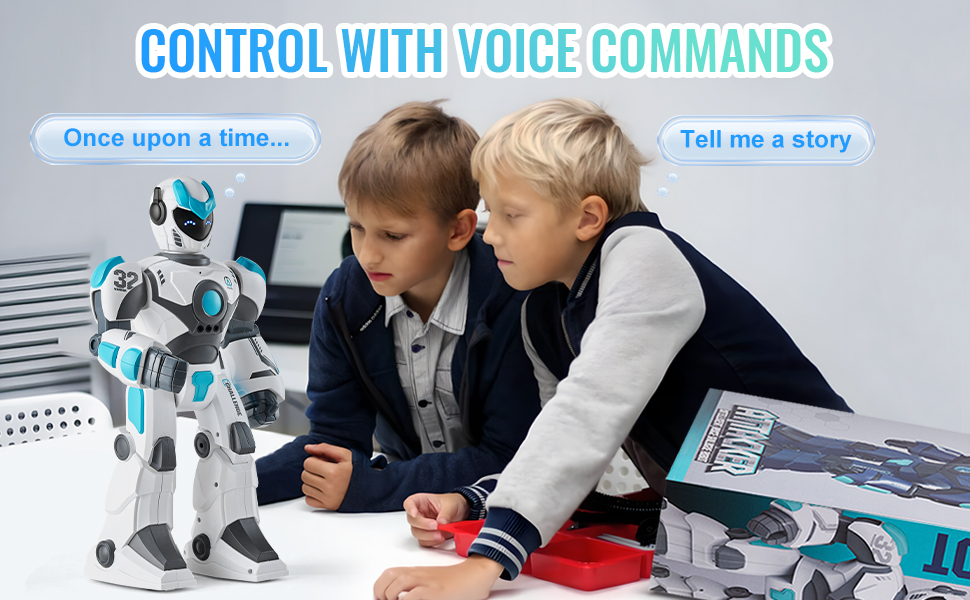
Interactive voice commands for engaging play.
Programming
The robot allows for basic programming, enabling you to create custom sequences of movements and actions. Up to 30 commands can be recorded.
- Press the 'Programming' button on the remote control to enter programming mode.
- Input your desired sequence of movements (e.g., walk forward, turn left, dance).
- Press the 'Programming' button again to save and execute the sequence.
Programming the robot using the remote control.
Maintenance
- Cleaning: Wipe the robot with a soft, dry cloth. Do not use harsh chemicals or immerse in water.
- Storage: When not in use, store the robot and remote control in a cool, dry place, away from direct sunlight.
- Battery Care: For prolonged storage, ensure the robot's battery is partially charged (around 50%) and remove batteries from the remote control to prevent leakage.
Troubleshooting
| Problem | Possible Cause | Solution |
|---|---|---|
| Robot not responding to remote/gestures. | Low battery in robot or remote; robot/remote not powered on; interference. | Charge robot battery. Replace remote control batteries. Ensure both are powered on. Move away from other electronic devices. |
| Short play time. | Battery not fully charged; aging battery. | Ensure robot is fully charged before use. If battery life significantly decreases, contact support. |
| Voice commands not recognized. | Too much background noise; speaking too softly/unclearly; too far from robot. | Reduce background noise. Speak clearly and directly towards the robot. Move closer to the robot. |
| Robot moves erratically or not as programmed. | Incorrect programming sequence; sensor obstruction. | Clear and re-program the sequence carefully. Ensure no obstructions are blocking the robot's sensors or movement path. |
User Tips
- Supervised Play: Always ensure children play with the robot under adult supervision, especially younger users.
- Explore Features: Encourage children to experiment with all the robot's features, from dancing and singing to programming, to maximize learning and fun.
- Clear Space: Provide an open, clear space for the robot to move freely, preventing collisions and enhancing the play experience.
Warranty and Support
For warranty information, technical support, or any questions regarding your VEVOR RC Robot Toy, please contact the seller or manufacturer directly. Keep your purchase receipt as proof of purchase.


