
Introduction
The EWEADN X7S is a 2.4G wireless keyboard and mouse combo designed for both home office and gaming use. It features an ultra-thin profile, silent chocolate keys, and a durable metal panel. The set offers a comfortable ergonomic design, adjustable backlighting, and a plug-and-play setup for seamless integration with various operating systems.
Video: Overview of the EWEADN X7S Wireless Keyboard and Mouse Set.

Image: The EWEADN X7S keyboard and mouse set showcasing its blue backlighting and slim design.
Product Features
- Silent Operation: Mute button design with key noise reduction technology for quiet typing.
- Wireless Connectivity: 2.4G wireless technology for a stable and unrestrained connection.
- Rechargeable Batteries: Built-in large-capacity lithium batteries (3000mAh for keyboard, 500mAh for mouse) provide long-term use and support charging while in operation.
- Adjustable Backlight: Cool monochrome backlight with mixed light/white light/ice blue light effects.
- DPI Adjustment: Mouse features 3-speed DPI adjustment (800/1200/1600) for precise control in different scenarios.
- Anti-Ghosting: 26-key no punch feature ensures multiple key presses are registered simultaneously, crucial for gaming.
- Durable Design: Metal thickened panel and two-color injection keycaps for enhanced durability and wear resistance.
- Ergonomic Design: Ergonomic streamline high and low key position layout for comfortable use.
- Waterproof: Front waterproof design makes the keyboard splash-proof and easy to clean.
- Power Saving: Intelligent power-saving sleep mode automatically turns off the backlight after 5 minutes of inactivity, waking up with any key press.
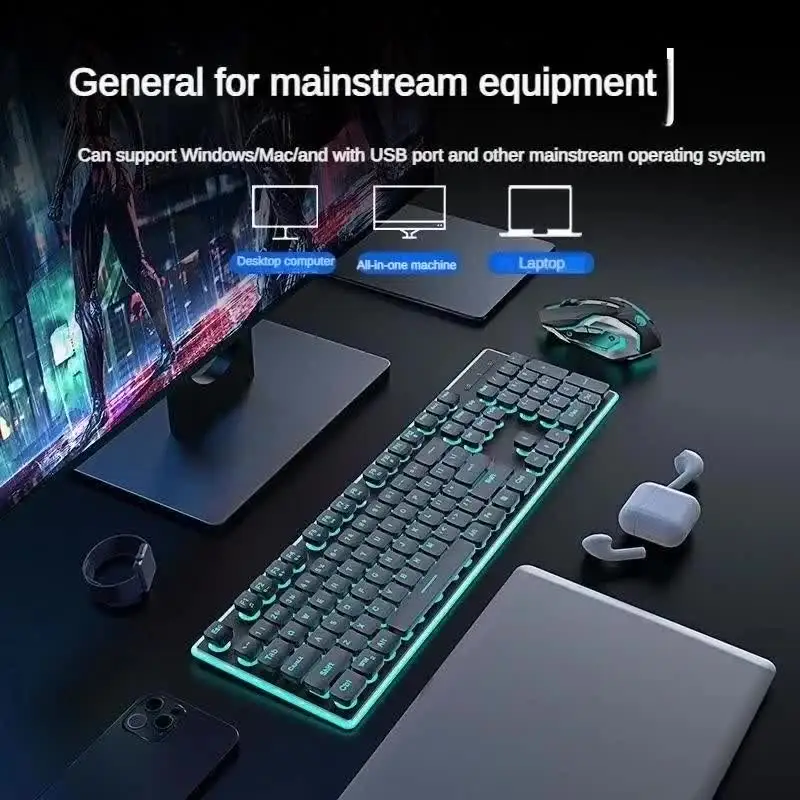
- Wide Compatibility: Supports Windows and Mac operating systems, compatible with desktop computers, all-in-one machines, and laptops via a USB port.
- Gaming Engine: Equipped with a professional gaming engine for stable transmission and accurate analysis.

Image: Key features of the EWEADN X7S, including wireless charging, mute operation, and waterproof design.

Image: Close-up of hands typing on the keyboard, demonstrating the mute button design for reduced key sound.

Image: The keyboard and mouse set shown with various mainstream devices, illustrating broad compatibility.
Package Contents
Please check the package contents carefully upon unboxing:
- 1 x EWEADN X7S Wireless Keyboard
- 1 x EWEADN Wireless Mouse
- 1 x USB Receiver
- 1 x Type-C Charging Cable (for keyboard)
- 1 x Micro USB Charging Cable (for mouse)
Specifications

Image: Product size diagram for the keyboard and mouse.

Image: Detailed parameters for the EWEADN X7S keyboard and mouse.
Keyboard Parameters:
| Feature | Specification |
|---|---|
| Model | X7 Wireless Keyboard |
| Keycap Type | Chocolate Keycap |
| Lighting Effects | Mixed Light / White Light / Ice Blue Light (Monochrome) |
| Keyboard Standard | 104 Keys (Full Size) |
| Size | Approx. 440mm x 130mm x 20mm |
| Weight | Approx. 1038g |
| Key Life | About 10 million times |
| Anti-Ghosting | 26-key no punch |
| Charging Interface | Type-C |
| Battery | 3000mAh (built-in) |
| Keycup Material | ABS plastic |
| Switches Hot Swap | No |
| Switches Manufacturer | Kailh |
| Wrist Support | No |
| Style | Standard, Ergonomics, Gaming |
| Application | Desktop, Laptop, Number, Tablet |
| Language | English |
| Type | 2.4Ghz Wireless |
Mouse Parameters:
| Feature | Specification |
|---|---|
| Name | Forerunner Manipulator |
| Connection | 2.4GHz wireless connection |
| Key Number | 6 |
| DPI Resolution | 3-speed adjustment (800 / 1200 / 1600 DPI) |
| Key Sound | Mute |
| Weight | 140g |
| Charging Interface | Micro USB |
| Battery | 500mAh (built-in) |
| Sleep Mode | Intelligent power-saving sleep |
Setup Instructions
- Locate the USB Receiver: The USB receiver is typically stored in a compartment at the bottom of the wireless mouse. Gently remove it.
- Connect the Receiver: Insert the USB receiver into an available USB port on your computer (desktop, laptop, or all-in-one machine).
- Power On Devices:
- Locate the power switch on the keyboard and slide it to the "ON" position.
- Locate the power switch on the mouse and slide it to the "ON" position.
- Automatic Connection: The keyboard and mouse should automatically connect to your computer. No additional drivers are usually required for plug-and-play functionality.
- Initial Charge: For optimal performance, it is recommended to fully charge both the keyboard and mouse before first use.
- Connect the Type-C charging cable to the keyboard and a USB power source.
- Connect the Micro USB charging cable to the mouse and a USB power source.

Image: Illustration of the USB receiver, Type-C charging cable, and mouse DPI adjustment.

Image: Icons representing key functions like rechargeable battery, backlight, DPI adjustment, and plug-and-play.
Operating Instructions
- Typing: Use the keyboard as a standard 104-key English layout keyboard.
- Multimedia Keys: Utilize the multimedia key combinations (Fn + F-keys) for quick access to functions like volume control, media playback, etc. (Specific combinations may vary, refer to key legends).
- Mouse Usage:
- DPI Adjustment: Press the DPI button on the mouse to cycle through the 3 sensitivity levels (800, 1200, 1600 DPI) to suit your preference or game requirements.
- Silent Clicks: The mouse features silent click buttons for a quiet user experience.
- Backlight Control: The keyboard features an adjustable monochrome backlight. Use the designated key (often Fn + Scroll Lock or similar) to turn the backlight on/off or adjust its brightness/mode.
- Power Saving Mode: The keyboard and mouse will enter an intelligent power-saving sleep mode after approximately 5 minutes of inactivity. To wake them up, simply press any key on the keyboard or move/click the mouse.

Image: Explanation of the 26-key no punch feature for anti-ghosting.

Image: Visual representation of the keyboard and mouse built-in battery capacities.
Maintenance
- Cleaning: The keyboard has a front waterproof design, making it splash-proof. To clean, gently wipe the surface with a soft, damp cloth. Avoid submerging the keyboard in water or using harsh chemical cleaners.
- Charging: Recharge the keyboard and mouse regularly using the provided charging cables to maintain battery life. Avoid completely draining the batteries frequently.
- Storage: When not in use for extended periods, turn off both the keyboard and mouse to conserve battery life. Store the USB receiver safely, preferably in its designated slot in the mouse.

Image: The keyboard shown with water droplets, illustrating its waterproof gaming design.
Troubleshooting
- No Connection/Unresponsive:
- Ensure both the keyboard and mouse are turned ON.
- Verify the USB receiver is securely plugged into a working USB port on your computer.
- Try plugging the USB receiver into a different USB port.
- Check if the batteries are charged. Recharge if necessary.
- Move the keyboard and mouse closer to the USB receiver to rule out range issues.
- Lagging/Delayed Response:
- Ensure there are no other 2.4G wireless devices causing interference nearby.
- Try moving the USB receiver to a front USB port on your computer for a clearer signal path.
- Recharge the devices.
- Backlight Not Working:
- Ensure the keyboard is turned on and charged.
- Check if the backlight function is enabled using the appropriate key combination (e.g., Fn + Scroll Lock).
- Mouse DPI Not Changing:
- Ensure the mouse is turned on and charged.
- Press the DPI button firmly to cycle through the settings.
User Tips
- For optimal wireless performance, try to keep the USB receiver within a direct line of sight of the keyboard and mouse, or as close as possible to minimize interference.
- Regularly charge your keyboard and mouse, especially if you use them for long hours, to avoid unexpected power loss during critical tasks or gaming sessions.
- Take advantage of the adjustable DPI settings on the mouse to find the perfect sensitivity for different tasks, from precise graphic design work to fast-paced gaming.
- While the keyboard features a waterproof design for splashes, it is not fully submersible. Avoid pouring liquids directly onto the keyboard to prevent damage.
Warranty and Support
For detailed warranty information, technical support, or any product-related inquiries, please contact the seller or manufacturer directly. It is advisable to retain your purchase receipt or order confirmation as proof of purchase for any warranty claims.