
1. Product Overview
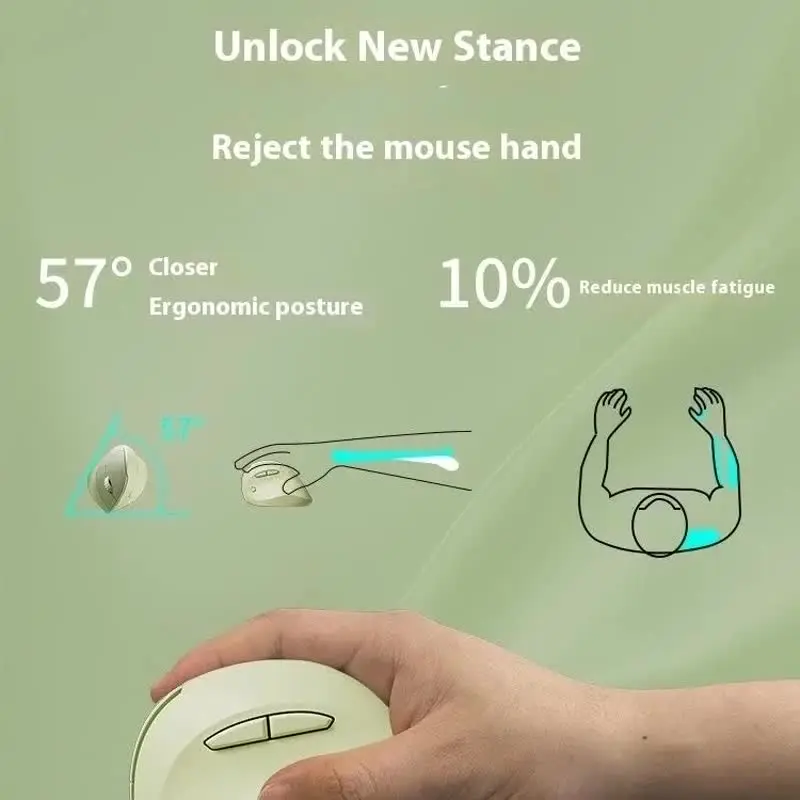
The EWEADN Q7 is a creative small wireless mouse designed for ergonomic comfort and versatile connectivity. It features dual-mode operation (2.4G wireless and Bluetooth), silent buttons, and adjustable DPI settings, making it suitable for laptops, desktops, and office environments. Its vertical ergonomic design aims to reduce wrist strain and prevent 'mouse hand' syndrome.


2. Package Contents
- EWEADN Q7 Wireless Mouse x 1
- USB Receiver x 1 (stored inside the mouse)
- User Manual x 1
3. Setup Instructions
3.1 Charging the Mouse
The EWEADN Q7 mouse is rechargeable. Before first use, ensure the mouse is fully charged. Connect the mouse to a USB power source using a compatible charging cable (not explicitly listed as included, but implied by 'rechargeable').
3.2 Connecting via 2.4G Wireless Mode
- Locate the USB receiver stored in the compartment at the bottom of the mouse.
- Remove the USB receiver and plug it into an available USB port on your computer.
- Turn on the mouse using the power switch located on the bottom.
- Switch the mode key on the bottom of the mouse to the '2.4G' position.
- The mouse should automatically connect to your computer.

3.3 Connecting via Bluetooth Mode
The EWEADN Q7 supports connecting up to 3 devices simultaneously via Bluetooth, allowing for quick switching between them.
- Turn on the mouse using the power switch located on the bottom.
- Switch the mode key on the bottom of the mouse to either 'BT1' or 'BT2' position.
- On your computer or device, go to Bluetooth settings and search for new devices.
- Select 'EWEADN Q7' (or similar name) from the list of available devices to pair.
- Once paired, the mouse is ready for use.
- To switch between paired Bluetooth devices or to the 2.4G mode, simply use the mode switch key on the bottom of the mouse.

4. Operating Instructions
4.1 DPI Adjustment
The EWEADN Q7 mouse features five adjustable DPI settings for precise cursor control. Use the dedicated DPI adjustment button (often located near the scroll wheel or on the side) to cycle through the sensitivity levels:
- 1200 DPI
- 1600 DPI (Default)
- 2400 DPI
- 3200 DPI
- 4000 DPI

4.2 Silent Click Buttons
The mouse is equipped with mute micro-motion buttons, producing only 25dB bass sound during operation. This feature ensures a quiet working environment, allowing you to concentrate without disturbing others.

4.3 Ergonomic Design for Comfort
The EWEADN Q7 features a vertical ergonomic design that positions your wrist in a natural bending state. This design helps to reduce hand and hip movement, alleviating discomfort and preventing conditions like 'mouse hand' during prolonged use.

5. Maintenance
5.1 Battery Life and Charging
The EWEADN Q7 mouse utilizes energy-saving and low-power consumption technology, providing high endurance. A full charge can last approximately 2 months, depending on usage. Recharge the mouse when the battery indicator shows low power.

5.2 Cleaning and Care
- Use a soft, dry cloth to clean the mouse surface.
- Avoid using harsh chemicals or abrasive materials.
- Keep the mouse away from liquids and extreme temperatures.
- The frosted roller and anti-skid base are designed for durability and precise positioning; ensure they remain free of debris.
6. Troubleshooting
6.1 Connectivity Issues
- Mouse not connecting (2.4G): Ensure the USB receiver is securely plugged into a working USB port and the mouse is switched to 2.4G mode. Try a different USB port.
- Mouse not connecting (Bluetooth): Ensure the mouse is in BT1 or BT2 mode and discoverable. Check your device's Bluetooth settings to ensure it's enabled and the mouse is paired. Try unpairing and re-pairing.
- Intermittent connection: Ensure the mouse is within the 10-meter transmission range and there are no significant obstructions or sources of interference.
6.2 Cursor Movement Issues
- Inaccurate or jumpy cursor: Clean the optical sensor at the bottom of the mouse. Ensure you are using the mouse on a suitable surface (a mouse pad is recommended).
- DPI not changing: Press the DPI adjustment button firmly. Cycle through all DPI settings to confirm functionality.
6.3 Power Issues
- Mouse not turning on: Ensure the mouse is charged. Connect it to a power source and allow it to charge for some time before attempting to turn it on again.
- Short battery life: Battery life varies with usage. Ensure the mouse is fully charged before each use.
7. Specifications
| Feature | Specification |
|---|---|
| Product Name | Forerunner Q7 |
| Brand | EWEADN |
| Type | Gaming / Office Mouse |
| Connection Method | 2.4G Wireless + Bluetooth (Dual Mode) |
| Interface | USB (for receiver) |
| Operation Mode | Opto-electronic |
| Number of Buttons | 6 |
| DPI Value | 1200 / 1600 / 2400 / 3200 / 4000 (Adjustable) |
| Transmission Distance | Approx. 10 meters |
| Power Type | Rechargeable (Battery Included) |
| Battery Endurance | Approx. 2 months (varies with usage) |
| Hand Orientation | Both Hands (Ergonomic Vertical Design) |
| Dimensions (L x W x H) | 108.91mm x 78.23mm x 68.18mm |
| Applicable Equipment | Tablet, Notebook, Desktop Computer |
| Certification | CE |

8. User Tips
- Embrace Ergonomics: The vertical design is key to preventing wrist discomfort. Allow your hand to rest naturally on the mouse to fully benefit from its ergonomic shape.
- Quiet Environment: The silent click feature is excellent for shared workspaces or late-night use. Take advantage of the low 25dB sound to maintain focus and avoid disturbing others.
- Optimize DPI: Experiment with the five DPI settings (1200-4000) to find the perfect cursor speed for your tasks, whether it's precise graphic design or fast-paced gaming.
- Multi-Device Convenience: Utilize the dual-mode (2.4G and Bluetooth) and multi-device connectivity to seamlessly switch between your laptop, desktop, or tablet without needing multiple mice.
- Regular Charging: While the battery lasts approximately 2 months, establish a routine to charge your mouse to avoid unexpected power loss during critical tasks.
9. Warranty and Support
For any product-related inquiries, technical support, or warranty claims, please contact the seller or retailer from whom you purchased the EWEADN Q7 mouse. They will be able to provide assistance in accordance with their specific policies.