
1. Introduction
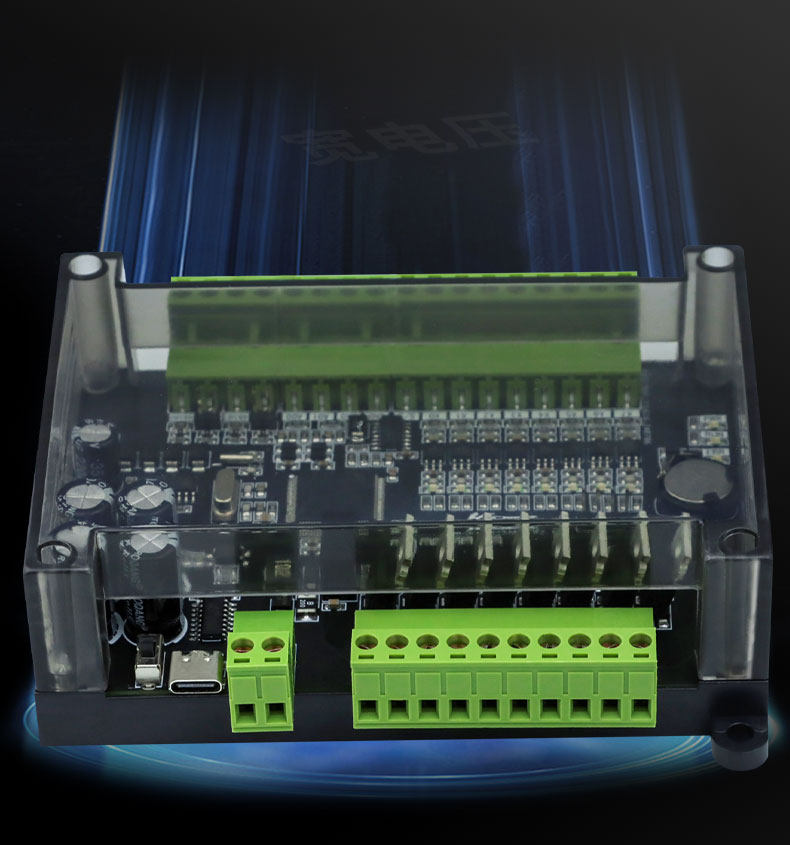
This manual provides detailed instructions for the installation, operation, and maintenance of the LOLLETTE FX3U-8MR/8MT Programmable Logic Controller (PLC). This device is designed for industrial automation applications, offering reliable control with 4 inputs and 4 outputs, and features a convenient Type-C download port for programming.


Product Overview Video
2. Setup and Connections
2.1 Power Supply
Ensure the PLC is connected to a stable power supply within the specified voltage range. Refer to the specifications section for detailed power requirements.
2.2 Input/Output Wiring
Connect your sensors, actuators, and other devices to the appropriate input (X) and output (Y) terminals. The PLC features 4 inputs and 4 outputs. Ensure all connections are secure and correctly polarized.
2.3 Programming Port
The PLC is equipped with a Type-C USB port for program download and communication with a computer. Use a standard Type-C USB cable to connect the PLC to your programming workstation.

3. Operating Instructions
3.1 Software Installation
Install the appropriate programming software (e.g., MELSOFT GX Works2 or compatible software) on your computer. Ensure the software is compatible with FX3U/FX3UC series PLCs.
3.2 Connecting to the PLC
Follow these steps to establish a connection between your computer and the PLC:
- Open your PLC programming software.
- Navigate to the connection settings.
- Select "Connection1" as the current connection target.
- Configure the connection parameters, typically selecting "USB" for the Type-C port and setting the transfer speed (e.g., 115.2Kbps).
3.3 Creating a New Project
To create a new project and program your PLC:
- In the programming software, select "New Project".
- Choose "Simple Project" as the project type.
- Select "FXCPU" for the PLC series.
- Specify "FX3U/FX3UC" for the PLC type.
- Choose your preferred programming language, such as "Ladder Diagram" or "SFC".
Note: If you select SFC (Sequential Function Chart) for programming, you must convert the SFC program to Ladder Diagram before downloading it to the PLC.

3.4 Program Download and Execution
After creating and compiling your program, download it to the PLC via the Type-C port. Once downloaded, the PLC will execute the program. Monitor the RUN/STOP indicators on the PLC to confirm its operational status.
4. Maintenance
- Keep the PLC clean and free from dust and debris.
- Ensure proper ventilation to prevent overheating.
- Regularly check all wiring connections for tightness and signs of wear.
- Avoid exposing the PLC to excessive moisture, extreme temperatures, or corrosive environments.
- Periodically back up your PLC programs to prevent data loss.
5. Troubleshooting
| Problem | Possible Cause | Solution |
|---|---|---|
| PLC not powering on | Incorrect power supply voltage; Loose power connections; Faulty power supply. | Verify power supply voltage matches specifications; Check power wiring; Test power supply unit. |
| Cannot connect to PLC via USB | Incorrect USB driver; Faulty USB cable; Incorrect software settings. | Install correct USB drivers for the PLC; Try a different USB cable; Verify connection settings in programming software (COM port, baud rate). |
| Program not executing | PLC in STOP mode; Program errors; Incorrect I/O wiring. | Switch PLC to RUN mode; Debug program for errors; Check input/output wiring against program logic. |
| Input/Output not responding | Incorrect wiring; Faulty sensor/actuator; Program logic error. | Verify wiring connections; Test external devices; Review and debug program logic. |
6. Specifications
| Feature | Detail |
|---|---|
| Brand Name | LOLLETTE |
| Model Number | FX3U-8MR/8MT (Variant: FX3U-14MR/14MT-RS485-RTC) |
| Inputs | 4 |
| Outputs | 4 |
| Programming Port | Type-C USB |
| Origin | Mainland China |
| High-concerned chemical | None |
| Certification | None |
| Package Dimensions (approx.) | Length: 12 cm, Width: 15 cm, Height: 18 cm |
| Package Weight (approx.) | 0.5 kg |
7. User Tips
- Software Language: The programming software may offer multiple language options. Check the software settings to select your preferred language (e.g., English, Italian) for a more comfortable programming experience.
- Driver Installation: Always ensure you have the correct and latest USB drivers installed for your operating system to guarantee seamless communication with the PLC.
- Secure Connections: Double-check all terminal block connections to prevent intermittent operation or damage due to loose wiring.
8. Warranty and Support
For technical support, service, or warranty inquiries, please contact the seller or manufacturer directly. Keep your purchase records handy for any support requests.