
1. Introduction
The EWEADN GX810 Wired Membrane Keyboard is designed for both gaming and office use, featuring an all-metal panel, vibrant monochrome backlighting, and a convenient multimedia knob. Its ergonomic design ensures comfortable typing, while the durable construction provides long-lasting performance. This manual will guide you through the setup, operation, and maintenance of your new keyboard.

Figure 1: EWEADN GX810 Wired Membrane Keyboard
2. Key Features
- All-Metal Panel: Features a 1.5mm thick, wear-resistant, and durable metal panel.
- Monochrome Backlighting: Adjustable cool lights for enhanced aesthetics and visibility.
- Multimedia Knob: Conveniently control volume and other functions.
- Mobile Phone Holder: Integrated design for holding your mobile device.
- Membrane Switches: Provides a quiet yet responsive 'mechanical feel' with a 2mm key stroke and a 50 million keystroke test rating.
- Plug and Play: Simple USB connection, no drivers required.
- Ergonomic Design: Comfortable for extended typing sessions.
- Full-Size 104-Key Layout: Standard layout for comprehensive functionality.

Figure 2: Detailed Features of the GX810 Keyboard

Figure 3: Good Feel and Quick Response
3. Package Contents
Please check the package contents upon receipt. If any items are missing or damaged, contact customer support.
- 1 x EWEADN GX810 Wired Membrane Keyboard
- 1 x User Manual
4. Setup Instructions
- Unpack: Carefully remove the EWEADN GX810 keyboard from its packaging.
- Connect: Plug the USB cable of the keyboard into an available USB port on your computer (Desktop, Laptop, or Tablet).
- Automatic Recognition: The keyboard is designed for plug-and-play functionality and should be automatically recognized by your operating system without the need for additional drivers.

Figure 4: Keyboard connected to a laptop, demonstrating the mobile phone holder
5. Operating Instructions
5.1 Basic Typing
Use the standard 104-key layout for all your typing needs.
5.2 Backlight Adjustment
The keyboard features monochrome backlighting. You can adjust the brightness to your preference. Typically, this is done using the FN key in combination with specific arrow keys (e.g., FN + Up Arrow for brighter, FN + Down Arrow for dimmer), or dedicated keys if present.
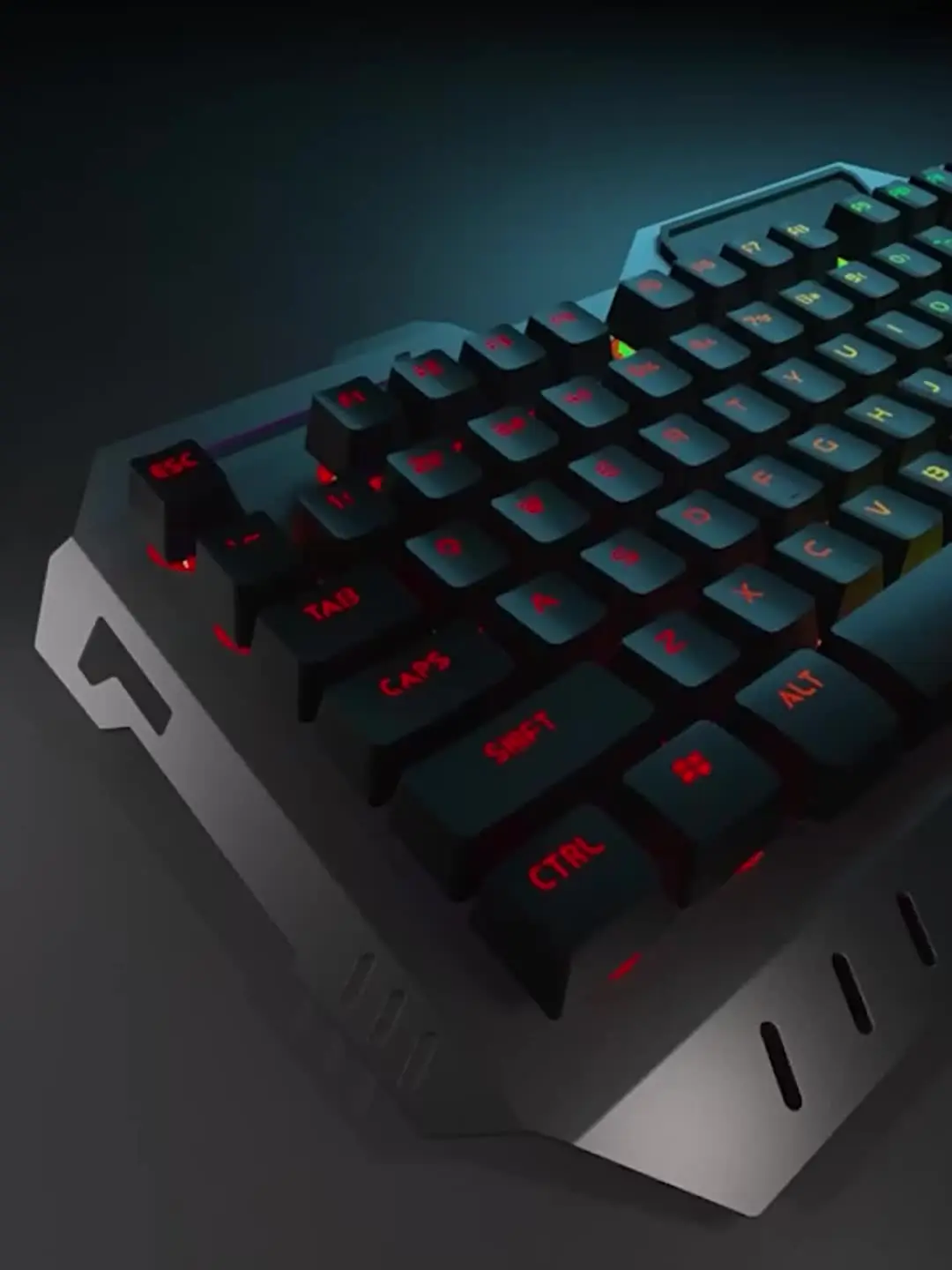
Video 1: Product demonstration showing various backlight modes and features.
5.3 Multimedia Functions
The GX810 keyboard includes a dedicated multimedia knob and FN key combinations for quick access to various functions:
- Volume Control Knob: Rotate the knob to adjust the system volume.
- FN Key Combinations:
- FN+F1: Multimedia
- FN+F2: Volume reduction
- FN+F3: Volume plus
- FN+F4: Mute
- FN+F5: Last song
- FN+F6: Next song
- FN+F7: Play/Pause
- FN+F8: Stop play
- FN+F9: Home page
- FN+F10: E-mail
- FN+F11: Computer
- FN+F12: Web collection

Figure 5: Multimedia Key Functions

Figure 6: Volume Control Knob
5.4 Mobile Phone Holder
Utilize the integrated holder on the keyboard to conveniently place your mobile device while working or gaming.
6. Maintenance
- Cleaning: Use a soft, slightly damp cloth to wipe the keyboard surface. Avoid using harsh chemicals or abrasive materials, as they may damage the finish or keycaps.
- Dust Removal: Regularly use compressed air to remove dust and debris that may accumulate between the keycaps and under the keys.
- Storage: When not in use for extended periods, store the keyboard in a dry, cool environment away from direct sunlight and extreme temperatures.
7. Troubleshooting
- Keyboard not responding:
- Ensure the USB cable is securely connected to your computer.
- Try connecting the keyboard to a different USB port.
- Restart your computer.
- Backlight not working or adjusting:
- Check if the backlight is turned off or set to minimum brightness using the adjustment keys (e.g., FN + Up/Down Arrow).
- Ensure the keyboard is properly powered via the USB connection.
- Multimedia keys not working:
- Ensure you are pressing the FN key in combination with the correct F-key for multimedia functions.
- Check your operating system's settings for multimedia key functionality.
Frequently Asked Questions (FAQ)
- Q: What should I do if I don't know how to use the product after receiving it?
- A: First, you can refer to this instruction manual. If you still don't know how to use it, please contact our support team at support@eweadn.com for assistance.
- Q: What should I do if the product is not working after receiving it, or if the package is damaged, or if I'm unsatisfied with the purchased item?
- A: Please immediately contact our support team at support@eweadn.com. Our customer service is very responsive and helpful and will assist you until you are satisfied.
8. Specifications
| Attribute | Value |
| Brand | EWEADN |
| Model | GX810 |
| Type | Wired Keyboard |
| Operation Style | Membrane |
| Keyboard Standard | 104 Keys (Full Size) |
| Interface Type | USB |
| Backlight Type | Monochrome |
| Keycup Material | PBT plastic |
| Switches Hot Swap | No |
| Wrist Support | No |
| Style | Ergonomics, Multimedia, Gaming, Multifunctional Keyboard |
| Application | Desktop, Laptop, Number, Tablet |
| Language | English |
| Origin | Mainland China |
| Certification | CE, FCC, RoHS, WEEE |
| Key Stroke | 2mm |
| Keystroke Test | 50,000,000 |
| Panel Material | 1.5mm Thick Metal |
| Dimensions (L x W x H) | 45 cm (17.7 in) x 16.4 cm (6.45 in) x 4.1 cm (1.6 in) |
| Weight | 0.996 kg |

Figure 7: Keyboard Dimensions

Figure 8: Key Stroke and Durability Details

Figure 9: Durable 1.5mm Thick Metal Panel
9. User Tips
- Custom Keycaps: The EWEADN GX810 uses membrane switches and is not hot-swappable. Keycaps designed for mechanical keyboards are generally not compatible with this model. Please ensure compatibility if considering third-party keycaps.
- Optimal Performance: For the best gaming and typing experience, ensure your keyboard is placed on a stable, flat surface.
10. Warranty and Support
For any product-related inquiries, technical assistance, or issues, please contact our dedicated support team:
- Support Email: support@eweadn.com
Our customer service is committed to providing responsive and helpful assistance to ensure your satisfaction.