
Introduction
This manual provides detailed instructions for setting up, operating, and maintaining your TV98 ATV Pro Android 14 TV Box. This device is designed to transform your television into a smart entertainment hub, offering 8K video decoding, dual-band WiFi, Bluetooth 5.0, and smart voice control capabilities.

Figure 1: TV98 ATV Pro Android 14 TV Box, remote control, and retail packaging.
Package Contents
Please check the box for the following items:
- TV98 ATV Pro Android 14 TV Box
- IR Remote Control
- HDMI-Compatible Cable
- Power Adapter
- User Manual (this document)

Figure 2: Contents of the TV98 ATV Pro package.
Specifications
| Feature | Description |
|---|---|
| CPU | Allwinner H313 Quad Core ARM Cortex A53 |
| GPU | G31 OpenGL3.2 |
| Operating System | Android 14.0 (upgraded from Android 10.0) |
| WiFi | 802.11 b/g/n 2.4G + 5G Dual-band WiFi (IEEE 802.11 a/b/g/n/ac compliant) |
| Bluetooth | Bluetooth 5.0 |
| Video Output | HDMI-Compatible 2.0A (4K*2K UHD Output), AV OUT (480i/576i standard definition) |
| Video Decoding | Supports 8K Video Decoding, HDR10+ |
| USB Ports | 1* USB Host Port, 1* USB Device |
| Ethernet | RJ45 Ethernet Interface (100M) |
| Card Reader | TF CARD (Supports 4GB/8GB/16GB/32GB/64GB) |
| Power | DC 5V/2A |
| LED Indicator | Working: Blue; Standby: Red |
| Voice Assistant | Built-in, supports smart voice control remote |
| Supported Services | Prime Video, Netflix, Google TV, YouTube, Disney+, Google Assistant, Google Play, Chromecast built-in |
| Weight | 400g |

Figure 3: Key features and specifications of the TV98 ATV Pro.

Figure 4: Supported applications and features including Google services and streaming platforms.
Setup Guide
1. Physical Connections
- Turn on your television and set the input source to "HDMI" mode.
- Connect one end of the HDMI cable to the "HD" port on the TV Box and the other end to an available HDMI input on your television.
- Connect the power adapter to the "DC" port on the TV Box and plug it into a power outlet. The device will automatically boot into the Android OS.
- (Optional) If using a wireless mouse or keyboard, connect its USB receiver to one of the USB ports on the TV Box.
- (Optional) For a wired network connection, connect an Ethernet cable to the "ETHERNET" port on the TV Box and to your router.

Figure 5: Connection diagram for the TV Box, including power, HDMI, and optional peripherals.

Figure 6: Rear and side view of the TV Box showing available input/output ports.
2. Network Configuration (Wi-Fi)
- Once the TV Box has booted, navigate to the "Settings" menu on the home screen.
- Select "Network & Internet".
- Toggle the "Wi-Fi" switch to ON.
- Select your desired Wi-Fi network from the list of "Available networks".
- Enter the Wi-Fi password using the on-screen keyboard and select "NEXT" or "Connect".
- Once connected, the status will show "Connected".
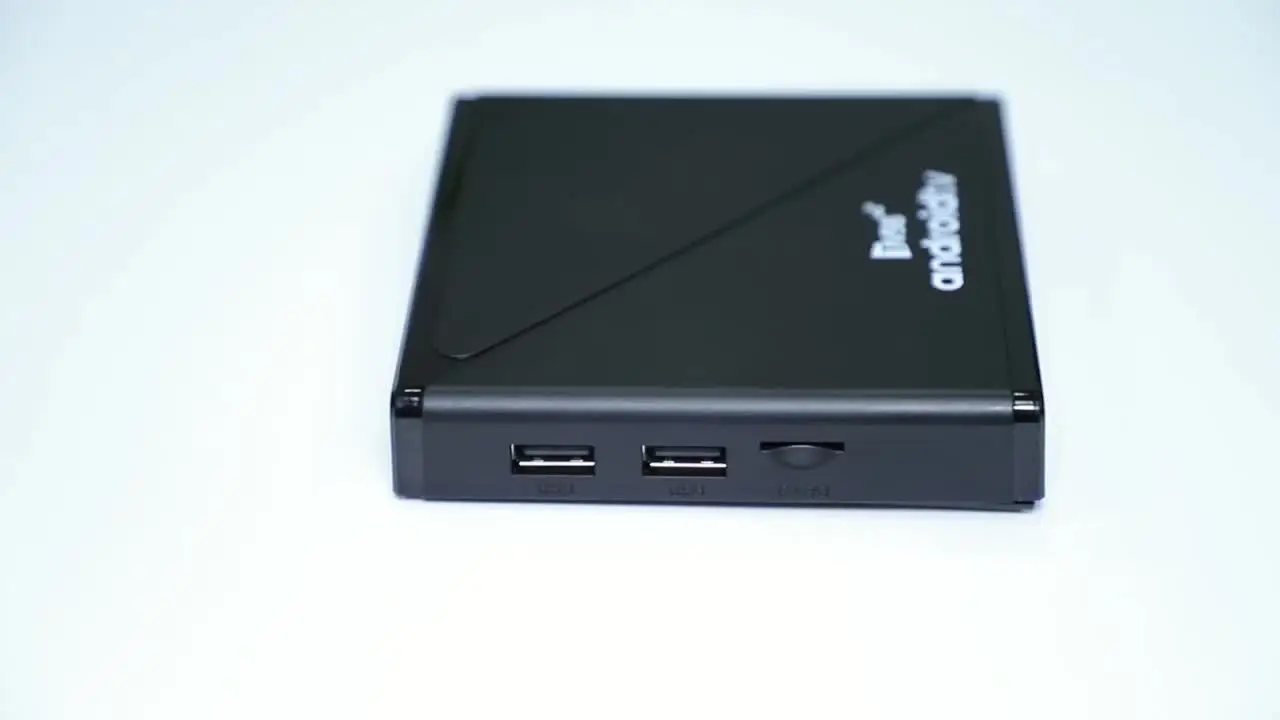
Video 1: Product overview, unboxing, connection, and basic Wi-Fi setup demonstration.
Operating Instructions
1. Navigating the Interface
Use the provided IR Remote Control to navigate the Android TV interface. The directional pad (up, down, left, right) and "OK" button are used for selection. The "Back" button returns to the previous screen, and the "Home" button takes you to the main home screen.
2. Using Applications
The TV Box comes pre-installed with popular streaming applications like YouTube, Netflix, Prime Video, and Disney+. You can access these from the home screen or the "Apps" section. Additional applications can be downloaded from the Google Play Store.

Figure 7: The TV Box displaying the Netflix interface.
3. Voice Control
The remote control supports smart voice control. Press the dedicated voice button (often a microphone icon) on the remote and speak your commands or search queries. Ensure the remote is paired and has line-of-sight to the TV Box for optimal performance.

Figure 8: Using the voice control feature on the remote to interact with the TV Box.
4. Remote Control Infrared Learning
The TV Box remote control has an infrared learning function, allowing it to control basic TV functions like power on/off. Follow these steps to program the remote:
- Press and hold the [ TV ] button on the TV Box remote for 3 seconds. The red indicator light will start to flash slowly, indicating it has entered the learning state.
- Point your original TV remote control directly at the TV Box remote. Press the power button on your original TV remote.
- The TV Box remote will receive the infrared code. The red indicator light will flash and then go out, completing the infrared learning process. The [ TV ] button will automatically be overwritten with the learned function.

Figure 9: Steps for programming the remote control's infrared learning function.
Maintenance
- Keep the device in a cool, dry place, away from direct sunlight and heat sources.
- Avoid placing heavy objects on top of the TV Box.
- Clean the device with a soft, dry cloth. Do not use liquid cleaners or aerosols.
- Ensure proper ventilation around the device to prevent overheating.
- Regularly check for and install system updates (OTA Update) to ensure optimal performance and security.
Troubleshooting
- No Power / Device Not Turning On:
- Ensure the power adapter is securely connected to the TV Box and a working power outlet. Check the LED indicator on the device; it should be blue when working and red when in standby.
- No Picture on TV:
- Verify the HDMI cable is correctly connected to both the TV Box and the TV. Ensure your TV's input source is set to the correct HDMI port.
- No Wi-Fi Connection:
- Check if your router is working correctly. Re-enter your Wi-Fi password in the "Network & Internet" settings. Try restarting both the TV Box and your router.
- Remote Control Not Responding:
- Check the batteries in the remote control and replace them if necessary. Ensure there are no obstructions between the remote and the TV Box's IR receiver.
- Netflix or other apps not working/requiring update:
- Go to the Google Play Store on your TV Box and check for updates for the specific application. If the issue persists, try clearing the app's cache and data in the TV Box settings (Apps > [App Name] > Storage > Clear Cache/Clear Data).
User Tips
- For optimal streaming quality, especially for 4K/8K content, consider using a 5Ghz Wi-Fi connection or a wired Ethernet connection if available.
- If you experience issues with specific applications like Netflix, ensure the app is updated to the latest version via the Google Play Store. Sometimes, clearing the app's cache can resolve minor glitches.
- Utilize the voice control feature on the remote for quick searches and navigation, enhancing your user experience.
- The infrared learning function of the remote can simplify your setup by allowing one remote to control both your TV and the TV Box's basic functions.
Warranty and Support
For warranty information, technical support, or replacement parts (such as a remote control), please contact the seller or manufacturer directly. Keep your purchase receipt as proof of purchase.