
1. Introduction
The Edifier M60 Compact Desktop 2.0 Speakers are designed to deliver high-quality audio with versatile connectivity options. Featuring Hi-Res Audio, Bluetooth 5.3 with LDAC support, USB-C, and AUX inputs, these speakers provide a powerful 66W RMS output in a compact design. This manual provides instructions for setup, operation, and troubleshooting to ensure optimal performance.
2. Important Safety Instructions
Please read these instructions carefully before using the product. Keep this manual for future reference.
- Images are for illustrative purposes only and may differ from the actual product.
- The bundled USB connecting cable is for audio streaming only. Do not use it for device charging.
- For technical improvement and system upgrades, information and specifications contained herein may be slightly different from the actual product. If any difference is found, the actual product prevails.
- Do not expose the product to rain or moisture.
- Do not disassemble the product. Refer servicing to qualified personnel.
- Avoid placing the product near heat sources or in direct sunlight.
- Ensure proper ventilation around the speakers.
3. What's in the Box?
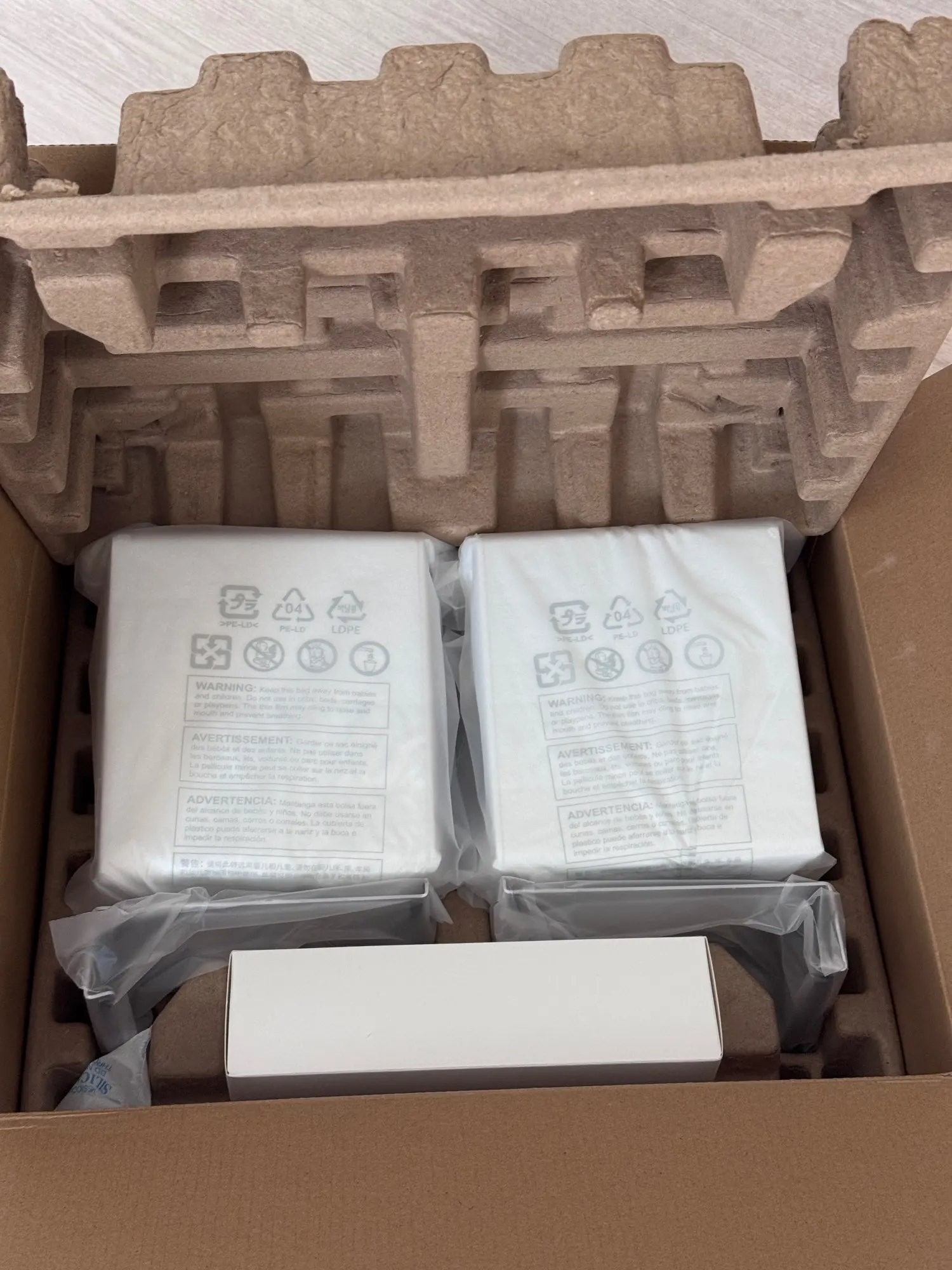
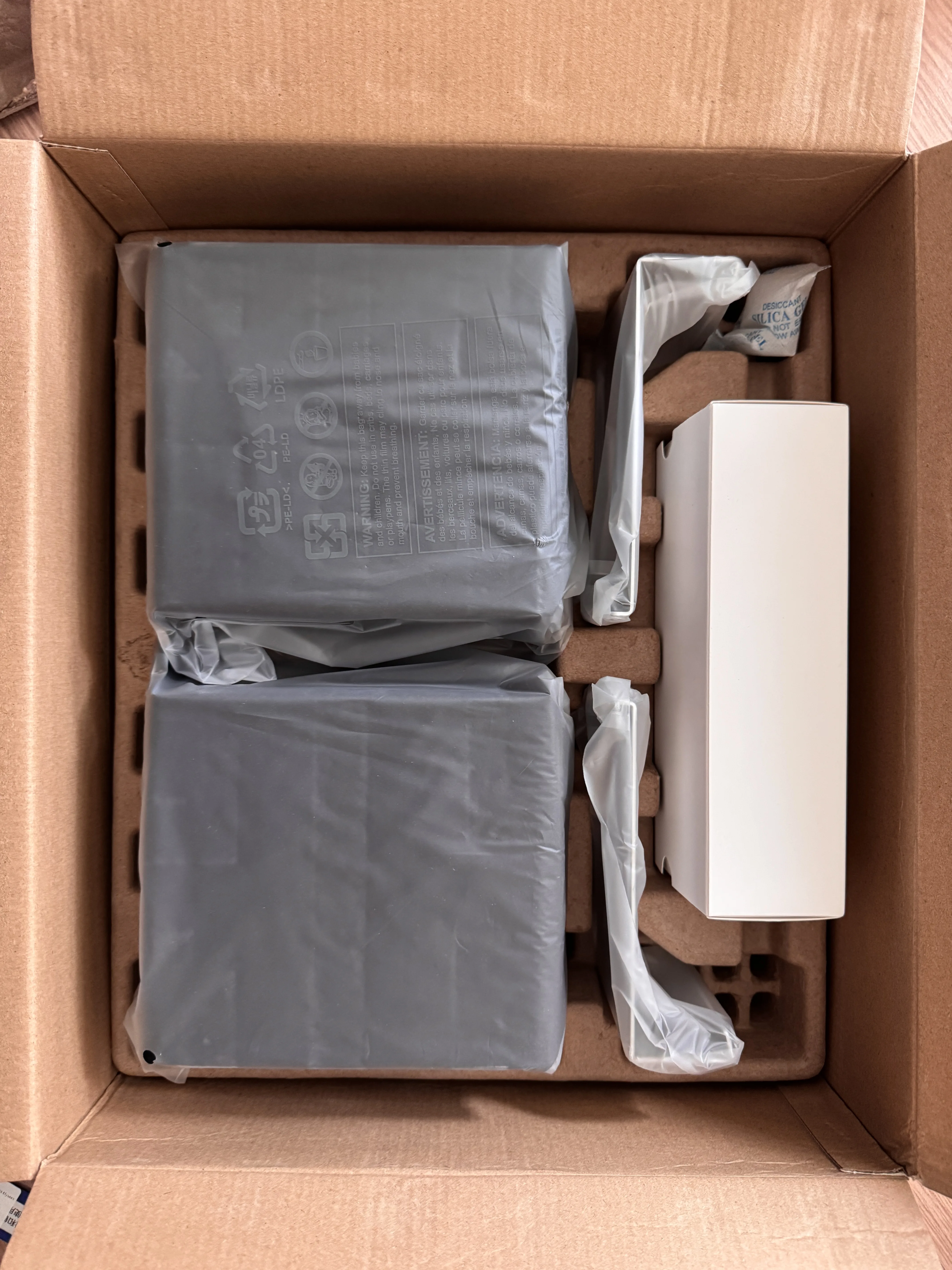
Carefully unpack your Edifier M60 speakers and check that all items are present:
- Passive speaker (L)
- Active speaker (R)
- Power cable
- Speaker stands (pair)
- Speaker connecting cable
- 3.5mm to 3.5mm audio cable
- 3.5mm to RCA audio cable
- USB-C to USB-C cable
- Quick start guide
- Important safety instructions
4. Setup
4.1 Speaker Placement
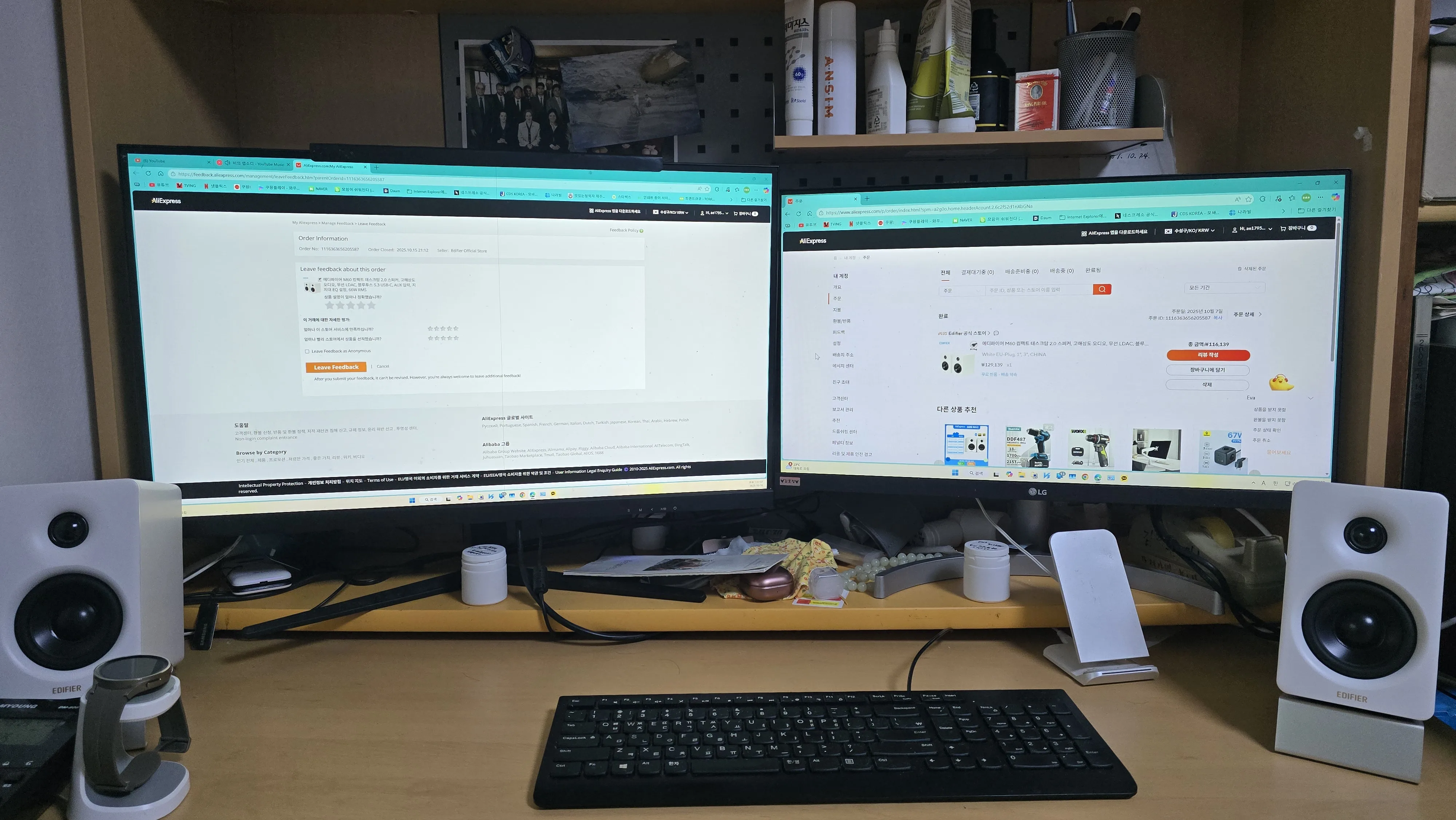
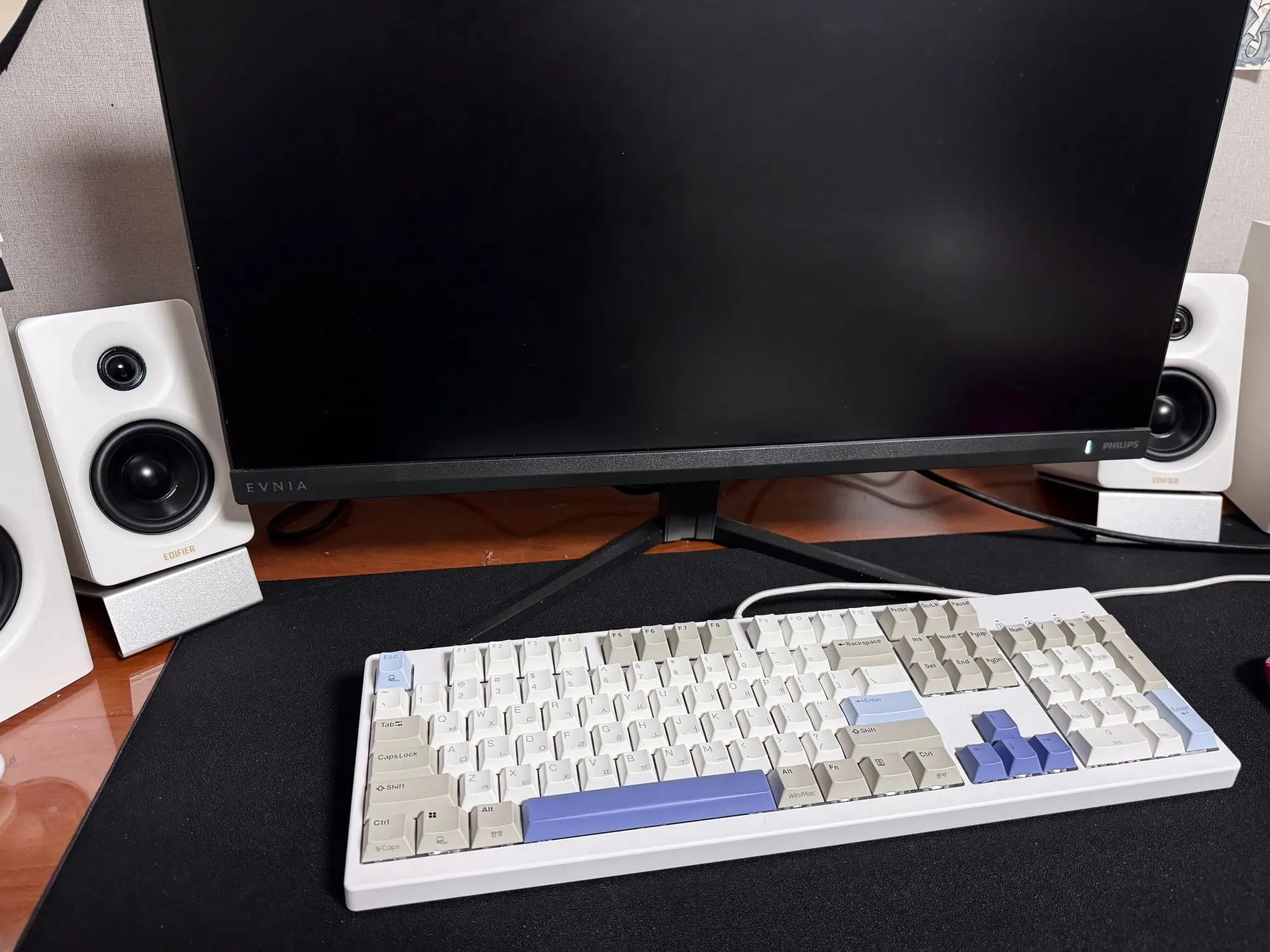
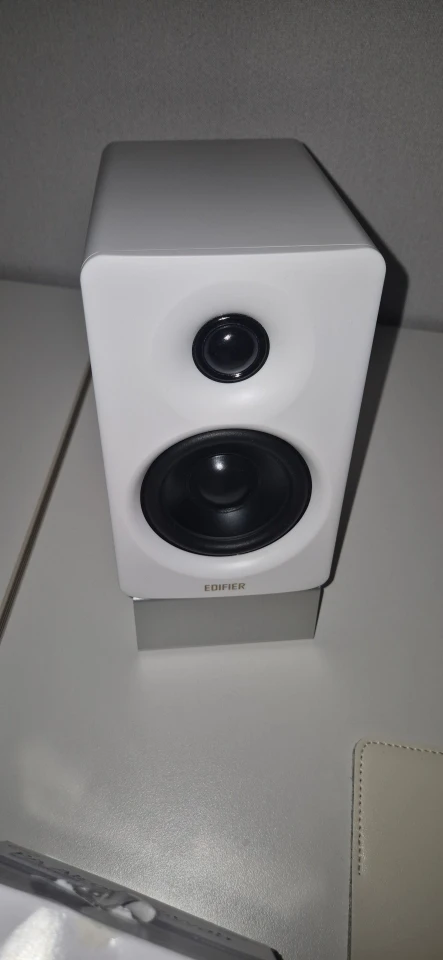
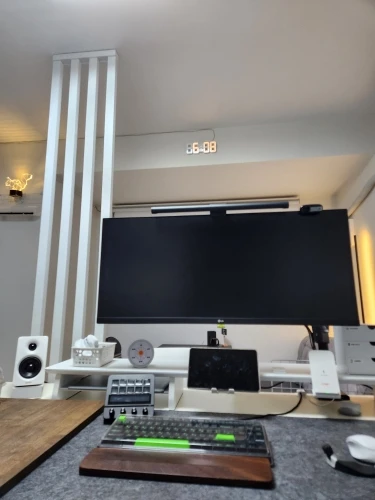
Place the active speaker (R) on the right side and the passive speaker (L) on the left side of your listening area. For optimal sound, position them at an equal distance from your listening position, forming an equilateral triangle. The included aluminum stands are designed to angle the sound at 15 degrees, directing it towards your ears when placed on a desktop.
4.2 Cable Connection
Follow these steps to connect your speakers and audio sources:
- Connect the active speaker (R) to the passive speaker (L) using the provided speaker connecting cable. Ensure the correct polarity.
- Connect the power cable to the active speaker and then to a power outlet (100-240V~50/60Hz 400mA).
- Choose your desired audio input:
- AUX Input: Use the 3.5mm to 3.5mm audio cable or 3.5mm to RCA audio cable to connect your audio source (e.g., TV, MP3 player) to the AUX IN port on the active speaker.
- USB-C Input: Use the USB-C to USB-C cable to connect your computer (Windows 7/8/10/11) to the USB IN port on the active speaker for digital audio streaming.
- Bluetooth: For wireless connection, refer to the "Bluetooth Connection" section below.
5. Operating Instructions
5.1 Power On/Off (Standby & Wake-up)
To switch the speaker to standby mode or work mode, tap and hold the power button (labeled with a circle and vertical line) on the top panel of the active speaker for 1.5 seconds.
5.2 Source Selection
Tap the input selection button (labeled with an 'x' or similar icon) on the top panel of the active speaker to cycle through available input sources: Bluetooth, AUX, and USB-C.
5.3 Bluetooth Connection
- Ensure the speaker is powered on and in Bluetooth mode (indicated by the Bluetooth icon).
- On your smart device, enable Bluetooth and search for "EDIFIER M60" in the list of available devices.
- Select "EDIFIER M60" to pair. If a PIN code is required, enter "0000".
- Once connected, the Bluetooth indicator on the speaker will remain steady.
Notes:
- To enjoy all Bluetooth functions, ensure your audio source device supports A2DP and AVRCP profiles.
- If no device is connected within 10 minutes, the speaker will switch to Bluetooth hidden mode. The Bluetooth button backlight will show a breathing pattern. In this mode, new devices cannot find the speaker, but a previously paired device can reconnect by selecting "EDIFIER M60" from its Bluetooth device list. To exit hidden mode, tap the Bluetooth button on the speaker.
- To disconnect from the current Bluetooth device, tap and hold the Bluetooth button and the '-' volume button on the speaker for 1.5 seconds.
5.4 USB Connection
Connect your computer to the USB IN port on the active speaker using the provided USB-C to USB-C cable. The speaker will automatically switch to USB input. Supported operating systems include Windows 11, Windows 10, Windows 8, and Windows 7.
5.5 EDIFIER ConneX Mobile App
Download the EDIFIER ConneX mobile app to unlock additional features and control options for your M60 speakers. The app allows you to:
- Switch input modes.
- Control playback (play, pause, skip tracks).
- Select or customize EQ settings.
- Upgrade firmware.
- Adjust backlight settings for the touch panel.
Scan the QR code in the quick start guide or packaging, or search for "EDIFIER ConneX" in your device's app store.
5.6 Play Control
The top panel of the active speaker features touch controls for playback:
- Volume Up (+): Tap to increase volume.
- Volume Down (-): Tap to decrease volume.
- Power Button (circle with vertical line): Tap and hold for 1.5s to switch between standby/work mode.
- Input Selection (x or similar icon): Tap to switch input sources.
Note: In AUX and USB modes, volume synchronization with your connected device is not supported. Adjust the volume on both the speaker and your device separately.
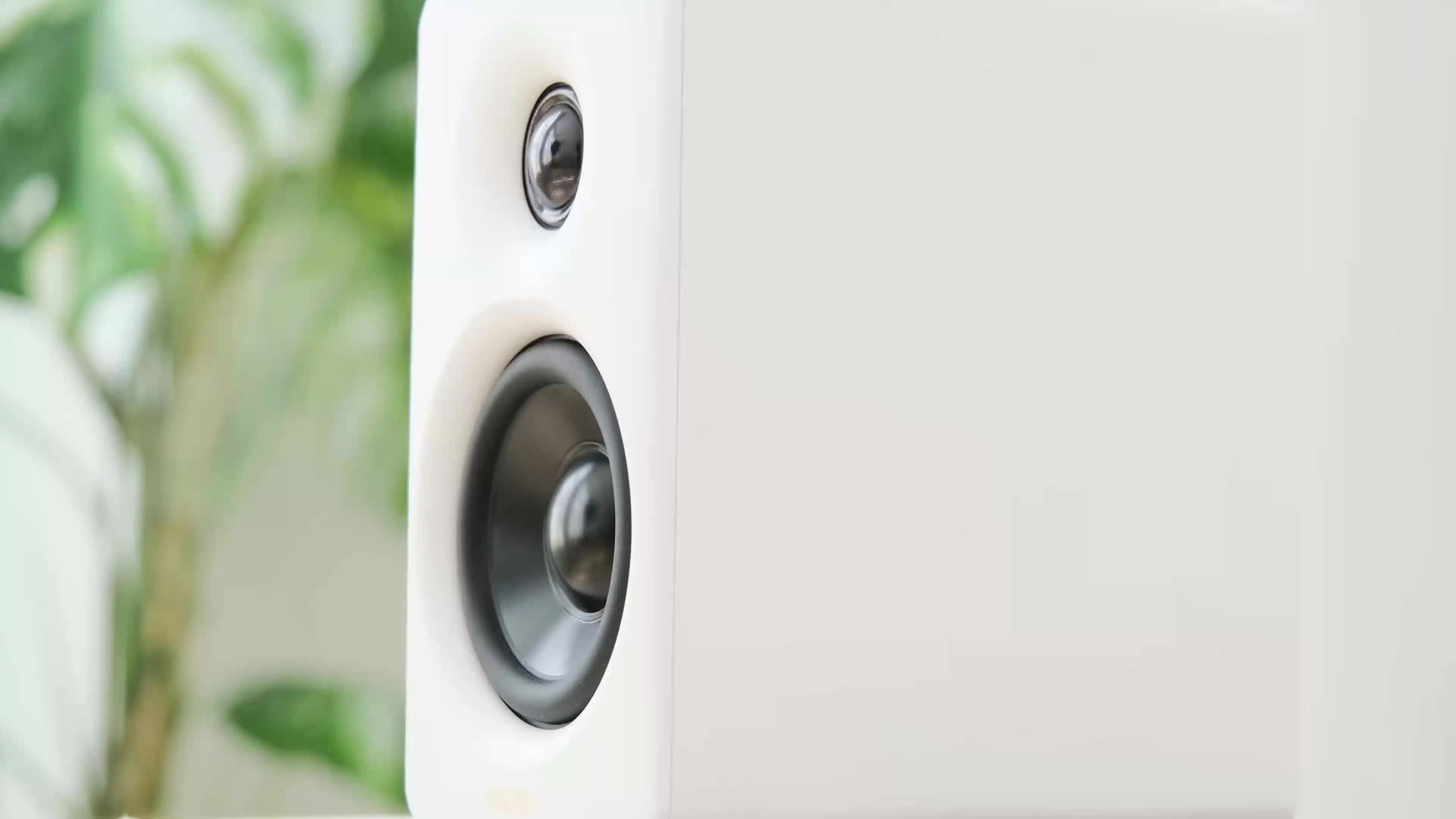
Video demonstrating the touch controls and app functionality of the Edifier M60 speakers.
6. Maintenance
To ensure the longevity and optimal performance of your Edifier M60 speakers, follow these maintenance guidelines:
- Cleaning: Use a soft, dry cloth to clean the speaker surfaces. Do not use abrasive cleaners, waxes, or solvents as they may damage the finish.
- Environment: Keep the speakers in a dry environment, away from excessive heat, humidity, and direct sunlight.
- Ventilation: Ensure adequate airflow around the speakers to prevent overheating. Do not block any ventilation openings.
- Cables: Regularly check all cable connections for any signs of wear or damage.
7. Troubleshooting
If you encounter any issues with your Edifier M60 speakers, refer to the following troubleshooting guide:
7.1 Cannot connect to your Bluetooth device
- Make sure that the distance between this product and your Bluetooth device is less than 10 meters and there are no obstacles between them.
- Make sure that no other device is connected to this product via Bluetooth.
- Make sure that this product is in Bluetooth pairing mode. If not, manually switch it to this mode.
- Restart this product, enable Bluetooth function on your Bluetooth device, and then try again.
7.2 No power
- Make sure that the power cable is properly connected.
- Make sure that the power supply is not disconnected.
7.3 No sound
- Make sure that this product is powered on.
- Make sure that this product and your device are properly connected.
- Make sure that the playback is not paused.
- Make sure that this product and your device are not muted.
- Increase the volume of this product and your device.
7.4 Noise coming from speakers
Edifier speakers generate little noise, while the background noise of some audio devices can be too high. Please unplug audio cables and turn the volume up. If no sound can be heard at 1 meter away from the speaker, there is no problem with this product.
8. Specifications
| Feature | Specification |
|---|---|
| Total Output Power (RMS) | L/R (Treble): 15W + 15W L/R (Mid-range and bass): 18W + 18W Total: 66W RMS |
| Frequency Response | 58Hz - 40kHz |
| Audio Crossover | Two-Way |
| Tweeter Type | Dome (1" Silk Dome Tweeters) |
| Woofer Size | 3" Mid-low Drivers |
| Input/Output | AUX, USB, Bluetooth |
| Bluetooth Version | 5.3 |
| Codecs | LDAC, SBC |
| Control | Volume control, Playback, EQ (via app) |
| Power Source | AC (100-240V~50/60Hz 400mA) |
| Cabinet Material | Wood |
| Dimensions (W x H x D) | 100mm x 168mm x 147mm (per speaker) |
| Weight | 3.07 kg (Net) |
| Support APP | Yes (EDIFIER ConneX) |
EU Declaration
- Frequency Band: 2.402GHz ~ 2.480GHz
- RF Power Output: ≤ 10 dBm (EIRP)
- There is no restriction of use.
9. User Tips
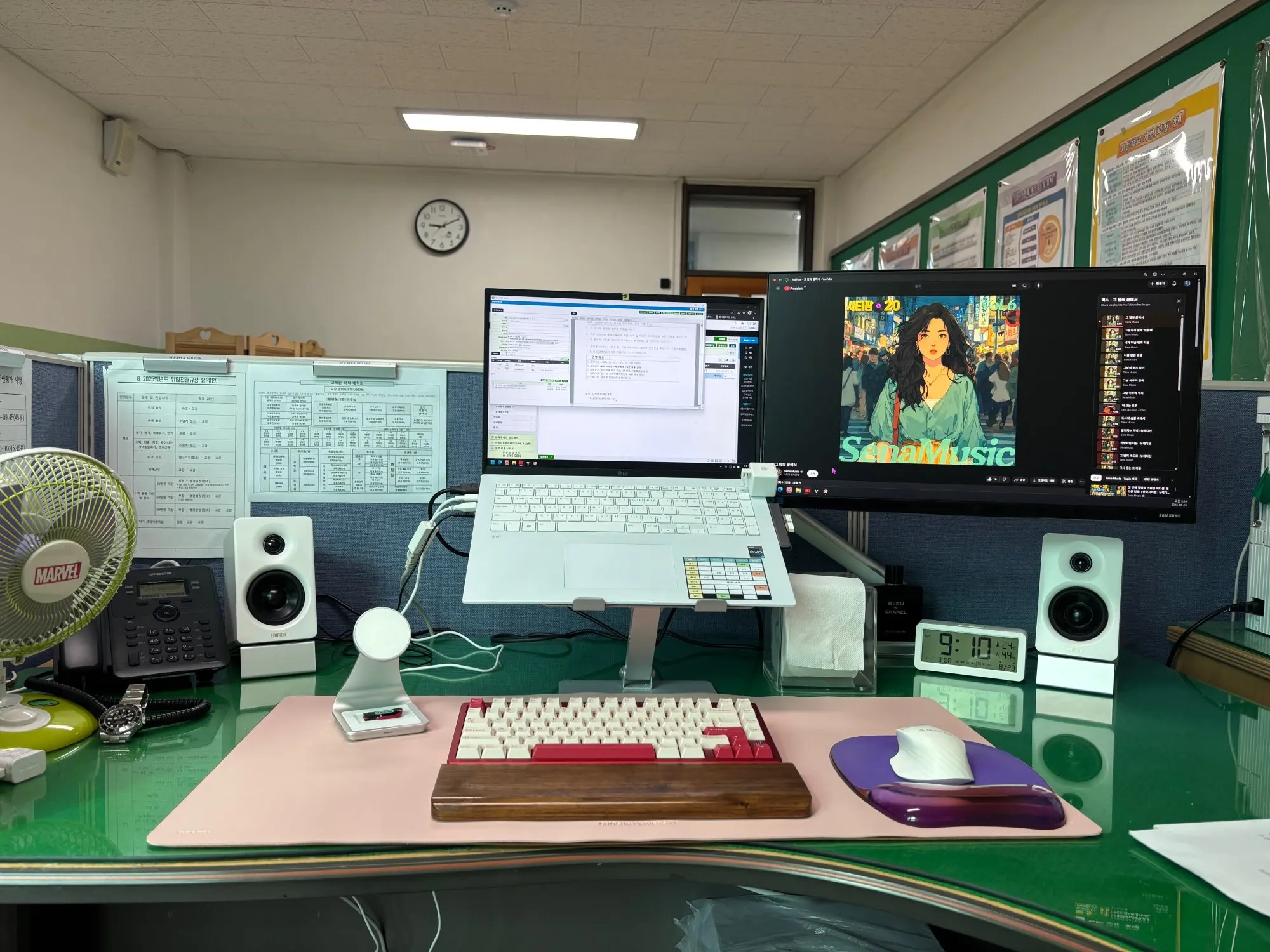
- For desktop use, the compact size and included stands make these speakers ideal for directing sound to your ears.
- If you are an iPhone user, while Hi-Res audio is supported, LDAC codec benefits are primarily for Android devices. However, the sound quality remains excellent.
- When switching between Bluetooth and USB inputs, note that the speaker's internal volume setting might reset. It's recommended to adjust volume on both the speaker and your device for optimal control.
- The EDIFIER ConneX app is highly recommended for customizing EQ settings and accessing advanced features.
- Some users report that the speakers are powerful enough that you might need to reduce the volume significantly.
10. Warranty and Support
For more information about Edifier products, please visit www.edifier.com.
For warranty inquiries, please visit the relevant country page on www.edifier.com and review the section titled "Warranty Terms".
Contact Information:
- USA and Canada: service@edifier.ca
- South America: Please visit www.edifier.com (English) or www.edifierla.com (Spanish/Portuguese) for local contact information.
A PDF version of the user manual is available for download: User manual (PDF)