
Introduction
The EWEADN MT104 is a versatile wireless mechanical keyboard and mouse set designed for both office and gaming use. It features dual-mode connectivity (Bluetooth and 2.4G wireless), RGB lighting, and durable PBT keycaps. This manual provides essential information for setting up, operating, maintaining, and troubleshooting your device to ensure optimal performance and longevity.

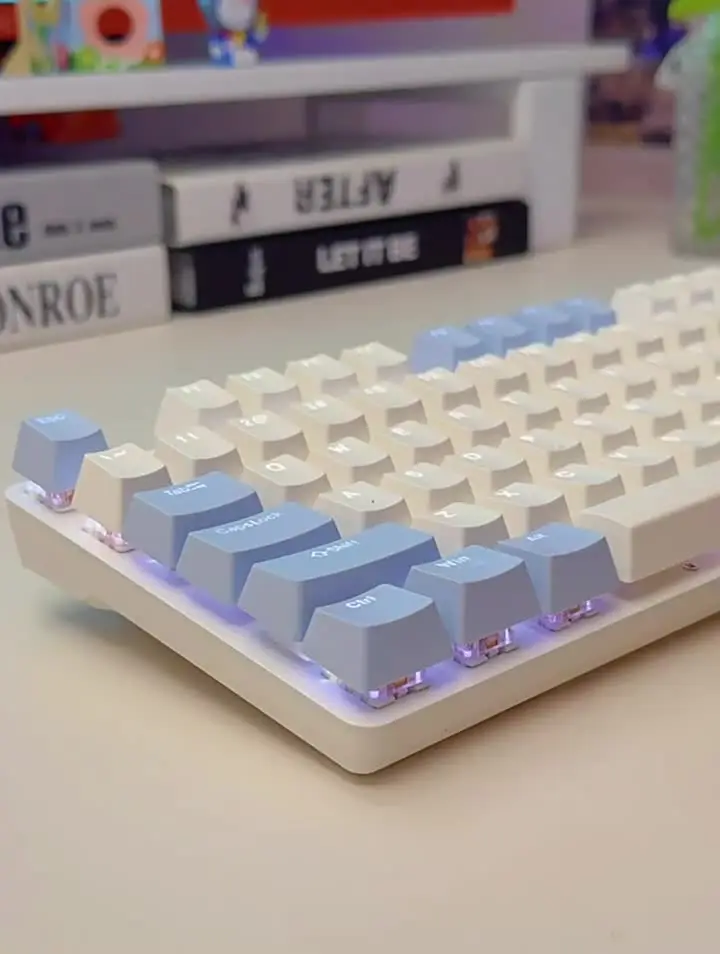
Figure 1: EWEADN MT104 Wireless Bluetooth Dual Mode Mechanical Keyboard

Figure 2: EWEADN MT104 Mechanical Keyboard and Mouse Set
Setup
1. Unboxing and Initial Inspection
Carefully remove all components from the packaging. Ensure the keyboard, mouse, 2.4G USB receiver, and charging cable are present. Inspect for any visible damage.
2. Charging the Device
Before first use, it is recommended to fully charge the keyboard and mouse using the provided charging cable. Connect the cable to the device and a USB power source. The keyboard features a 1500mAh battery for long battery life.

Figure 3: Keyboard battery capacity and low power reminder
3. Connecting the Keyboard and Mouse
The MT104 supports dual-mode connectivity: 2.4G Wireless and Bluetooth.
3.1. 2.4G Wireless Connection
- Locate the 2.4G USB receiver. It is typically stored in a magnetic compartment on the keyboard.
- Plug the USB receiver into an available USB port on your computer.
- Turn on the keyboard and mouse. They should automatically connect to the receiver.
- The 2.4G wireless connection offers 0 latency and millisecond response for stable gaming.

Figure 4: 2.4G Wireless connection for stable, low-latency performance
3.2. Bluetooth Connection
- Turn on the keyboard and mouse.
- Switch the device to Bluetooth mode (refer to the specific switch on your device, usually on the underside).
- On your computer or device, enable Bluetooth and search for new devices.
- Select "EWEADN MT104" (or similar name) from the list of available devices to pair.
4. Adjusting Keyboard Feet
The keyboard features a two-stage foot support design, allowing you to adjust the typing angle for ergonomic comfort.
Video 1: Product demonstration showing typing, 2.4G dongle storage, adjustable feet, and RGB lighting effects.
Operating
1. Switching Connection Modes
Use the switch on the keyboard (usually on the underside or side) to toggle between 2.4G wireless and Bluetooth modes. Ensure the correct mode is selected for your desired connection type.
2. Keyboard Layout and Key Functions
The MT104 keyboard is available in 87-key and 104-key layouts. It features a mechanical shaft body for sensitive key presses and no conflict with all keys, ensuring simultaneous full key strokes without issues.

Figure 5: Keyboard features no key conflict and upgraded gentle white light
3. RGB Lighting Effects
The keyboard offers 19 cool lamp effects, providing a dream-like dazzling lighting experience. You can switch between various lighting effects and adjust the brightness. The lighting can also be turned off to conserve battery.

Figure 6: Keyboard with 19 cool RGB lighting effects
4. Low Power Reminder
The keyboard is equipped with a low power chip and energy-saving technology. When the battery is low, a reminder will be displayed (e.g., a flashing light or on-screen notification, depending on the model) to prompt you to recharge.
Maintenance
1. Cleaning the Keyboard and Mouse
The keyboard features two-color injection PBT keycaps, which are wear-resistant and designed not to fade or become oily. To clean, gently wipe the surfaces with a soft, damp cloth. For deeper cleaning, keycaps can be carefully removed (if hot-swappable) and cleaned with mild soap and water, then thoroughly dried before reattaching.

Figure 7: High color value PBT keycaps for durability and clear characters
2. Battery Care
To maximize battery life, avoid fully discharging the device frequently. Recharge when the low power reminder appears. If not in use for an extended period, turn off the keyboard and mouse to conserve power; they can be used for months with lights off.
Troubleshooting
1. Device Not Connecting
- 2.4G Wireless: Ensure the USB receiver is securely plugged into your computer. Check that the keyboard/mouse is switched to 2.4G mode. Try plugging the receiver into a different USB port.
- Bluetooth: Ensure the keyboard/mouse is in Bluetooth pairing mode. Verify Bluetooth is enabled on your computer/device and try re-pairing.
- Battery: Check if the battery is charged. A low battery can prevent connection.
2. Keys Not Responding / Input Lag
- Interference: Move the keyboard/mouse closer to the receiver/device. Avoid obstacles or other wireless devices that might cause interference.
- Battery: Ensure the battery is sufficiently charged.
- Mode: Confirm the correct connection mode (2.4G or Bluetooth) is selected.
3. Lighting Issues
- Brightness: Adjust the brightness settings using the designated key combination (refer to keyboard function keys).
- Mode: Cycle through the lighting effects to ensure it's not set to an 'off' or static mode.
- Battery: Low battery can affect lighting performance. Recharge the device.
Specifications
| Feature | Specification |
|---|---|
| Brand Name | EWEADN |
| Type | Bluetooth Wireless |
| Operation Style | Mechanical |
| Interface Type | USB, Bluetooth, USB/PS/2, Bluetooth / USB |
| Keyboard Standard | 83 keys (also available in 104 keys) |
| Application | Desktop, Number |
| Keycup Material | PBT plastic |
| Switches Hot swap | Yes |
| Full Size keyboard | No (refers to compact design, 87-key is not full size) |
| Wrist Support | No |
| Style | Standard, Slim, Ergonomics, Multimedia, Gaming, Multifunctional Keyboard |
| Language | English |
| Origin | Mainland China |
| Certification | CE |
| Connectivity | 2.4G, Bluetooth |
| Compatibility | MAC/WIN |
| Lighting | RGB |
User Tips
- Product Selection: When choosing your keyboard, carefully review the product photos, color, model, and size to ensure it matches your preferences. Different variants (e.g., 87-key vs. 104-key, keyboard only vs. set) are available.
- Quality Focus: While price variations exist, prioritize the product's quality and features. The EWEADN MT104 is designed with a focus on quality and value.
- Communication: If you have any questions or concerns, contact the seller for assistance.
Warranty and Support
For any product-related inquiries, technical support, or warranty claims, please contact the seller directly. Ensure you retain your purchase records for verification. The manufacturer is committed to providing quality products and support.