
Introduction
The EWEADN MT104 is a versatile wireless mechanical keyboard and mouse set designed for various applications, including office work, gaming, and e-sports. It features multiple connection modes, customizable RGB lighting, and durable PBT keycaps. This manual provides essential information for setting up, operating, maintaining, and troubleshooting your device.
Package Contents
- EWEADN MT104 Mechanical Keyboard
- Wireless Mouse
- USB Receiver (2.4G)
- User Manual
Setup Instructions
1. Charging the Devices
Before initial use, ensure both the keyboard and mouse are fully charged. The keyboard features a 1500mAh battery for long-lasting performance. A low power reminder will indicate when charging is needed.

Image: Keyboard highlighting its 1500mAh battery and low power reminder feature.
2. Connecting the Keyboard and Mouse
The EWEADN MT104 supports three-mode connection: 2.4G Wireless and Bluetooth. The mouse also connects wirelessly.
2.1. 2.4G Wireless Connection
- Locate the USB receiver. For the keyboard, it is magnetically stored on the back of the device.
- Plug the USB receiver into an available USB port on your computer.
- Turn on the keyboard and mouse. They should automatically connect to the receiver.

Image: Close-up of the keyboard showing the 2.4G USB receiver and its magnetic storage slot.
2.2. Bluetooth Connection
For Bluetooth connection, refer to your device's specific instructions for pairing. Typically, you will need to put the keyboard/mouse into pairing mode and select it from your computer's Bluetooth settings.
3. Adjusting Keyboard Angle
The keyboard features a two-stage adjustable kickstand design on the back for ergonomic comfort.

Image: The underside of the keyboard demonstrating the two-stage adjustable kickstand.
Operating Instructions
1. Keyboard Features
- **Full Key Anti-Ghosting**: Ensures all key presses are registered simultaneously without conflict, crucial for gaming.
- **Upgraded Gentle White Light**: Provides clear, non-dazzling backlighting. Brightness can be adjusted or turned off.
- **RGB Lighting Effects**: Enjoy 19 cool lamp effects (up to 30 kinds of lighting effects) for a customizable visual experience. Use dedicated keys to switch between effects.
Video: Demonstration of keyboard typing sounds and various RGB lighting effects.

Image: Keyboard showcasing its dynamic RGB lighting effects.
2. Mouse Features
The accompanying wireless mouse offers precise tracking and responsive clicks, suitable for both office and gaming environments. It features RGB lighting that complements the keyboard.
Maintenance
- **Cleaning Keycaps**: The PBT keycaps are wear-resistant and designed not to fade or become oily. For cleaning, gently remove keycaps (if hot-swappable) and wipe with a damp cloth.
- **Switch Maintenance**: The keyboard features hot-swappable switches, allowing for easy replacement or customization without soldering.
- **General Cleaning**: Use a soft, dry cloth to wipe down the keyboard and mouse surfaces. Avoid harsh chemicals or abrasive materials.

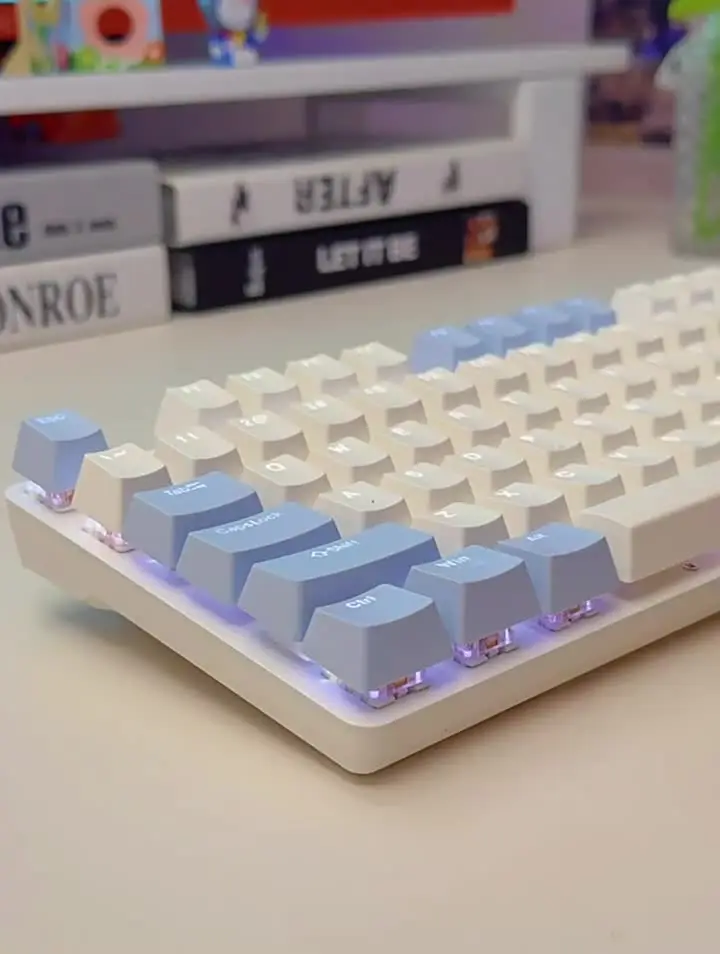
Image: Close-up view of the keyboard highlighting the durable PBT keycaps and mechanical switches.
Troubleshooting
- **Connection Issues**: If the keyboard or mouse fails to connect, ensure the USB receiver is properly plugged in and the devices are turned on. For Bluetooth, re-initiate pairing mode.
- **Keys Not Responding**: Check battery levels. If using 2.4G, try plugging the receiver into a different USB port. For mechanical switches, ensure they are properly seated if you have performed any hot-swapping.
- **Lighting Issues**: If RGB lighting is not working, check the keyboard's lighting control keys. Ensure the battery has sufficient charge.
- **Lag/Delay**: Ensure the devices are within range of the receiver/Bluetooth connection. Minimize interference from other wireless devices.
Specifications
| Feature | Specification |
|---|---|
| Brand Name | EWEADN |
| Type | Bluetooth Wireless |
| Operation Style | Mechanical |
| Keyboard Standard | 83 keys (for some models), 104 keys (for some models) |
| Full Size keyboard | No |
| Wrist Support | No |
| Keycup material | PBT plastic |
| Switches Hot swap | Yes |
| Interface Type | USB (for receiver) |
| Application | Desktop, Number |
| Style | Standard, Slim, Ergonomics, Multimedia, Gaming, Multifunctional Keyboard |
| Language | English |
| Certification | CE |
| Connectivity | 2.4G Wireless, Bluetooth |
| Battery Capacity | 1500mAh (Keyboard) |
User Tips
- For optimal gaming performance, utilize the 2.4G wireless connection for minimal latency.
- Experiment with the various RGB lighting effects to personalize your setup.
- Take advantage of the hot-swappable switches to customize your typing feel or replace worn-out switches easily.
- Regularly clean your keycaps to maintain their appearance and tactile feel.
Warranty and Support
For any product inquiries, technical support, or warranty claims, please contact EWEADN customer service. Keep your purchase receipt as proof of purchase.