
1. Introduction
The OWLLON TY-3839 is a versatile wireless Bluetooth gamepad designed for an enhanced gaming experience across multiple platforms. Featuring Hall linear joysticks, dual motor vibration, and a built-in six-axis gyroscope, this controller offers precise control and immersive feedback. It supports both wireless and wired connections to a variety of devices.

2. Key Features
- Multi-platform Compatibility: Supports Nintendo Switch, PS3, Android (6.0+), iOS (13+), and Windows PC (7+).
- Wireless & Wired Connectivity: Bluetooth for wireless play and USB data cable for wired connections.
- Hall Linear Joysticks: Provides high precision and durability.
- Adjustable Dual Motor Vibration: Enhances immersion with haptic feedback.
- Built-in Six-Axis Gyroscope: Offers motion control capabilities for supported games.
- Host Wake-Up Function: Conveniently wake up your console from sleep mode.
- Mechanical Key Press: Responsive and tactile button feedback.
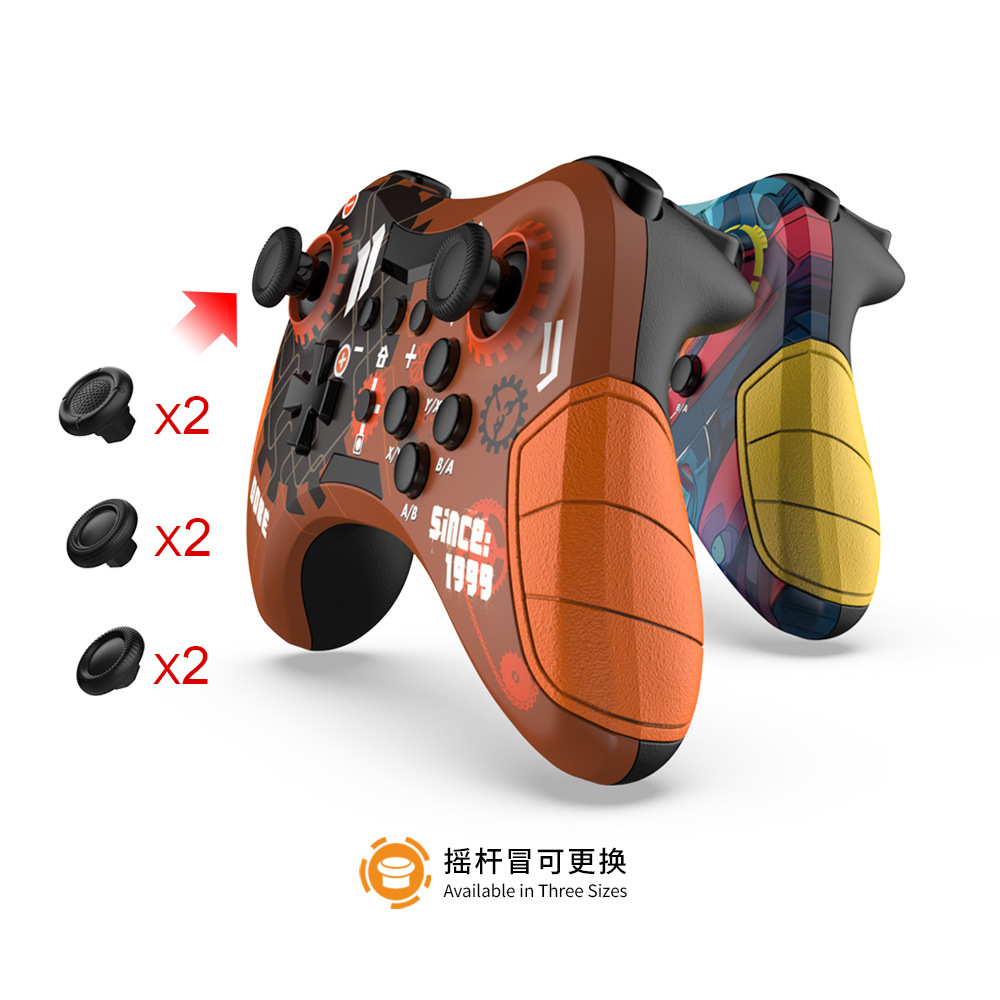
- Replaceable Joystick Caps: Available in three sizes for personalized comfort.


3. Compatible Platforms
The TY-3839 gamepad is designed for broad compatibility:
- Nintendo Switch: Wireless and wired connection.
- PlayStation 3 (PS3): Wired connection.
- Android Devices: Wireless direct connection (Android 6.0 and above).
- iOS Devices: Wireless standard mode (iOS 13 and above).
- Windows PC: Wireless (Windows 7 and above) and wired connection.
- Smart TV / TV Box: Wired connection.
Note: All mobile games do not support wake-up, vibration, and six-axis gyroscope functions.

4. Setup and Basic Operation
4.1 Power On/Off, Wake-Up, and Reconnection
- Power On: Short press the HOME button.
- Power Off: Press and hold the HOME button for 5 seconds.
- Wake-Up: When the host and controller are in sleep mode, short press the HOME button on the controller to wake them up. The controller will automatically attempt to reconnect to the previously paired host. If reconnection is unsuccessful after 10 seconds, it will automatically return to sleep mode.
4.2 Charging the Gamepad
The gamepad features indicator lights to show its charging status:
- Standby Charging: All LED indicators on the channel will flash slowly. They will remain steadily on once fully charged.
- Connected Charging: The corresponding connection indicator light will flash slowly. It will remain steadily on once fully charged.
- Power Indicator (Front End): When the charging cable is inserted, this indicator light will turn on. It will turn off when the gamepad is disconnected from charging.
5. Operating Modes
5.1 Nintendo Switch Wired Connection
- Ensure your Nintendo Switch system has 'Pro Controller Wired Communication' enabled. Navigate to 'System Settings' > 'Controllers and Sensors' > 'Pro Controller Wired Communication' and set it to 'On'.
- Connect the gamepad to the Nintendo Switch dock using a USB data cable.
- The corresponding indicator light on the controller will flash, indicating a successful wired connection.
- To switch back to wireless mode, unplug the USB cable. The controller will automatically reconnect wirelessly to the Switch, and the indicator light will remain steadily on.
5.2 Nintendo Switch Wireless Connection
- On your Nintendo Switch, go to the HOME Menu and select 'Controllers' > 'Change Grip/Order' to enter pairing mode.
- On the TY-3839 gamepad, press and hold the B button + HOME button simultaneously for 2 seconds to turn on the controller and enter pairing mode. The LED1-LED4 indicators on the controller will start running quickly.
- Once a single LED light stays on, the controller is successfully paired with the Switch.
- To reconnect after initial pairing, simply short press the HOME button. LED1-LED4 will race slowly, and upon successful reconnection, the corresponding indicator light will remain on.
5.3 PC Bluetooth Connection (XInput Mode)
- On the TY-3839 gamepad, press and hold the A button + HOME button simultaneously for 2 seconds to enter Bluetooth search mode.
- On your Windows 10 PC, go to Bluetooth settings and search for available devices. Find and select 'Gamepad' from the list to pair. During pairing, LED2 and LED3 on the controller will flash rapidly. After successful pairing, LED2 and LED3 will remain steadily on.
- For Steam games, open your Steam client, go to 'Steam' > 'Settings' > 'Controllers' > 'Common Controller Settings'. Check the appropriate support options. The controller should be detected as 'X-B ONE controller' in wireless XINPUT mode.
- For wired connection to a notebook, the controller will be recognized as 'X-B360 Controller for Windows'.

6. Specifications
| Parameter | Value |
|---|---|
| Battery Capacity | 500mAh |
| Charging Current | ≤ 250mA |
| Charging Voltage | Standard 5V |
| Maximum Operating Current | ≤ 140mA |
| Static Working Current | ≤ 20uA |
| Trigger Button Type | Hall-Linear |
| Interface Type | USB, Bluetooth, 2.4G |
| Hall Effect | Yes |
| Battery Included | Yes |
| Certification | CE |
7. Maintenance
- Keep the gamepad clean by wiping it with a soft, dry cloth.
- Avoid exposing the gamepad to extreme temperatures, humidity, or direct sunlight.
- Do not disassemble the gamepad, as this may void the warranty and cause damage.
- Store the gamepad in a safe place when not in use to prevent physical damage.
- Charge the gamepad regularly, even if not in frequent use, to maintain battery health.
8. Troubleshooting
- Controller not turning on: Ensure the battery is charged. Connect the gamepad to a power source using the charging cable.
- Unable to connect wirelessly:
- Ensure the gamepad is in the correct pairing mode for your device (e.g., B+HOME for Switch, A+HOME for PC Bluetooth).
- Check your device's Bluetooth settings to ensure it's discoverable and the gamepad is selected.
- Try restarting both the gamepad and the host device.
- Ensure no other Bluetooth devices are causing interference.
- Buttons or joysticks not responding:
- Ensure the controller is properly connected (wired or wireless).
- Try resetting the controller (if a reset button is available, typically a small pinhole on the back).
- Test the controller on another device if possible to rule out a device-specific issue.
- Vibration not working: Ensure the game or system settings have vibration enabled. Note that some mobile games may not support vibration.
- Gyroscope not working: Ensure the game or system supports gyroscope functionality. Note that some mobile games may not support the six-axis gyroscope.
9. Warranty and Support
For warranty information, technical support, or service inquiries, please refer to the documentation provided at the time of purchase or contact your retailer. Keep your proof of purchase for warranty claims.