
1. Product Overview
The AMORUS Z10 Children's Smart Phone Toy is a multi-functional touchscreen device designed for children aged 3-12 years. It combines entertainment and educational features, including a digital camera, music player, puzzle games, and learning activities. The device is compact, portable, and comes with a durable silicone protective case.
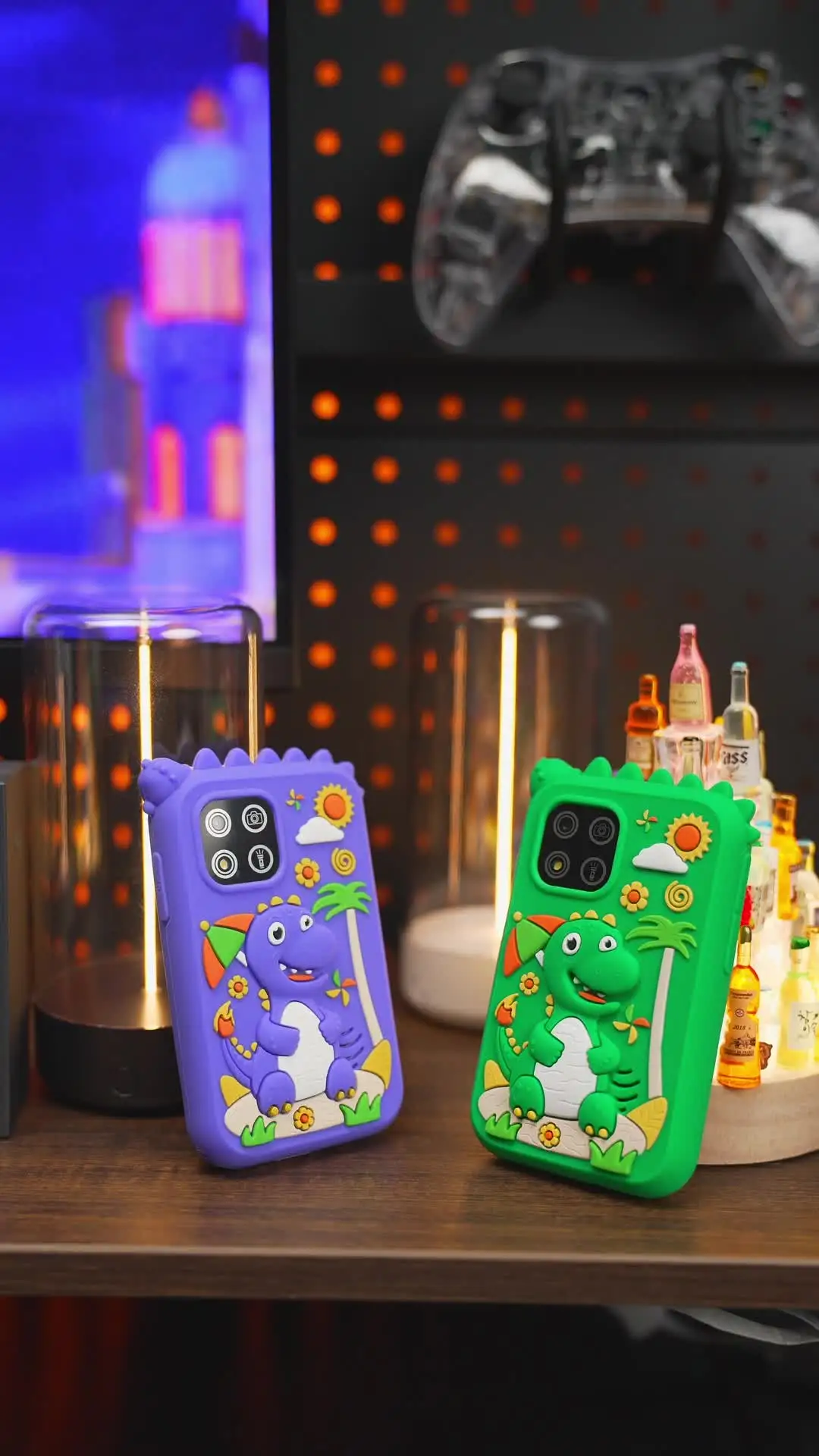
Video: Overview of the AMORUS Children's Smart Phone Toy features.
1.1 Component Identification
Refer to the diagram below for an overview of the device's components:

Image: Front and back view of the AMORUS Z10 Children's Smart Phone Toy.
- ON/Off Button
- Volume Up & Down Buttons
- Front Camera
- TF Card Slot
- Reset Switch
- Microphone (Mic)
- 3.5mm Headphone Connector
- Home Button
- Type-C Port (Charging)
- Hanging Rope Hole
- Loud Speaker
- Rear Camera
- Flashlight
2. Setup
2.1 Initial Charging
Before first use, fully charge the device. Connect the provided Type-C USB cable to the phone's Type-C port (9) and the other end to a 5V1A adapter (not included). Charging typically takes 3-4 hours.
2.2 Inserting a TF Card
The device supports TF cards with a capacity range of 4GB-32GB. Locate the TF card slot (4) on the device. Carefully insert the TF card until it clicks into place. Ensure the card is inserted correctly to avoid damage.
2.3 Powering On/Off
- To Power On/Off: Long press the ON/Off button (1) for 2 seconds.
- To Lock/Unlock Screen: Short press the ON/Off button (1) once.
3. Operating Instructions
3.1 Basic Controls
- Volume Adjustment: Press the Volume Up & Down buttons (2) once to raise or lower the volume.
- Reset Key: Move the Reset switch (5) up to turn on power and down to reset the device.
- Home Button: Tap the Home button (8) to return to the main interface from any application.
3.2 Camera Functions
Tap the camera icon on the main screen to enter photography mode.

Image: The AMORUS Z10's dual camera feature, allowing for photos and video with fun stickers.
- Frame/Filter: Tap the frame/filter icon (1 in diagram on OCR page 4) to apply a frame or filter. Tap again to cancel.
- Take Photo: Tap the camera icon (2 in diagram on OCR page 4) to take a photo.
- Switch Cameras: Tap the switch icon (4 in diagram on OCR page 4) to toggle between the front (3) and rear (12) cameras.
- View Photos/Videos: Tap the album icon (3 in diagram on OCR page 4) to switch to the album. Swipe left/right to view media. Tap 'Options' to delete a single item or 'Delete All' to clear all.
3.3 Video Recording
Tap the video icon on the main screen to enter video mode.
- Record/Stop: Tap the record icon (1 in diagram on OCR page 5) to start recording. Tap again to stop recording and save automatically.
- Play/Pause: Tap to play or pause recorded videos.
- View Videos: Similar to photos, access through the album icon.
3.4 Music Player
Tap the music icon to enter music mode.

Image: The AMORUS Z10's music player functionality, supporting MP3 format and 3.5mm headphones.
- Adding Music: Ensure MP3 format songs are placed in the 'MP3' folder on the TF card before inserting it into the device.
- Navigation: Tap to switch to the previous or next track.
- Playback: Tap to play or pause songs. Music playback is only active within the music interface.
3.5 Other Applications & Features
- Settings: Tap the gear icon to access the settings menu. Swipe left/right to navigate options like Advanced settings and Brightness. Tap 'Advanced' to change language.
- Alarm Clock: Tap the alarm icon. Set up to 4 alarms, select time and reminder period, then use the swipe switch to activate/deactivate.
- Recorder: Tap the microphone icon. Click the red dot to start recording, click again to pause and save. Switch between files, play/pause, delete. High-quality or low-quality recording options are available in settings.
- Calculator: Tap the calculator icon. Use the numeric keypad for calculations.
- Calendar: Tap the calendar icon. Swipe left/right to switch dates.
- Timer: Tap the timer icon. Tap 'Start' to begin, tap again to stop. Tap 'Reset' to clear.
- Torch (Flashlight): Tap the torch icon. Tap ON/OFF to control the flashlight.
- Games: Tap the game controller icon. Select from 1 of 4 built-in puzzle games. School mode can be set to control playtime.
- Video Player: Tap the video player icon. Select a video to play.
- Theme: Tap the theme icon. Select and save your preferred theme.
- Habits Tracker: Tap the habits icon. Select from 1 of 4 plans to set reminder times for daily habits.
- Story: Tap the storybook icon. Select a story for playback.
- Wonders: Tap the globe icon. Swipe left/right to switch between world landmarks; click the play button to hear their names.
- Tools (Stopwatch): Tap the tools icon to access the stopwatch.
- Learn Card (ABC Learning): Tap the learn card icon to enter letter and word pronunciation learning.
4. Maintenance
4.1 General Care
- Keep the device clean by wiping it with a soft, dry cloth.
- Avoid exposing the device to water, moisture, or extreme temperatures.
- Do not drop or subject the device to strong impacts.
4.2 Battery Care
- The device uses a Lithium rechargeable battery.
- Do not use the device while it is charging.
- Avoid overcharging the battery.
4.3 TF Card Handling
- Always ensure the TF card is inserted correctly.
- To prevent data loss, it is recommended to back up important files from the TF card regularly.
5. Troubleshooting
- Device not turning on: Ensure the battery is charged. If it's still unresponsive, try using the Reset switch (5).
- Screen unresponsive: Try locking and unlocking the screen with a short press of the ON/Off button (1). If the issue persists, use the Reset switch (5).
- Music not playing: Verify that MP3 files are correctly placed in the 'MP3' folder on the TF card. Ensure the TF card is properly inserted.
- Lost data/files: If files are accidentally deleted, they cannot be recovered from the device. Regularly back up data on the TF card to prevent permanent loss.
- No Wi-Fi/YouTube: This device does not support Wi-Fi connectivity or direct streaming from platforms like YouTube. All content must be loaded onto the TF card.
5.1 User Tips
- For optimal performance, ensure the TF card is not full. Delete old photos/videos if storage is low.
- When transferring music, always use MP3 format and place files in the designated 'MP3' folder on the TF card.
- Utilize the 'Habits Tracker' and 'Daily Guide' features to help children develop good routines and time management skills.
6. Specifications
| Feature | Detail |
|---|---|
| Product Type | Touch Smartphone Toy / Digital Camera |
| Model Number | Z10 |
| Brand Name | AMORUS |
| Screen Size | 2.8 inch IPS Screen (240*320 resolution) |
| Video Resolution | VGA / 720P / 1080P |
| Video/Audio Format | AVI / MP3 |
| Photo Resolution | VGA / 2M / 3M / 5M / 8M / 12M / 16M |
| Battery Capacity | 600 mAh Lithium Rechargeable Battery |
| Charging Duration | 3-4 Hours |
| Battery Life | 2-3 Hours |
| Input | DC 5V (Type-C) |
| Output | 2W |
| Product Material | ABS Plastic |
| Games Included | 2048, Basketball, Flyball, Gold coins (and 9 other puzzle games) |
| Supported Languages | English, French, Spanish, Italian, German, Chinese |
| Recommended Age | 3-6Y, 6-12Y |
7. Safety Information
⚠ WARNING:
This product can expose you to chemicals including phthalates (DEHP), which is known to the State of California to cause cancer and birth defects or other reproductive harm. For more information go to www.P65Warnings.ca.gov.
- Age Recommendation: Suitable for children aged 3 years and older.
- Adult Supervision: Children 0-3 years old should use this product under the direct supervision of their parents.
- Choking Hazard: Small parts. Not for children under 3 years or any individuals who have a tendency to place inedible objects in their mouths.
- Charging Safety: Do not use the device while it is charging.
- Heat Warning: Do not place the product near fire or high heat sources.
8. Warranty and Support
For any product inquiries, technical support, or warranty claims, please contact the seller directly through the platform where the purchase was made. Please refer to your purchase documentation for specific warranty terms and conditions.
A detailed user manual in PDF format may also be available for download. You can typically find this under 'Item guides & documents' on the product page or by contacting customer support. The PDF manual can be found at: AMORUS Z10 User Manual (PDF)