
1. Introduction
This manual provides essential information for the safe and efficient operation of your Niimbot D110 Label Printer. Please read it thoroughly before first use and keep it for future reference.
1.1 Package Contents
- Smart Label Printer x1
- Label Paper Roll x1 (pre-installed or included)
- USB Type-C Cable x1
- Product Manual x1

Image: Niimbot D110 Label Printer, various label paper rolls, and a carrying case.
2. Setup
2.1 Initial Charging
If the device cannot be turned on, please charge it for at least one hour before first use. Connect the printer to a power source using the provided USB Type-C cable.
2.2 Loading Label Paper
- Power On: Press and hold the power button for three seconds to power on the device.
- Open Compartment: Slide the door-open button (located on the side) to the left to open the paper compartment.
- Insert Paper: Place the label paper in the paper compartment with the printing side facing down. Ensure the first label protrudes from the paper outlet.
- Close Compartment: Close the paper compartment securely.

Image: Niimbot D110 printer with a label emerging from the output slot, demonstrating correct paper loading.
2.3 App Download
To use your printer, download the "NIIMBOT" app from your smartphone's app store:
- For iOS devices: Search "NIIMBOT" on the Apple App Store.
- For Android devices: Search "NIIMBOT" on Google Play.
More detailed instructions and tutorials are available within the NIIMBOT app under "Sign in to NIIMBOT > Me > Help Center > Hardware".
2.4 Bluetooth Connection
- Ensure your smartphone's Bluetooth is turned on.
- Open the NIIMBOT app and search for Bluetooth devices.
- Select "D110" or a similar device name from the list and tap "Connect".
- If prompted for a PIN, enter "0000" or "1234" and press OK.
- Once successfully connected, the app will indicate the printer is ready, and you can proceed to the Drawing Board to create labels.
- Note: Location permissions may need to be enabled on Android phones for Bluetooth to function correctly.
3. Operating Instructions
3.1 Basic Operation
| Operation | Function Description |
|---|---|
| Press and hold for 2-3 seconds | Power On or Off |
| Quick press | Configurable in app: "Don't feed paper", "Print current time", or "Print history". |
| Press twice | Print testing page |
3.2 Printing Labels
- Prepare Label Paper: Ensure label paper is correctly loaded as per Section 2.2.
- Connect via App: Connect your printer to the NIIMBOT app via Bluetooth (Section 2.4).
- Design Label: In the app, select a template or create a new label. You can add text, icons, QR codes, barcodes, images, and more.
- Print: Once your design is complete, tap the "Print" button in the app. Confirm print settings (e.g., number of copies, print density) and initiate printing.
- Apply Label: Carefully tear off the printed label from the printer's output slot and apply it to your desired surface.

Image: Visual guide showing three steps: 1. Put Label Paper, 2. Connect App & Edit, 3. Print & Paste.
3.3 App Features and Templates
The NIIMBOT app offers a wide range of creative printing templates and features:
- Elements: Icons, QR Code, Scanning, Picture, Bar code, Shape, Serial number, Speech Recognition, Text.
- Import: Excel import for batch label creation.
- Customization: Various fonts, tables, symbols, logos, emoji, and time stamps.

Image: Screenshot of the Niimbot app interface displaying various label design options like icons, QR codes, text, and shapes.
3.4 Automatic Paper Rewind
The D110 features an automatic paper rewind function, which prevents the waste of the first label paper, ensuring efficient use of your label rolls.

Image: Diagram illustrating the automatic paper rewind mechanism of the Niimbot D110 printer.
3.5 Usage Scenarios
The Niimbot D110 is versatile and can be used for various labeling needs:
- Home: Organizing living room, kitchen, bedroom storage (food classification, spice jars, toy bins).
- Office: File classification, document labeling.
- School: Labeling books, stationery, personal items.
- Business: Price tags, product labels, cosmetic classification.
- Other: Cable labeling, switch labels, gift card stickers.

Image: Collage showing labels used in school, office, home, and business settings.
3.6 Supported Languages
The NIIMBOT app supports a wide array of languages for label creation, including but not limited to: Chinese, English, Russian, Spanish, French, Arabic, Hebrew, Korean, Portuguese, Japanese, Thai, Dutch, and German.

Image: Display of various languages supported by the Niimbot app for label text.
3.7 Product Demonstration Video
Video: A demonstration of the Niimbot D110 label printer in use, showing app connection, label design, printing, and application in various settings like kitchen, clothing drawers, and for cable management.
4. Maintenance
4.1 Cleaning the Printer
- Ensure the printer is turned off and disconnected from any power source.
- Use a soft, dry, lint-free cloth to wipe the exterior of the printer.
- Do not use corrosive chemical products or cleaners to wipe down the product.
- For the print head, use a cotton swab lightly dampened with isopropyl alcohol to gently clean any residue. Allow it to dry completely before use.
4.2 Battery Care
- Charge the printer regularly, even if not in frequent use, to maintain battery health.
- Avoid exposing the printer to extreme temperatures (hot or cold) as this can degrade battery performance.
- If the printer will not be used for an extended period, charge it to about 50% before storing.
5. Troubleshooting
5.1 Indicator Light Status
| Color | Status | Description |
|---|---|---|
| Blue | Solid | Powered on but not connected |
| Flashing quickly | Upgrading firmware | |
| Green | Solid | Bluetooth connected |
| Flashing quickly | Printing | |
| Red | Solid | Device fault |
5.2 Power Indicator Light Status
| Color | Status | Description |
|---|---|---|
| White | Blinking Slowly | Charging |
| Solid | Fully charged and connected to power | |
| Flashing quickly | Low battery |
5.3 Common Issues
- Printer not turning on: Ensure the device is charged. Connect to power and try again.
- App not connecting: Check if Bluetooth is enabled on your phone and the printer. Restart both devices and the app.
- Poor print quality: Ensure the label paper is loaded correctly (printing side down). Check print density settings in the app. Clean the print head if there's residue.
- Blank labels: Verify the label paper is loaded with the printing side facing the print head.
6. Specifications
| Feature | Detail |
|---|---|
| Model | NIIMBOT D110_M |
| Dimensions | 98*76*30mm |
| Weight | 149g |
| Resolution | 203dpi |
| Printing Speed | 15-30mm/s (Max 40mm/s) |
| Print Width | 8-15mm (Max 15mm) |
| Printing Technology | Thermal printing (Inkless) |
| Battery Capacity | 1500mAh |
| Charging Time | 3-4 hours |
| Charging Interface | Type-C (5V DC, 1A input) |
| Connectivity | Bluetooth (2402-2480MHz), BLE (2402-2480MHz), NFC (13.56MHz) |
| Transmit Power | 4dBm (Maximum) |
| Operating Temperature | 5°C - 45°C |
| Support System | iOS, Android |

Image: Niimbot D110 printer next to a hand, showing its compact size (97mm x 75mm x 30mm) and features like lighter weight, inkless printing, smart label identification, app edit, Bluetooth connection, and Type-C charging.
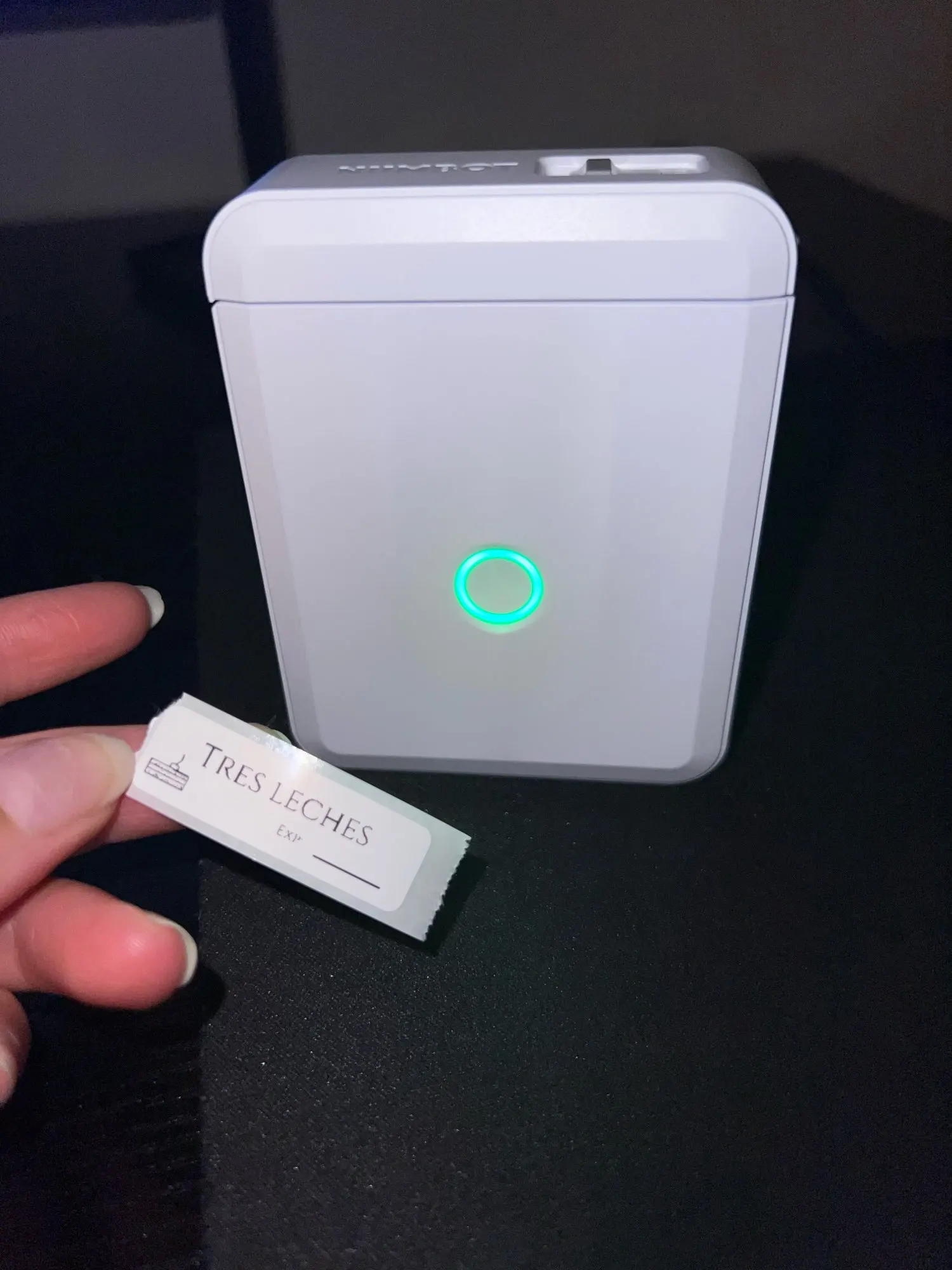
Image: Niimbot D110 printer with a smartphone, highlighting wireless Bluetooth connection, thermal printing technology, label width up to 15mm, high-speed max 40mm/s, rechargeable 1500mAh battery, and HD 203DPI resolution.

Image: Demonstrates the features of the high-quality thermal label tape: Waterproof, Oil-Proof, Scratch Resistant, and Clear Print.
7. User Tips
- Carrying Case: A sturdy carrying case (often sold separately) is highly recommended to protect your printer from damage and dust, and to conveniently store extra label rolls and the charging cable.
- Organization: This printer is excellent for organizing various items around the house, office, or school. Experiment with different label sizes and templates to find what works best for your needs.
- Language Support: The app supports a wide range of languages, including Hebrew, allowing for diverse labeling needs.
- Clothing Labels: While the labels are durable, they are not designed for direct application onto clothing that will be washed. Use them for labeling clothing storage bins or drawers instead.
8. Warranty and Support
8.1 Safety Precautions
Please read all instructions and warnings carefully before using the product to ensure proper and safe use and to avoid personal injury or damage to property.
- Do not disassemble the product yourself. Unauthorized disassembly will void the warranty.
- Do not use corrosive chemical products or cleaners to wipe down the product.
- Do not use the product in the vicinity of flammable substances such as in gas stations or fuel depots.
- Keep the product and accessories in a safe place inaccessible to children. Use only under adult supervision.
- Immediately disconnect the product from the power source if it enters water or malfunctions.
- Use only power adapters that are safe, compliant, and meet standards for charging.
- Do not attempt to replace the battery yourself; incorrect replacement can cause an explosion.
- The battery contains special protective circuitry; do not disassemble it to prevent short circuits or electrolyte leakage. If electrolyte contacts eyes, rinse immediately with clean water and seek medical advice.
- Avoid exposing the appliance or power adapter to high-temperature or high-humidity environments, or submerging in water, to prevent short circuits, overheating, smoke, deformation, damage, or explosion.
- Disconnect the power adapter immediately if you notice smoke or a smell coming from the product or adapter, taking care to avoid burns.
8.2 Manufacturer Information
Wuhan Jingchen Intelligent Identification Technology Co., Ltd.
- Support Email: service@niimbot.com
- Official Website: www.niimbot.com
- Manufacturer's Address: No. 5, Creative Workshop, Creative World, Yezhihu West Road, Hongshan District, Wuhan, China
Please purchase genuine products from the NIIMBOT official store or authorized sales agents to ensure product authenticity and proper regional compatibility. NIIMBOT may be unable to provide support for products purchased through unauthorized channels.