
Introduction
The Freedconn FX Motorcycle Intercom Bluetooth Helmet Headset is designed to enhance your riding experience with advanced communication and entertainment features. This device offers stable, high-speed, and low-distortion communication thanks to its Qualcomm Bluetooth 5.0 three-core processor. It supports full-duplex intercom for up to 10 riders within a 1500-meter range, music sharing, FM radio, and features dual CVC and DSC noise reduction for clear audio even at speeds up to 80 KM/h. With an IP67 waterproof rating and a long-lasting 1100mAh battery, the FX is built for various weather conditions and extended use.

Freedconn FX Intercom units, showcasing the black and silver color options.
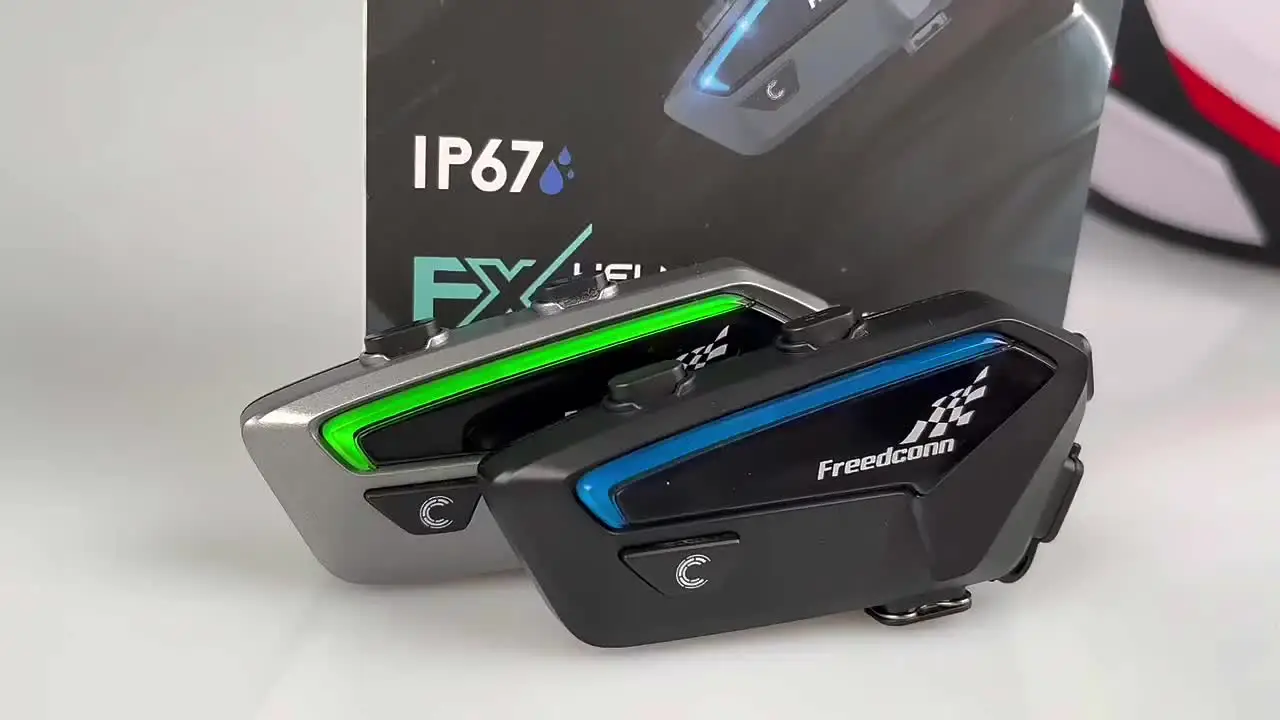
An overview video demonstrating the Freedconn FX Motorcycle Intercom.
Setup
Package Contents
Before installation, please verify that all components are present in your package:
- FreedConn FX Bluetooth Device (1 or 2 units, depending on purchase)
- 2-in-1 Microphone & Speaker (1 or 2 sets)
- Headphone Velcro (6 or 12 pieces)
- Velcro Clip (1 or 2 pieces)
- Hook Clip (1 or 2 pieces)
- USB Charge Cable (1 or 2 pieces)
- User Manual (1 or 2 pieces)
- Packing Box (1 or 2 pieces)
Note: The package includes a USB charging cable, but not a wall charger. Please use a standard phone charger for power.
Installation
The Freedconn FX offers two primary installation methods for attaching the unit to your helmet:

Detailed steps for both Buckle Base and Velcro Base installation modes.
1. Buckle Base Installation Mode
- Mounting Clamp: Secure the mounting clamp to the left side of your helmet.
- Fit Clamp: Fit the clamp to the proper position on the left side of the helmet.
- Align & Install FX Host: Align the clamp slot and install the FX host onto the clamp.
- Stick Earphone Velcro Pads: Stick the earphone velcro pads at the ear position inside the helmet.
- Stick Headphones: Stick the headphones on the Velcro pads.
- Plug Earphone: Plug the earphone into the FX earphone jack.
2. Installation Method of Velcro Base
- Mounting Clamp: Secure the mounting clamp to the left side of your helmet.
- Fit Clamp: Fit the clamp to the proper position on the left side of the helmet.
- Align & Install FX Host: Align the clamp slot and install the FX host onto the clamp.
- Stick Earphone Velcro Pads: Stick the earphone velcro pads at the ear position inside the helmet.
- Stick Headphones: Stick the headphones on the Velcro pads.
- Plug Earphone: Plug the earphone into the FX earphone jack.
Charging
To charge your Freedconn FX unit, connect the provided USB charging cable to the charging port on the device and plug the other end into a standard USB power adapter (e.g., a phone charger) or a computer's USB port. The LED indicator will show charging status.
Operating Instructions
Device Layout and Controls

Overview of the Freedconn FX unit with labeled buttons and ports.
- Volume+/Next Song: Increases volume, skips to next song.
- Volume-/Last Song: Decreases volume, goes to previous song.
- LED indicator/Running Water Lights: Displays device status and light effects.
- On/Off (Intercom) Button: Powers the device on/off, initiates/ends intercom.
- Charging Port: USB port for charging.
- Earphone Port: Connects the microphone and speaker set.
- Multi-function Button: Used for various functions like pairing, answering calls, etc.
- Running Water Lights ON/OFF Button: Controls the bladed flowing-water lamp design.
Bluetooth Pairing
To pair your Freedconn FX with your mobile phone or other Bluetooth devices:
- Ensure the FX unit is powered off.
- Press and hold the Multi-function Button until the LED indicator flashes rapidly, indicating pairing mode.
- On your phone, search for Bluetooth devices and select 'Freedconn FX'.
- Once connected, the LED indicator will change to a steady light or slow flash.
The FX is compatible with 99.9% of Bluetooth devices, including other brands of intercoms and smartphones, allowing seamless connection switching.
Intercom Function
The Freedconn FX supports full-duplex intercom for 6-10 users within a 1500-meter range. Refer to the detailed instructions in the included user manual for specific steps on initiating and managing multi-rider intercom sessions.

Riders communicating using the full-duplex intercom feature.
Music Sharing
The device supports remote music sharing among riders. This feature allows multiple users to listen to the same music simultaneously, enhancing the group riding experience. Specific instructions for initiating music sharing can be found in the full user manual.

Visual representation of remote music sharing functionality.
FM Radio
The Freedconn FX includes an FM radio function. Consult the comprehensive user manual for instructions on how to scan for stations and operate the FM radio.
Noise Reduction
The FX utilizes CVC and DSC dual noise reduction technology. This effectively shields background noise at speeds up to 80 KM/h, ensuring clear communication that feels like face-to-face conversation.

Illustration of the dual noise reduction mode for clearer audio.
Firmware Update
The device supports independent program updates via a USB cable. You can connect the FX to a computer and visit the Freedconn website to download and install the latest firmware directly, without needing to send the device back to the manufacturer.

The Freedconn FX can be updated via USB cable and the official website.
Maintenance
To ensure the longevity and optimal performance of your Freedconn FX intercom, follow these maintenance guidelines:
- Cleaning: Use a soft, damp cloth to clean the exterior of the unit. Avoid harsh chemicals or abrasive cleaners.
- Waterproof: The device is IP67 waterproof, meaning it is protected against dust and can withstand immersion in water up to 1 meter for 30 minutes. However, avoid prolonged submersion or high-pressure water jets. Ensure the charging port cover is securely closed when not charging.
- Storage: Store the unit in a cool, dry place away from direct sunlight and extreme temperatures.
- Battery Care: For optimal battery life, avoid fully discharging the battery frequently. Charge the unit regularly, especially if it will be stored for an extended period.
Troubleshooting
If you encounter issues with your Freedconn FX, try the following common troubleshooting steps:
- No Power: Ensure the battery is charged. Connect the unit to a power source using the USB cable.
- Cannot Pair: Make sure the unit is in pairing mode (rapidly flashing LED). Turn off and restart both the FX unit and the device you are trying to pair with. Clear previous Bluetooth connections if necessary.
- No Sound/Low Volume: Check that the earphones are properly plugged into the earphone port. Adjust the volume using the Volume+/- buttons. Ensure the microphone is positioned correctly.
- Intercom Disconnection: Ensure all units are within the specified 1500m range and there are no significant obstructions. Try re-initiating the intercom connection.
- Poor Audio Quality: Check for proper earphone placement and microphone positioning. Ensure noise reduction is active.
- Device Unresponsive: Try performing a factory reset (refer to the full user manual for specific instructions on how to perform a reset).
For more detailed troubleshooting, please refer to the complete user manual or contact Freedconn customer support.
Specifications
Detailed product parameters and structural overview.
| Feature | Specification |
|---|---|
| Bluetooth Version | 5.0+EDR |
| Frequency | 2.4 GHz |
| Weight | 47g |
| Dimensions (L x W x H) | 84mm x 40mm x 20mm |
| Standby Time | Up to 1 month (300 hours) |
| Intercom Time | Up to 30 hours |
| Music Playing Time | Up to 25 hours |
| Phone Talking Time | Up to 25 hours |
| Battery Type | Rechargeable Lithium Polymer Battery |
| Battery Material | Lithium ion |
| Battery Model | 802060 |
| Battery Capacity | 1100mAh |
| Voltage | 3.7V |
| Power | 4.18WH |
| Waterproof Rating | IP67 |
| Max Intercom Distance | Up to 1500m (>1000m) |
| Max Number of Speakers | 6-10 users (>6) |
| Special Features | FM Radio, Noise Reduction, Waterproof, Remote Control, Bluetooth Intercom, Voice Prompt, Two-way Walkie-talkie Connected |
| Applicable Helmet Type | Half Helmet, MODULAR, MOTOCROSS, Open face, Full Face, Flip Up Helmet, Universal |
| Power Supply Mode | Built-in Battery |
| Connection Mode | Wire, Bluetooth |
| Certifications | CE, RoHS, FCC |
| Item Type | Helmet Headset |
| Plug Type | USB |
User Tips
- Hi-Res Earphones: The Hi-Res certified earphones are an optional, non-standard equipped component. If you are interested in purchasing the Hi-Res version or upgrading your earphones, please check the product options at the time of purchase or contact the seller for availability.
- Charging: Always use a standard phone charger or a computer's USB port with the provided USB cable for charging. Avoid using unapproved chargers.
- Firmware Updates: Regularly check the Freedconn website for firmware updates to ensure your device has the latest features and performance improvements.
Warranty and Support
Warranty
The Freedconn FX Motorcycle Intercom Bluetooth Helmet Headset comes with a 365 Days Free Replacement warranty. This warranty covers manufacturing defects and quality problems. For warranty claims, please contact the seller or manufacturer directly with your proof of purchase.

Information regarding the 365 Days Free Replacement warranty.
Customer Support
For any technical assistance, troubleshooting, or warranty inquiries, please refer to the contact information provided with your purchase or visit the official Freedconn website for support resources.