
1. Introduction
Thank you for choosing the JCMO SG109 PRO Mini Drone. This quadcopter features a brushless motor, HD dual cameras for aerial photography, and intelligent obstacle avoidance, making it suitable for both beginners and intermediate users. This manual provides essential information for safe operation, setup, and maintenance of your drone.

The SG109 PRO Mini Drone, showcasing its compact design and remote control.
2. Safety Guidelines
- Age Restriction: Not suitable for children under 14 years. Adult supervision is recommended for users under 18.
- Flight Environment: Fly in open areas, away from people, animals, buildings, and power lines. Avoid flying in strong winds or adverse weather conditions.
- Pre-Flight Check: Always ensure the drone and remote control batteries are fully charged and propellers are securely attached and undamaged.
- Line of Sight: Maintain visual line of sight with the drone at all times.
- Respect Privacy: Be mindful of privacy laws and personal space when using the camera.
- Emergency Landing: Familiarize yourself with the one-key landing function for emergencies.
3. Package Contents
Verify that all items are present in your package:
- 1 x SG109 PRO RC Quadcopter
- 1 x Remote Controller
- 1 x Mobile Phone Holder
- 1 x Obstacle Avoider
- 1 x 3.7V 1600mAh Lipo Battery (additional batteries may be included depending on package option)
- 2 x Spare Propellers (pairs)
- 1 x USB Charging Cable
- 1 x Screwdriver
- 1 x User Manual
- Spare screws (various)
- 1 x Storage Bag (depending on package option)

Official Standard Package Contents.
4. Specifications
| Feature | Detail |
|---|---|
| Model Number | SG109 PRO |
| Drone Weight | 161.4g |
| Dimensions (Unfolded) | 20.5 x 18 x 7 cm |
| Dimensions (Folded) | 14 x 8 x 7 cm |
| Motor Type | 1503 Brushless Motor (4000/KV) |
| Drone Battery | 3.7V/1600mAh Lithium Battery |
| Flight Time | Approx. 13 minutes |
| Charging Time | Approx. 2 hours (USB 5V) |
| Remote Control Battery | 3*AA (not included) |
| Control Distance | About 100 meters |
| Wi-Fi Image Transmission Distance | About 80 meters (2.4G Wi-Fi) |
| Video Resolution (Front Camera) | 1920*1080P |
| Photo Resolution (Front Camera) | 4096*2160P |
| Frame Rate | 20 fps |
| Camera Lens | Adjustable by transmitter 120° |
| Positioning System | Optical Flow Positioning, Intelligent Fixed Height Suspension |
| Obstacle Avoidance | 360° Omnidirectional Intelligent Sensing |
| Operator Skill Level | Beginner, Intermediate |
| Recommended Age | 14+ years |
| Control Channels | 4 Channels |
| Controller Mode | MODE2 |
| Material | Plastic, Metal |
| State of Assembly | Ready-to-Go |

Detailed comparison of SG109 PRO and SG109 MAX models.

SG109 PRO Drone Dimensions.
5. Setup
5.1 Unfolding the Drone
- Gently unfold the drone arms until they lock into place.
- Ensure all propellers are securely attached.

Unfolding the drone for flight.
5.2 Battery Installation & Charging
- Drone Battery: Insert the 3.7V/1600mAh Lipo Battery into the drone's battery compartment until it clicks.
- Charging: Connect the drone battery to the USB charging cable and plug it into a 5V USB power source. The charging indicator will show the charging status. Charge for approximately 2 hours.
- Remote Controller Battery: Open the battery compartment on the back of the remote controller and insert 3 AA batteries (not included), ensuring correct polarity.

Matrix Lithium Battery for extended flight.
5.3 App Download and Connection
- Download the official drone control app from your smartphone's app store (refer to the user manual for specific app name).
- Turn on the drone and the remote controller.
- On your smartphone, connect to the drone's Wi-Fi network (usually named 'SG109 PRO-XXXX').
- Open the app to establish a connection with the drone.
6. Operating Instructions
6.1 Basic Flight Controls
- One-Key Takeoff: Press the one-key takeoff button on the remote controller or in the app. The drone will automatically ascend and hover at a stable altitude.
- Directional Control: Use the left joystick for altitude and rotation (yaw), and the right joystick for forward/backward and left/right movement (pitch and roll).
- One-Key Landing: Press the one-key landing button. The drone will slowly descend and land automatically.
- Emergency Stop: In case of emergency, press the emergency stop button (refer to remote diagram in the full manual) to immediately cut power to the motors.
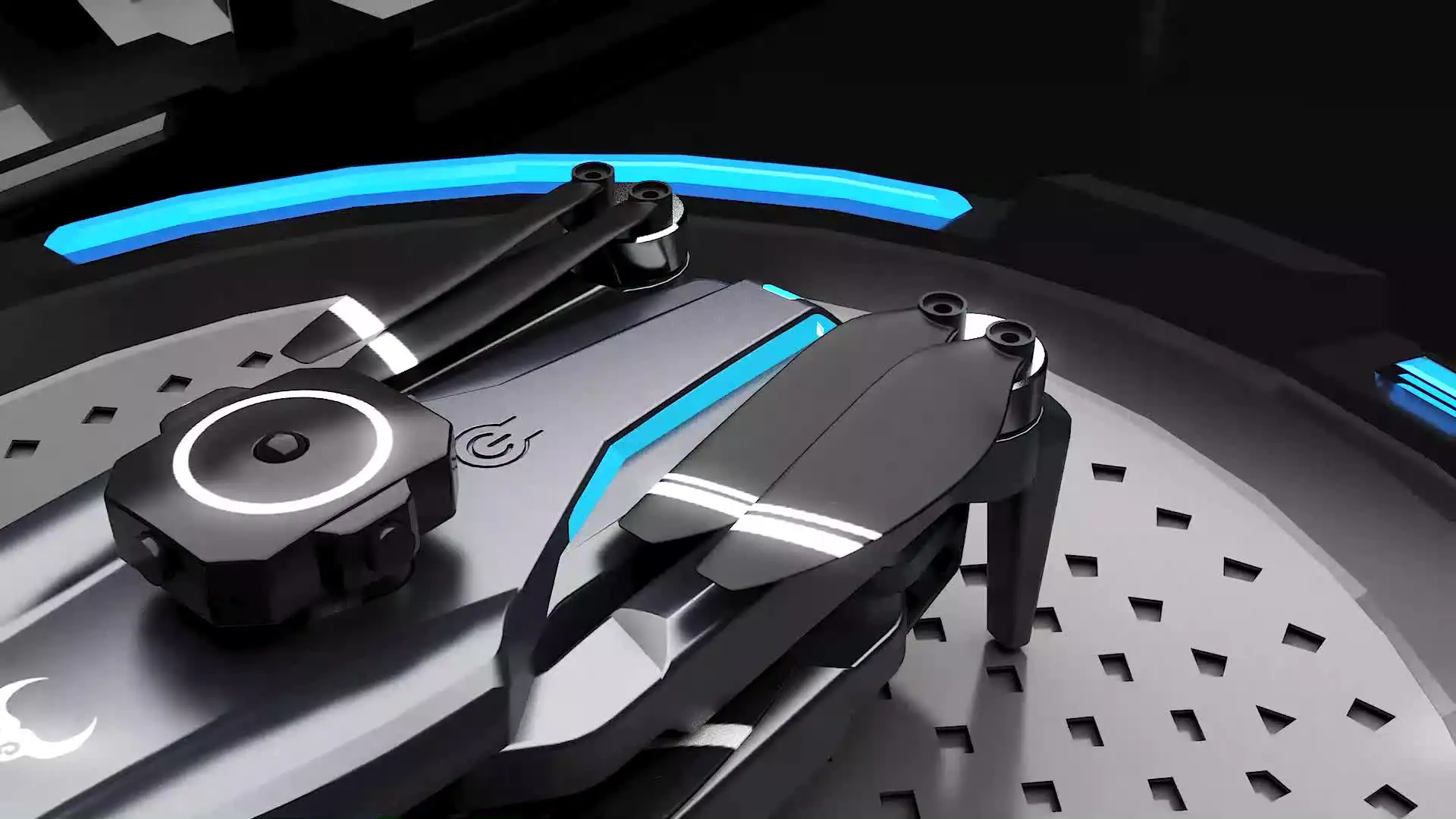
Video demonstrating various flight features including one-key takeoff, real-time transmission, obstacle avoidance, and stunt roll.
6.2 Advanced Flight Features
- Optical Flow Positioning: The drone uses optical flow sensors for stable hovering and precise positioning, especially in indoor environments or areas with good ground texture.
- Headless Mode: In headless mode, the drone's orientation is relative to the pilot, making it easier for beginners to control without worrying about the drone's front direction.
- 360° Omnidirectional Obstacle Avoidance: The drone is equipped with intelligent sensors that detect obstacles in all directions, helping to prevent collisions.

The drone's 360° Omnidirectional Obstacle Avoidance in action.
- Trajectory Flight: Draw a desired flight path on your smartphone screen, and the drone will automatically follow the route.

Trajectory Flight feature via the mobile app.
- Intelligent Follow: The drone can automatically follow a designated subject, keeping it in the frame for dynamic video recording.

Intelligent Follow mode tracking a subject.
- 360° Stunt Roll: Execute impressive aerial flips with a dedicated button on the remote controller.
- One-Key Return: Press the one-key return button, and the drone will fly back towards its takeoff point.
6.3 Camera Functions
- Dual Camera Switching: The SG109 PRO features both a front HD camera and a bottom optical flow camera. You can switch between them for different perspectives.
- Electronically Adjustable Camera: The front camera's angle can be adjusted by 120° via the remote controller for optimal shooting angles.
- Real-time Transmission: View live footage from the drone's camera directly on your smartphone via the app.
- High Definition Screen: The app provides a high-definition display of the camera feed, allowing for clear monitoring and control.
- Gesture Photography/Video: Use specific hand gestures to trigger photo or video recording without needing to touch the remote controller.

Dual Lens Switching for varied perspectives.

HD Shooting with zoom and crop functionality.

Gesture Photography and Recording.
7. Maintenance
- Cleaning: After each flight, gently wipe the drone body and camera lenses with a soft, dry cloth to remove dust and debris.
- Propeller Inspection: Regularly check propellers for any cracks, bends, or damage. Replace damaged propellers immediately using the provided spare parts and screwdriver.
- Battery Care: Store batteries in a cool, dry place. Do not overcharge or over-discharge. If storing for extended periods, charge them to about 50% capacity.
- Storage: When not in use, fold the drone and store it in its original packaging or a protective case to prevent damage.
8. Troubleshooting
| Problem | Possible Cause | Solution |
|---|---|---|
| Drone does not respond to remote. | Low battery in drone or remote; not paired. | Charge batteries; re-pair drone and remote (refer to full manual for pairing steps). |
| Unstable flight/Drifting. | Uncalibrated gyroscope; strong wind; damaged propellers. | Perform gyroscope calibration (refer to full manual); fly in calm conditions; replace damaged propellers. |
| No image on smartphone app. | Wi-Fi not connected; app not open; drone camera not activated. | Ensure phone is connected to drone's Wi-Fi; open the app; check camera activation in app. |
| Obstacle avoidance not working. | Sensors blocked or dirty; feature not activated. | Clean sensors; ensure feature is enabled in the app or via remote. |
| Short flight time. | Battery not fully charged; old battery; aggressive flying. | Fully charge battery; consider replacing old batteries; fly more conservatively. |
9. User Tips
- Practice in Open Spaces: For beginners, start flying in large, open areas free from obstacles to get accustomed to the controls.
- Battery Management: Always carry extra charged batteries for longer flight sessions. Allow batteries to cool down before recharging.
- Firmware Updates: Check the official app periodically for any available firmware updates for your drone to ensure optimal performance and access to new features.
- Learn Gesture Controls: Practice gesture photography and video to capture moments hands-free and enhance your aerial content creation.
10. Warranty and Support
For detailed warranty information, please refer to the documentation provided with your purchase or contact JCMO customer support. If you encounter any issues not covered in this manual, please reach out to the seller or manufacturer's support team for assistance.