1. Introduction
Thank you for purchasing the Arvin 25-segment LED Sound-controlled Music Spectrum Display. This device is designed to enhance your audio experience with dynamic visual effects, reacting to sound in real-time. Please note that this product functions solely as a visual display and is not a spectrum analyzer with analytical capabilities. It is intended for ambient lighting, decoration, and audio modification purposes only.
Important Note: This is a flashing LED panel for display only, not a functional spectrum analyzer. It does not offer any other features beyond visual sound reaction.
2. Key Features
- Dynamic 25-segment LED display for real-time sound visualization.
- Suitable for ambient lighting, decoration, and audio modification.
- Compact design for versatile placement.
- Type-C power supply interface (5V1A).
- Integrated microphone for sound pickup.
- 3.5mm headphone jack for direct audio input.
- Adjustable sensitivity potentiometer for fine-tuning sound reaction.
- Three function buttons: Mode, Brightness, and Response Speed.
- Power-off memory function: settings are saved automatically after each adjustment.
3. Package Contents
Please check the box for the following items:
- 1 x Voice-controlled Music Spectrum Display
- 1 x Type-C Cable
4. Setup Instructions
Power Connection: Connect the provided Type-C cable to the Type-C power supply interface on the device. Plug the other end into a 5V1A USB power adapter (not included).

Image: Close-up of the circuit board showing controls: Sensitivity adjustment potentiometer, 3.5mm audio input, Type-C power supply interface, Mode, Brightness, and Speed buttons.
Audio Input (Optional): The device can pick up sound via its built-in microphone. For direct audio input, connect an audio source (e.g., headphone output from a device) to the 3.5mm audio input jack.
Placement: Place the spectrum display in your desired location. Ensure it is stable and has clear access to sound if using the microphone input.
5. Operating Instructions
Once powered on, the device will immediately begin displaying visual patterns based on detected sound. Use the control buttons and potentiometer to customize the display.
Mode Button: Press the 'Mode' button to cycle through different display patterns and effects.
Brightness Button: Press the 'Brightness' button to adjust the intensity of the LED lights.
Speed Button: Press the 'Speed' button to change the animation speed of the spectrum display.
Sensitivity Adjustment Potentiometer: Use a small screwdriver or your finger to rotate the sensitivity adjustment potentiometer. Turning it clockwise increases sensitivity, making the display react to quieter sounds. Turning it counter-clockwise decreases sensitivity, requiring louder sounds for a reaction.
All adjustments made using the function buttons and potentiometer are automatically saved and remembered even after the device is powered off.
Video: Demonstrating the dynamic light patterns of the spectrum display reacting to music.
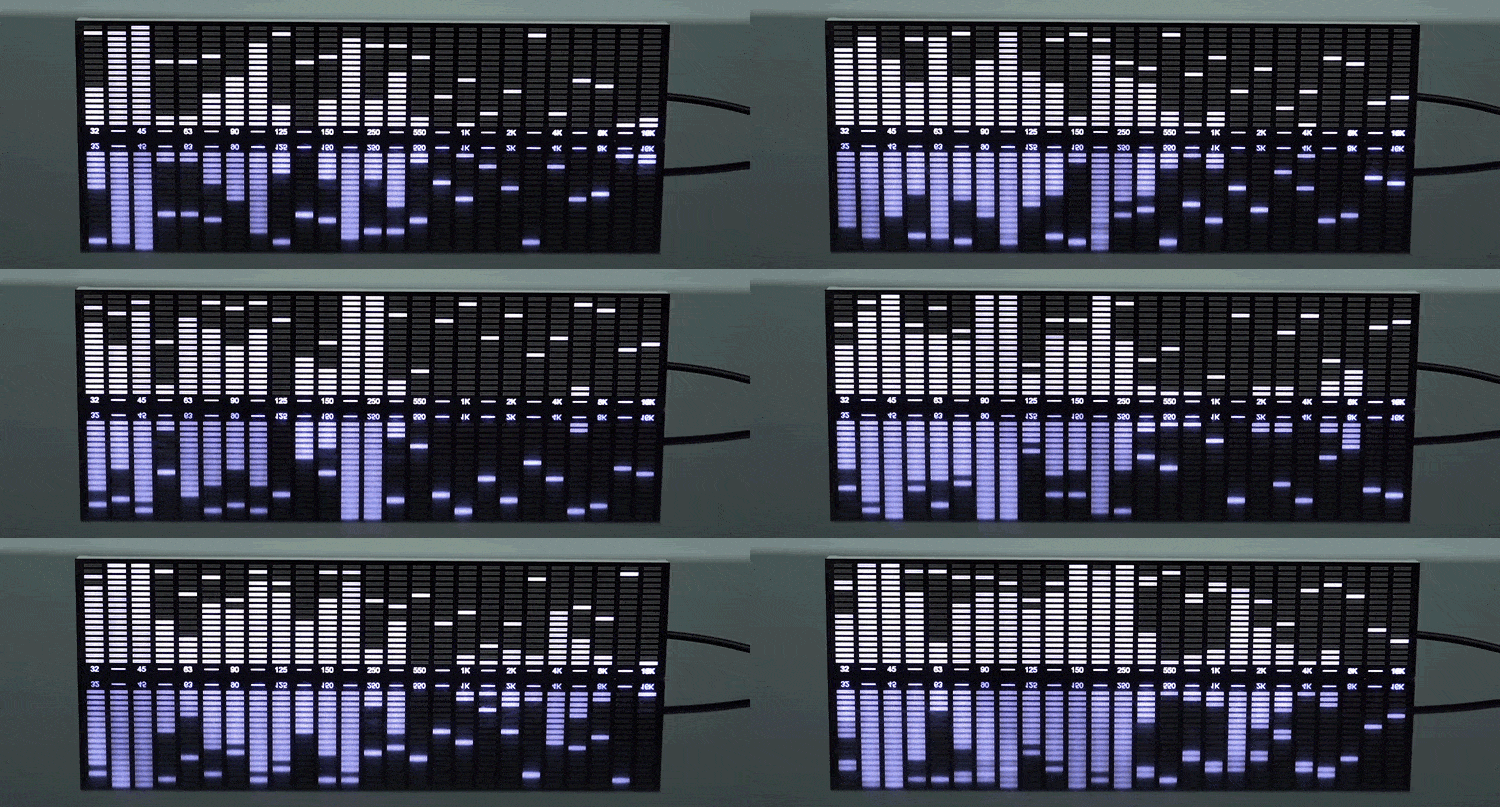
Image: Animated GIF showing the LED spectrum display reacting to sound.
6. Maintenance
- Cleaning: Use a soft, dry cloth to gently wipe the surface of the display. Do not use liquid cleaners or abrasive materials, as they may damage the LEDs or casing.
- Power Supply: Always use a 5V1A power adapter with the provided Type-C cable to prevent damage to the device.
- Storage: When not in use for extended periods, store the device in a cool, dry place away from direct sunlight and extreme temperatures.
7. Troubleshooting
- Display Not Lighting Up:
- Ensure the Type-C cable is securely connected to both the device and a working 5V1A power source.
- Try a different Type-C cable or power adapter to rule out cable/adapter issues.
- Display Not Reacting to Sound:
- If using the built-in microphone, ensure the device is placed close enough to the sound source and that the volume is sufficient.
- Adjust the sensitivity potentiometer (clockwise to increase sensitivity).
- If using the 3.5mm audio input, ensure the cable is properly connected and the audio source is playing.
- Display Patterns Seem Incorrect or Static:
- Try pressing the 'Mode' button to cycle through different display patterns.
- Adjust the 'Speed' button to see if the animation changes.
- Adjust the sensitivity potentiometer.
- No Other Features Available:
- As stated in the introduction, this device is a visual display only and does not have additional features such as audio output, recording, or advanced spectrum analysis.
8. Specifications
| Feature | Detail |
|---|---|
| Product Name | 25-segment LED Sound-controlled Music Spectrum Display |
| Brand | Arvin |
| Dimensions (without case) | 250mm (L) x 50mm (W) x 10mm (H) |
| Dimensions (with case) | 255mm (L) x 55mm (W) x 25mm (H) |
| Power Supply | Type-C interface, 5V1A |
| Audio Input | Built-in Microphone, 3.5mm Headphone Jack |
| Controls | Mode, Brightness, Speed buttons, Sensitivity potentiometer |
| Memory Function | Power-off memory for settings |
| Origin | Mainland China |
| Certification | None |

Image: Front view of the 25-segment LED spectrum display without a case.

Image: Comparison of different spectrum display sizes and versions, including dimensions.

Image: White version of the spectrum display with protective case.

Image: Black version of the spectrum display with protective case.
9. User Tips
- For optimal microphone performance, place the display close to your speakers or audio source.
- Experiment with different 'Mode' and 'Speed' settings to find the visual effect that best suits your music and environment.
- If the display seems too sensitive or not sensitive enough, fine-tune it using the sensitivity potentiometer. A small adjustment can make a big difference.
10. Warranty and Support
For any questions, technical support, or warranty inquiries regarding your Arvin 25-segment LED Sound-controlled Music Spectrum Display, please contact the seller or retailer from whom you purchased the product. They will be able to provide assistance in accordance with their specific policies.


