
1. Introduction
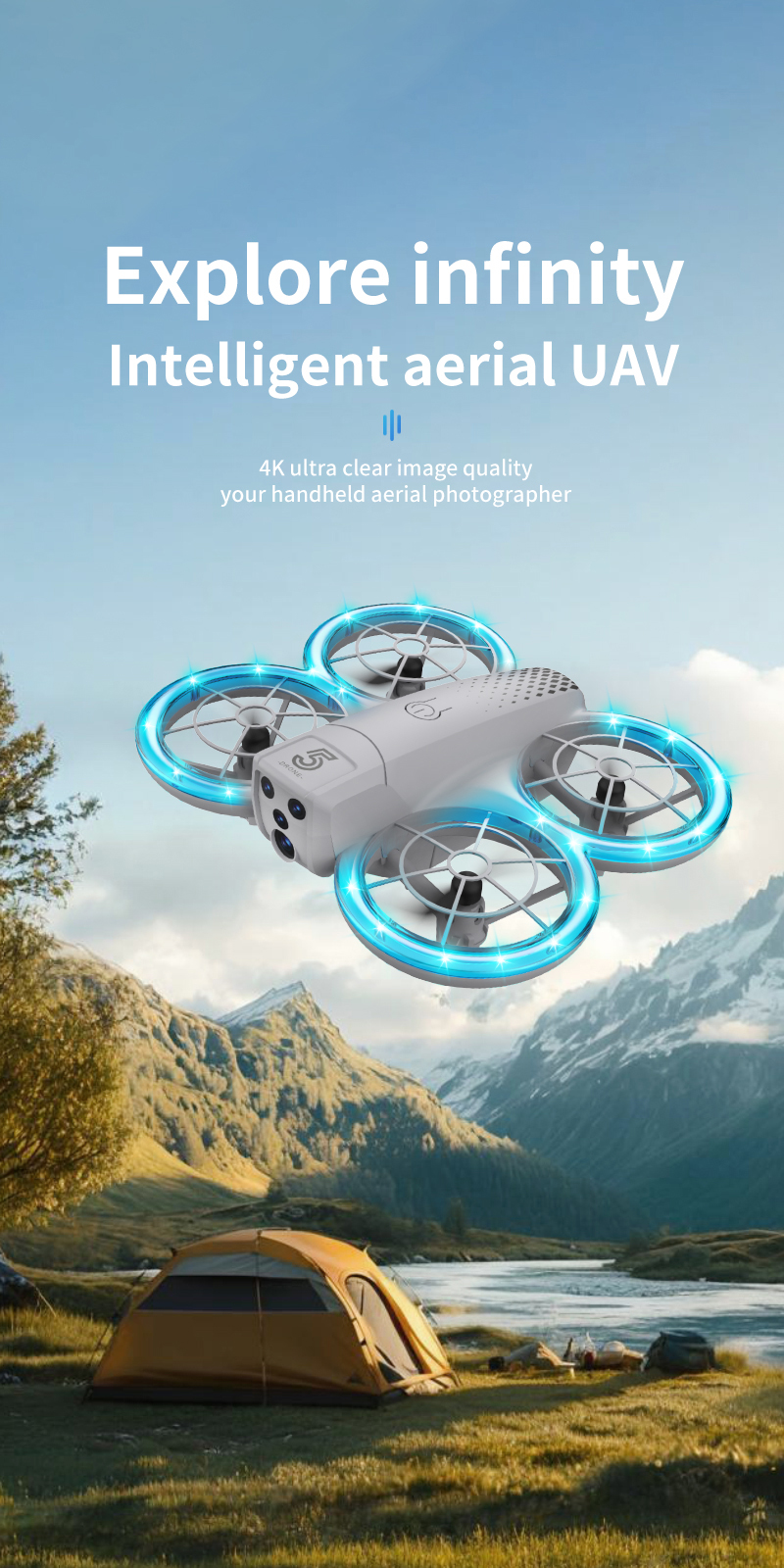
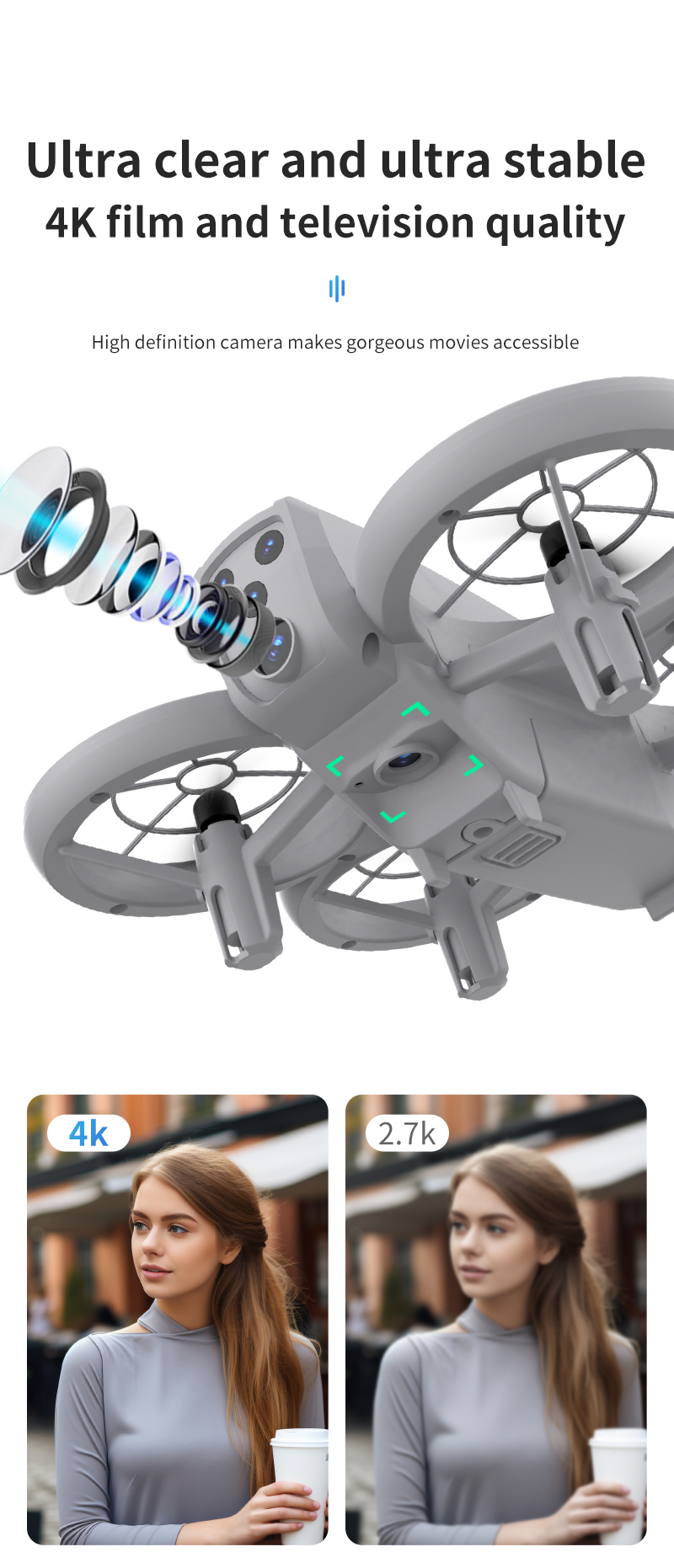
The CONUSEA CZ05 Mini Drone is a compact and versatile quadcopter designed for both beginners and experienced users. Featuring 4K ultra-clear dual cameras, optical flow positioning for stable flight, and a foldable design, it offers an intuitive flying experience. Its full package protection ensures safe operation, making it suitable for various age groups. This manual provides essential information for safe and effective use of your drone.

2. Safety Guidelines
- Age Restriction: Not suitable for children under 36 months due to small parts. Recommended for ages 6-12Y and 14+y.
- Supervision: Always operate the drone under adult supervision, especially with younger users.
- Environment: Fly in open areas, away from people, animals, buildings, and power lines. Avoid flying in strong winds (Anti-wind Ability: 1).
- Pre-flight Check: Ensure all propellers are securely attached and undamaged. Check battery levels for both drone and remote control.
- Propeller Guards: The drone features full package protection, including propeller guards, for enhanced safety.
- Battery Safety: Use only the provided charging cable and ensure proper battery installation. Do not overcharge or puncture batteries.

3. Package Contents
Please check the package to ensure all items are present:
- Drone x1
- Remote control x1
- Spare fan blades x4
- Body battery (ZN802540 3.7V 600mAh Lithium Battery) x1
- Charging cable x1
- Screwdriver x1
- Instruction Manual x2
- Mobile phone stand x1 (Included with camera versions)
4. Specifications
| Feature | Detail |
|---|---|
| Model Name | S123 Drone (CZ05) |
| Brand | CONUSEA |
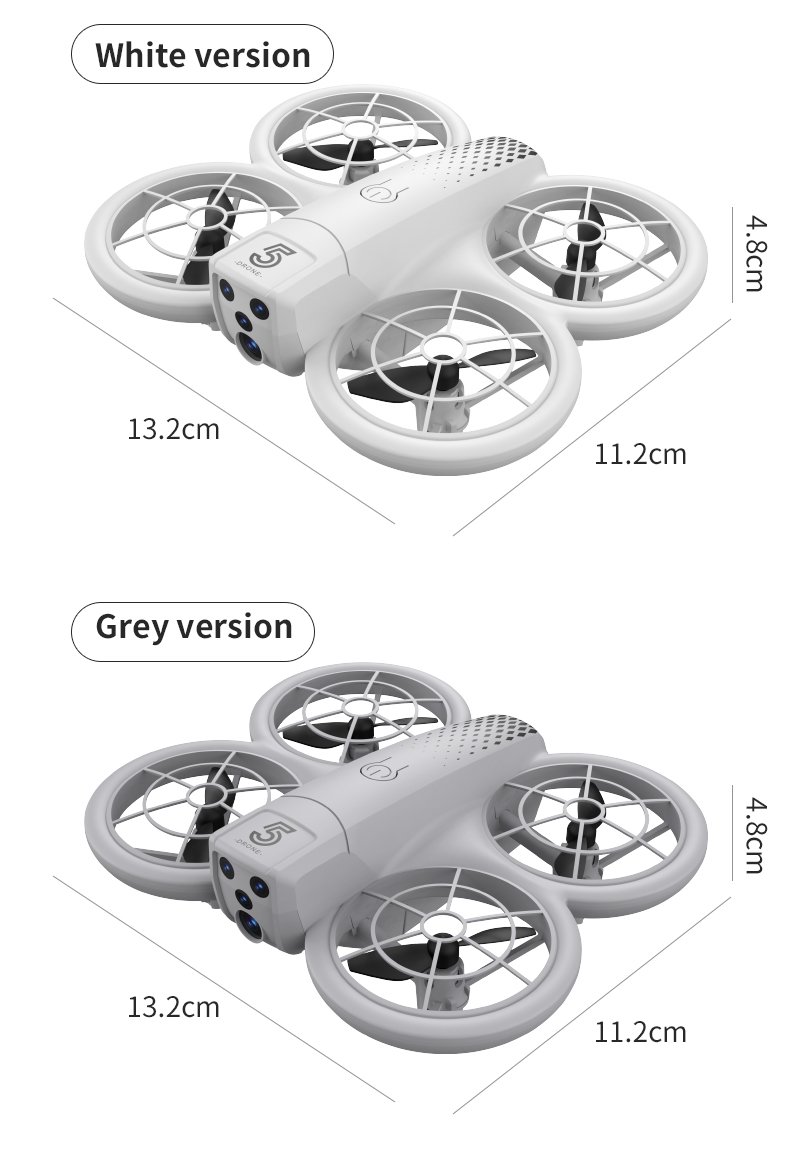
| Color Options | Gray, White |
| Frequency | 2.4G |
| Applicable Age | 6-12Y, 14+y |
| Materials | Metal, Plastic, Electronic Components |
| Product Dimensions | 13.2 x 11.2 x 4.8 cm (approx. 17x17x5cm) |
| Drone Weight | 57g |
| Body Battery | ZN802540 3.7V 600mAh Lithium Battery (Included) |
| Remote Control Battery | 3*AAA batteries (not included) |
| Remote Control Distance | About 80-100 meters |
| Charging Time | About 60 minutes (1 hour) |
| Flight Time | About 7-10 minutes |
| Motor Type | Brush Motor |
| Control Channels | 4 channels |
| Video Capture Resolution | 4K (Other) |
| Certification | CE |
| Operator Skill Level | Beginner |
| Indoor/Outdoor Use | Indoor-Outdoor |
| Power Source | Electric (Lithium Battery) |
| Anti-wind Ability | 1 |
| Features | App-Controlled, Optical Flow Positioning, Headless Mode, One-Key Takeoff/Landing, 360° Roll, Trajectory Flight, Gesture Recognition |

5. Setup Guide
5.1 Battery Installation
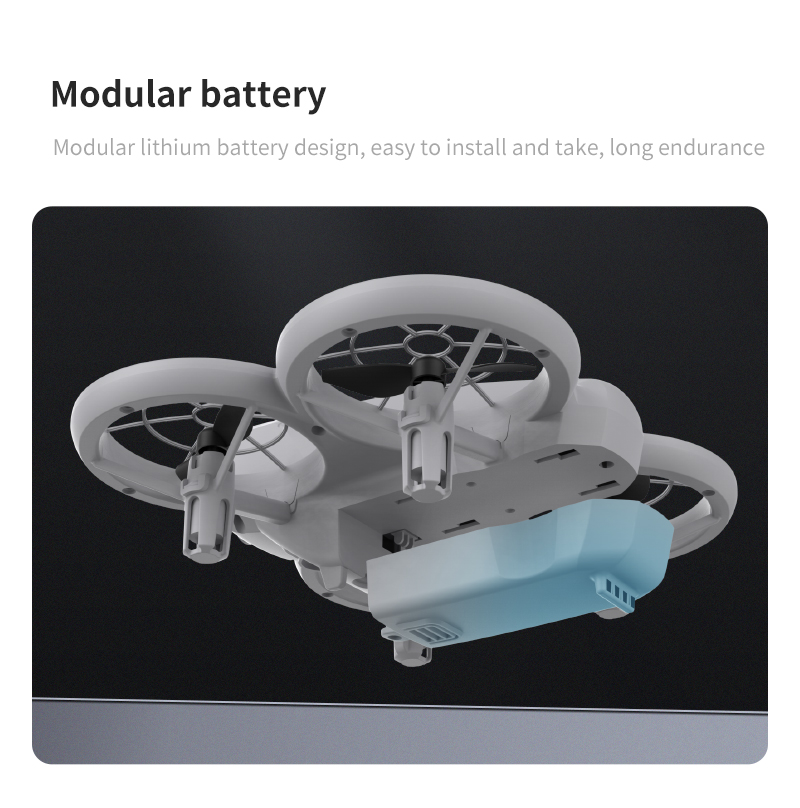
- Drone Battery: Insert the provided ZN802540 3.7V 600mAh lithium battery into the drone's battery compartment. Ensure it clicks into place securely.
- Remote Control Battery: Open the battery cover on the back of the remote control. Insert 3 AAA batteries (not included), ensuring correct polarity. Close the cover.
5.2 Charging the Drone Battery
Connect the drone battery to the charging cable, then plug the USB end of the cable into a suitable USB power source (e.g., computer, USB wall adapter). The charging time is approximately 60 minutes.
5.3 Remote Control Pairing
- Turn on the drone by pressing the power button. The indicator lights will flash.
- Turn on the remote control.
- Push the left joystick (throttle) up and then down. The remote control will beep, and the drone's lights will become solid, indicating successful pairing.
5.4 App Download and Connection (for Camera Versions)
For models with a camera, download the dedicated aerial photography APP from your smartphone's app store. Connect your smartphone to the drone's Wi-Fi network (usually named 'WIFI-XXXXXX'). Once connected, you can view the live feed and access advanced features through the app.
6. Operating Instructions
6.1 Remote Control Functions
- One-click Takeoff/Landing: Press the dedicated button for automatic takeoff or landing.
- Ascent/Descent: Use the left joystick (throttle lever) to control altitude.
- Left/Right Turning: Use the left joystick to rotate the drone left or right.
- Forward/Backward/Left/Right Flight: Use the right joystick (steering rod) for directional movement.
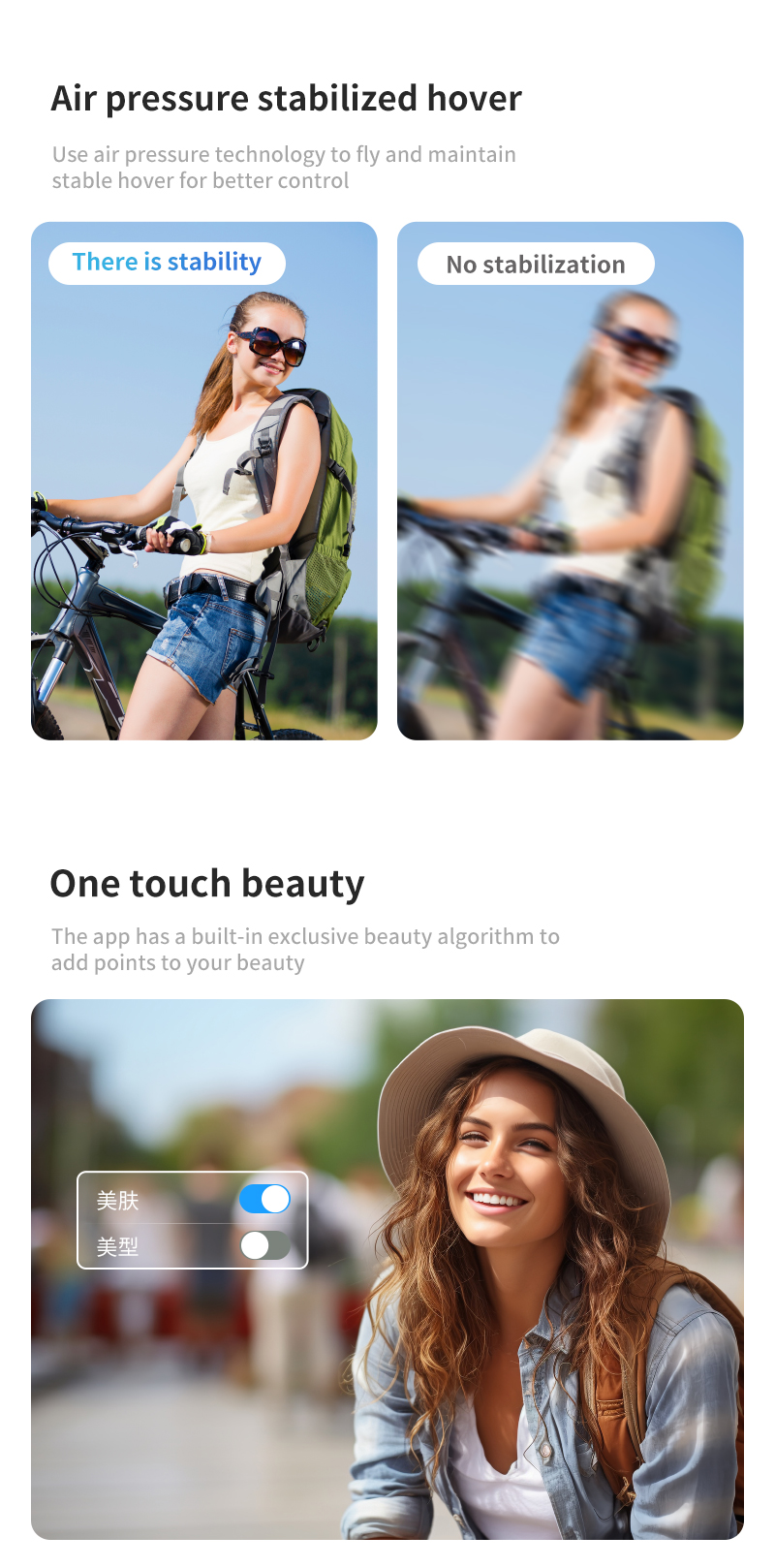
- Optical Flow Positioning: Helps maintain stable hover, especially indoors.
- Roll (360°): Press the roll button and move the right joystick in the desired direction for a 360-degree flip.
- Headless Mode: Activates a mode where the drone's orientation is relative to the pilot, simplifying control.
- Speed Gears: Switch between fast and slow speeds for different flying conditions.
- One-click Reset: Resets the drone's orientation.
- Light Control: Toggle the drone's LED lights.
6.2 Aerial Photography APP Functions
When using the drone with the mobile app (camera versions only), you can access additional intelligent features:
- Intelligent Following: The drone can automatically follow a designated subject.
- Photo Taking/Video Recording: Capture 4K photos and videos directly from the app.
- Face/Gesture Recognition: The drone can automatically take photos based on recognized gestures or faces.
- Gravity Sensing: Control the drone's movement by tilting your smartphone.
- Trajectory Flight: Draw a flight path on your smartphone screen, and the drone will follow it automatically.
7. Maintenance
- Cleaning: Use a soft, dry cloth to clean the drone and remote control. Avoid using water or harsh chemicals.
- Propeller Inspection: Regularly check propellers for any damage (cracks, bends). Replace damaged propellers with spare ones using the provided screwdriver.
- Battery Care: Store batteries in a cool, dry place. Do not leave batteries fully discharged for extended periods. Charge them periodically if not in use.
- Storage: When not in use, store the drone and its accessories in a safe place, away from direct sunlight and extreme temperatures.
8. Troubleshooting
| Problem | Possible Solution |
|---|---|
| Drone does not respond to remote control | Ensure both drone and remote are powered on and successfully paired. Check battery levels. Re-pair the remote control. |
| Short flight time | Ensure the drone battery is fully charged (approx. 60 minutes). Battery performance may decrease over time. |
| Unstable flight/Drifting | Perform a calibration of the drone (refer to the included instruction manual for specific steps). Use the trim buttons on the remote control to adjust for minor drifts. Ensure optical flow positioning is active if flying indoors. |
| Camera not working/No live feed | Ensure your smartphone is correctly connected to the drone's Wi-Fi network. Check app permissions. Restart the drone, remote, and app. |
| Drone lights are flashing but not taking off | Ensure the drone is on a flat surface for takeoff. Re-pair the remote control. |
9. User Tips
- Practice in Headless Mode: For beginners, headless mode can simplify learning to fly as it removes the need to orient the drone.
- Utilize Optical Flow: For indoor flights, optical flow positioning greatly enhances stability, making it easier to control.
- Explore App Features: The companion app offers advanced features like trajectory flight and gesture recognition, which can add more fun and creativity to your drone experience.
- Replacement Parts: If you need to purchase a separate remote control or other spare parts, please contact the seller or manufacturer for availability and compatibility.
10. Warranty and Support
This product comes with a 30-day warranty from the date of purchase. Please retain your proof of purchase for any warranty claims.
For technical support, troubleshooting assistance, or inquiries regarding replacement parts, please contact the seller directly. They can provide specific guidance and solutions for your product.