1. Introduction
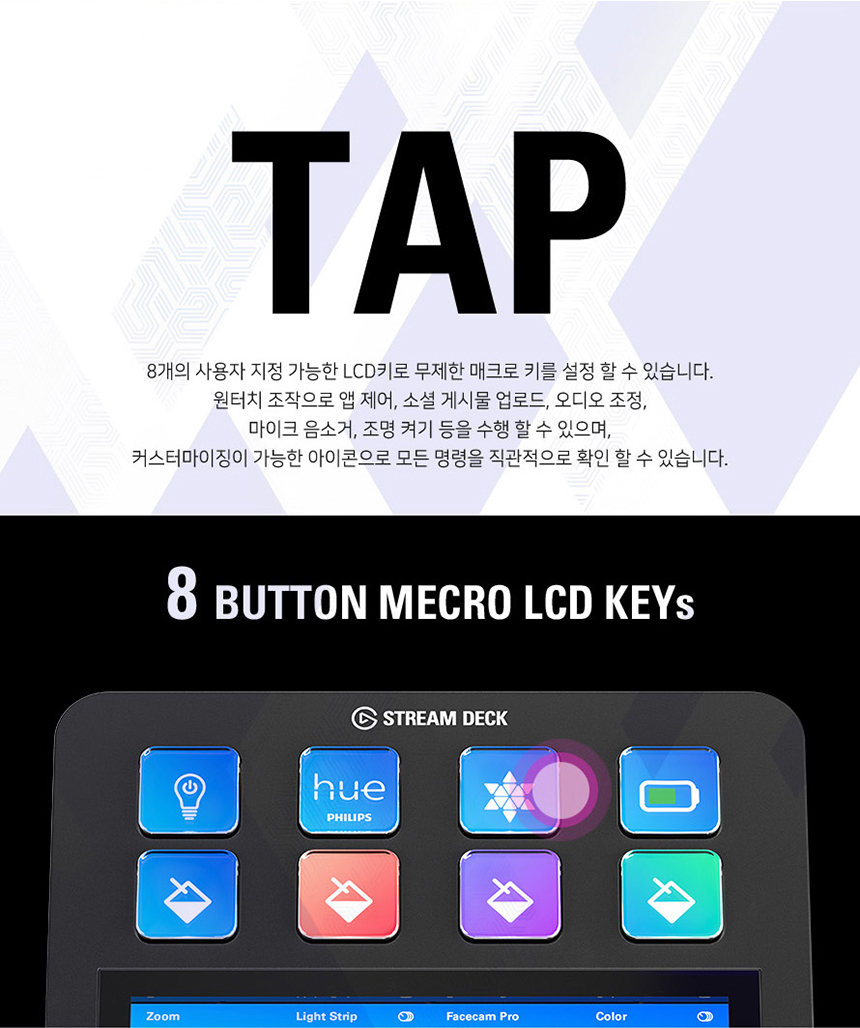
The Elgato Stream Deck Plus is an advanced control surface designed for streamers, content creators, and professionals seeking to streamline their workflow. It combines customizable LCD keys, a dynamic touch strip, and four versatile control dials to provide unparalleled control over applications, audio, and system functions. This manual will guide you through the setup, operation, and maintenance of your Stream Deck Plus.

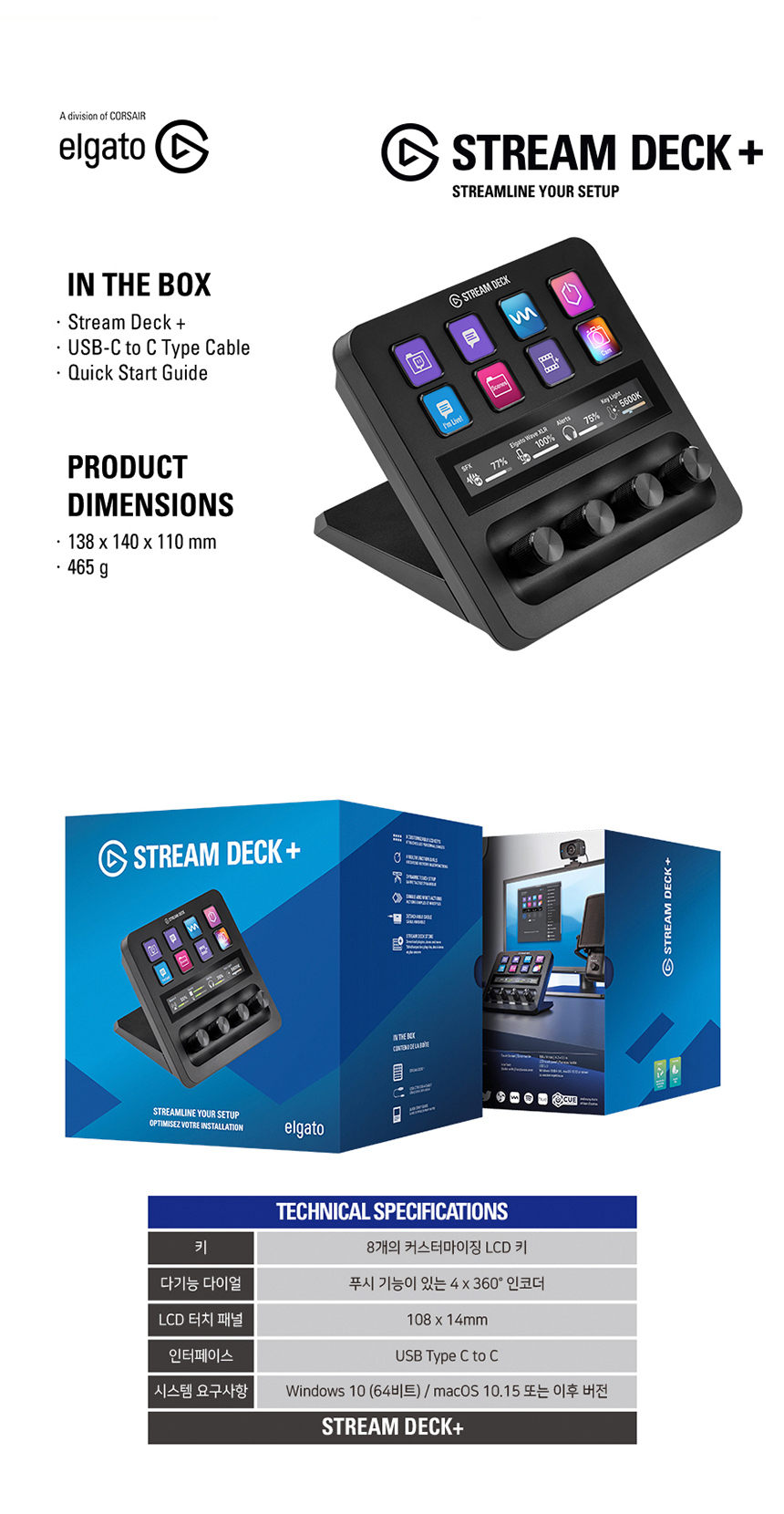
2. What's in the Box
Please check the package contents to ensure all items are present:
- Elgato Stream Deck Plus device
- USB-C to USB-A Cable
- Quick Start Guide
3. Technical Specifications
| Feature | Specification |
|---|---|
| Keys | 8 customizable LCD keys |
| Dials | 4 x 360° encoders with push function |
| LCD Touch Panel | 108 x 14mm |
| Interface | USB Type C to C (USB 2.0 compatible) |
| System Requirements | Windows 10 (64-bit) or later, macOS 10.15 or later |
| Dimensions (L x W x H) | 138 x 140 x 110 mm |
| Weight | 465 g |
| Application | PC |
| Input | USB |
| Output | USB |
4. Setup Guide
- Connect the Device: Use the provided USB-C to USB-A cable to connect your Stream Deck Plus to an available USB port on your computer.
- Install Software: Download and install the latest Elgato Stream Deck software from the official Elgato website (www.elgato.com). This software is essential for customizing your device.
- Launch Software: Once installed, launch the Stream Deck software. Your Stream Deck Plus should be automatically detected.
- Initial Configuration: Follow the on-screen prompts in the software to begin customizing your keys, touch strip, and dials.
5. Operating Instructions
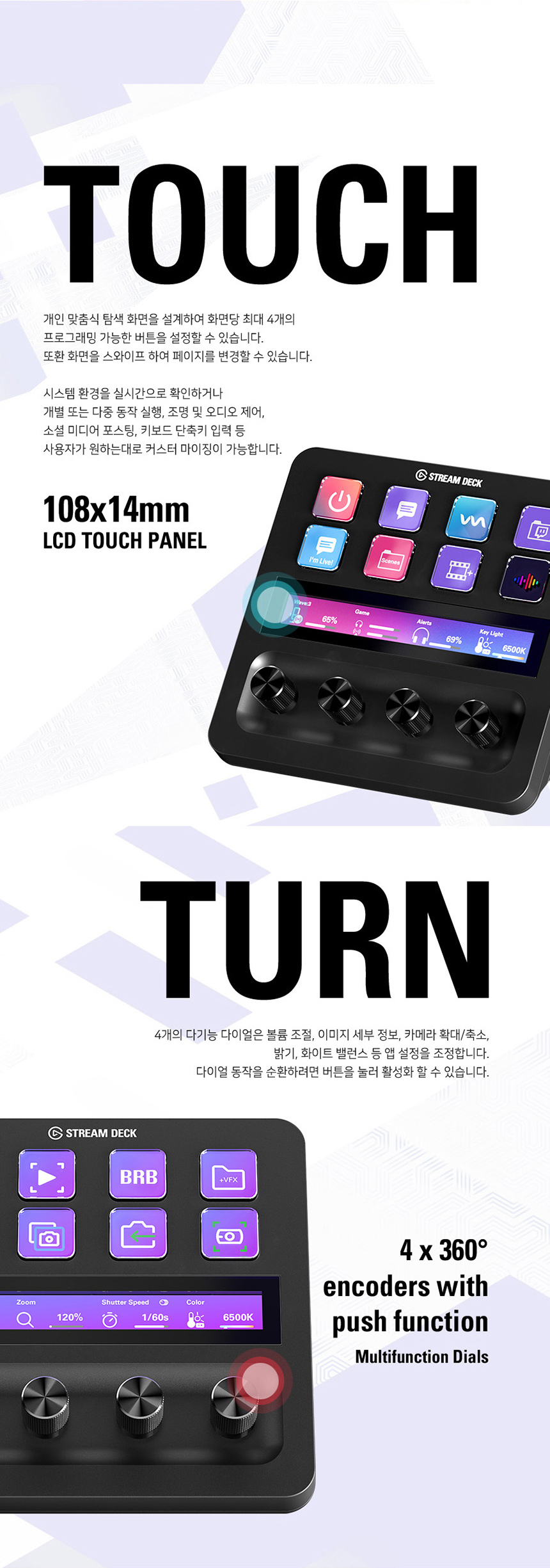
The Stream Deck Plus offers three primary modes of interaction: Tap (buttons), Touch (touch panel), and Turn (dials).
5.1. TAP (LCD Keys)
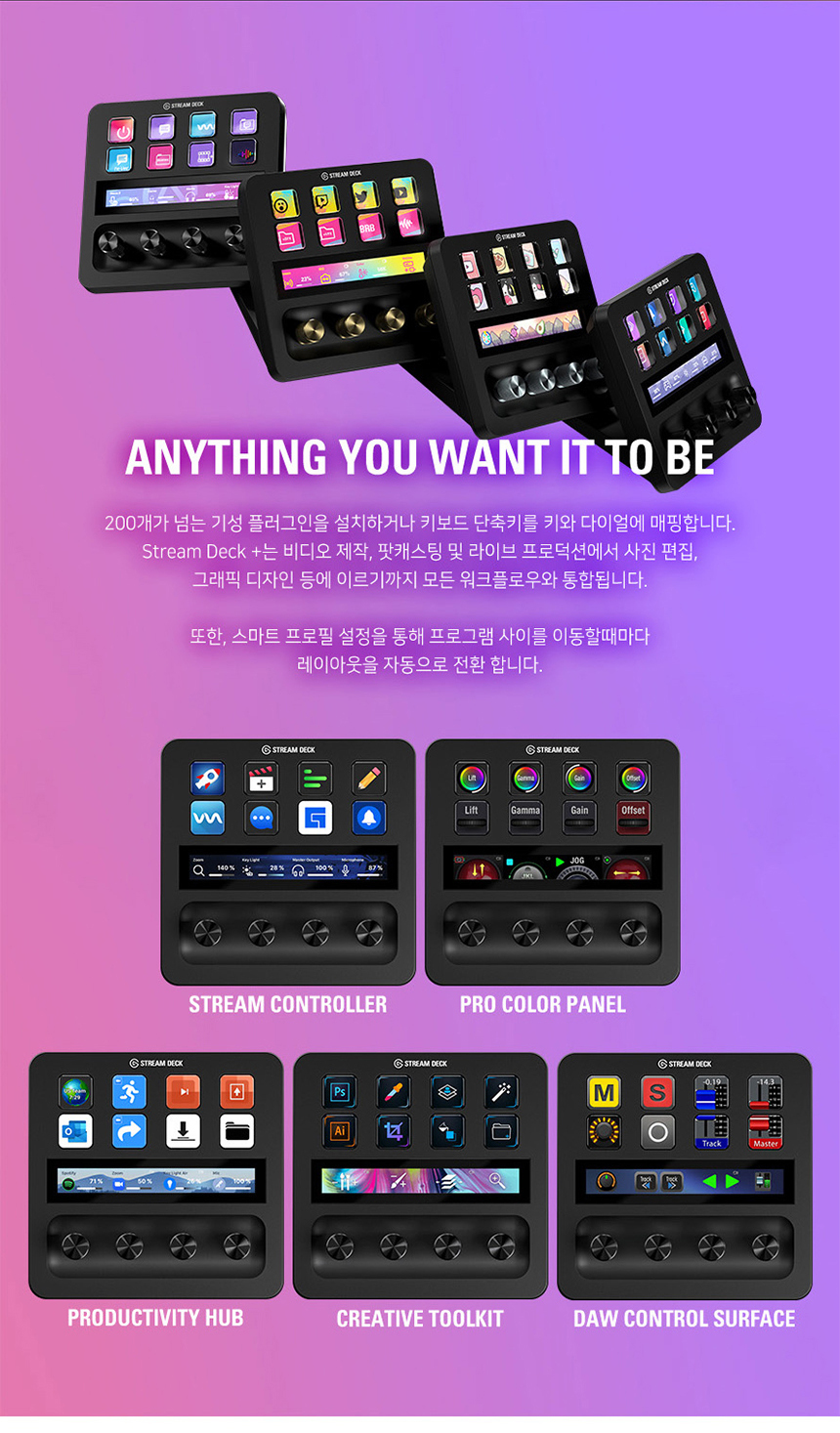
The 8 customizable LCD keys allow you to trigger unlimited macros, launch applications, control audio, adjust microphone settings, toggle lights, and more. Each key can display a custom icon for intuitive command recognition.
5.2. TOUCH (LCD Touch Panel)
The 108x14mm LCD touch panel provides dynamic feedback and control. It can display system information, lighting controls, audio mixer levels, and more. You can customize it to show up to four program-specific layouts, automatically switching based on your active application.
5.3. TURN (Multifunction Dials)
The four multifunctional dials feature 360° encoders with a push function. These dials are ideal for precise adjustments such as audio mixing, image zooming, brightness control, and other fine-tuned parameters.
5.4. Customization and Software
The Stream Deck software is your central hub for customization:
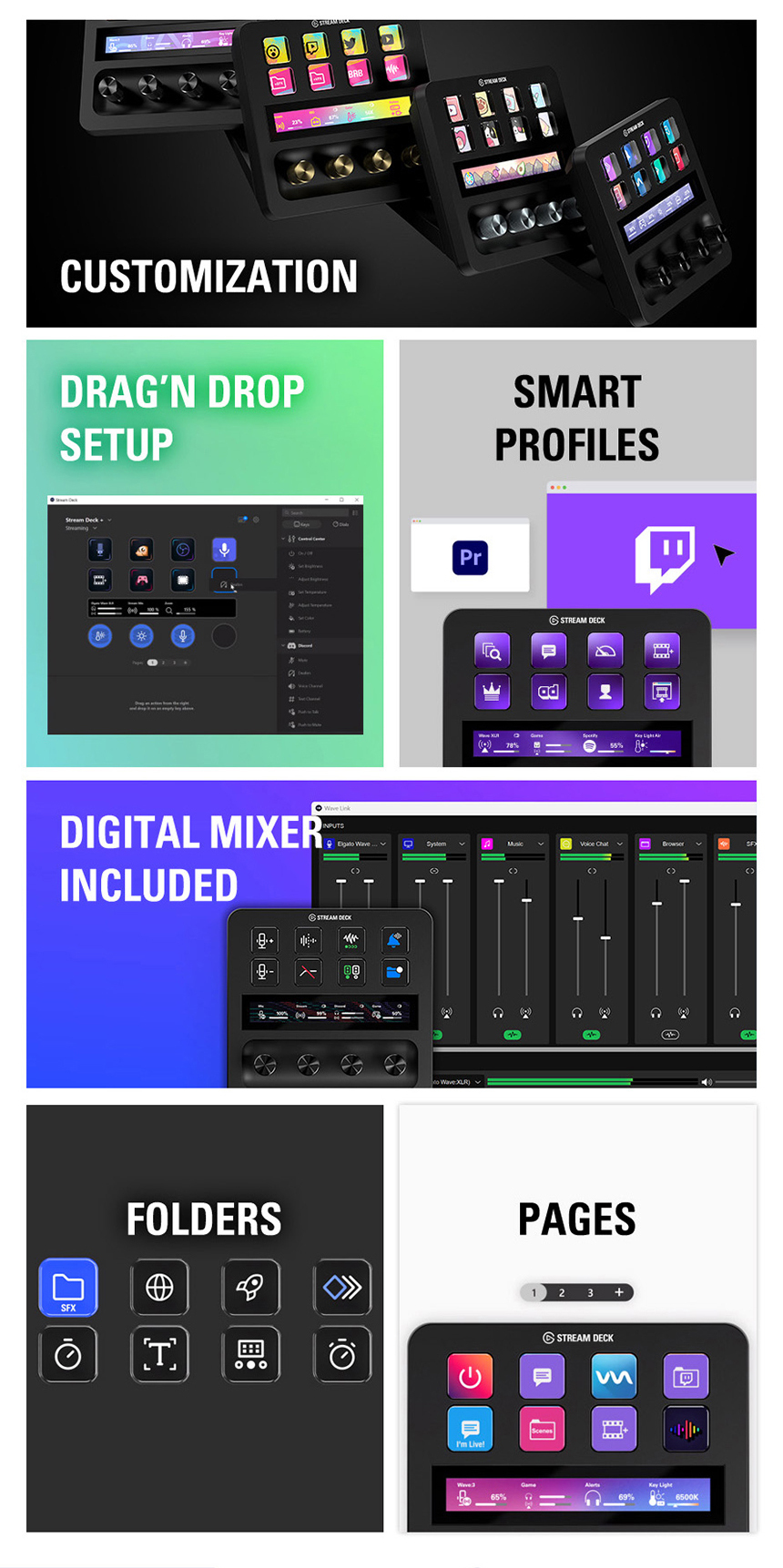
- Drag & Drop Setup: Easily assign actions to keys, touch strip, and dials.
- Smart Profiles: Create profiles that automatically switch layouts when you open specific applications (e.g., OBS, Photoshop, Spotify).
- Digital Mixer: Integrated digital mixer for audio control.
- Folders and Pages: Organize your actions into folders and multiple pages for extensive control.
5.5. Plugin Integration and Stream Deck Store
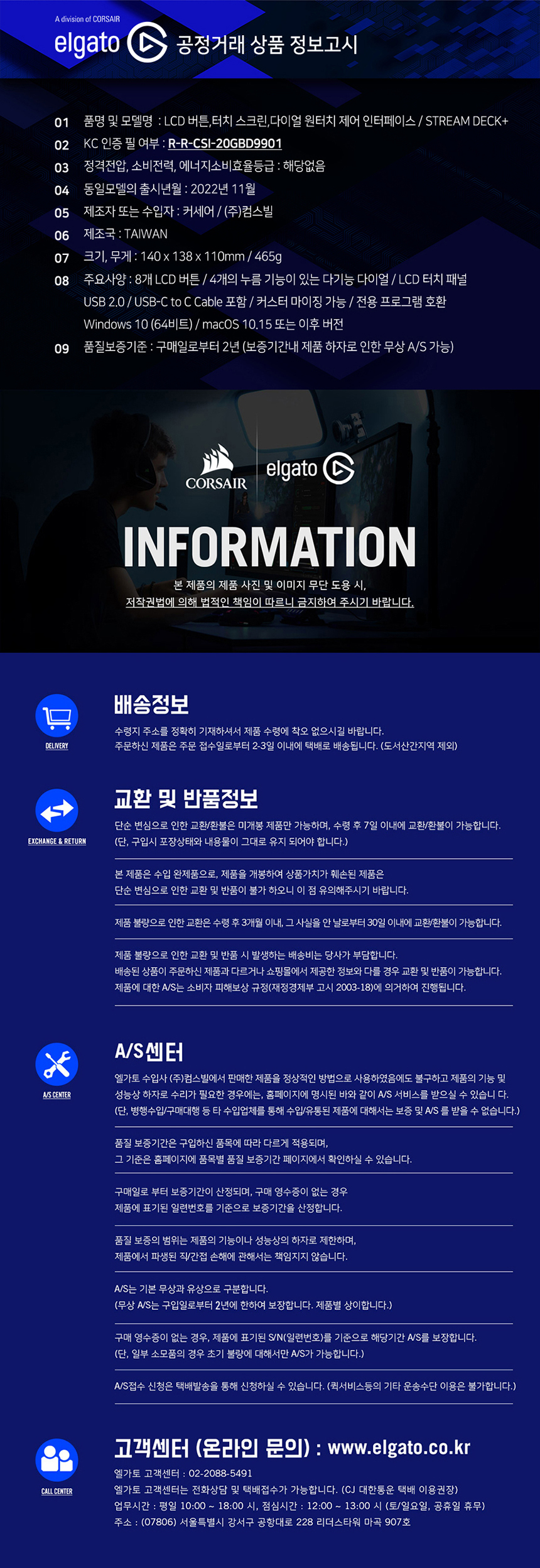
Expand the functionality of your Stream Deck Plus with over 200 plugins available for various applications, including:
- Elgato 4K Capture Utility, Wave Link
- OBS, Twitch, Twitter, XSplit, YouTube, Spotify, iCue
- Philips Hue, Zoom, PowerPoint, Keynote, Apple Mail
- And many more.
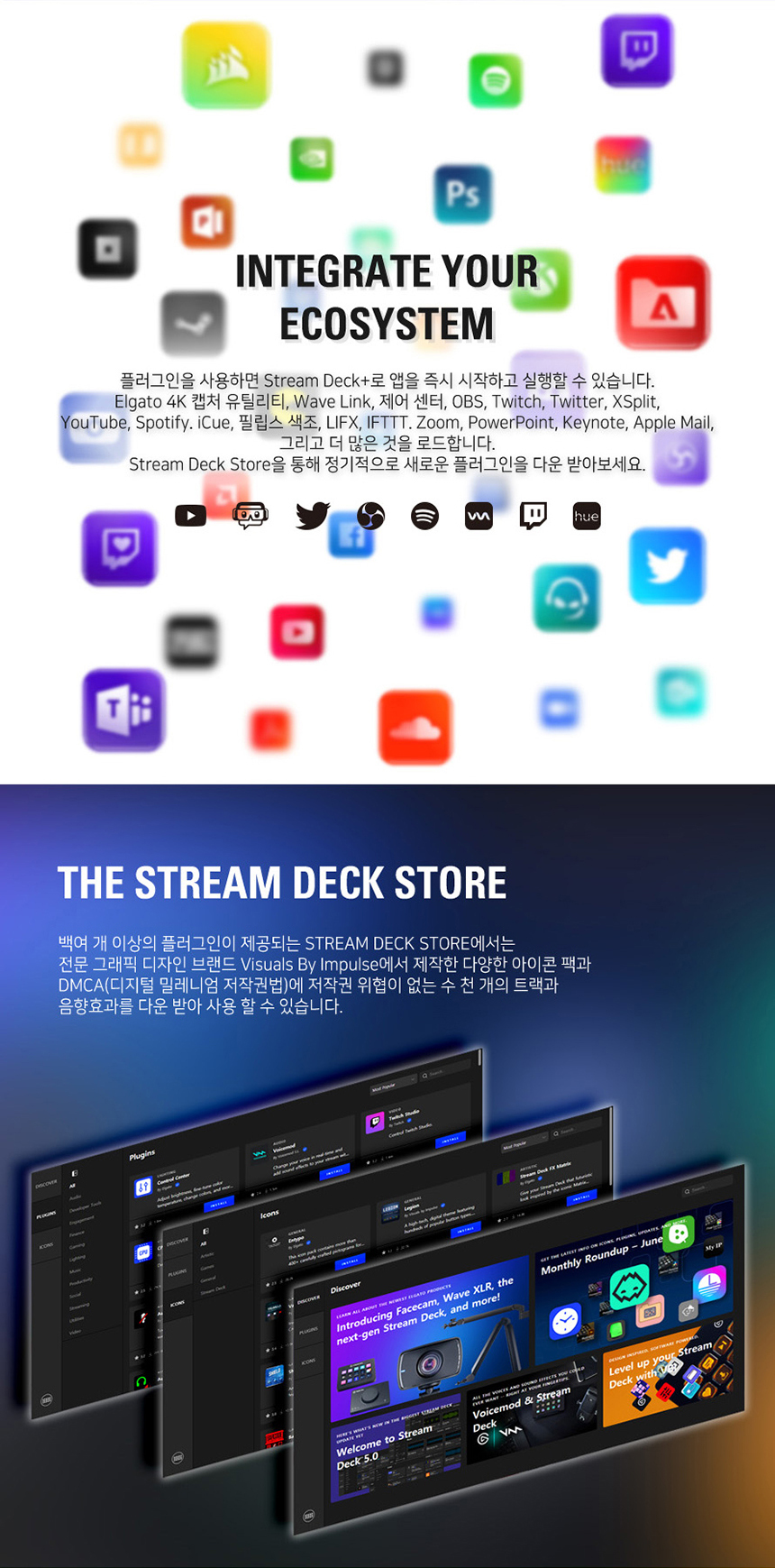
The Stream Deck Store provides access to thousands of royalty-free tracks, sound effects, icon packs, and new plugins to enhance your creative workflow.
6. User Tips
- Explore the Stream Deck Store: Regularly check the Stream Deck Store for new plugins, icon packs, and sound effects to expand your device's capabilities.
- Utilize Smart Profiles: Set up Smart Profiles to automatically switch your Stream Deck layout when you open specific applications, optimizing your workflow for different tasks.
- Organize with Folders and Pages: Use folders and multiple pages to keep your actions organized and easily accessible, especially if you have many commands.
- Experiment with Dials: The dials are highly versatile. Experiment with different assignments, such as adjusting brush size in design software or scrubbing through video timelines.
7. Maintenance
- Cleaning: Use a soft, dry cloth to clean the device. Avoid abrasive cleaners or solvents.
- Software Updates: Regularly check for and install software updates for the Stream Deck application to ensure optimal performance and access to new features.
- Cable Care: Handle the USB cable carefully to prevent damage. Avoid sharp bends or excessive pulling.
8. Troubleshooting
- Device Not Detected: Ensure the USB cable is securely connected to both the Stream Deck Plus and your computer. Try a different USB port or cable. Restart the Stream Deck software and your computer.
- Keys/Dials Not Responding: Verify that the Stream Deck software is running. Check your profile settings to ensure actions are correctly assigned. Restart the software.
- Software Issues: If the software is crashing or behaving unexpectedly, try reinstalling it from the official Elgato website.
- Performance Problems: Ensure your computer meets the minimum system requirements. Close unnecessary background applications.
9. Warranty and Support
The Elgato Stream Deck Plus comes with a 2-year warranty from the date of purchase. For technical support, frequently asked questions, and additional resources, please visit the official Elgato website.
Online Inquiry: www.elgato.com


