1. Introduction
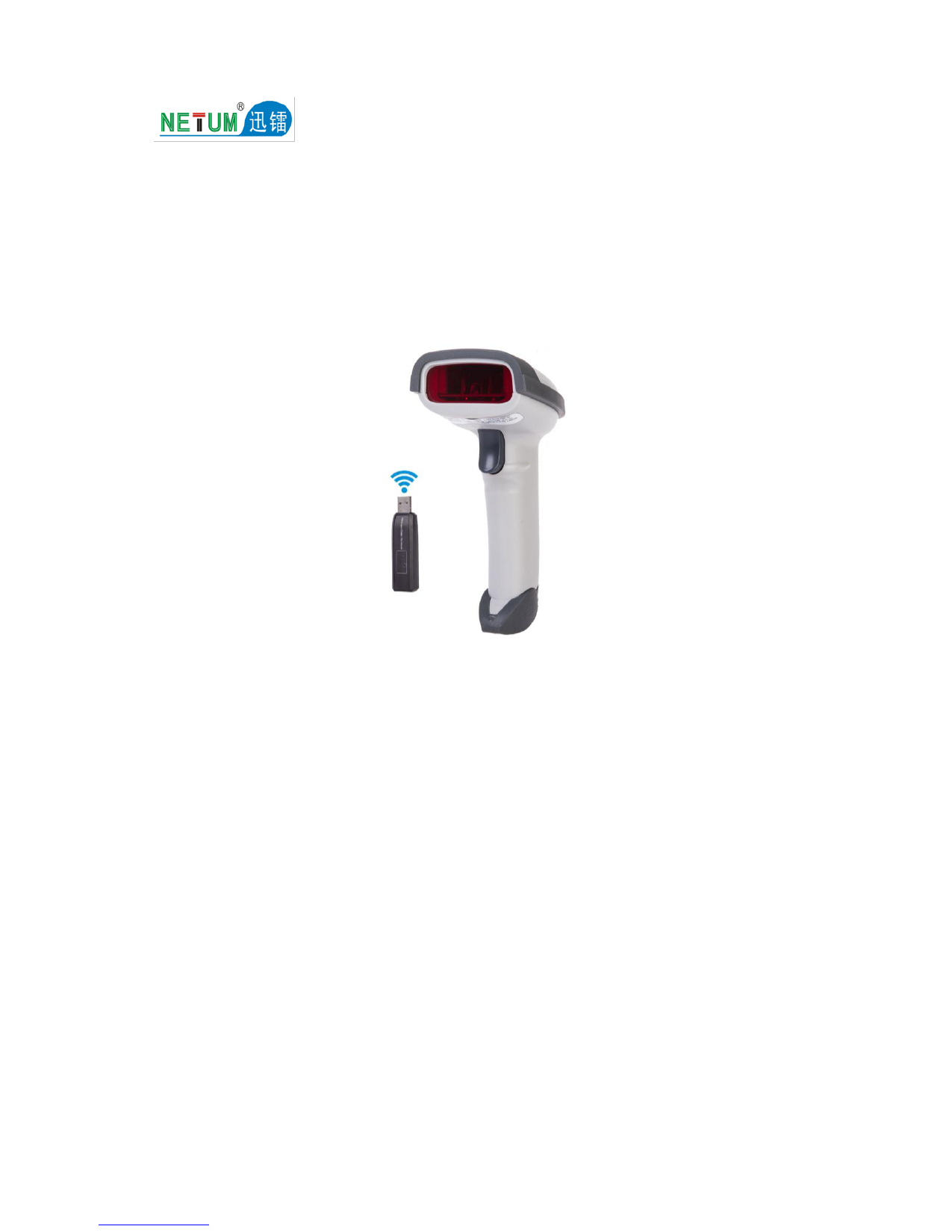
The NETUM NT-A5 is a high-performance desktop omnidirectional barcode scanner designed for efficient and hands-free scanning of both 1D and 2D barcodes. Featuring an intelligent infrared sensor, it offers automatic standby and wake-up functionality, making it ideal for various applications such as retail, libraries, and pharmacies. This manual provides detailed instructions for setting up, operating, maintaining, and troubleshooting your NT-A5 scanner.

2. Quick Setup Guide
2.1 How to Start
- Connect Scanner: Connect the scanner to your device (laptop, desktop, etc.) via the provided USB cable.
- Setup Keyboard Language: If you are using a US keyboard, the scanner is plug-and-play and no further setup is required for keyboard language. If you use another type of keyboard, you will need to scan a specific command barcode from the full manual to configure the keyboard language.
- Locate Cursor: Place the cursor in the application where you want the scanned data to appear.
Once these steps are completed, you can begin scanning.


2.2 USB Interface (Optional)
The NT-A5 scanner supports two USB interface modes:
- USB HID-KBW (Default): By default, the scanner operates in HID mode as a Keyboard device. This is a plug-and-play setup, and no additional drivers are required.
- USB Serial: If you connect the scanner to a host via USB, the USB COM Port Emulation feature allows the host to receive data as if it were from a serial port. For Microsoft Windows PCs, a driver is required. This driver can be downloaded from the official NETUM website: www.netumscan.com.
2.3 Factory Defaults
To revert all scanner settings to factory defaults, scan the following barcode:

3. Operation
3.1 Programming Code
NETUM barcode scanners are pre-programmed with common terminal and communication settings. To modify these settings, scan the appropriate barcodes found in the full user manual. An asterisk (*) next to an option indicates its default setting.
3.2 Scanning Barcodes
The NT-A5 scanner offers strong decode ability, capable of reading most 1D and 2D barcodes, including those that are damaged or displayed on digital screens.


3.3 Automatic Standby & Wake Up
The scanner features an intelligent infrared sensor that automatically puts the device into standby mode when not in use and wakes it up when a barcode is presented for scanning, enhancing convenience and power efficiency.

3.4 Important Notes for Scanning
- This scanner has a wide scanning range. To ensure accurate scanning, cover any barcodes close to the one you intend to scan to prevent accidental reads.
4. Maintenance
- Cleaning: Regularly clean the scanner's window with a soft, dry cloth to ensure optimal scanning performance.
- Durability: The NT-A5 features an anti-shock design, remaining functional after multiple drops from a height of 1.5 meters.

5. Troubleshooting (FAQ)
- Q: Is there any barcode to apply or remove a suffix?
- A: Yes, you can visit our official website www.netumscan.com to download the complete manual and refer to the section on "prefix and suffix," or contact customer service for assistance.
- Q: How to solve the messy code problem encountered while using other foreign languages?
- A: The default keyboard language is English. If you are using other keyboard types, please refer to the "Keyboard language" section in the full manual to configure the correct language setting.
- Q: Some barcodes cannot be read. Why?
-
- Dirty or Unclear Barcodes: Barcodes that are dirty, smudged, or unclear might not be read. Ensure barcodes are clean and clearly printed.
- Disabled Barcode Types: Settings for certain less commonly used barcode types might be disabled by default. You may need to activate a specific barcode type to enable scanning. Please contact customer support for guidance.
- Low Voltage: If the scanner beeps twice, it indicates a low voltage state. Charge the scanner immediately for 2-3 hours. The scanner cannot read barcodes when in a low voltage condition.
- DataMatrix GS1 Group Separator: If the 2D scanner cannot output the group separator for DataMatrix GS1, please contact our service team for support. They can provide a command barcode to activate this function.
6. Specifications
| Feature | Specification |
|---|---|
| Model Number | NT-A5 |
| Product Type | Bar Code Scanner |
| Image Sensor | CMOS |
| Scanning Light Source | Laser Light |
| Interface Type | USB (Standard) |
| Supported Symbologies | PDF417, QRcode, Data Matrix, Maxicode, Aztec Code, HanxinCode, MicroQR, Code39, FullASCⅡ, Codebar, Industrial2of5, Interleave2of5, Matrix2of5, Code93, Code128, Code32, EAN 128, MSI, EAN 8&13, UPCA&E, Plessey |
| Optical Resolution | 4mil |
| Precision | ≥4mil |
| Scan Speed | 200 times/second (from desc.json) / 100 scans/second (from PRODUCT_PROP_PC) - Using 200 times/second as it's more detailed. |
| Depth of Scan Field | 0-270mm |
| Scan Angle | Yaw (Skew) 72°, Pitch 82° |
| Light Intensity | Daylight, 4000Lux |
| Decode Error Rate | Less than 1/8 million |
| Print Contrast Signal | ≥30° |
| Voltage | 5V |
| Current (Operation) | 780mA |
| Current (Idle) | 255mA |
| Colour Depth | 32 Bit |
| Dimensions (L x W x H) | 15cm x 13cm x 10cm |
| Weight | 0.437 kg |
| Certifications | CE, FCC, RoHS |
| Origin | Mainland China |
| Firmware Version | V1.8.20 |

7. User Tips
- For optimal performance, ensure the scanner's window is always clean.
- When scanning multiple barcodes in close proximity, cover the barcodes you do not wish to scan to prevent unintended reads.
- If you encounter issues with specific barcode types, consult the full manual or contact support, as some less common types may require activation.
- The NT-A5 is a wired USB scanner. It does not support Bluetooth connectivity.
8. Support & Contact Information
For any inquiries or support, please do not hesitate to contact us:
- Phone: +0086 20-3222-8813
- Email: service@netumscan.com
- Website: www.netumscan.com
- Address: Room 301, 6th Floor and full 3rd Floor, Building 1, No. 51 Xiangshan Avenue, Ningxi Street, Zengcheng District, Guangzhou City, Guangdong Province, China
A comprehensive user manual (PDF) with detailed programming instructions and language settings is available for download on our official website.