1. Introduction
The LOFREE TOUCH Mechanical Keyboard is a versatile input device designed for enhanced typing experience and personalization. It features triple-mode connectivity, hot-swappable switches, and compatibility with multiple operating systems. This manual provides essential information for setting up, operating, and maintaining your keyboard.

Figure 1: LOFREE TOUCH 68-key Mechanical Keyboard
2. Package Contents
Please check the box for the following items:
- LOFREE TOUCH Keyboard (68-key or 100-key) x 1
- User Manual x 1
- Warranty Card x 1
- 2.4G Wireless Receiver x 1
- AAA Battery x 3 (pre-installed or included separately)
- Type-C Cable x 1
- Accessory Box x 1
- Keycap Puller x 1
- Holder x 1 (for figurines/extra keycaps)

Figure 2: Battery compartment and 2.4G receiver storage
3. Setup
3.1. Powering On and Battery Installation
- Locate the battery compartment on the underside of the keyboard.
- Insert 3 AAA batteries, ensuring correct polarity.
- The keyboard can also be powered via the Type-C cable for wired mode and charging (if rechargeable batteries are used).
3.2. Connecting Your Keyboard
The LOFREE TOUCH keyboard supports three connection modes: Bluetooth 5.0, 2.4G Wireless, and Wired (Type-C).

Figure 3: Connectivity Options
3.2.1. 2.4G Wireless Connection
- Locate the 2.4G wireless receiver, usually stored in the battery compartment or a dedicated slot on the keyboard.
- Plug the 2.4G receiver into an available USB port on your computer.
- Slide the mode switch on the keyboard to the '2.4G' position. The keyboard should connect automatically.
3.2.2. Bluetooth 5.0 Connection
- Slide the mode switch on the keyboard to the 'BT' position.
- On your device (computer, tablet, phone), go to Bluetooth settings and enable Bluetooth.
- The keyboard can store up to 3 Bluetooth device pairings. To pair with a new device, press and hold Fn + 1, Fn + 2, or Fn + 3 until the indicator light flashes, indicating pairing mode.
- Select "LOFREE TOUCH" from the list of available Bluetooth devices on your device.
- Once paired, the indicator light will stop flashing. You can switch between paired devices by pressing Fn + 1, Fn + 2, or Fn + 3.
3.2.3. Wired (Type-C) Connection
- Connect one end of the provided Type-C cable to the keyboard's Type-C port.
- Connect the other end of the cable to an available USB port on your computer.
- The keyboard will automatically switch to wired mode. This mode also charges the batteries if they are rechargeable.
4. Operating Your Keyboard
4.1. Multi-System Compatibility
The LOFREE TOUCH keyboard is compatible with Windows, macOS/iOS, and Android operating systems. It features dedicated media keys for both Mac and Windows layouts.
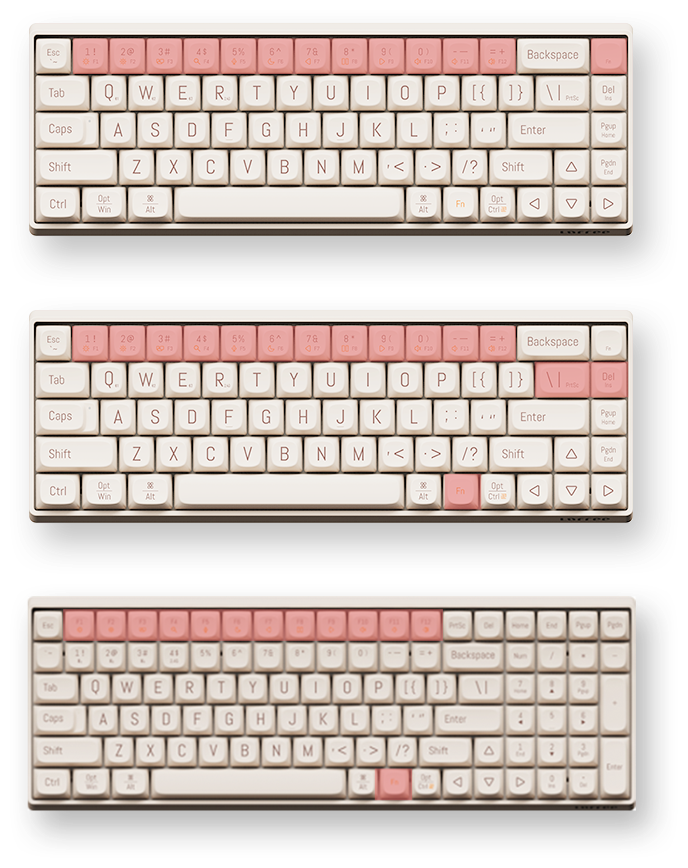
Figure 4: Mac and Windows Layouts
4.1.1. Switching Layouts
To switch between Mac and Windows functional key layouts, press Fn + N (for Mac) or Fn + M (for Windows).
4.2. Function Keys (Fn Combinations)
The keyboard utilizes an Fn key for accessing secondary functions printed on the keycaps. Common functions include:
- Fn + F1-F12: Media controls (play/pause, volume, mute, etc.), screen brightness, search, task switch, etc. (functions may vary slightly between 68-key and 100-key models).
- Fn + 1/2/3: Switch between paired Bluetooth devices.
- Fn + Q/W/E: (Specific to some models) Switch between 2.4G and Bluetooth modes or specific Bluetooth channels.
4.3. N-Key Rollover (NKRO)
The LOFREE TOUCH keyboard supports N-Key Rollover (NKRO), ensuring that every key press is registered, even when multiple keys are pressed simultaneously. This is beneficial for fast typists and gamers.
5. Maintenance
5.1. Hot-Swappable Switches
The keyboard features hot-swappable sockets, allowing you to change mechanical switches without soldering. It is compatible with standard 3-pin and 5-pin mechanical switches.
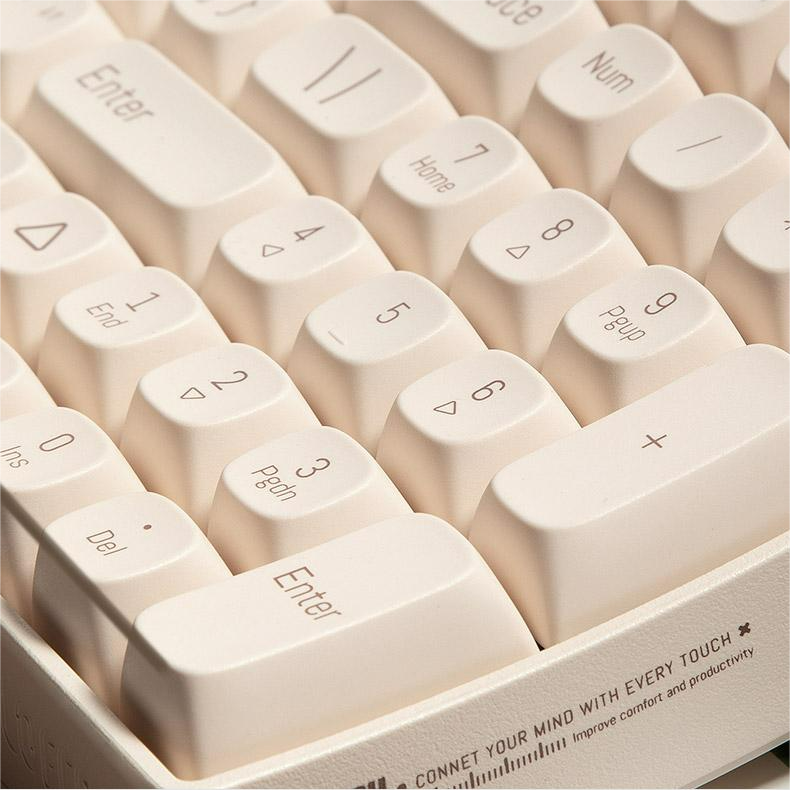
Figure 5: Hot-swappable switches with keycap and switch pullers
5.1.1. Changing Switches
- Using the provided keycap puller, gently remove the desired keycap.
- Using a switch puller (often included in the accessory box), carefully grip the switch and pull it straight up to remove it from the PCB.
- Align the pins of the new switch with the holes on the PCB and press it firmly until it clicks into place. Ensure the pins are not bent.
- Replace the keycap.
5.2. Keycaps
The keyboard comes with durable Dye-Sub PBT keycaps, which are resistant to shine and wear over time. You can customize your keyboard with various PBT keycap sets available from LOFREE.
5.3. Cleaning
- Use a soft brush or compressed air to remove dust and debris from between the keycaps.
- For deeper cleaning, remove the keycaps using the keycap puller and clean them with a mild soap solution and a soft cloth. Ensure they are completely dry before reattaching.
- Wipe the keyboard surface with a damp, lint-free cloth. Avoid harsh chemicals.
6. Specifications
6.1. General Specifications
- Brand: LOFREE
- Operation Style: Mechanical
- Switches: Gateron G Pro (Red), Linear, Pre-lubed
- Switches Hot Swap: Yes (Standard 3-pin and 5-pin compatible)
- Keycap Material: Dye-Sub PBT
- Interface Type: USB (Type-C)
- Connectivity: Bluetooth 5.0, 2.4G Wireless, Type-C Wired
- Application: Desktop, Laptop, Tablet
- Language: English
- Power: 3 x AAA Battery
- Battery Life: Approximately 30 days of typing
- Operating Systems: Windows, macOS/iOS, Android
- N-Key Rollover (NKRO): Yes
- Ergonomics: 9° Curved Shape for reduced finger fatigue
6.2. 68-Key Model (OE902)
- Keyboard Standard: 68 keys
- Dimensions: 310 x 109 x 51.5 mm
- Keyboard Weight: 720g
6.3. 100-Key Model (OE903)
- Keyboard Standard: 100 keys
- Dimensions: 367 x 129 x 54.5 mm
- Keyboard Weight: 1010g

Figure 6: 68-key vs. 100-key models
7. Troubleshooting
| Problem | Possible Cause | Solution |
|---|---|---|
| Keyboard not responding | Low battery, incorrect connection mode, Bluetooth not paired, 2.4G receiver not plugged in. | Check/replace batteries. Ensure mode switch is set correctly (BT, 2.4G, or Wired). Re-pair Bluetooth or re-insert 2.4G receiver. Try wired connection. |
| Keys not registering | Faulty switch, debris under keycap. | Remove keycap and clean. If hot-swappable, try replacing the switch. |
| Bluetooth connection unstable | Interference, distance from device, low keyboard battery. | Move closer to the device. Ensure no other devices are causing interference. Check battery level. Re-pair the Bluetooth connection. |
| Keyboard not recognized by OS | Driver issue, OS compatibility. | Ensure OS is supported. Try a different USB port or cable. Restart computer. |
8. User Tips
- Personalize Your Keyboard: Take advantage of the hot-swappable switches and PBT keycaps to customize the feel and look of your keyboard. Experiment with different switch types for a unique typing experience.
- Maximize Connectivity: Utilize the triple-mode connectivity to seamlessly switch between your desktop, laptop, and tablet. Remember to pair your devices to different Bluetooth channels (Fn+1, Fn+2, Fn+3) for quick switching.
- Ergonomic Comfort: The 9° curved shape is designed for comfort. Ensure proper wrist posture to further enhance your typing experience and reduce strain.
- Decorative Holder: Use the included holder plate to display your favorite figurines, extra keycaps, or LOFREE's IP mascot, LONELY, adding a personal touch to your workspace.
9. Warranty and Support
Your LOFREE TOUCH Mechanical Keyboard comes with a manufacturer's warranty. Please refer to the included Warranty Card for details regarding warranty coverage, terms, and conditions. For technical support, product inquiries, or service requests, please visit the official LOFREE website or contact their customer service.
10. Product Demonstration Video
Video: Demonstration of the LOFREE TOUCH keyboard in use, showcasing typing and design elements.


