
1. Introduction
The Eweadn Z108/Z87 is a versatile mechanical keyboard designed for gaming and office use, featuring tri-mode connectivity (wired, 2.4G wireless, Bluetooth), full-key hot-swappable switches, and customizable RGB backlighting. This manual provides detailed instructions for setting up, operating, and maintaining your keyboard to ensure optimal performance.


2. Setup
Your Eweadn mechanical keyboard offers three connection modes: wired, 2.4G wireless, and Bluetooth. Choose the method that best suits your needs.

2.1. Wired Connection (Type-C)
- Locate the USB Type-C port on your keyboard.
- Connect one end of the provided USB Type-C cable to the keyboard.
- Connect the other end of the cable to an available USB port on your computer.
- The keyboard will be automatically recognized and ready for use.
2.2. 2.4G Wireless Connection
- Locate the 2.4G USB receiver (dongle) included in your package.
- Plug the 2.4G USB receiver into an available USB port on your computer.
- Ensure the keyboard's mode switch is set to 2.4G wireless mode (refer to the keyboard's physical switch, usually on the back or side).
- The keyboard should connect automatically.
2.3. Bluetooth Connection
The keyboard supports multi-device one-touch switching for Bluetooth connections.
- Ensure the keyboard's mode switch is set to Bluetooth mode.
- On your computer, tablet, or mobile phone, enable Bluetooth and search for new devices.
- Select the Eweadn keyboard from the list of available devices (e.g., 'Eweadn Keyboard').
- Follow any on-screen prompts to complete the pairing process.
- To switch between paired Bluetooth devices, use the designated function key combination (refer to the 'Operating' section for specific key combinations).
3. Operating Instructions
3.1. System Switching (Windows/Mac)
The keyboard is compatible with both Windows and Mac operating systems. Use the following key combinations to switch between modes:
- FN + W: Switch to Windows mode
- FN + A: Switch to Mac mode

3.2. RGB Backlighting
The keyboard features customizable RGB backlighting with 16.8 million colors and various lighting effects. You can cycle through 21 cool night light effects and customize them.
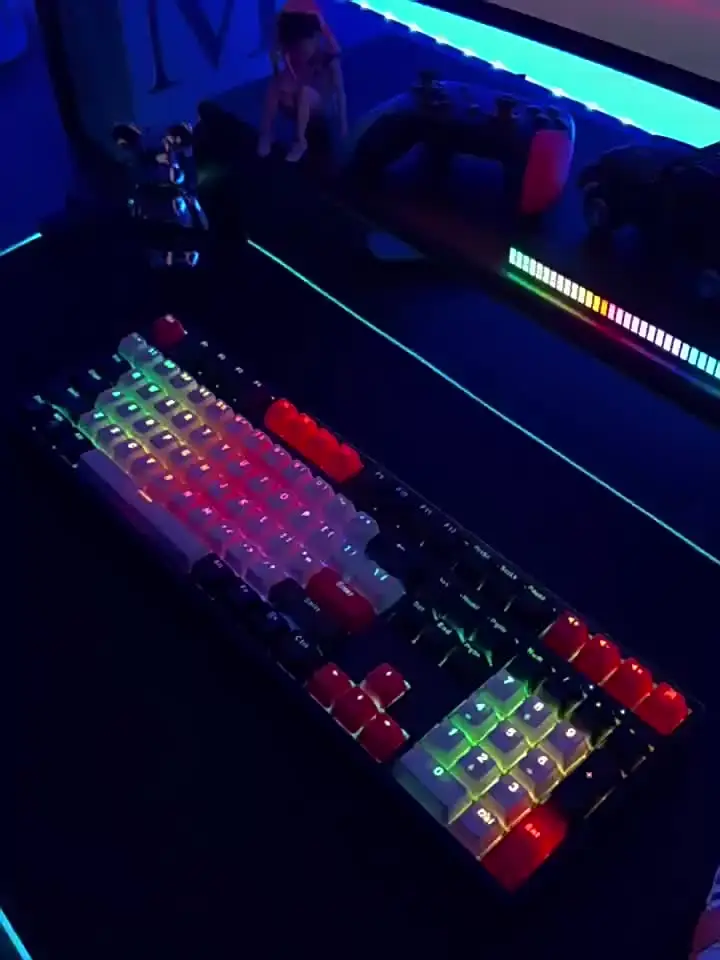

Specific key combinations for lighting control (e.g., changing modes, brightness, speed) are typically found in the included quick start guide or through software drivers. The FN + Selector Button allows for custom editing of the FN layer, and a 'Reconstruction Function' for PS key quick setup is available.
3.3. Battery Information
The keyboard is equipped with a high-capacity 4000mAh lithium battery, providing up to 4 weeks of use on a single charge. Battery life may vary depending on usage and RGB lighting settings.

4. Maintenance
4.1. Keycap Cleaning
The keyboard features high-quality PBT keycaps with a frosted texture, which are less prone to oil buildup. To clean them:
- Gently remove the keycaps using the provided keycap puller.
- Wipe the keycaps with a soft, damp cloth. For stubborn dirt, a mild soap solution can be used, ensuring they are completely dry before reattaching.
- Clean the keyboard plate with a soft brush or compressed air to remove dust and debris.

4.2. Hot-Swappable Switch Replacement
The keyboard features a full-key hot-swappable PCB design, allowing for easy replacement of mechanical switches without soldering.
- Using the provided switch puller, carefully grip the switch and pull it straight up to remove it.
- Align the pins of the new switch with the holes on the PCB.
- Gently push the new switch down until it clicks into place. Ensure it is seated properly to avoid bent pins.


5. Troubleshooting
5.1. Connection Issues
- Wired: Ensure the Type-C cable is securely connected to both the keyboard and the computer. Try a different USB port or cable.
- 2.4G Wireless: Make sure the USB receiver is plugged in and the keyboard is in 2.4G mode. If connection is lost, try re-pairing by unplugging and replugging the receiver, then toggling the keyboard's 2.4G mode.
- Bluetooth: Verify Bluetooth is enabled on your device and the keyboard is in Bluetooth mode. If pairing fails, remove the keyboard from your device's Bluetooth list and attempt to pair again. Ensure the keyboard is not connected to too many devices simultaneously.
5.2. Keys Not Responding
- Check if the keyboard is properly connected in your chosen mode.
- If only specific keys are not responding, the switch might be faulty. Utilize the hot-swappable feature to replace the switch.
- Ensure the keyboard is not in a locked mode (e.g., gaming mode that disables certain keys).
5.3. RGB Lighting Problems
- If RGB lighting is not working, check the keyboard's brightness settings using the function keys.
- Ensure the keyboard's software (if applicable) is installed and up to date.
- Try resetting the keyboard to factory default settings (refer to the quick start guide for specific key combinations).
5.4. Battery Not Charging / Low Battery Life
- Ensure the charging cable is securely connected to the keyboard and a power source.
- Avoid using fast chargers, as this is explicitly forbidden and can damage the product. Use a standard 5V USB charger.
- If battery life is significantly shorter than expected, reduce RGB brightness or disable lighting when not needed.
6. Specifications
| Feature | Detail |
|---|---|
| Product Brand | Forerunner (JIROAOTIC) |
| Axle Body Brands | Cherry MX RGB Mechanical shaft |
| Product Name | Z87/Z108 Mechanical Keyboard |
| Keyboard Standard | 108 Keys (Z108) / 87 Keys (Z87) |
| Product Size | Approx. 358.5 x 120.5 x 40.5mm |
| Connection Method | Bluetooth / 2.4G Wireless / Wired (Type-C) |
| Keycap Material | PBT keycap (frosted texture) |
| Core Chip | Bobeken |
| Full Key No Punch | Supported (wired / 2.4G) |
| Product Weight | 1.27KG (with packaging) |
| System Support | Windows / MacOS / iOS / Android |
| Backlight Type | MULTICOLOR (RGB, 16.8 million colors) |
| Operation Style | Mechanical |
| Interface Type | USB |
| Wrist Support | No |
| Battery Capacity | 4000mAh |
| Switch Life | Approx. 100 Million Knocks (Cherry MX RGB) |


7. User Tips
- Charging: Always use a standard 5V USB charger. Avoid fast charging to prevent potential damage to the battery and keyboard.
- Customization: Explore the various RGB lighting effects and consider customizing the FN layer using the selector button for personalized shortcuts.
- Switch Experimentation: Take advantage of the hot-swappable design to try different mechanical switches and find your preferred typing feel.
- Connectivity: For the most stable connection during critical tasks like gaming, consider using the wired or 2.4G wireless mode. Bluetooth is excellent for multi-device convenience.
8. Warranty and Support
Your Eweadn mechanical keyboard comes with a warranty as detailed in the included warranty card. For technical support, troubleshooting assistance, or warranty claims, please refer to the contact information provided with your product or on the official brand website.
The packing list includes: Keyboard body, dust cover, data cable, spindle and key extractor, instruction manual, and warranty card.