
1. Introduction
The GAOMON WH851 is a versatile wireless graphics tablet designed for digital drawing, photo editing, graphic design, and note-taking. Featuring Bluetooth 5.0 connectivity, 16K levels of pen pressure sensitivity, and a battery-free stylus, it offers a smooth and responsive creative experience across various operating systems and devices.

2. What's in the Box
Please check the package contents upon unboxing to ensure all items are present:
- Pen Tablet x 1
- Artpaint AP52 Stylus x 1
- Pen Nibs x 20
- Nib Clip x 1
- Sleeve x 1
- Glove x 1
- USB-C Adapter x 1
- Quick Start Guide x 1
- Blue Cleaning Cloth x 1
- USB-C Cable (1.5m) x 1

3. Product Overview
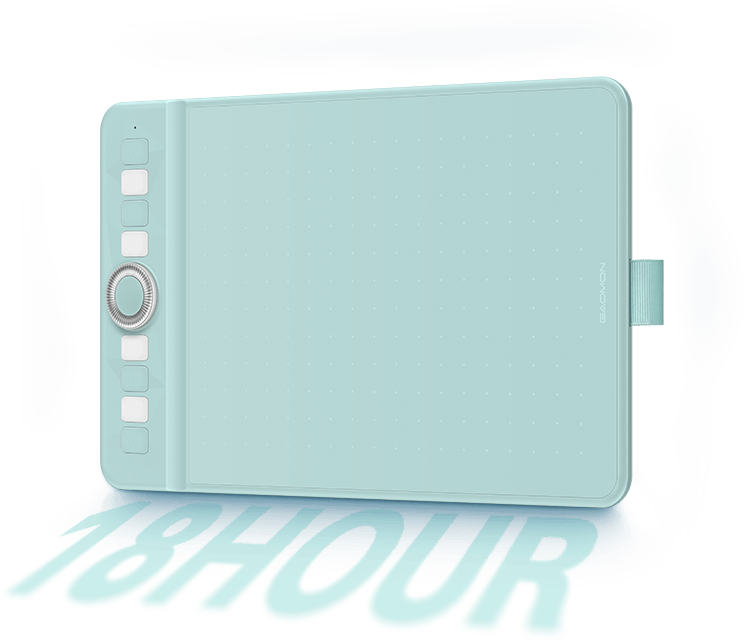
The GAOMON WH851 features a sleek design with an intuitive layout for enhanced productivity.

Key Features:
- Wireless Connectivity: Bluetooth 5.0 for seamless connection to various devices.
- Pressure Sensitivity: 16K levels for precise and natural drawing.
- Battery-Free Stylus: Artpaint AP52 with ±60° tilt support.
- Customizable Controls: Intuitive dial and 8 programmable press keys.
- Long Battery Life: Up to 18 hours of continuous use.
- Slim & Lightweight Design: 7.5mm thickness and 390g weight for portability.
- Wide Compatibility: Supports Windows, macOS, Android, ChromeOS, HarmonyOS, and Linux.
4. Setup
4.1 Driver Installation
- Before connecting the tablet, visit the official GAOMON website to download the latest driver compatible with your operating system.
- Close all drawing software and antivirus programs before installation.
- Follow the on-screen instructions to complete the driver installation.
- Restart your computer after installation if prompted.
4.2 Connecting the Tablet
Wired Connection:
- Connect the tablet to your computer using the provided USB-C cable.
- Ensure the cable is securely plugged into both the tablet and your device.
Bluetooth 5.0 Wireless Connection:
The WH851 supports Bluetooth 5.0 for wireless operation, offering up to 10m communication distance.
- Ensure your device (Windows 10+ 64bit, macOS 10.13+, ChromeOS 88+, Android 6.0+, HarmonyOS 2.0+) has Bluetooth enabled.
- Turn on the GAOMON WH851 tablet.
- On your device, go to Bluetooth settings and search for available devices.
- Select "GAOMON WH851" from the list to pair.
- Once paired, the tablet is ready for wireless use.

4.3 OS Compatibility
The GAOMON WH851 is compatible with a wide range of operating systems:
- Windows: 7 or later (Wired), 10 or later 64bit (Wired & Bluetooth)
- macOS: 10.12 (Wired), 10.13 or later (Wired & Bluetooth)
- ChromeOS: 88 or later (Wired & Bluetooth)
- Android: 6.0 or later (Wired & Bluetooth)
- HarmonyOS: 2.0 or later (Wired & Bluetooth)
- Linux: (Ubuntu 20.04 LTS) (Wired)

5. Operating Instructions
5.1 Basic Usage
Once connected and drivers are installed, you can begin using the tablet with your preferred drawing or design software. The tablet's active area corresponds to your screen, allowing you to draw and navigate with the stylus.

5.2 Stylus (Artpaint AP52)
The Artpaint AP52 is a battery-free stylus offering 16K levels of pressure sensitivity and ±60° tilt support for a natural drawing experience. It features a 0.45mm rebound distance for a solid writing feel and two customizable side buttons.

5.3 Customizable Press Keys and Dial
The tablet features an intuitive mechanical dial and 8 customizable press keys to boost your productivity. These can be configured through the GAOMON driver software.

Note: The shortcuts displayed on the tablet are default functions that can be customized in the driver settings.
5.4 PC Mode vs. Phone Mode
The tablet offers different working areas depending on the connected device:
- PC Mode: 203.2 x 127mm (8 x 5 inches)
- Phone Mode: Default 127 x 63.5mm (20:10), with an adjustable ratio via the driver.

5.5 Video Demonstration
Watch this video for a quick demonstration of the GAOMON WH851 in action:
6. Maintenance
6.1 Charging the Tablet
The WH851 is equipped with a 1300mAh high-capacity battery, providing approximately 18 hours of battery life. To charge:
- Connect the tablet to a power source using the provided USB-C cable.
- Charging time is approximately 2.5 hours with a 5V1A adapter, or 4.5 hours with a 5V0.5A adapter.
- The tablet will automatically shut down after 15 minutes of inactivity to conserve battery.

6.2 Replacing Pen Nibs
The stylus comes with 20 replacement nibs. When the pen nib wears down, use the nib clip to carefully remove the old nib and insert a new one.
6.3 Cleaning the Tablet
Use the provided blue cleaning cloth to gently wipe the tablet surface. Avoid using harsh chemicals or abrasive materials that could damage the surface.
7. Troubleshooting
- Pen not responding: Ensure the tablet is powered on and properly connected (wired or Bluetooth). Check if the driver is correctly installed and running.
- Pressure sensitivity not working: Verify that your drawing software supports pressure sensitivity and that the GAOMON driver is installed and calibrated.
- Bluetooth connection issues: Make sure Bluetooth is enabled on your device and the tablet is within range (up to 10m). Try unpairing and re-pairing the device.
- Custom keys not working: Open the GAOMON driver settings and check if the keys are properly configured.
- Tablet not recognized: Try connecting the tablet to a different USB port or computer to rule out hardware issues. Reinstall the driver if necessary.
8. Specifications
| Feature | Specification |
|---|---|
| Brand Name | GAOMON |
| Model | WH851 (U1200) |
| Type | Graphic Tablets |
| Working Area (PC Mode) | 203.2 x 127mm (8 x 5inch) |
| Working Area (Phone Mode) | Default 127 x 63.5mm (20:10) Drive Adjustable Ratio |
| Pressure Levels | 16384 |
| Resolution Ratio | 5080lpi |
| Pen Technology | Battery-free EMR |
| Accuracy | ±0.3mm |
| Sensing Height | 10mm |
| Report Rate | Wireless ≥190PPS, Wired ≥380PPS |
| Tilt Support | ±60° |
| Wireless Connection | Bluetooth 5.0 |
| Communication Distance | 5-10m (depending on the use environment) |
| Battery Capacity | About 1300mAh (18hrs usage) |
| Charge Time | 5V1A: about 2.5hrs, 5V0.5A: about 4.5hrs |
| Automatic Shut-down | 15min |
| Press Keys | 8 Programmable Press Keys + 1 Dials + 1 function-switch button |
| Thickness | 7.5mm |
| Material | Plastic |
| Package | Yes |
| Battery Included | Yes |
| Certification | CE |
9. User Tips
- Left-Handed Use: The GAOMON WH851 can be configured for left-handed users through the driver settings. This typically involves rotating the tablet's active area and remapping the express keys for comfortable use.
- Driver Customization: Explore the GAOMON driver software to fully customize the express keys and the mechanical dial to suit your workflow and preferred applications. This can significantly enhance your productivity.
- Software Compatibility: While the tablet supports many mainstream creative applications like Photoshop, Illustrator, Corel Painter, SAI2, CDR, Medibang Paint, Krita, and SketchBook, ensure your specific software is updated for optimal performance with graphics tablets.
10. Warranty and Support
For warranty information, technical support, or further assistance, please refer to the official GAOMON website or contact GAOMON customer service directly. Keep your purchase receipt as proof of purchase.