
1. Introduction
This manual provides detailed instructions for the installation, operation, and maintenance of your CARLAOER 9.7 inch Tesla Style Car Multimedia Player. Please read this manual thoroughly before using the product to ensure proper functionality and safety.
The CARLAOER multimedia player is a universal 2-DIN unit featuring a 9.7-inch IPS/QLED touchscreen, Android operating system, wireless CarPlay and Android Auto support, GPS navigation, Bluetooth, FM/RDS radio, and various multimedia playback capabilities.
2. Package Contents
Before installation, please verify that all items listed below are included in your package:
- 9.7-inch Multimedia Machine
- Power Cable
- Camera Input Cable
- Antenna (likely GPS antenna)
- GPS Module
- USB Cables (x2)

Image: Included components of the CARLAOER multimedia player.
3. Setup and Installation
3.1 General Installation Guidelines
This unit is designed for universal 2-DIN car installations. Due to the complexity of car electronics, professional installation is highly recommended. Incorrect installation can damage the unit or your vehicle.
While the unit is universal, specific vehicle models may require additional mounting frames (fascia) and wiring harnesses to ensure a perfect fit and to retain original vehicle features such as steering wheel controls or climate control integration. Please consult with a professional installer or your vehicle's specifications.

Image: Example of the 9.7-inch unit installed in a car dashboard.
3.2 Wiring Diagram
Carefully connect the cables as shown in the diagram below. Ensure all connections are secure before powering on the unit.
- Power Connector: Connect to your vehicle's power supply.
- GPS Radio: Connect the GPS antenna for navigation functionality.
- Camera Input: Connect the reversing camera cable here.
- USB1 & USB2: Connect external USB devices for media playback or charging.

Image: Rear view of the multimedia player with labeled connection points.
3.3 Steering Wheel Control
The unit supports original car steering wheel controls. This feature may require a CAN-Bus adapter or specific wiring depending on your vehicle model. Consult your installer for details.

Image: Steering wheel control functionality.
3.4 Reversing Camera System
The unit supports an optional AHD reversing camera for enhanced safety and convenience during parking. Connect the camera to the designated camera input.

Image: Reversing camera system in operation.
4. Operating Instructions
4.1 User Interface and Basic Operation
The multimedia player features a full capacitive touchscreen for easy operation. The Android operating system provides a familiar and intuitive user experience.
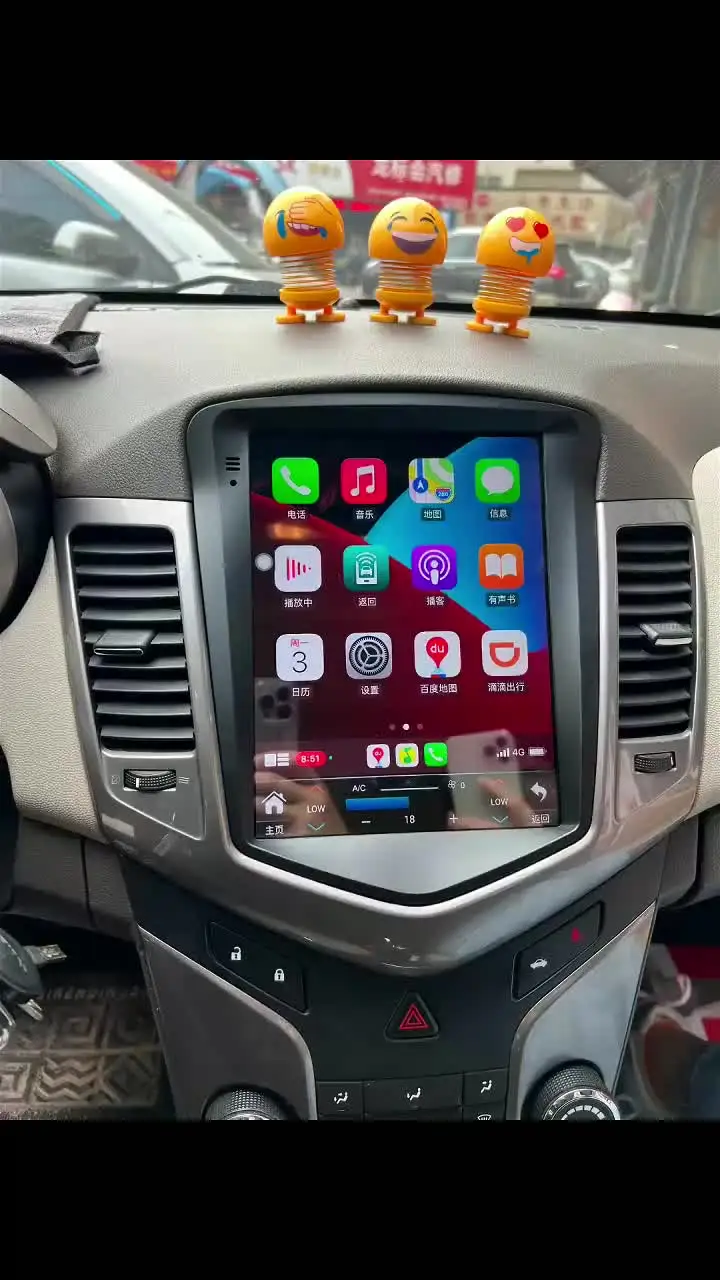
Video: Demonstration of the user interface and basic navigation.
4.2 Wireless CarPlay & Android Auto
Enjoy seamless integration with your smartphone using wireless Apple CarPlay and Android Auto. Connect your device via Bluetooth to access navigation, music, messages, and more directly on the head unit's screen.

Image: Wireless CarPlay and Android Auto features.

Image: Connection method for CarPlay/Android Auto.
4.3 GPS Navigation
The built-in GPS function supports both online and offline maps, providing reliable navigation. Download your preferred navigation apps from the Google Play Store.

Image: GPS navigation in use.
4.4 Bluetooth Connectivity
Connect your smartphone via Bluetooth for hands-free calling, music streaming, and access to your phone book. This feature greatly reduces the risk of driving distractions.

Image: Bluetooth music and phone book features.
4.5 Radio (FM+RDS)
Tune into your favorite FM radio stations with RDS (Radio Data System) support. An optional DAB+ (Digital Audio Broadcasting) module can be purchased for digital radio reception.

Image: FM+RDS radio interface with optional DAB.
4.6 Multimedia Playback
The unit supports various digital media formats including MP3, MP4, WMA, and JPEG. Enjoy 1080P HD video playback on the high-resolution screen.
4.7 DSP-HiFi Audio
Experience superior sound quality with the powerful DSP (Digital Signal Processor) chip, offering 36 DSP adjustments to fine-tune the audio frequencies to your preference.

Image: DSP-HiFi audio adjustment interface.
4.8 Internet Connectivity
The unit features Wi-Fi functionality, allowing you to connect to hot Wi-Fi networks. It also supports 3G networks (may require an external dongle) for internet access on the go, enabling sharing of games, videos, photos, music, and other mobile features.

Image: Interconnection feature for sharing mobile content.
5. Maintenance
- Cleaning: Use a soft, dry cloth to clean the screen and exterior. Avoid using abrasive cleaners or solvents that could damage the surfaces.
- Software Updates: Periodically check for available software updates through the system settings or the manufacturer's official website to ensure optimal performance and access to new features.
- General Care: Protect the unit from extreme temperatures, direct sunlight for prolonged periods, and excessive moisture.
6. Troubleshooting
If you encounter any issues with your multimedia player, please refer to the following common troubleshooting steps:
- No Power:
- Check all power cable connections to ensure they are securely attached.
- Verify the vehicle's fuse box for any blown fuses related to the radio or accessory power.
- No Sound:
- Ensure the volume is not muted or set to a very low level.
- Check speaker wire connections.
- Confirm the correct audio source is selected.
- Touch Screen Unresponsive:
- Try restarting the unit by pressing and holding the power button.
- If the issue persists, check for any physical damage to the screen.
- GPS Signal Issues:
- Ensure the GPS antenna is properly installed and has a clear, unobstructed view of the sky.
- Verify that GPS services are enabled in the system settings.
- Bluetooth Connection Problems:
- Make sure your mobile device's Bluetooth is turned on and discoverable.
- Clear previously paired devices from both the head unit and your phone, then attempt to pair again.
- Restart both the head unit and your mobile device.
- CarPlay/Android Auto Not Connecting:
- Ensure your smartphone is compatible with CarPlay or Android Auto.
- Verify that Bluetooth is enabled on your phone and the head unit.
- Check if the correct application (e.g., TLINK5) is running on the head unit for connection.
- System Lag or Crashes:
- Close any unnecessary background applications.
- Clear the system cache through Android settings.
- As a last resort, perform a factory reset (backup any important data first).
For complex issues, it is recommended to consult with a qualified technician or contact customer support.
7. Specifications
| Feature | Specification |
|---|---|
| Display Size | 9.7 inches |
| Resolution | 1024*768 IPS/QLED |
| Operating System | Android |
| RAM | 2GB (configurations vary, up to 8GB) |
| ROM | 32GB (configurations vary, up to 256GB) |
| Processor Speed | 8227 |
| Out Power | 4*45W |
| Voltage | 12 V |
| Item Weight | 1.35kg |
| Max External Memory | 256G |
| Special Features | Built-In Speaker/Microphone, Wi-Fi function, Support steering wheel control, Support 3G Network, Support Can-Bus |
| Digital Media Format | Mp3, MP4, WMA, JPEG |
| OSD Language | Chinese (Simplified), Chinese (Traditional), Albanian, Arabic, Azeri, Irish, Estonian, Belarusian, Bulgarian, Icelandic, Polish, Persian, Boolean text (Dutch South Africa), Danish, German, Russian, French, Filipino, Finnish, Georgian, Haitian Creole, Korean, Dutch, Galicia, Catalan, Czech, Croatian, Latin, Latvian, Lithuanian, Romanian, Maltese, Malay, Macedonian, Norwegian, Portuguese, Japanese, Swedish, Serbian, Slovak, Slovenian, Swahili, Thai, Turkish, Welsh, Ukrainian, Hebrew, Greek, Spain's Basque, Spanish, Hungarian, Armenian, Italian, Yiddish, Hindi, Urdu India, Indonesia, English, Vietnamese |
| Is touch screen | Yes |
| Built-in Screen | Yes |
| Din | Double Din |
| Certification | CE |
| Warranty | 365 Days |
| Preset Station | 18FM |
8. Warranty and Support
Your CARLAOER multimedia player comes with a 365-day warranty. For any technical assistance, warranty claims, or product-related inquiries, please contact the Carlaoer Official Store directly.
9. User Tips
- Vehicle-Specific Fit: While this unit is universal, for a seamless and integrated look, consider purchasing a vehicle-specific fascia/frame and wiring harness. This often helps retain original car features and ensures a perfect fit.
- App Ecosystem: Since the unit runs on Android, you can download and install popular applications like Spotify and Waze directly from the Google Play Store, enhancing your in-car entertainment and navigation experience.
- Camera Integration: If you plan to install a 360-degree camera system, verify its compatibility with the head unit and inquire about any specific configuration codes or adapters that might be required for full functionality.
- Maintain Performance: To ensure smooth and responsive operation, periodically close unused applications running in the background and clear the system cache. This helps free up RAM and storage.