
1. Introduction
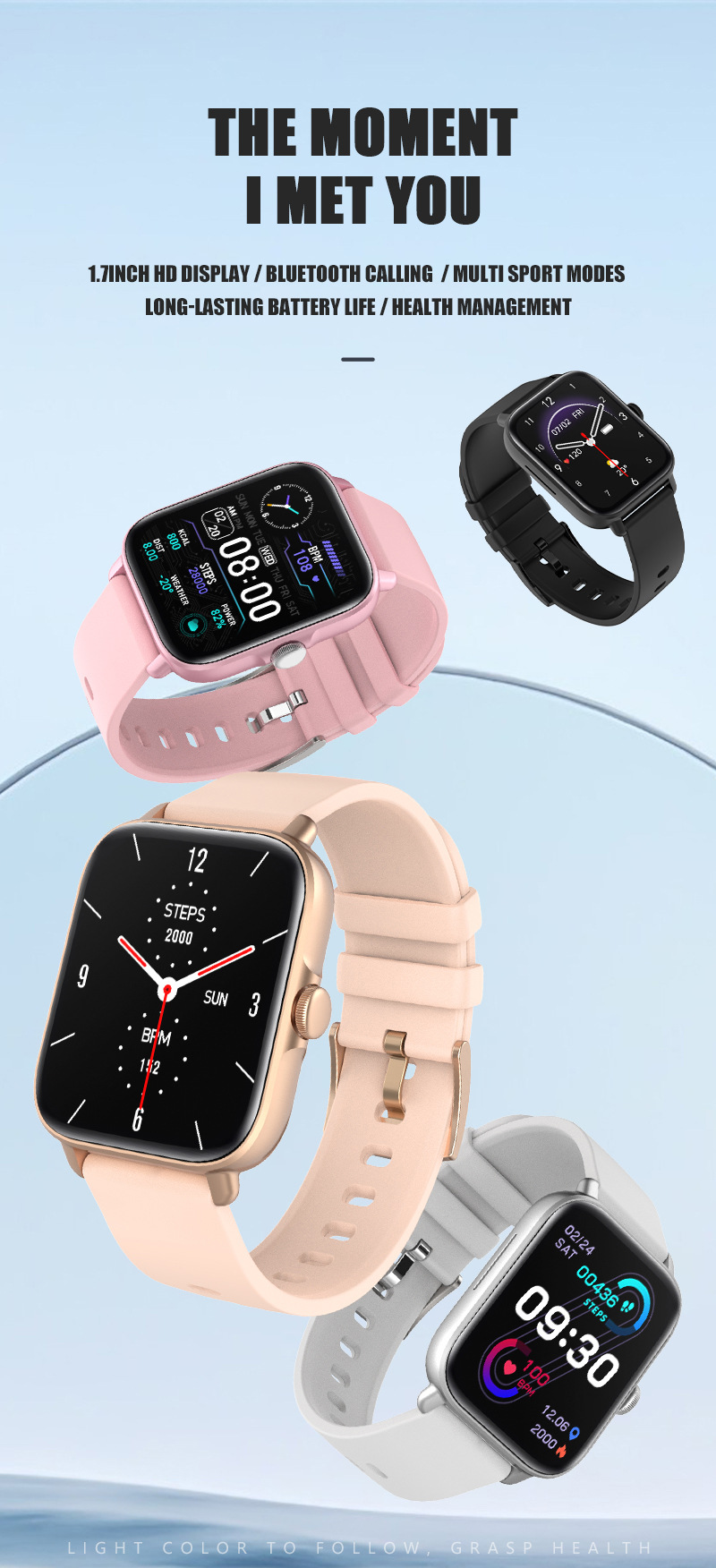
Thank you for choosing the LEEDOAR Y22 Smart Watch. This manual provides essential information for setting up, operating, and maintaining your device. Please read it carefully to ensure optimal performance and a satisfying user experience.
2. Package Contents
- LEEDOAR Y22 Smart Watch
- Magnetic Charging Cable
- User Manual

3. Setup Guide
3.1 Initial Charging
Before first use, fully charge your Y22 Smart Watch. Connect the magnetic charging cable to the charging points on the back of the watch and plug the USB end into a standard USB power adapter (not included).
3.2 App Installation
To unlock the full potential of your smartwatch, download and install the companion app on your smartphone. The primary app is TI Band. Some models may also be compatible with 'Y22' or 'Da Fit' apps. Search for 'TI Band' in your smartphone's app store (Google Play Store for Android or Apple App Store for iOS).
3.3 Device Pairing
- Ensure your watch is charged and powered on.
- Enable Bluetooth on your smartphone.
- Open the TI Band app and follow the on-screen instructions to add your device.
- Select 'Y22' from the list of available devices to pair.
- Confirm the pairing request on both your phone and watch.
4. Operating Instructions
4.1 Power On/Off
- Power On: Long press the side button until the screen lights up.
- Power Off: From the watch face, swipe down to access quick settings, or navigate to 'Settings' > 'Power Off', then confirm.
4.2 Basic Navigation
The Y22 Smart Watch features a responsive touchscreen and a physical side button for navigation:
- Swipe Up/Down/Left/Right: Navigate through menus, notifications, and widgets.
- Tap: Select an item or open an application.
- Side Button: Press to return to the home screen or wake the display. Some functions may involve rotation, as indicated by the 'HD DISPLAY ROTATION BUTTON' feature.

4.3 Bluetooth Calls
Once paired with your smartphone, you can make and receive calls directly from your watch.
- Receiving Calls: When a call comes in, the watch will display the caller ID. Tap the green icon to answer or the red icon to decline.
- Making Calls: Access the call function from the app menu to dial numbers or select contacts.

4.4 Smart Notifications
Receive real-time notifications for SMS messages, social media alerts (Facebook, WhatsApp, QQ, Twitter, WeChat), and other app notifications directly on your wrist. The watch will vibrate to alert you.


4.5 Health Monitoring
The Y22 Smart Watch offers comprehensive health tracking features:
- Heart Rate Monitor: Continuously track your heart rate throughout the day.
- Blood Oxygen Monitor: Measure your blood oxygen saturation (SpO2) levels.
- Blood Pressure Monitor: Monitor your blood pressure.
- Sleep Tracker: Automatically track your sleep patterns, including deep sleep, light sleep, and wake-up times.

4.6 Activity Tracking (28 Sport Modes)
Choose from 28 different sport modes to accurately track your workouts, including walking, running, cycling, skipping rope, badminton, basketball, football, and swimming. The watch records steps, calories burned, distance, and heart rate during exercise.


4.7 Additional Functions
- Custom Wallpaper: Personalize your watch face with custom images.
- Music Control: Control music playback on your smartphone (play, pause, skip tracks).
- Camera Control: Use your watch as a remote shutter for your smartphone camera.
- Weather Forecast: View current weather conditions and forecasts.
- Other Features: 24-hour instruction, World Time, Power Reserve, Phase of the Moon, Month, Interactive Music, Noctilucent, Calendar.
5. Specifications
| Feature | Specification |
|---|---|
| Model | Y22 |
| Brand | LEEDOAR |
| Screen Size | 1.72 inch |
| Screen Material | TFT |
| Resolution | 380*380 |
| Chip | RTL8762CK + AC6963A |
| Flash Memory | RAM192KB ROM64Mb |
| Battery Capacity | 235mAh |
| Waterproof Grade | Life Waterproof (IP67) |
| Bracelet Size (L*W*H) | 43.5*36*11.0 mm |
| Charging Method | Magnetic wire |
| App Name | TI Band (also Y22, Da Fit) |
| Strap Length | Total 255MM, Adjustable 155-235MM |
| Band Width | 21mm |
| Compatible System | Android 4.4 (Inclusive) above, iOS 8.0 (Inclusive) above |
| Case Material | ABS+PC+TPE |
| Band Material | Rubber |
| Movement Type | Electronic |
| Bluetooth Version | 5.0 |
| GPS | Yes |
| WIFI | Yes |
| Voice Assistant Built-in | No |
| SIM Card Available | No |
| Multiple Dials | No |
| Battery Detachable | No |
| Band Detachable | Yes |
| Certifications | CE, FCC, UL |
6. Maintenance
- Cleaning: Regularly wipe the watch screen and strap with a soft, dry cloth. For stubborn dirt, use a slightly damp cloth and mild soap, then dry thoroughly.
- Charging: Use only the provided magnetic charging cable. Avoid exposing the charging contacts to water or sweat.
- Water Resistance: The watch is 'Life Waterproof' (IP67 rated), meaning it can withstand splashes, rain, and brief immersion. It is not suitable for hot showers, saunas, or diving. Avoid pressing buttons underwater.
- Storage: Store the watch in a cool, dry place when not in use. Avoid extreme temperatures.
- Strap Care: If the band is detachable, remove it periodically for cleaning. Ensure it is securely reattached before wearing.
7. Troubleshooting
- Watch not turning on: Ensure the watch is fully charged. If it still doesn't turn on, try holding the side button for an extended period (10-15 seconds).
- Watch not charging: Check if the magnetic charging cable is correctly aligned with the charging points. Ensure the USB adapter is working. Clean the charging contacts on both the watch and cable.
- Cannot pair with smartphone: Make sure Bluetooth is enabled on your phone and the watch is within range. Restart both the watch and your phone. Ensure the TI Band app is updated to the latest version.
- Inaccurate health data: Ensure the watch is worn snugly on your wrist, not too tight or too loose. Avoid excessive movement during measurements. Note that smartwatches are not medical devices and readings are for reference only.
- Notifications not appearing: Check app settings on your phone to ensure notification permissions are granted for the TI Band app and for the specific apps you want notifications from. Ensure the watch is connected via Bluetooth.
8. User Tips
- Explore Watch Faces: Customize your watch face frequently to match your style or mood. Many options are available through the companion app.
- Optimize Battery Life: To extend battery life, reduce screen brightness, limit unnecessary notifications, and disable continuous heart rate monitoring if not needed.
- Stay Updated: Regularly check for firmware updates for your watch and app updates for the TI Band application to ensure you have the latest features and bug fixes.
- Wear Comfortably: For accurate health tracking, wear the watch comfortably on your wrist, about one finger's width above your wrist bone.
9. Warranty and Support
For warranty information, technical support, or any questions not covered in this manual, please contact the seller or manufacturer directly. Keep your purchase receipt as proof of purchase.