
1. Product Overview
The Delux M800 Ultra is a high-performance, ultra-lightweight gaming mouse designed for precision and control. Featuring a PAW3395 optical sensor, Nordic 52840 MCU, and tri-mode connectivity, it offers an exceptional gaming experience.

Figure 1: Delux M800 Ultra Wireless Gaming Mouse
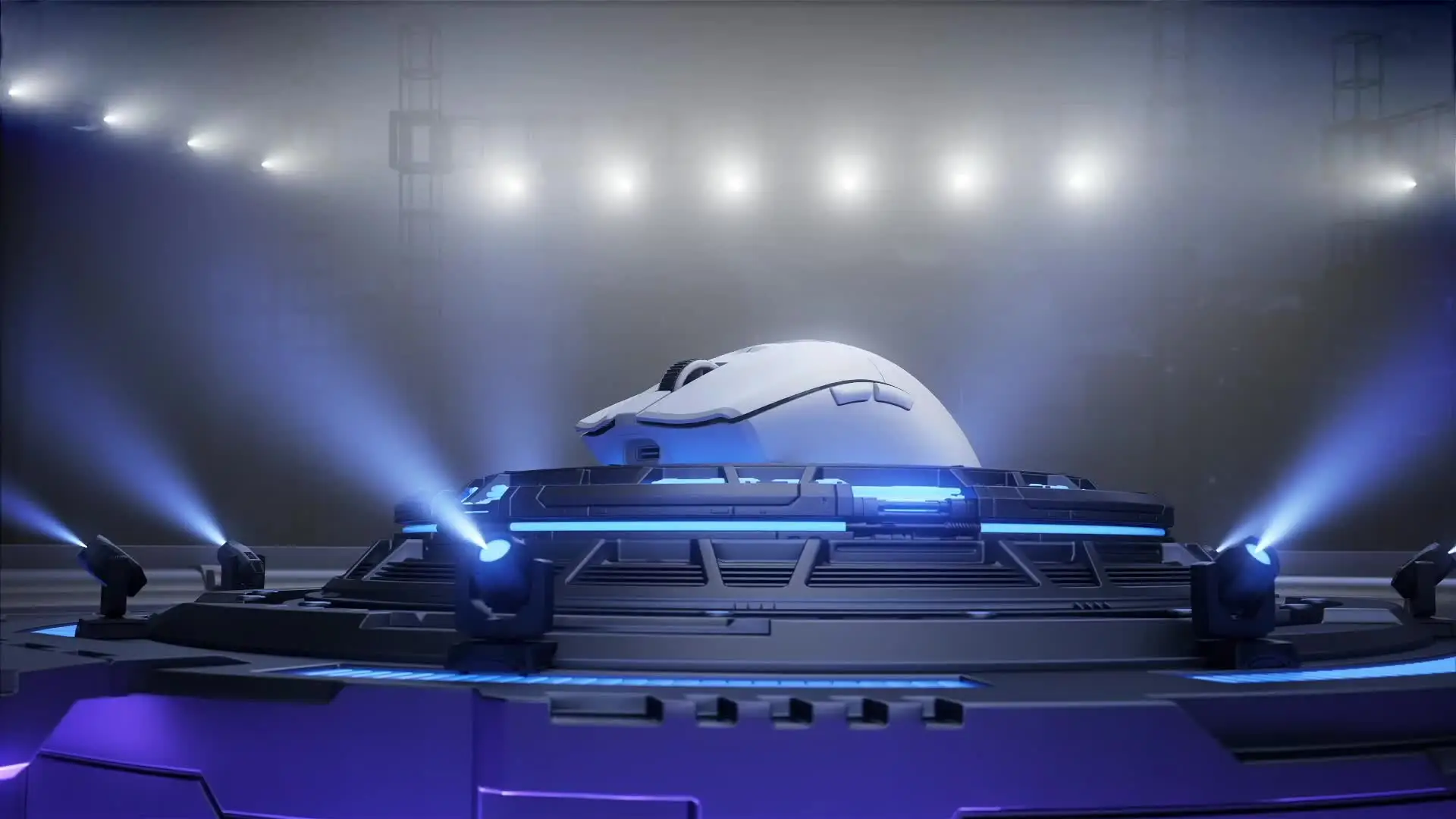
Video 1: Delux M800 Ultra Product Features Overview
2. Package Contents
Please check the box for the following items:

Figure 2: What's in the Box
- Delux M800 Ultra Wireless Gaming Mouse
- PTFE Mouse Feet (Replacement set)
- Grip Tape
- 2.4G Dongle
- Braided USB-C Cable
- USB-A to USB-C Adapter
- Velvet Pouch
3. Setup Guide
3.1 Connecting Your Mouse
The Delux M800 Ultra supports three connection modes: 2.4G Wireless, Bluetooth, and Wired.
- 2.4G Wireless Mode:
Insert the 2.4G Dongle into an available USB port on your computer. Turn on the mouse and select the 2.4G mode using the switch on the bottom of the mouse. The mouse should connect automatically. - Bluetooth Mode:
Turn on the mouse and select the Bluetooth (BT) mode using the switch on the bottom of the mouse. On your computer, go to Bluetooth settings and search for new devices. Select "Delux M800 Ultra" to pair. - Wired Mode:
Connect the braided USB-C cable to the mouse and the other end to your computer's USB port. The mouse will function in wired mode and charge simultaneously.
3.2 4K Dongle Pairing (Optional)
For an enhanced 4000Hz polling rate, a separate 4K receiver (dongle) is required. If you have purchased one, follow these steps:
- Ensure the mouse is in 2.4G mode.
- Unplug the standard 2.4G dongle.
- Press and hold the bottom DPI button on the mouse until the green light blinks rapidly.
- Plug the 4K Dongle into your computer using the braided cable and adapter.
Note: The 4K receiver needs to be purchased separately. For purchase, visit: https://www.aliexpress.com/item/1005006911416977.html

Figure 3: Delux 4K Hyperspeed Wireless Receiver (GH-4K)
3.3 Driver Software Installation
For full customization and advanced features, download the official driver software from the Delux website. The software is supported on Windows 8/10/11.
- Download Link: https://www.deluxworld.com/en-service.html
4. Operating Instructions
4.1 DPI and Polling Rate Adjustment
The mouse features a dedicated DPI button on the bottom for quick adjustments. The polling rate can also be adjusted without driver software using a button on the bottom of the mouse.

Figure 4: Button Layout and Grip Styles
4.2 Ergonomics and Grip Styles
The M800 Ultra is designed for both left and right-handed users (ambidextrous). Its lightweight design and optimized button layout are suitable for various grip styles, including Claw Grip and Palm Grip, especially for small to medium-sized hands.
5. Maintenance
5.1 Cleaning
To maintain optimal performance, regularly clean your mouse. Use a soft, dry cloth to wipe the surface. For stubborn dirt, a slightly damp cloth can be used, ensuring no moisture enters the internal components. Avoid harsh chemicals or abrasive materials.
5.2 Battery Charging
The mouse is equipped with a 600mAh rechargeable battery, offering up to 120 hours of battery life. When the battery is low, connect the mouse to your computer using the provided USB-C cable to charge. The LED indicator will show charging status.

Figure 5: Extended Battery Life
6. Troubleshooting
- Mouse not connecting in 2.4G or Bluetooth mode:
Ensure the mouse is switched to the correct mode (2.4G or BT). Check if the dongle is properly inserted (for 2.4G) or if Bluetooth is enabled on your computer (for BT). Try re-pairing the device. Ensure the mouse battery is charged. - Mouse losing connection during use:
This could be due to low battery. Charge the mouse fully. If using wireless, ensure the dongle is not too far from the mouse or obstructed. Interference from other wireless devices can also be a factor. Try updating or reinstalling the mouse driver. - Mouse not responding:
Try connecting the mouse in wired mode to rule out wireless issues. If it works in wired mode, check battery and wireless connection. If it doesn't work in wired mode, try a different USB port or computer. - Double-clicking issues:
The Delux M800 Ultra uses Huano Pink Dot Microswitches, known for their durability and crisp clicks. While highly reliable, mechanical switches can eventually develop double-clicking. If this becomes a persistent issue, consider contacting support. For absolute prevention of double-clicking, mice with optical switches are an alternative, though typically at a higher price point. - 4K Dongle not connecting:
Ensure you follow the specific 4K Dongle pairing instructions in Section 3.2. The 4K dongle is a separate purchase and requires a specific pairing process.
7. Specifications

Figure 6: Product Parameters
| Feature | Specification |
|---|---|
| Optical Sensor | PAW3395 |
| DPI | Up to 26000 |
| Movement Speed (IPS) | 650 |
| Acceleration | 50 G |
| Polling Rate | 125-250-500-1000Hz (Upgradeable to 2000-4000Hz with 4K Dongle) |
| MCU Chip | Nordic 52840 |
| Microswitches | Custom Huano Pink Dot Microswitches (80 million click lifecycle) |
| LOD (Lift-off Distance) | 1mm/2mm (Adjustable) |
| Connection Type | 2.4Ghz Wireless, Bluetooth, USB Wired (Tri-Mode) |
| Weight | 55g ±3g |
| Battery Capacity | 600mAh (up to 120 hours battery life) |
| Hand Orientation | Both Hands |
| Number of Buttons | 6 |
| Interface Type | USB |
| Operating System | Windows 8/10/11 Supported |
| Certification | CE, FCC, RoHS, WEEE |
8. User Tips
- Optimal Polling Rate: While the mouse supports up to 4000Hz with a separate dongle, experiment with 1000Hz first. Many users find 1000Hz sufficient for competitive gaming, and it consumes less battery.
- Grip Tape Application: Use the included grip tape for enhanced control and comfort, especially during intense gaming sessions. Ensure the mouse surface is clean and dry before applying.
- Driver Customization: Don't forget to install the driver software from the Delux website. It allows for macro programming, DPI fine-tuning, and other personalized settings to optimize your gaming experience.
- Battery Management: To maximize battery life, consider turning off the mouse when not in use for extended periods. If you experience connection drops, a low battery is a common cause.
9. Warranty and Support
Your Delux M800 Ultra Wireless Gaming Mouse comes with a manufacturer's warranty. For detailed warranty information, technical support, or service inquiries, please visit the official Delux website or contact their customer service.
- Official Website: https://www.deluxworld.com/en-service.html