
1. Introduction
This manual provides detailed instructions for the installation, operation, and maintenance of your Srnubi 2 Din Android 12.0 Car Radio. Designed for Peugeot 2008 and 208 models (2012-2018), this multimedia system offers advanced features including Android 12.0 OS, wireless CarPlay/Android Auto, GPS navigation, 4G/WiFi connectivity, DSP audio processing, and various driving assistance functions. Please read this manual thoroughly before use to ensure proper functionality and safety.

Figure 1: Srnubi 2 Din Android 12.0 Car Radio
2. Package Contents
Please check the package for the following items:

Figure 2: Package List
- Main Unit (Car Radio)
- Frame (for specific car model)
- Power Cable
- RCA Cable
- USB Cable * 2
- GPS Antenna
- 4G RCA Cable (Only for 4G Function)
- Installation Tool (Gift)
- Camera Input Cable
- Instruction Manual

Figure 3: Detailed Accessories
3. Specifications
| Feature | Specification |
|---|---|
| Warranty | 365 Day |
| Preset Station | Modifiable |
| Tuner Type | FM+AM |
| Built-in DVD Player | No |
| Built-in CD player | No |
| Chipset | 8 Core(2*A75+6*A55) |
| Processor Speed | 1.8Ghz |
| Processor Type | UIS7862 |
| Is touch screen | Yes |
| Built-in Screen | Yes |
| Category | Car Multimedia Player |
| TF/Micro SD Slot | 0 |
| Din | Double Din |
| RAM | 8G/6G/4G/2G/1G |
| Interface | USB |
| Operating System | Android 12 |
| Out Power | 4*50W |
| Voltage | 12 V |
| Item Weight | 1.7kg |
| Item Size | 24cm*20cm*12cm |
| Max External Memory | 128G |
| Special Features | wifi function,Support steering wheel control,Support 3G Network,Support 4G Network,Support Can-Bus,Built-in GPS,Charger,Mobile Phone,MP3 players,Voice Control,dsp,CarPlay,android auto,Reversing Input,Split Screen |
| Digital Media Format | Mp3,MP4,WMA,JPEG |
| OSD Language | Chinese (Simplified),Chinese (Traditional),Arabic,Irish,Belarusian,Polish,PERSIAN,Boolean text (Dutch South Africa),German,Russian,French,Filipino,Finnish,Korean,czech,Latvian,Romanian,Malay,Macedonian,Portuguese,Japanese,Swedish,Serbian,Slovak,Slovenian,THAI,Turkish,Ukrainian,Hebrew,Greek,Spanish,hungarian,Italian,hindi,Urdu India,English,Vietnamese |
| Resolution | 1024*600/1280*720 |
| Display Size | 10.1" |
| Origin | Mainland China |
| Accessory Type | Frame / Power Cable / GPS / RCA Cable |
| For Vehicle Brands/Model | PEUGEOT |
| Peugeot Model | 208 |
| 208-Year | 2014,2015 |
| ROM | 128G |
| Material | Metial+Plastics |
| Certification | CE |
| Connect an external microphone | Support |
| Original Steering Wheel Control | Support |
| 4G net | T10-1,T10-2,T10-3 |
| Connect To USB ADAS DVR | SupportConnect USB TPMS |
| Connect USB TPMS | Support |
| Bluetooth 5.0 | Only T10-1,T10-2,T10-3 |
| Split Screen | Support(except K3) |
| Floating window | Support(except K3) |
| Wifi | All Support |
| Bluetooth | All Support |
| SSR(T10-1/T10-2/T10-3) | 4G+32G/4+64G/6+128G Android 12.0(4G) |
| T3L | 1G+32G Android 10.0 |
| T3L plus | 2G+32G Android 11.0 |
| T3Lmax | 2G+32G Android 12.0(4G) |
| T10 | 2G+32G Android 12.0(4G) |

Figure 4: Key Features and Specifications
4. Setup and Installation
4.1 Pre-Installation Check
Before proceeding with installation, ensure the cable interface matches your car's configuration. If the cable type in your car is different from the provided image, the cable may not be compatible. Contact customer service if you are unsure.

Figure 5: Cable Interface Compatibility
4.2 Wiring Diagram
Follow the wiring diagram carefully for proper connection. The standard cable is designed for plug-and-play compatibility with the original car, requiring no modification to the original car cable.

Figure 6: Back of Host Device Wiring Diagram (T10-1/T10-2/T10-3/T10-4)
Note on Canbus: If your car requires a Canbus connection, ensure you use the provided Canbus cable and connect it to the designated port. Only T10 models have the fiber optic function.
4.3 Cooling Fan Installation
All models (except K3) include a free cooling fan to prevent overheating during prolonged use, especially in summer. Install the cooling fan as shown in the diagram to ensure optimal performance and longevity of the CPU.

Figure 7: Cooling Fan Installation
4.4 Steering Wheel Control Setup
The unit supports original car steering wheel controls. For versions without Canbus, manual key learning is required. For versions with Canbus, ensure the Canbus is correctly connected and configured.

Figure 8: Steering Wheel Control
4.5 Before and After Installation

Figure 9: Before and After Installation
5. Operating Instructions
5.1 User Interface (UI) Overview
The Srnubi car radio features an advanced Android 12.0 system with a customizable UI. Explore the new Srnubi UI 5.0 and UI 6.0 for a personalized experience, including day/night modes and various main page layouts.

Figure 10: Srnubi UI 5.0

Figure 11: Srnubi UI 6.0 Day/Night Mode

Figure 12: Srnubi UI 6.0 Theme Options
5.2 Multimedia Functions
Enjoy various multimedia options including music playback, video playback, and FM/AM radio. The system supports multiple audio and video formats.
Video 1: Srnubi T10 UI Features Demonstration

Figure 13: Multimedia Interface Details
5.3 Bluetooth Connectivity
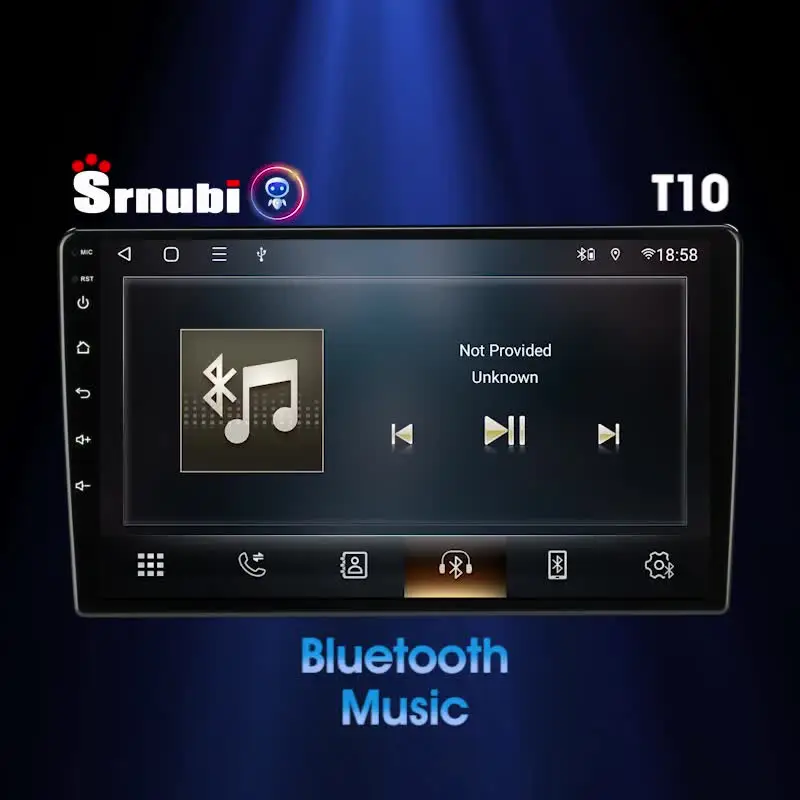
The unit features Bluetooth 5.0 for stable and long-distance connections. Use it for hands-free calls, Bluetooth music streaming, and synchronizing phone contacts.

Figure 14: Bluetooth 5.0 Interface

Figure 15: Bluetooth Phone and Music
5.4 CarPlay & Android Auto
The T10 models support wireless CarPlay and Android Auto, mirroring your phone screen for convenient navigation, music, and calls. Connect via WiFi or USB cable.

Figure 16: CarPlay and Android Auto

Figure 17: TLink/ZLink Connection
5.5 GPS Navigation
The unit supports various online and offline map applications. IGO offline map software is pre-installed, with regular map file updates available.

Figure 18: GPS Navigation
5.6 4G/WiFi Connectivity
T10 models support multiple 4G+WiFi network frequency bands, allowing seamless internet connection for streaming, gaming, and browsing.

Figure 19: 4G LTE and External SIM Slot
5.7 Split Screen & Floating Window
Display two applications simultaneously with split screen mode, or use the floating window (Picture-in-Picture) for enhanced multitasking and a better driving experience.

Figure 20: Split Screen & Floating Window
5.8 AI Voice Control
The optional AI voice control software supports offline calls and simplifies operations, improving driving safety with fixed commands for navigation, music, and video playback.

Figure 21: AI Voice Control
5.9 DSP Audio Settings
The T10 models feature DSP+48EQ for comprehensive audio output, supporting 5.1 channels and various sound effects to satisfy users who pursue higher audio quality.
Figure 22: DSP Audio Settings
5.10 Adjustable Button Colors
The T10 model supports RGB lighting, allowing you to freely adjust the button light color within the radio settings.

Figure 23: Adjustable Button Colors
5.11 Driving Assistance Features
- AHD Camera: High-definition reversing screen with user-friendly functions. You can set whether to play music when reversing and adjust the volume.
- ADAS DVR: Supports multiple assisted driving technologies. Insert a TF memory card to record video, capturing every moment on the road.
- USB TPMS: Real-time feedback on tire status, crucial for safety as tire pressure warning devices are becoming standard.
- OBD2 Support: Connect an OBD2 scanner car diagnostic tool to monitor vehicle data and diagnose faults.

Figure 24: AHD Camera and ADAS DVR

Figure 25: USB TPMS

Figure 26: OBD2 Support
6. Maintenance
- Cleaning: Use a soft, dry cloth to clean the screen and exterior. Avoid abrasive cleaners or solvents.
- Software Updates: Regularly check for and install software updates to ensure optimal performance and access to new features.
- Cooling Fan: Ensure the cooling fan (if installed) is free from obstructions to maintain proper airflow and prevent overheating.
7. Troubleshooting
7.1 Common Issues and Solutions
- Car radio won't turn on:
- Check the car radio voltage (should be 12V).
- Ensure red and yellow wires are connected to the positive side of the 12V power supply, and the black wire to the negative.
- Replace the fuse with the same type.
- Always use the provided power cables. Do not directly insert the original car plug into the unit.
- If the radio still doesn't turn on, check if the connecting wire inside the radio came off during transportation. Open the back cover to inspect and reconnect.
- "No Signal" when reversing:
- Verify the camera's line is properly connected to the "CAMIN" port of the car radio.
- "Can't watch video while driving" message:
- Turn off the "Video Warning" function in the settings.
- Cannot search FM stations:
- Ensure the radio antenna is properly inserted and well-contacted.
- Check the signal strength in your location; try testing in an area with better reception.
- Inspect the car's radio antenna for damage; replace if necessary.
- Cannot connect Bluetooth:
- On your phone, open Bluetooth settings, search for devices, and pair with the player's Bluetooth model. Use 0000, 1234, or 123456 as the pairing code if prompted.
- Try connecting with a different mobile phone.
- Check if the Bluetooth receiving antenna is properly connected.
- If issues persist, unplug the player's power for 3 minutes, then reconnect.
- Weak Bluetooth or WiFi signal:
- Check and reconnect the yellow rear camera input connector. The two short cables are extensions for the Bluetooth and WiFi antennas; consider extending them to enhance the signal.
- Navigation map not working:
- Check if GPS has a signal by clicking on GPS signal detection. If there's a signal, reinstall the map or use a mobile WiFi hotspot.
- If no GPS signal, move the car out of the garage and test the GPS interface voltage (should be 3.3V). Replace the GPS antenna if the voltage is incorrect.
- Screen display abnormal:
- Try the one-key recovery button. If it doesn't resolve, remove the back screws, check if the screen cable is loose, and reconnect it.
- Abnormal sound:
- Check if the original car cable has been modified. If so, inspect and reconnect the speaker cable.
- Radio setting interface password:
- T3 Max: 111333, 1234, 1617, 16176699
- K3/T10/T3L/T3L Plus: 123456, 8888, 7890, 000000
- Programmer interface password: 7890 + current time (e.g., 789011 for 11 o'clock).
8. User Tips
- Optimal Performance: Ensure the cooling fan is properly installed and unobstructed to prevent overheating, especially during long drives or in hot climates.
- Seamless Connectivity: For the best Bluetooth and WiFi signal, consider extending the antenna cables if you experience weak reception.
- Safe Driving: Utilize the AI Voice Control feature to manage navigation and media without taking your hands off the wheel, enhancing safety.
- Personalized Experience: Experiment with the customizable UI themes and adjustable button colors to match your car's interior and personal preference.
- Stay Updated: Regularly check for system updates to benefit from new features and performance improvements.
9. Warranty and Support
Your Srnubi Car Radio comes with a 365-day warranty. For any technical assistance, installation queries, or troubleshooting not covered in this manual, please contact Srnubi customer service. Ensure you have your product model and purchase details ready for faster support.