
1. Welcome
Thank you for choosing the FreedConn Helmet Bluetooth® Intercom system. This product is manufactured to high standards of performance and safety. We hope you will enjoy using your purchase.
Safety Warning:
- Using FreedConn can limit the audibility of ambient sounds.
- Listening to music at maximum volume can lead to permanent hearing damage.
- For the best sound quality, ensure speakers are within 2mm of your ears.
2. Product Features
- Built-in FM radio.
- Bluetooth 5.0 for stable connections.
- Supports connection for up to three riders, with two riders able to intercom simultaneously.
- Maximum intercom range of up to 1000 meters in open space.
- Music Sharing function between rider to pillion or rider to rider.
- Compatible with most other Bluetooth intercom systems.
- Connects to smartphones, MP3 players, and GPS navigation systems.
- Advanced A2DP & EDR Bluetooth profile for high-quality audio.
- Hands-free calling: receive, reject, call out, hang up, and auto-answer phone calls.
- Stereo music/audio function (transmits from A2DP enabled devices).
- Up to 10 hours of talk time when connected to a cell phone.
- Up to 6 hours of talk time when using the intercom feature.
- Up to 300 hours of standby time.
- Operational speed up to 120 Km/h.
- Wind noise DSP cancellation for clear communication.
- Water-resistant design for all-weather performance.
- Dial the last number function.
- Supports audio transfer.
- Control cell phone music via AVRCP: forward, backward, play, pause.
- Automatic switching among Bluetooth cell phone, intercom, and stereo music.
- DSP echo cancellation and noise suppression technology ensure crystal clear voice quality at high speeds.
- Durable, water-proof, and sun-proof button panel.
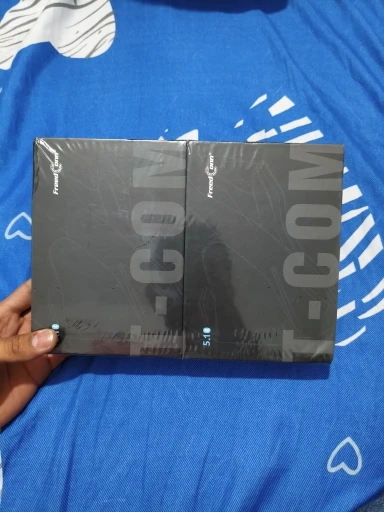
Image: Overview of TCOM-VB product features including Bluetooth 5.0, 1000m range, music share, FM radio, noise control, and waterproof design.
3. Parts List
The package includes the following components:
- FreedConn TCOM VB Bluetooth Device (x1 or x2 depending on package)
- Microphone & Ear Speaker Set (x1 or x2) - includes both hard and soft cable microphones for different helmet types.
- Headset Clamp (x1 or x2) - includes both Vecro Clip and Hook Clip options.
- Headphone VELCRO Tape (x4 or x8)
- Mini Microphone VELCRO Tape (x2 or x4)
- USB Charging Cable (x1 or x2) - 5-pin connector.
- Allen Key (x1 or x2)
- Screw Driver (x1 or x2)
- User Manual (x1 or x2)
- Packing Box (x1 or x2)

Image: Diagram showing all components included in the FreedConn TCOM-VB package: Bluetooth device, microphone & ear speaker, Vecro clip, Hook clip, headphone Velcro, USB cable, manual, and screwdriver.
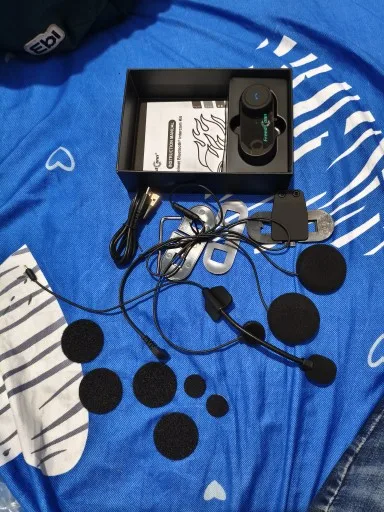
Image: Illustration of the hard and soft cable microphone options, showing how they integrate into one earphone system and their application in different helmet types.
4. Setup and Installation
4.1. Helmet Compatibility
The FreedConn TCOM VB is designed to be compatible with various helmet types, including Full Face, Half Face, Open Face, 3/4-Face, Motocross, and Retro Helmets.

Image: Visual guide showing the TCOM-VB installed on a full-face helmet and icons representing compatibility with various helmet styles.
4.2. Installation Procedure
- Loosen Screws: Use the provided screwdriver to counter-clockwise turn and loosen the screws on the back of the clamp.
- Insert Clamp: Open the helmet lining. Insert the clamp in the proper position on the left side of the helmet and fasten the screw. Do not over-tighten, as this can damage the clamp.
- Slide Receiver: Slide the Bluetooth receiver into the slot of the clamp. Ensure it is securely locked in place.
- Attach Velcro for Speakers: Open the helmet lining near the ear position. Clean the EPS surface and paste the Headphone VELCRO tapes onto the rough surface.
- Affix Speakers: Attach the hook surface of the speakers to the rough surface of the VELCRO tapes. Properly tidy the helmet lining.
- Connect Headphone Plug: Insert the headphone plug into the corresponding headphone jack on the receiver to complete the installation.
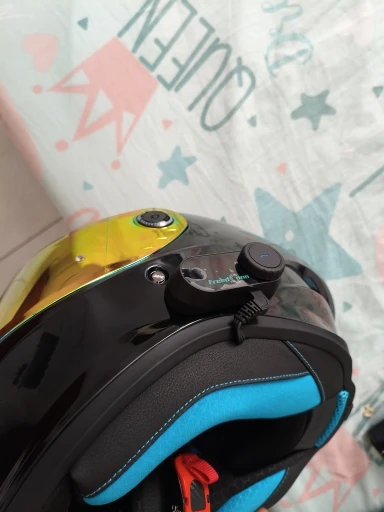
Image: Step-by-step diagram illustrating the installation process of the intercom unit and speakers into a motorcycle helmet.
5. Operating Instructions
5.1. Product Control Panels
The TCOM VB features an LED indicator, a Jog Wheel, an On/Off and Intercom Button, a Multi-function Button (MFB), and a Headset/Charging USB port.
5.2. Turning the Unit On/Off
- To Turn On (Standby Mode): Press and hold the small black power button at the end of the unit for 3 seconds. You will hear a “Di” sound, and the blue LED will begin to flash. The unit is now in standby mode.
- To Turn Off: Press the small black power button for 5 seconds or until you hear two “Di” tones and the lights extinguish.
5.3. Pairing with a Mobile Phone
- Ensure the unit is off.
- Press and hold the small black power button at the end of the unit. Continue holding until you see a RED AND BLUE light flashing (approximately 5-8 seconds from off). Do not release when you first see the blue light.
- You will hear a “DuDu” tone when the unit enters pairing mode.
- On your mobile phone, search for Bluetooth devices and select the FreedConn device.
- If prompted for a pairing code, enter 0000.
- It is recommended to set your phone to auto-pair with the device for future connections.
5.4. Intercom Pairing (2 Devices)
- Ensure both devices are turned off.
- Press and hold the small black power button on both devices simultaneously until both units flash red/blue repeatedly (hold for more than 6 seconds).
- Short press the black power button on ONE of the two devices. This device will search and auto-pair to the other in intercom mode, initiating a live call.
- If pairing fails, ensure both devices enter red/blue flashing mode simultaneously and are close to each other. Also, ensure any other Bluetooth devices are turned off.
- Once paired, you do not need to re-enter pairing mode. In the future, simply turn both units to standby mode (blue light flashing) and press the power button on one of the devices to connect.
5.5. Intercom Pairing (3 Devices)
- Follow the 2-device pairing procedure for each combination of the three units (e.g., A-B, then B-C, then A-C).
- Ensure the third unit is switched off when pairing any two devices.
- Only one intercom connection can be live at a time.
- To switch connections after successful pairing, end any live call and return to standby.
- From standby, press the power/intercom button 1 time for one pairing or 2 times for the other pairing. The specific pairing for 1 or 2 presses depends on the sequence you paired the helmets.
5.6. Resetting Pairing Memory
If you encounter pairing issues, you can reset the pairing memory:
- Turn on the unit into standby mode.
- Press the power/intercom button for 3-5 seconds until a “dudu” sound is heard (this should be before the unit switches off).
- Release the button when the tone is heard.
- Turn off the unit and restart it; the memory will be erased.
5.7. Using the FM Function
- When the headset is in idle status, press the MFB (Multi-function Button) twice to turn FM on.
- When FM is on, turn the MFB clockwise or counter-clockwise to seek the next or previous FM station.
- To turn FM off, press the MFB twice again.
5.8. Music Sharing
The TCOM VB supports music sharing, allowing you and your riding partner to listen to the same music simultaneously.
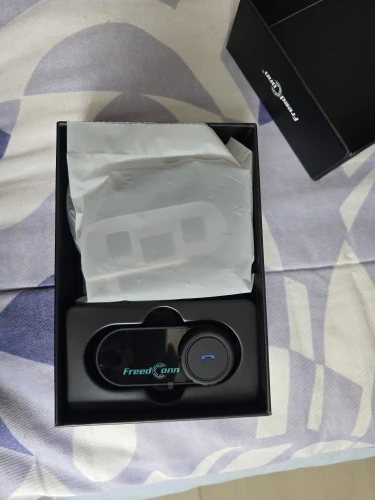
Image: Two riders sharing music via their FreedConn intercoms, with music notes flowing between them.
5.9. High Compatibility
The TCOM VB can connect with up to two phones, MP3 players, GPS devices, and other Bluetooth-enabled devices simultaneously.
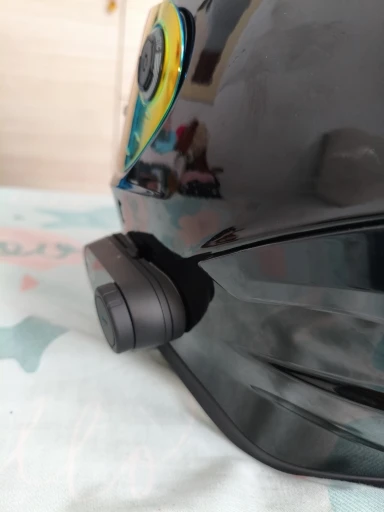
Image: The TCOM-VB unit shown connecting to two smartphones, a GPS device, and an MP3 player, illustrating its high compatibility.
6. Maintenance
6.1. Charging
The TCOM VB features an upgraded 5-pin USB charging port for convenience. Use the provided USB cable with a standard USB charger (e.g., your phone charger).
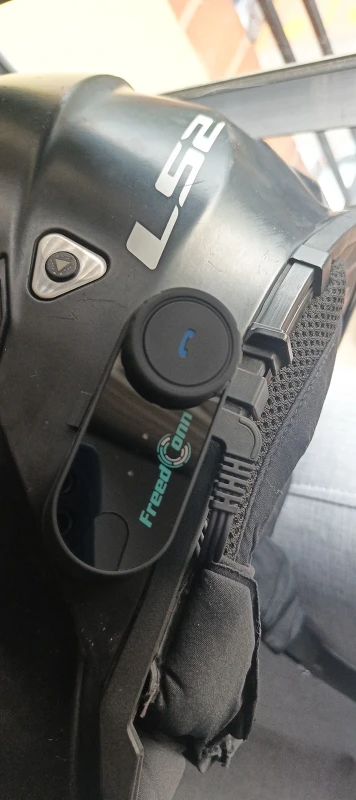
Image: Comparison showing the old 8-pin USB charging port versus the new, more convenient 5-pin USB charging port on the TCOM-VB unit.
6.2. Cleaning
Wipe the unit with a soft, damp cloth. Do not use harsh chemicals or abrasive cleaners.
6.3. Water Resistance
The TCOM VB is designed to be water-resistant, allowing for use in various weather conditions.
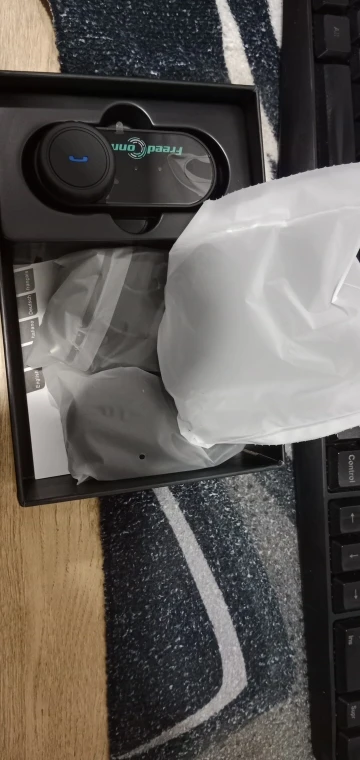
Image: The TCOM-VB unit with water droplets on its surface, highlighting its waterproof capability.
7. Troubleshooting
- Pairing Issues: If devices fail to pair, ensure both units are fully charged, within range, and that no other Bluetooth devices are interfering. Try resetting the pairing memory as described in Section 5.6.
- No Sound/Low Volume: Check speaker placement (within 2mm of ears), ensure volume is turned up on both the intercom and connected device.
- Intermittent Connection: Ensure units are within effective range and there are no major obstructions. Fully charge both devices.
8. Specifications
| Feature | Specification |
| Bluetooth Version | 5.0 |
| Frequency | 2.4GHz |
| Weight | 45 grams (excluding accessories) |
| Dimensions (L x W x H) | 81 mm x 31 mm x 25 mm |
| Charging Time | Approximately 2.5 hours |
| Battery Type | Rechargeable Lithium Polymer Battery |
| Battery Model | 502533 |
| Battery Capacity | 400mAh |
| Phone Talk Time | Up to 12 hours |
| Intercom Talk Time | Up to 8-10 hours |
| Standby Time | Up to 300 hours |
| Battery Voltage | 3.7V |
| Battery Power | 1.48WH |
| Maximum Intercom Distance | Up to 1000m |
| Maximum Number of Speakers | 3 riders connect, 2 talk simultaneously |
| Applicable Helmet Type | Modular, Motocross, Open face, Full Face, Flip Up, Universal |
| Power Supply Mode | Built-in Battery |
| Connection Mode | Wire, Bluetooth |
| Certifications | CE, RoHS, FCC (FCC ID: 2ACB3T-COMVB) |
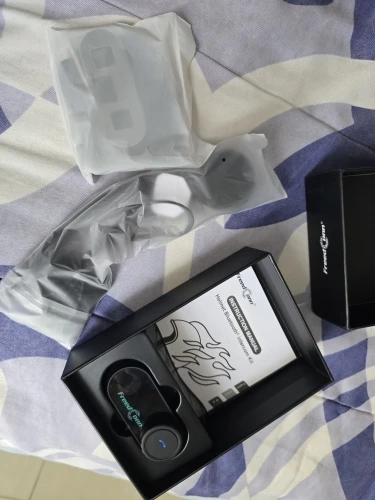
Image: Detailed diagram showing technical specifications and the internal product structure with labels for components like stereo ear speakers, jog wheel, multi-function button, and microphone.
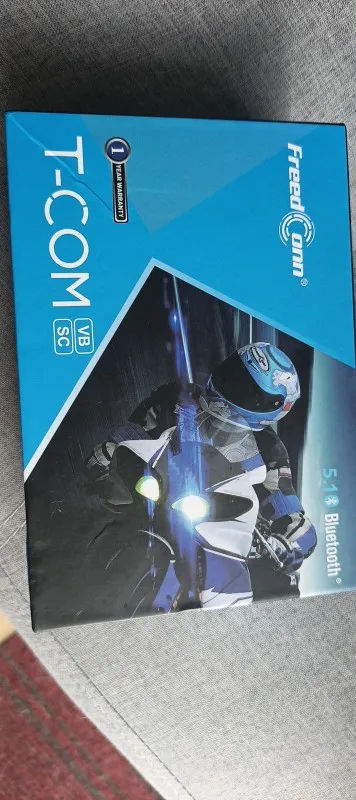
Image: Graphic illustrating the long battery life of the 400mAh battery, showing 12 hours phone call time, 8-10 hours intercom time, and up to 300 hours standby time.
9. User Tips
- Simultaneous Music: Both the driver and passenger can listen to music at the same time when connected.
- Microphone Choice: Utilize the included hard cable microphone for flip-up helmets and the soft cable microphone for full-face (closed) helmets for optimal fit and audio.
- Flexible Installation: The package includes two types of helmet bases: one with strong adhesive tape and another clip-on base that adjusts to the helmet without needing glue, offering versatile installation options.
- Voice Assistant: This updated version includes a voice assistant feature for enhanced convenience.
10. Frequently Asked Questions (FAQ)
- Is this product original?
Yes, this is an original FreedConn product. - Is this the V6 version for 6 intercoms?
No, this is the TCOM-VB model, which supports up to 3 riders connecting and 2 talking simultaneously. It is not the V6 model. - Does it have the updated 5-pin charging port?
Yes, the USB charging port has been updated to a more convenient 5-pin connector. - Is the price for one or two units?
The FreedConn TCOM-VB is available as a single unit or a two-set package. Please refer to your specific purchase details for the quantity included. - How many people can connect simultaneously?
Up to 3 riders can connect, with 2 riders able to talk simultaneously.
11. Warranty and Support
The FreedConn TCOM VB Intercom system comes with a comprehensive 1-Year Warranty from the date of purchase. For support or warranty claims, please contact your retailer or FreedConn customer service.