
1. Introduction
The G7 Max Smart TV Box is a high-performance media player designed to transform your television into a smart entertainment hub. Running on Android TV 11.0 and powered by an Amlogic S905X4 Quad-core processor, it delivers stunning 4K HD visuals, dual-band Wi-Fi connectivity, and a rich interface for various external devices. This manual provides essential information for setting up, operating, and troubleshooting your device.

2. Package Contents
Ensure all the following items are included in your package:
- 1 x G7 Max TV Box
- 1 x HD Cable
- 1 x Voice Remote Control
- 1 x User Manual
- 1 x Power Adapter

3. Specifications
| Feature | Description |
|---|---|
| Model | G7MAX |
| Operating System | Android 11 ATV |
| CPU | Amlogic S905X4 Quad-core 64-bit ARM® Cortex™-A55 |
| GPU | Mali-G31 MP2 |
| RAM | 4GB DDR3 |
| ROM | 32GB / 64GB eMMC |
| Wi-Fi | IEEE 802.11a/b/g/n/ac (2.4GHz/5GHz Dual Wifi) |
| Bluetooth | BT5.0 |
| Ethernet | 100M / 1000M (depending on ROM version) |
| Video Output | HDMI-Compatible 2.0 (4K@60Hz Max Output) |
| HDR Standards | HDR10 |
| Video Codecs | H.265/HEVC, AV1, VP9 |
| Audio Output | Coaxial out, DTS |
| USB Ports | 1x USB 2.0, 1x USB 3.0 |
| Max. Extended Capacity | TF Card Up To 128GB |
| Power Source | DC 5V, 2A |
| Remote Control | Included (Voice Remote) |
| GOOGLE Cast | Yes |
| System Upgrade | Yes |
| OTA Update | No |
| Weight | 0.5KG |
| Certification | CE |

4. Setup Instructions
4.1 Initial Connection
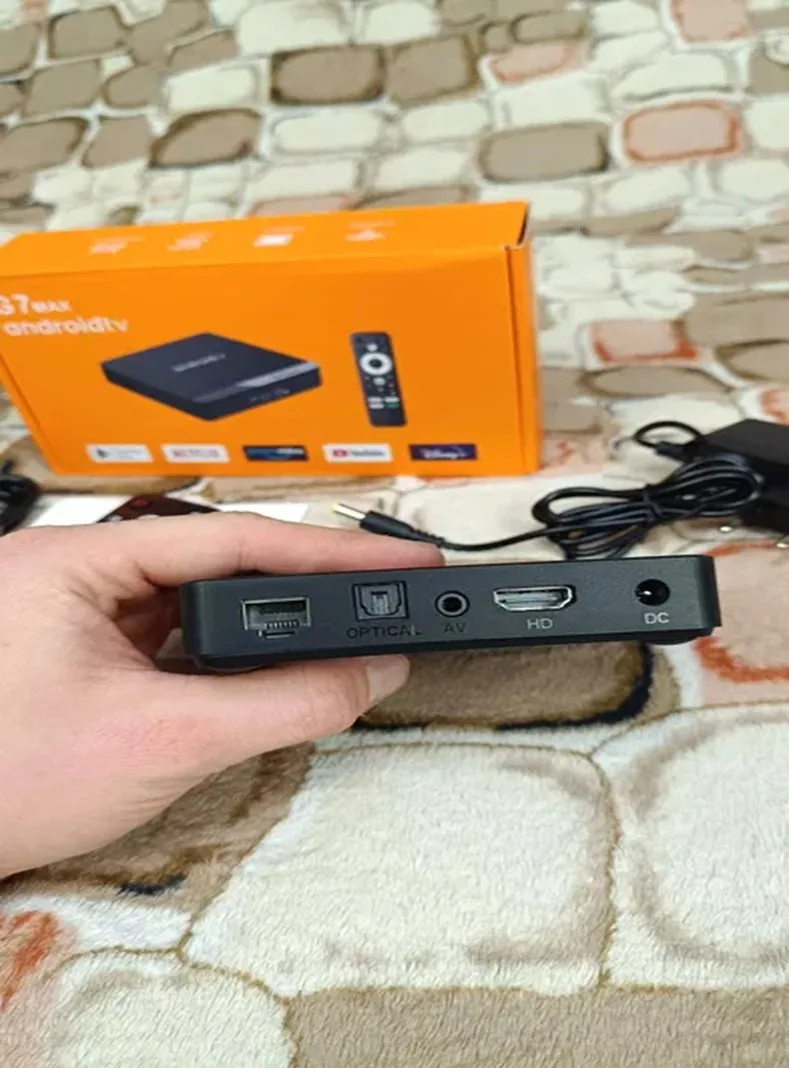
- Connect the HD cable to the HD port on the G7 Max TV Box and the other end to an available HD port on your TV.
- Connect the power adapter to the DC port on the TV Box and plug it into a power outlet.
- (Optional) For a wired network connection, connect an Ethernet cable from your router to the LAN port on the TV Box.
- (Optional) Insert a TF card into the TF card slot or a USB storage device into a USB port.
- Turn on your TV and select the correct HD input source.
- The TV Box should power on automatically, or you may need to press the power button on the remote control. The status LED on the box should turn blue.

4.2 Network Configuration
Wi-Fi Connection:
- From the main menu, navigate to 'Settings' and select 'Network'.
- Choose 'Wi-Fi'. The system will automatically scan for available wireless access points.
- Select your desired access point from the list and enter the password using the on-screen keyboard.
- Once authenticated, an IP address will be assigned, and the status will show 'Connected'.
Ethernet Connection:
- If an Ethernet cable is plugged in, the box will automatically initiate the DHCP process.
- The Wi-Fi connection will be automatically disabled, and the Ethernet connection will become active.
- Once an IP address appears, the network connection is available.
Note: Wi-Fi and Ethernet connections are mutually exclusive.
5. Operating Instructions
5.1 Navigating the Android TV Interface
The G7 Max runs on Android TV 11.0, offering a user-friendly interface. Use the included voice remote control to navigate through menus, launch applications, and control media playback.

5.2 Using the Voice Remote Control
The G7 Max comes with a voice-enabled remote control. Press the dedicated microphone button on the remote to activate Google Assistant. You can then speak commands to search for content, get answers, or control smart home devices.

5.3 Media Playback and Streaming
The TV Box supports various media formats and streaming services. It features H.265/HEVC, AV1, and VP9 decoding for efficient and high-quality video playback, including 4K HD content.
- Netflix: The device supports a built-in Netflix TV version.
- Screen Mirroring: Utilize Airplay, DLNA, or Miracast to cast content from your smartphone to your TV.


6. Maintenance
The G7 Max Smart TV Box requires minimal maintenance. Keep the device in a well-ventilated area to prevent overheating. Regularly check for system updates to ensure optimal performance and security. Clean the exterior with a soft, dry cloth. Avoid using liquid cleaners or abrasive materials.
7. Troubleshooting
7.1 General Issues
- No Power:
- Check if the power adapter is properly connected to the power source and the TV Box.
- Press the power button on the remote control to turn on the power.
- Verify if the status LED is blue when the box is powered.
- No Picture:
- Reconnect the HD cable or AV cable.
- Check if your TV is switched on and set to the correct input.
- No Sound or Distorted Sound:
- Adjust the volume on both the TV Box and your TV.
- Check that speakers are connected correctly if using external audio.
- No Audio or Digital Output:
- Check the digital audio connections (e.g., Coaxial out).
- Verify if your amplifier is set correctly.
- Box Does Not Respond to Remote Control:
- Point the remote directly at the sensor on the front of the TV Box.
- Reduce the distance to the TV Box.
- Replace the batteries in the remote control.
- Player Does Not Respond to Some Operating Commands During Playback:
- Some operations may not be allowed during playback. Refer to the user manual for specific app instructions.
- If the system is halted, re-insert the power adapter to restart the TV Box.
- No Sound During Movie Playback:
- The audio codec might not be supported by the TV Box. You can try changing the supported audio in the playback menu if available.
- Check the volume settings.
- USB Flash Drive Content Cannot Be Read:
- The USB flash drive format may not be compatible with the box.
- If a USB port cannot be read, turn off the TV Box for 30 seconds and restart it.
- Slow Operation of USB Flash Drive: Large file sizes or high-resolution content on a USB flash drive may take longer to read and display on the TV screen.
- No Sound with HD Connection:
- Check the connection between the TV and the HD jack of the box.
- Check your TV system setup.
- Check the volume.
- TV Screen is Blank and Player LED Blinks:
- Turn off your TV Box, wait 30 seconds, then turn it on again.
- If under iD status, check if the HD connection is correct or try another HD cable. You may also set the output resolution of this TV Box to 720p.
7.2 Firmware Upgrade Steps
If you encounter persistent issues or wish to update your device's software, you can perform a manual firmware upgrade:
- Copy the OTA zip file (firmware update package) to a TF card or USB storage device.
- Insert the TF card (or USB storage device) into the TV Box.
- With the TV Box powered off, insert a stick into the reset hole located below the device and keep pressing the button.
- While holding the reset button, insert the power adapter.
- Continue holding the reset button until you see the recovery menu.
- Use the remote to navigate and choose "apply update from EXT" > "Update from TF card" (or "Udisk" if using a USB storage device).
- Select the "xxx.zip" (the upgrade package file) and press OK.
- The box will display "_instal/ SD card..." indicating the upgrade process.
- Once complete, you will see "Install from SD card complete" at the bottom.
- Choose "reboot system now" and press OK, or unplug and re-plug the power adapter to reboot the box.
- The upgrade is finished. You should see the "Welcome" interface.
Tip: You can verify the build number in the settings to confirm a successful update.
8. User Tips
- For optimal performance, especially with high-bandwidth streaming, consider using a wired Ethernet connection if your model supports 1000M.
- If you experience issues with specific streaming apps like Netflix or YouTube, check for available firmware updates or consult the app's support page. Some users report that certain apps may not be officially certified for 4K streaming on this device.
- Keep the TV box in a well-ventilated area as it can get warm during extended use.
- If an app freezes, try turning the box off and on again.
- The device is generally easy to install and use, providing a fast and clear image experience.
9. Frequently Asked Questions (FAQ)
- Q: Is the G7 Max TV Box officially certified for Netflix 4K or Google Cast?
A: While the device supports Google Cast and has a built-in Netflix TV version, some users have reported that it may not be officially certified for 4K streaming on Netflix or for full Google Cast functionality. Performance may vary. - Q: Does this device provide access to broadcast TV channels?
A: No, the G7 Max TV Box functions as a smart media player for streaming services and local media playback. It does not have a built-in TV tuner for receiving open or closed broadcast channels. - Q: Does the box require a monthly subscription fee to access movies?
A: The TV Box itself does not require a monthly fee. However, streaming services like Netflix, Disney+, Amazon Prime Video, etc., typically require their own subscriptions. - Q: What is the maximum capacity for an external TF card?
A: The G7 Max TV Box supports TF cards up to 128GB. - Q: Does the G7 Max support Dolby Atmos or Dolby Vision?
A: The specifications mention DTS audio support and HDR10 for video. There is no explicit mention of Dolby Atmos or Dolby Vision support in the provided information. - Q: Does the system receive Over-The-Air (OTA) updates?
A: The specifications indicate that 'System Upgrade' is supported, but 'OTA Update' is listed as 'No'. This suggests manual firmware updates (as described in the Troubleshooting section) may be required.
10. Warranty and Support
For detailed warranty information and technical support, please refer to the official user manual PDF available from the seller or contact the product manufacturer directly. The PDF manual can be found at: User Manual (PDF).
FCC Compliance Statement
Note: This equipment has been tested and found to comply with the limits for a Class B digital device, pursuant to part 15 of the FCC Rules. These limits are designed to provide reasonable protection against harmful interference in a residential installation. This equipment generates, uses and can radiate radio frequency energy and, if not installed and used in accordance with the instructions, may cause harmful interference to radio communications. However, there is no guarantee that interference will not occur in a particular installation. If this equipment does cause harmful interference to radio or television reception, which can be determined by turning the equipment off and on, the user is encouraged to try to correct the interference by one or more of the following measures:
- Reorient or relocate the receiving antenna.
- Increase the separation between the equipment and receiver.
- Connect the equipment into an outlet on a circuit different from that to which the receiver is connected.
- Consult the dealer or an experienced radio/TV technician for help.
Important: Changes or modifications not expressly approved by the manufacturer responsible for compliance could void the user's authority to operate the equipment.