
1. Introduction
The EKIY Wireless CarPlay Android Auto Module is designed to integrate advanced smartphone functionalities into your Volvo's original infotainment system. This module enables wireless and wired CarPlay, Android Auto, and Mirror Link features, enhancing your driving experience with navigation, music, and communication directly on your car's screen while retaining original vehicle functions.

2. Key Features
- Wireless & Wired Connectivity: Supports both wireless and wired connections for Apple CarPlay and Android Auto.
- Original Car Screen Compatibility: Fully compatible with your Volvo's original car screen, utilizing its existing display.
- Retains Original Functions: Maintains functionality of original car steering wheel controls and mouse knob operation.
- Mirror Link Function: Share your mobile phone screen to the car's display via AirPlay for iPhone and AutoLink for Android phones.
- Dual System Switchable: Easily switch between the original car system and the CarPlay/Android Auto system with a single key.
- Precise Online Navigation: Access popular navigation apps like Waze, Google Maps, Apple Maps, NAVER Map, and T Map.
- Voice Control: Supports voice assistants like Siri for hands-free operation.
- Multimedia Playback: Enjoy video playback and mobile music from various platforms (Apple Music, Spotify, YouTube Music, Tidal, Amazon Music).
- Nondestructive Installation: Designed for installation without permanent modifications to your vehicle's wiring.

3. Vehicle Compatibility
This module is compatible with various Volvo models from 2011 to 2019. Please verify your specific car model and year for full compatibility.
- Compatible Volvo Models: XC60, XC70, S60, S80, V60, V70, V40
- Compatible Years: 2011-2019
Important Note for V40 and S60 (2015-2019): These models do not include a sound card. If your car is a V40 or S60 from 2015-2019, please contact EKIY support to obtain the necessary sound card for proper audio functionality.
4. Package Contents
The package typically includes the following components. Note that specific cables may vary depending on your car model.
- EKIY CarPlay Smart Box (Main Unit)
- Main Wiring Harnesses (various types for different car models)
- USB Cable
- Antennas (e.g., Wi-Fi, Bluetooth)
- Small Circuit Board (specific to certain installations)
- 3.5mm Jack Adapter (for audio input/output)

5. Installation Guide
Installation of the EKIY module is designed to be non-destructive, integrating with your car's existing wiring. Professional installation is recommended.
5.1 Pre-Installation Checks
- Ensure your vehicle is turned off and the battery is disconnected before starting installation.
- Identify the correct wiring harness and connectors for your specific Volvo model. Refer to your car's service manual if unsure.
- For Volvo V40 and S60 (2015-2019) models, confirm you have the additional sound card if required.
5.2 General Installation Steps
- Carefully remove the trim panels and access the rear of your car's original head unit.
- Locate the main connector on the back of your head unit. This module typically connects in-line with the existing wiring.
- Connect the provided wiring harness from the EKIY module to the corresponding ports on your car's head unit and the vehicle's wiring. Ensure all connections are secure.
- Connect the USB cable and antennas to the EKIY module. Route them to a suitable location for optimal signal reception and accessibility.
- Mount the EKIY module in a secure, dry location behind the dashboard, ensuring it does not interfere with any moving parts or vehicle components.
- Reconnect the car battery and test the system before reassembling the trim panels.
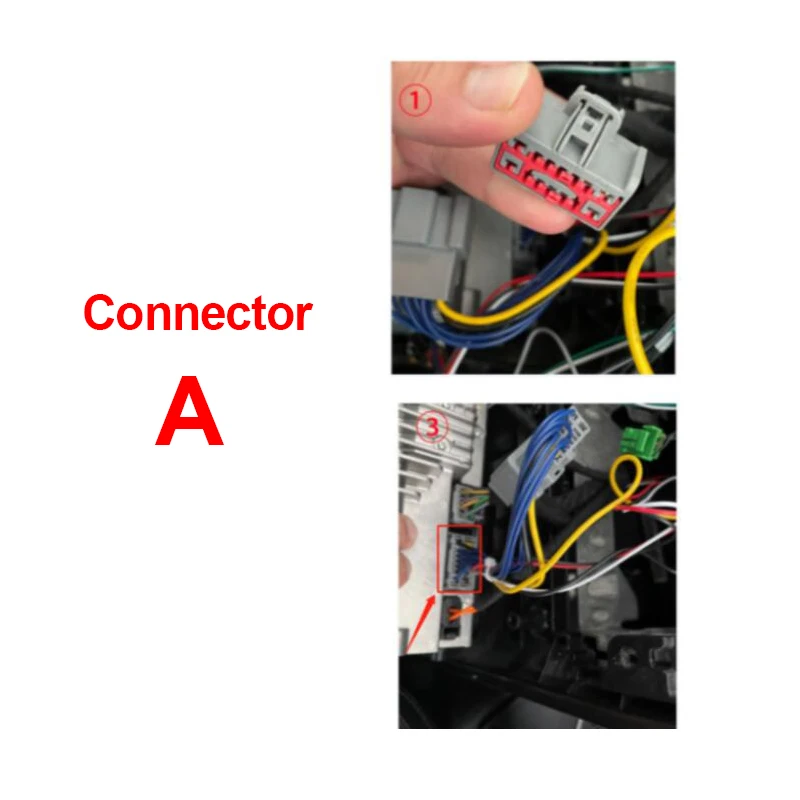
5.3 Connector Identification
It is crucial to identify the correct connector type (e.g., Connector A or Connector B) on your car's head unit to ensure proper installation. Refer to the images below for examples.

6. Operating Instructions
6.1 Switching Systems
After installation, you can switch between your car's original infotainment system and the EKIY module's CarPlay/Android Auto interface using a designated button or sequence (refer to your car's specific controls or the module's quick start guide).

6.2 Connecting to CarPlay / Android Auto
- Wireless Connection: On your smartphone, enable Bluetooth and Wi-Fi. Connect to the EKIY module's Bluetooth signal. Follow the on-screen prompts on your car's display and phone to establish the CarPlay or Android Auto connection.
- Wired Connection: Connect your smartphone to the EKIY module using a USB cable. CarPlay or Android Auto should launch automatically.

6.3 Using Mirror Link
The Mirror Link function allows you to display your phone's screen directly on your car's display.
- For iPhone (AirPlay): Ensure your iPhone and the EKIY module are on the same Wi-Fi network. Select AirPlay on your iPhone and choose the EKIY module as the output device.
- For Android (AutoLink): Download and install the AutoLink app on your Android phone. Follow the app's instructions to connect to the EKIY module via USB or Wi-Fi.

6.4 Voice Control
Utilize voice commands for navigation, calls, messages, and music playback. For CarPlay, activate Siri by saying "Hey Siri" or pressing the voice command button on your steering wheel.

6.5 Navigation and Multimedia
Access your preferred navigation apps and music streaming services directly from the car's screen. Use the car's original controls or voice commands to interact with these applications.


7. User Tips
- Confirm Connector Type: Before installation, carefully check your Volvo's head unit to determine if it uses Connector A or Connector B. This will ensure you use the correct wiring harness.
- Sound Card for Specific Models: If you own a Volvo V40 or S60 (2015-2019) and experience no audio, remember to contact EKIY support for the required sound card.
- Grounding for Audio Quality: If you encounter an alternator whine or other audio interference that follows engine RPM, ensure all grounding connections for the module and your car's audio system are clean and secure. Poor grounding is a common cause of such noise.
- Firmware Updates: Periodically check the EKIY website or contact support for any available firmware updates to ensure optimal performance and compatibility.
8. Troubleshooting
8.1 Common Issues and Solutions
| Problem | Possible Cause | Solution |
|---|---|---|
| No power to the module / Module not turning on. | Incorrect wiring, loose connection, blown fuse. | Check all power connections, ensure wiring is correct according to the diagram, inspect vehicle fuses. |
| No audio output. | Incorrect audio wiring, missing sound card (V40/S60 2015-2019), incorrect audio source selected. | Verify audio connections. For V40/S60 (2015-2019), ensure the sound card is installed. Check car's audio input selection. |
| CarPlay/Android Auto not connecting wirelessly. | Bluetooth/Wi-Fi issues, phone settings, module not in pairing mode. | Ensure phone's Bluetooth and Wi-Fi are on. Forget previous connections on phone and car. Restart phone and module. Try wired connection to confirm module functionality. |
| Alternator whine / Engine noise in audio. | Poor grounding, electrical interference. | Check all ground connections for the module and head unit. Ensure they are clean and secure. Consider installing a ground loop isolator if the problem persists. |
| Mirror Link not working. | Incorrect app, Wi-Fi connection issues, phone compatibility. | Ensure correct app (AirPlay for iPhone, AutoLink for Android) is used. Verify both devices are on the same Wi-Fi network. Check phone's screen mirroring settings. |
| Module freezes or crashes. | Software glitch, overheating, power instability. | Restart the module (turn car off and on). Ensure adequate ventilation around the module. Check power supply stability. Consider a firmware update. |
9. Specifications
| Feature | Specification |
|---|---|
| Brand Name | EKIY |
| Din | One Din |
| Operating System | Linux |
| Voltage | 12 V |
| Item Weight | 1kg |
| Special Features | Wi-Fi function, Support steering wheel control, CarPlay, Android Auto |
| Digital Media Format | CD |
| OSD Language | Chinese (Simplified), Chinese (Traditional), German, Russian, French, Korean, Dutch, Japanese, Turkish, Spanish, Italian, English |
| Display Size | 7" |
| Origin | Mainland China |
| Certification | CE |
| Accessory Type | Check in listing descriptions |
10. Warranty and Support
The EKIY Wireless CarPlay Android Auto Module comes with a 1-year warranty from the date of purchase. This warranty covers manufacturing defects and malfunctions under normal use.
For technical support, warranty claims, or inquiries regarding specific car models (e.g., sound card for V40/S60 2015-2019), please contact EKIY CarPlay Store customer service directly. Provide your product model, purchase date, and a detailed description of the issue for efficient assistance.
