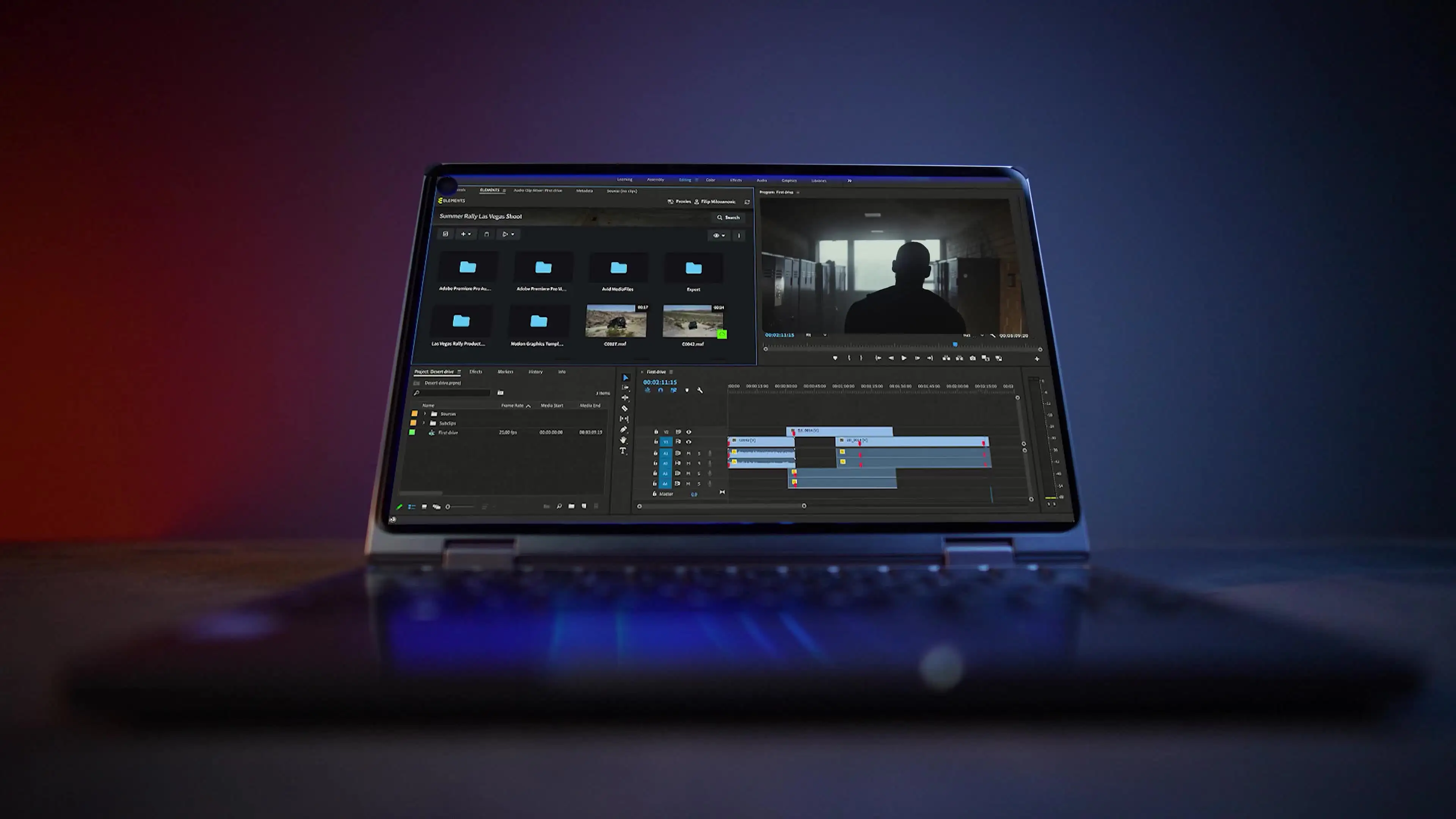
1. Introduction
Thank you for choosing the CHUWI MiniBook X Laptop Tablet. This device is designed for versatile use, combining the functionality of a laptop and a tablet with a 360-degree hinge. It is ideal for learning, business, design, and daily entertainment, offering a compact and portable solution for your computing needs.
This manual provides essential information on setting up, operating, maintaining, and troubleshooting your MiniBook X. Please read it carefully to ensure proper use and to maximize your device's potential.

2. Safety Information
To ensure safe and optimal performance of your MiniBook X, please observe the following precautions:
- Always use the original power adapter and charging cable provided by CHUWI for charging. Using third-party chargers may cause damage or malfunction.
- Avoid exposing the device to extreme temperatures (high or low), high humidity, dusty environments, or direct strong sunlight.
- The device is not designed to withstand water drips or splashes. Keep it away from liquids.
- Do not attempt to repair or disassemble the device yourself. Unauthorized repairs will void the warranty and may cause further damage.
- Clean the device gently with a soft, well-wrung cloth. Avoid using harsh chemicals or abrasive materials.
- Use the device at an appropriate volume level to prevent hearing damage.
- Do not disconnect the device during formatting, uploading, or downloading processes, as this may lead to application errors or data loss.
3. Setup
3.1. Package Contents
Upon unboxing, please verify that all items are present:
- 1x CHUWI MiniBook X Laptop Tablet
- 1x USB Cable for DC charger
- 1x Charger (12V/2A)
- 1x User Manual
- 1x Warranty Card
3.2. Initial Charging
Before first use, fully charge your MiniBook X using the provided charger. Connect the charger to a power outlet and the USB-C port on your device. The battery indicator will show charging status.
3.3. Power On/Off
- **To Power On**: Press and hold the power button located on the side of the device for a few seconds until the screen lights up.
- **To Power Off**: From the Windows desktop, click the Start button, then Power, and select 'Shut down'.
- **Forced Shutdown (Emergency Only)**: If the device becomes unresponsive, press and hold the power button for several seconds until it turns off. Frequent forced shutdowns can lead to file system corruption or data loss.
4. Operating Your MiniBook X
4.1. 2-in-1 Functionality and Modes
The MiniBook X features a 360-degree swivel hinge, allowing it to transform into four distinct modes:
- **Laptop Mode**: Traditional laptop setup for typing and productivity.
- **Tablet Mode**: Fold the screen completely back to use as a tablet for touch interaction.
- **Stand Mode**: Position the device like a tent for media consumption or presentations.
- **Tent Mode**: Similar to stand mode, ideal for watching videos or displaying content.

4.2. Touchscreen and Stylus
The 10.51-inch FHD IPS display is a responsive touchscreen, enabling intuitive navigation and interaction with Windows 11. The device is compatible with stylus-type pens for drawing, note-taking, and precise input.

4.3. Keyboard and Touchpad
The MiniBook X features a bezel-less full-size keyboard with backlighting, providing a comfortable typing experience. The precision touchpad supports multi-gesture operations for effortless navigation.

4.4. Ports and Connectivity
The device is equipped with comprehensive I/O ports for versatile connectivity:
- **2x Full-Featured USB-C Ports**: Supports charging, display output, and data transfer.
- **1x 3.5mm Audio Jack**: For headphones or external audio devices.

4.5. Operating System
Your MiniBook X comes pre-installed with Windows 11 (Windows 11 Pro for U300 models, Windows 11 Home for N150 models). It features an intuitively redesigned UI, new touch interactions, and native Android app support.

5. Maintenance
5.1. Cleaning
To clean your device, gently wipe the exterior with a soft, lint-free cloth slightly dampened with water. Ensure the cloth is well-wrung to prevent any moisture from entering the device. Do not use harsh chemicals, solvents, or abrasive cleaners.
5.2. Battery Care
The MiniBook X is equipped with a 26.6Wh high-density polymer lithium battery. To prolong battery life:
- Avoid fully discharging the battery frequently.
- Do not expose the device to extreme heat or cold.
- Use only the original charger for optimal charging and battery health.
5.3. Storage Considerations
The actual available internal storage may vary depending on the software configuration. Avoid installing unnecessary software to preserve storage space and system performance.
6. Troubleshooting
6.1. Common Issues and Solutions
- **Laptop will not start**: Ensure the power adapter is securely connected and the battery is sufficiently charged. If the issue persists, try a different power outlet.
- **Device is unresponsive**: Perform a forced shutdown by pressing and holding the power button for several seconds. Restart the device.
- **Application errors or data loss**: Avoid disconnecting the device during critical operations like formatting, software updates, or large file transfers.
- **Noticeable heating during heavy tasks**: This is normal for high-performance devices. The MiniBook X has an efficient cooling system to manage temperature. Ensure proper ventilation and avoid blocking air vents.
- **Wi-Fi or Bluetooth connectivity issues**: Check if Wi-Fi is enabled and you are connected to a valid hotspot. Ensure Bluetooth is turned on and devices are paired correctly.
7. Specifications
| Feature | Specification (U300 Model) | Specification (N150 Model) |
|---|---|---|
| Brand | CHUWI | |
| Model | MiniBook X | |
| Operating System | Windows 11 Pro | Windows 11 Home |
| CPU | Intel Raptor Lake U300 (5 Cores / 6 Threads, Max Turbo 4.40 GHz, 8 MB Smart Cache) | Intel Twin Lake N150 (4 Cores / 4 Threads, Max Turbo 3.60 GHz, 6 MB Smart Cache) |
| Graphics | Intel UHD Graphics (48 EUs @ 1.10 GHz) | Intel Graphics (24 EUs @ 1.0 GHz) |
| RAM | 16GB LPDDR4X | 12GB LPDDR5 |
| Storage | 512GB PCIe SSD (M.2 2280) | |
| Display Size | 10.51-inch | |
| Panel Type | IPS, In-cell Display, Glossy | |
| Aspect Ratio | 16:10 | |
| Resolution | 1920x1200 WUXGA FHD+ | |
| Touch Screen | Yes | |
| Network | WIFI 6 (802.11ax), Bluetooth 5.2 | |
| Ports | 2x Full-Featured USB-C, 1x 3.5mm Audio Jack | |
| Battery | 26.6Wh (7.6V/3800mAh), up to 8 hours life, 45W PD fast charging | |
| Power Adapter | Input: AC100-240V, 50-60Hz; Output: 12V=3A | |
| Dimensions (WxDxH) | 312 x 204 x 21.3 mm | |
| Weight | Approx. 0.92 kg (920g) | |
| Keyboard | Full-size, Backlit, Precision Touchpad | |
| Material | 6-series aerospace aluminum alloy unibody | |
| Certifications | CE, FCC ID: 2AHLZ-GEMIBOOKXPRO | |
Note: Specifications are subject to change without prior notice. Please refer to the actual product.
8. User Tips
- **Linux Compatibility**: The MiniBook X can run Linux. For full functionality, you might need to compile drivers for the accelerometer and touchscreen from GitHub.
- **Keyboard Backlighting**: The backlit keyboard is a convenient feature, especially for working in low-light conditions.
- **Portability**: Its lightweight and compact design makes it excellent for on-the-go use, fitting easily into a tablet case or handbag.
- **Charging Voltage**: Be aware of the 12V/3A charging voltage. When using third-party chargers, ensure they match these specifications to avoid potential issues.
- **Battery Life**: While rated for up to 8 hours, some users report up to 24 hours with very moderate use. Adjust power settings for optimal battery performance.
- **Heating**: During heavy tasks, the device may get noticeably warm. This is normal, and the cooling system is designed to manage it. Ensure air vents are not blocked.
9. Frequently Asked Questions (FAQ)
- Q: Is the screen touch-sensitive?
- A: Yes, the MiniBook X features a responsive touchscreen display.
- Q: Is it compatible with stylus-type pens?
- A: Yes, the device supports stylus input for drawing and note-taking.
- Q: Does it have USB ports?
- A: Yes, it has two full-featured USB-C ports.
- Q: What is the keyboard language?
- A: The keyboard language is English.
- Q: Can I install a different operating system like ChromeOS?
- A: The device comes with Windows 11. While it may be technically possible to install other operating systems like Linux, official support for ChromeOS as a primary OS is not provided, and it may require advanced technical knowledge and driver compilation.
- Q: What technical certifications does it have?
- A: The device has CE and FCC ID: 2AHLZ-GEMIBOOKXPRO certifications.
10. Warranty and Support
Your CHUWI MiniBook X is covered by a warranty. Please refer to the included Warranty Card for detailed terms and conditions. In case of any questions or issues during the use of your device, please contact your local dealer or our customer service center for assistance.
For further technical documentation, including a PDF version of the user manual, please refer to the following link: User Manual (PDF).