
1. Introduction
Thank you for purchasing the SWM D3400 Car Radio Bluetooth MP3 Player. This device is designed to enhance your in-car audio experience with versatile playback options, hands-free communication, and smart features like a mobile phone holder and APP control. Please read this manual carefully before installation and operation to ensure proper use and optimal performance.
2. Key Features
- Car radio with Bluetooth connectivity
- Fixed panel design for durability
- Standard 1 DIN size for easy installation
- LED display screen with 7-color backlight options
- Integrated mobile phone holder
- APP control via mobile phone for enhanced functionality
- FM radio stereo receiver with 18 preset stations (FM1, FM2, FM3)
- Bluetooth hands-free calling
- Bluetooth A2DP audio playback
- Supports MP3, WMA, ID3 audio formats
- Multiple input options: USB port, TF card slot, 3.5mm Aux slot
- Type-C USB charging (5V_2.1A high current)
- Audio Equalizer for sound customization
- Digital audio control: treble, bass, fade, balance, loudness, volume
- Mute functions
- Real-time clock display
- 4 * 25W output power
- RCA audio output
- ISO connector for simplified wiring
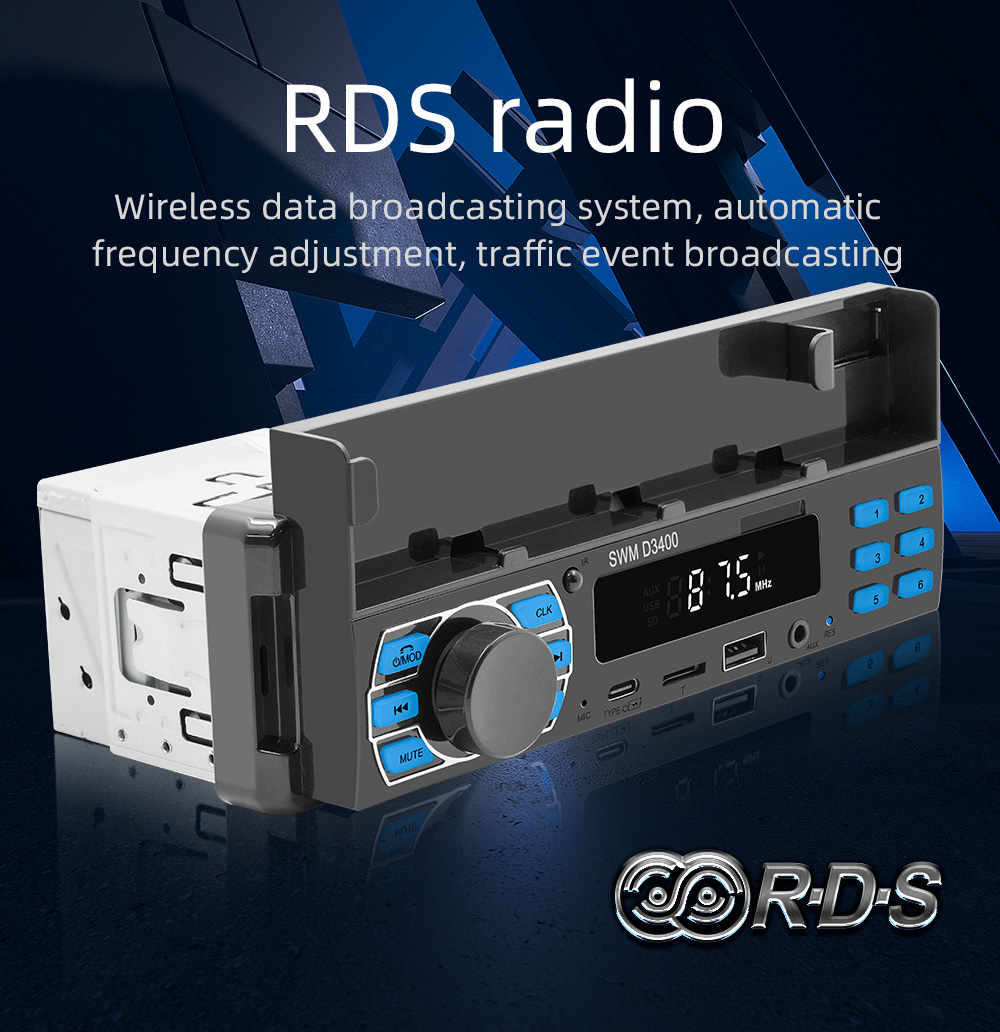
- RDS radio for wireless data broadcasting and traffic event information
- Audio recording function (requires TF card or U disk)
- Voice assistant support
- Find a car function via mobile APP

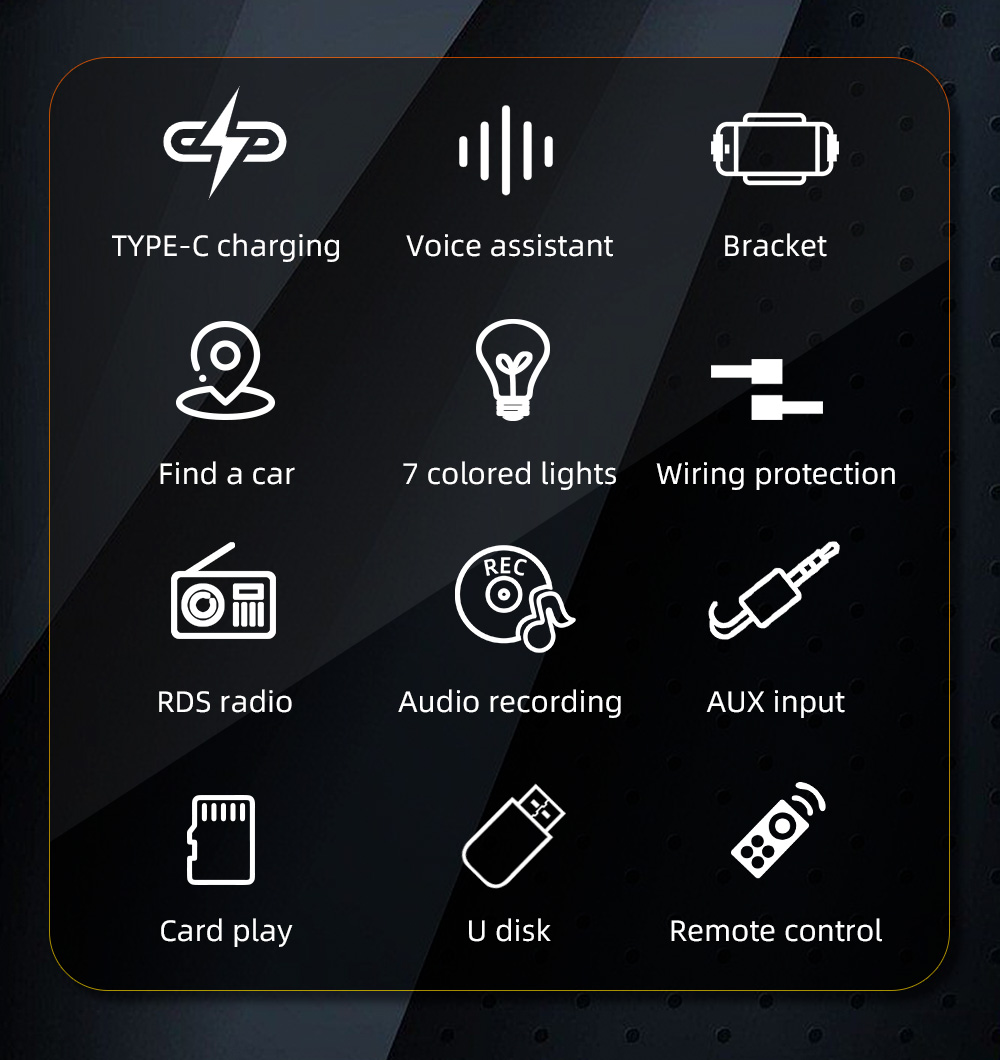
Overview of product features with illustrative icons.
3. Specifications
| Parameter | Value |
|---|---|
| Model | SWM D3400 |
| Type | Car MP3 |
| Program | Ab5301F |
| Frequency | FM 87.5~108MHz (support RDS) |
| Power | 45Wx4 |
| Voltage | 12~14.4V |
| Temperature | -10~60°C |
| BT version | Version 5.0 (default name: CAR BT) |
| Screen size | LED display (white light) |
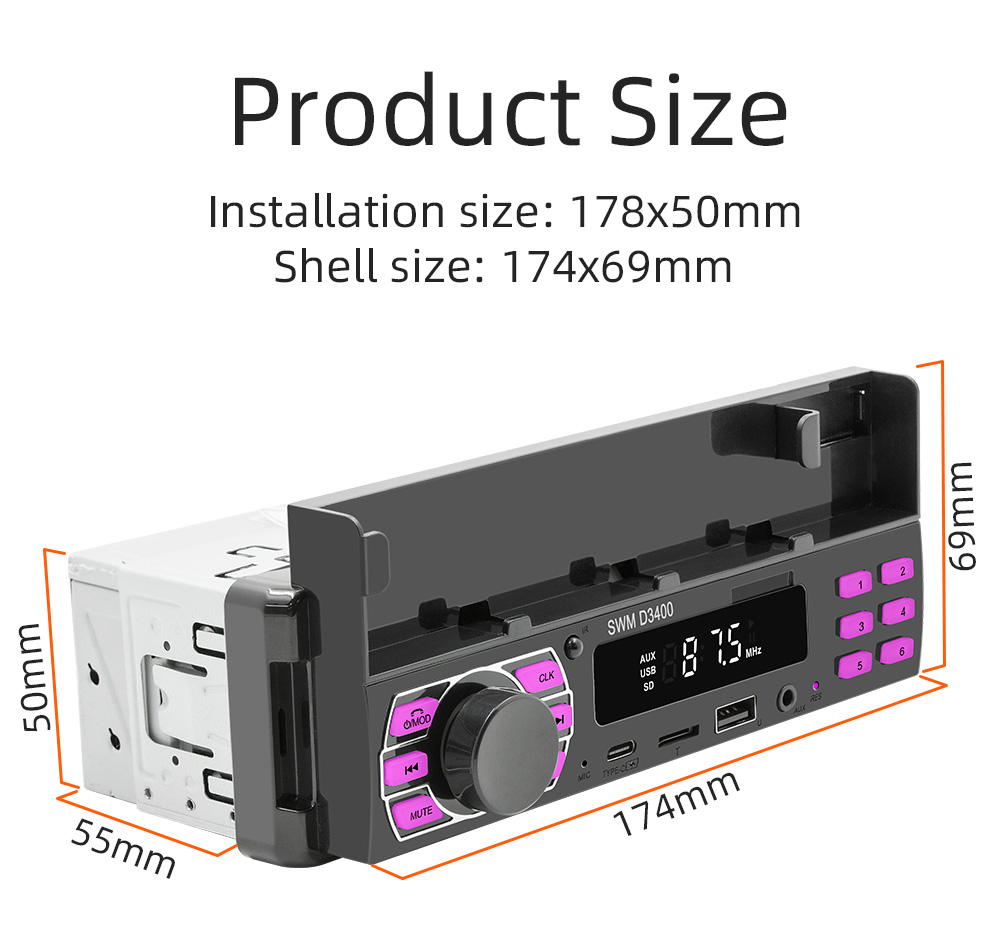
| Installation size | 178x50mm |
| Shell size | 174x69mm |
| Host depth | 55mm |
| Mobile Internet | APP connection support |
| Find a car | support |
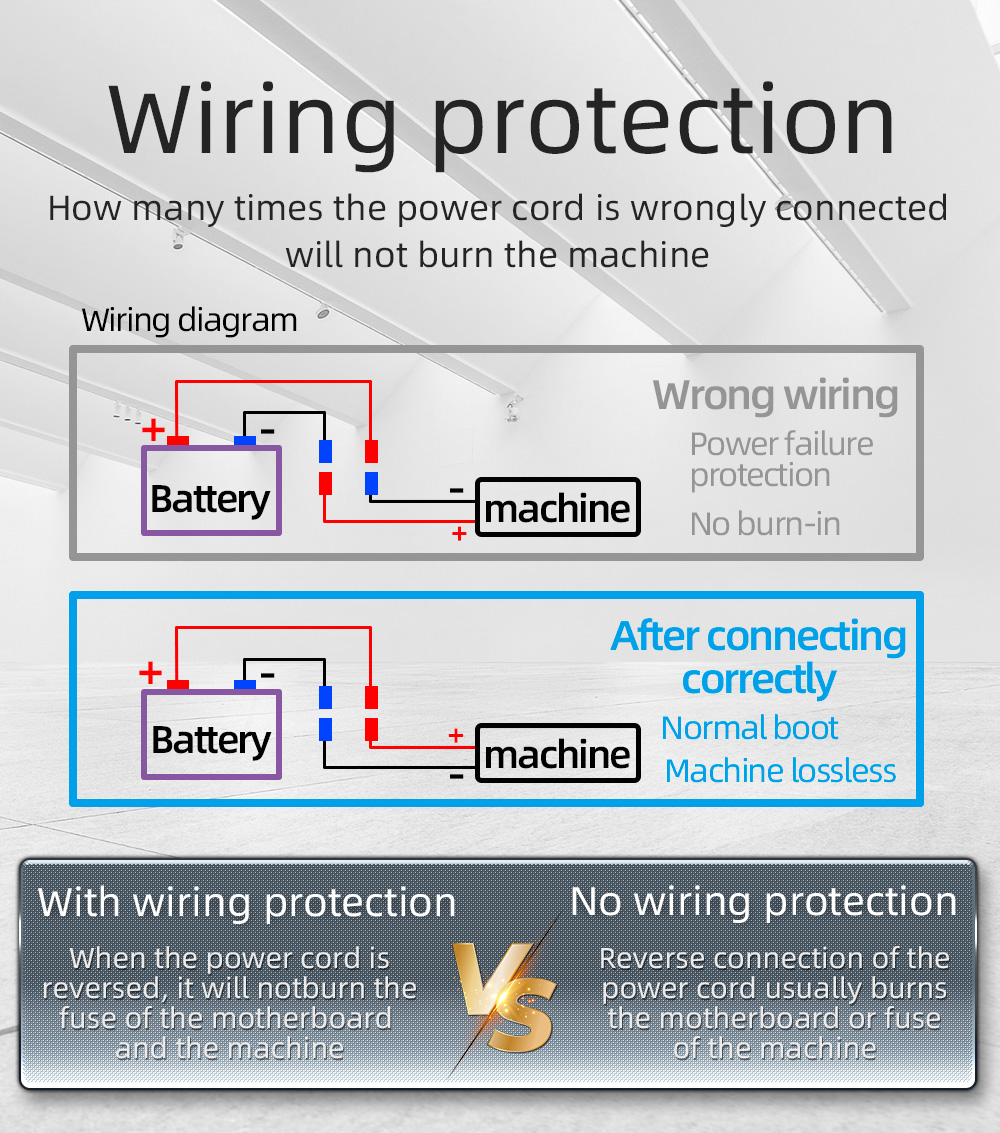
| Wiring protection | Automatic power-off protection when positive and negative poles are reversed |
| Audio recording | support |
| Voice assistant | support |
| Button light | 7-color button light (red-green-blue-yellow-green-purple-white) |
| Front USB | All the way USB2.0 read |
| Type-C interface | 2.1A current |
| TF card | support |
| Reset button | support |
| Audio output | 2 channels (left channel + right channel) |
| Video output | not support |
| Audio input | Front AUX input (left channel + right channel) |
| Audio format | MP3/WMA/WAV/FLAC |
Detailed technical specifications of the SWM D3400.
4. Package Contents
The following items are included in your product package:
- SWM D3400 Car MP3 Player Unit
- User's Manual
- Remote Control
- Wiring Harness (ISO standard plug)
- Removal Keys (2 pieces)
Contents of the SWM D3400 product package.
5. Setup and Installation
5.1 Product Dimensions
Ensure your car's dashboard opening is compatible with the following dimensions:
- Installation size: 178mm x 50mm
- Shell size: 174mm x 69mm
- Host depth: 55mm
Product dimensions for installation reference.
5.2 Wiring Instructions
The SWM D3400 features wiring protection to prevent damage from incorrect power connections. Follow the diagram carefully for proper installation.
Wiring diagram with power failure protection details. Ensure correct positive and negative connections.
The unit uses an ISO standard plug for power and speaker connections, and includes RCA audio output for external amplifiers and a radio antenna input.
5.3 Mobile Phone Holder Installation
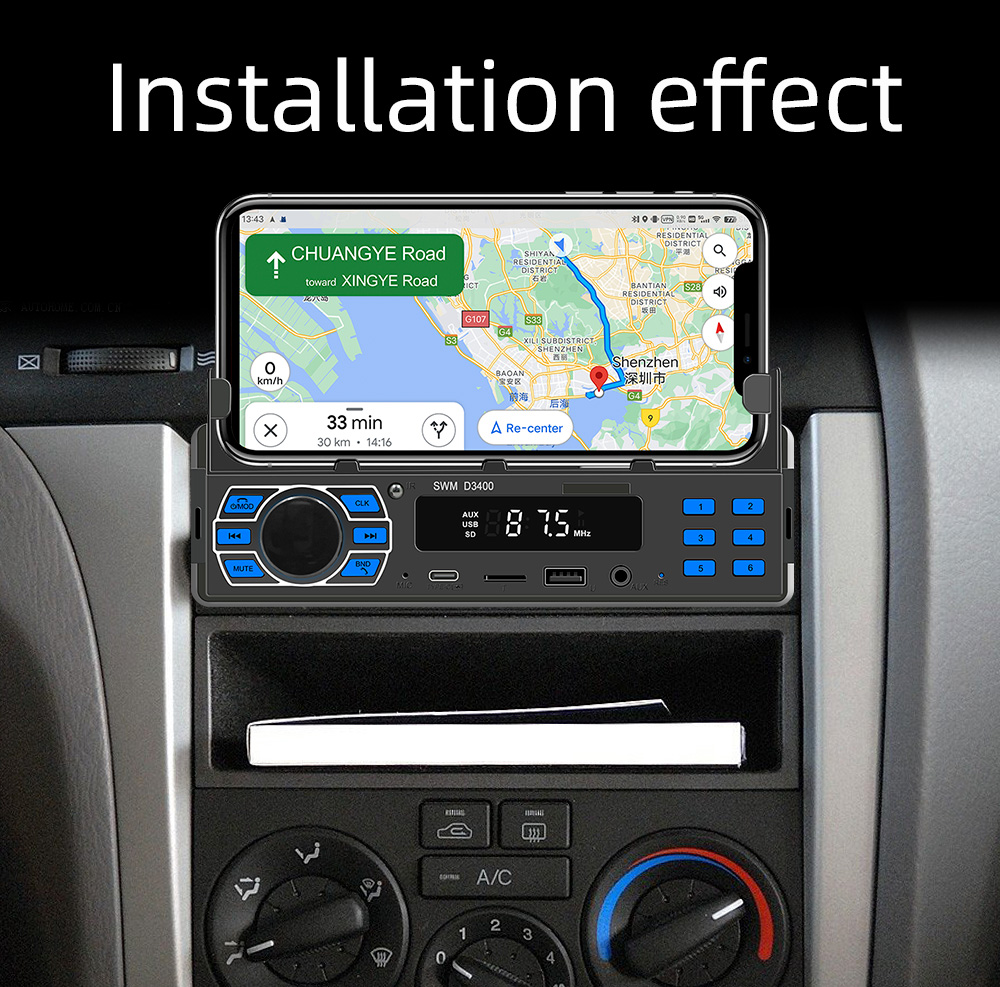
The integrated mobile phone holder supports devices with a length between 136mm and 168mm. Simply slide your phone into the bracket on the top of the unit.
Mobile phone holder dimensions and usage example.
6. Operating Instructions
6.1 Panel Introduction
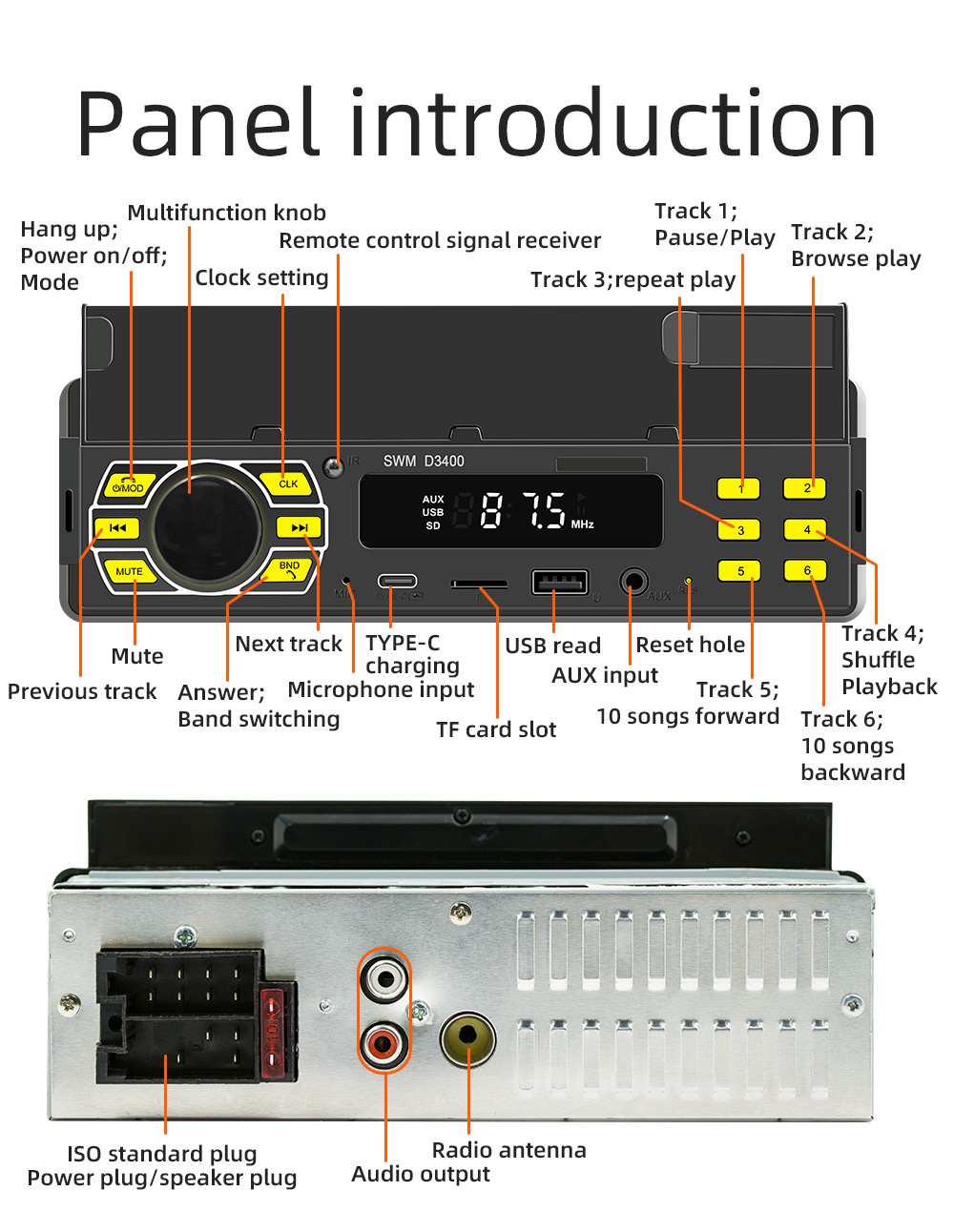
Familiarize yourself with the buttons and ports on the front and rear panels:
Front and rear panel overview with labeled controls and connections.
- Multifunction Knob: Hang up, Power on/off, Mode selection, Volume control.
- CLK Button: Clock setting.
- MUTE Button: Mute/unmute audio.
- BND Button: Band switching (FM1, FM2, FM3).
- Previous/Next Track Buttons: Navigate tracks.
- Number Buttons (1-6): Preset radio stations, Track 1-6 (repeat play, browse play, shuffle playback, 10 songs forward/backward).
- MIC: Built-in microphone.
- Type-C Charging Port: 5V_2.1A charging output.
- USB Port: USB 2.0 read for media playback.
- TF Card Slot: For TF card media playback.
- AUX Input: 3.5mm front AUX input.
- Reset Hole: Use a thin object to press for system reset.
- Remote Control Signal Receiver: For infrared remote control.
- ISO Standard Plug: Power plug and speaker plug.
- Audio Output: RCA left and right channel outputs.
- Radio Antenna: Input for car radio antenna.
6.2 Bluetooth Functions
Connect your mobile phone via Bluetooth for hands-free calls and audio streaming.
- Pairing: Enable Bluetooth on your phone and search for 'CAR BT'. Select to pair.
- Hands-free Calling: Once connected, you can dial numbers from your phone, and the audio will route through the car speakers.
- Audio Playback (A2DP): Play music from your phone, and it will stream wirelessly to the car radio.
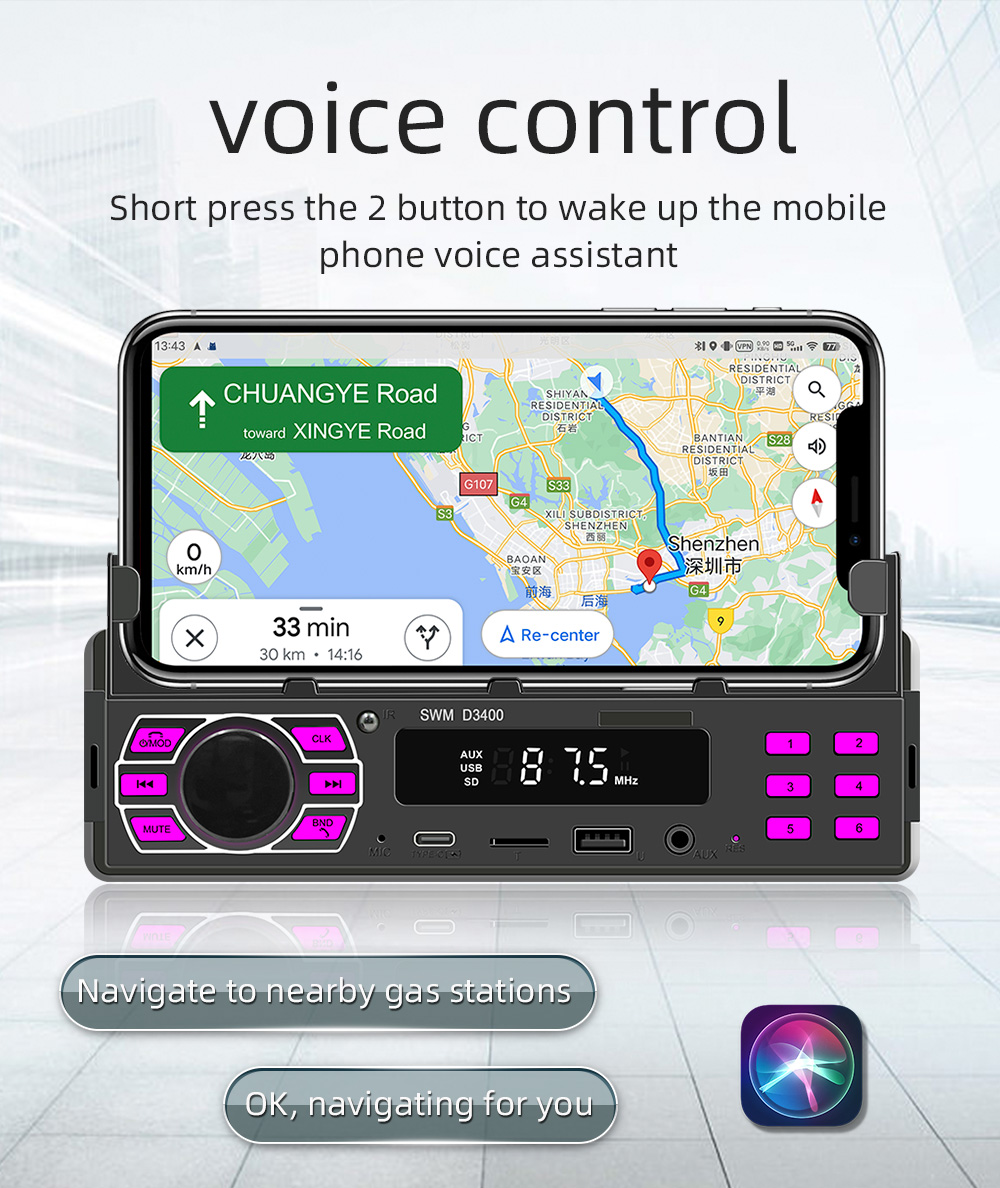
- Voice Assistant: When connected via Bluetooth, short press the '2' button on the unit to activate your mobile phone's voice assistant (e.g., Siri, Google Assistant).
6.3 Media Playback
The SWM D3400 supports various playback methods:
Supported playback methods: USB, TF card, and AUX input.
- USB/TF Card: Insert a USB drive or TF card into the respective slot. The unit will automatically detect and play supported audio files (MP3/WMA/WAV/FLAC).
- AUX Input: Connect an external audio device (e.g., MP3 player, smartphone) to the front 3.5mm AUX input using an audio cable. Select AUX mode on the unit.
6.4 Radio Functions
- FM Radio: Press the BND button to cycle through FM1, FM2, and FM3 bands. Use the previous/next track buttons to tune stations.
- RDS Radio: The unit supports RDS (Radio Data System) for wireless data broadcasting, automatic frequency adjustment, and traffic event broadcasting where available.

RDS radio functionality for enhanced listening.
6.5 Audio Recording
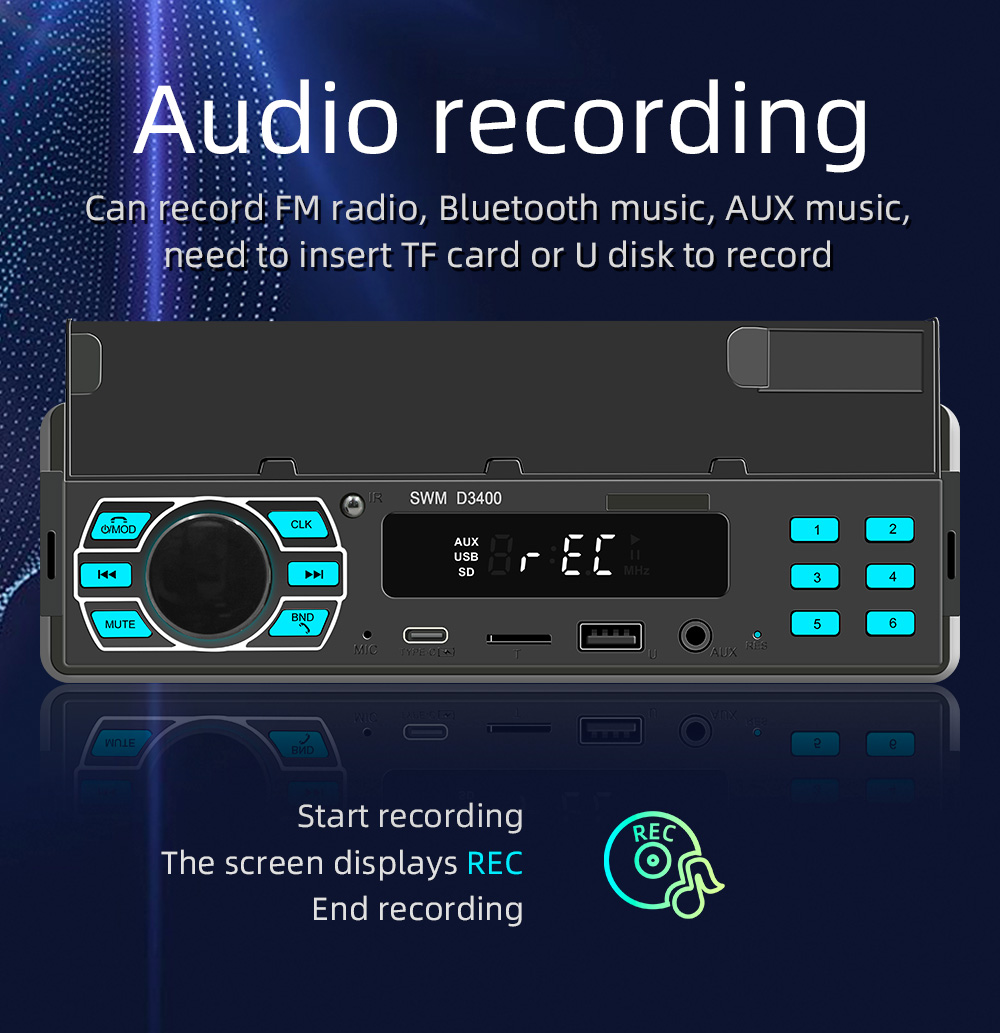
You can record FM radio, Bluetooth music, or AUX music directly to a TF card or U disk. Long press the VOL knob to start recording. The screen will display 'REC'. Long press again to stop recording.
Audio recording feature in action.
6.6 Type-C Charging
The front panel is equipped with a Type-C charging interface that supports 5V_2.1A high current, allowing you to charge compatible devices.

Type-C charging port for convenient device charging.
6.7 APP Control and Find a Car Function
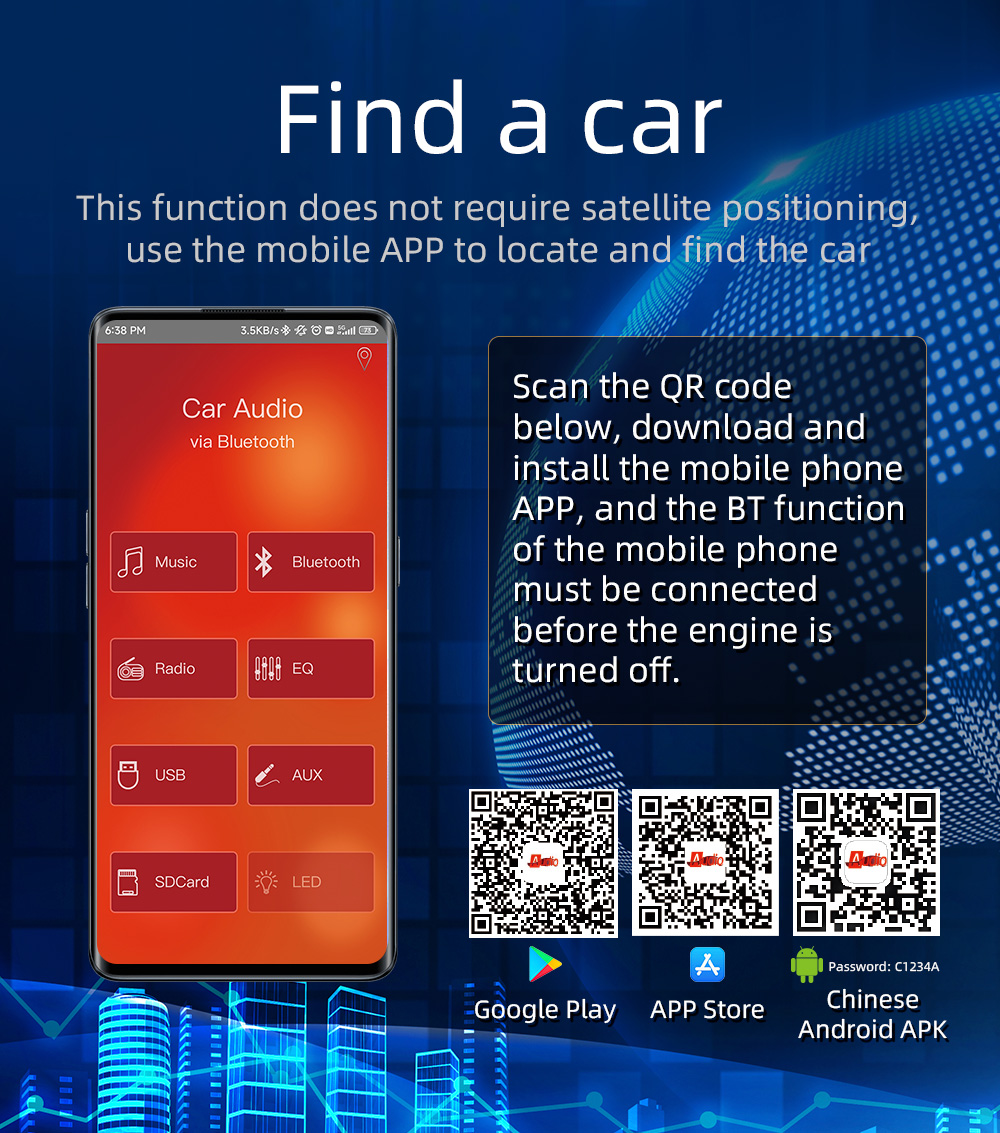
Download the dedicated mobile APP to control the player and utilize the 'Find a Car' function. Scan the QR codes provided to download the app from Google Play or the App Store. Ensure Bluetooth is connected before turning off the engine to use the 'Find a Car' feature.
Mobile APP interface and QR codes for download. The app allows control over music, radio, EQ, USB, SD card, and LED lights, as well as the 'Find a Car' feature.
6.8 Product Demonstration Video
Watch this video for a visual demonstration of the product's features and operation:
Official product demonstration video showcasing key functionalities.
7. Maintenance
- Cleaning: Use a soft, dry cloth to clean the unit. Do not use abrasive cleaners or solvents.
- Temperature: Avoid exposing the unit to extreme temperatures or direct sunlight for prolonged periods.
- Moisture: Keep the unit dry. Do not expose it to water or excessive humidity.
- Connections: Periodically check all connections to ensure they are secure.
8. Troubleshooting
- No Power: Check the power wiring connections. Ensure the car battery is charged. Verify the fuse is intact.
- No Sound: Check speaker connections. Ensure volume is not muted or too low. Verify audio source is playing.
- Bluetooth Not Connecting: Ensure Bluetooth is enabled on both the unit and your phone. Delete previous pairings and try reconnecting. Make sure no other devices are connected to the unit.
- USB/TF Card Not Reading: Ensure the media is formatted correctly (FAT32 recommended). Check for supported audio file types. Try a different USB drive or TF card.
- Radio Reception Poor: Check antenna connection. Try scanning for stations again. Move to an area with better signal.
- Unit Unresponsive: Use a thin, pointed object to press the 'Reset' button on the front panel.
9. User Tips
- For optimal sound quality, experiment with the equalizer settings (treble, bass) to match your preferences and car acoustics.
- When using the mobile phone holder, ensure your phone is securely placed before driving.
- Regularly update the mobile APP to access the latest features and improvements.
- If you experience issues with the 'Find a Car' function, double-check that your phone's Bluetooth was connected to the unit when you parked and that location services are enabled for the app.
10. Warranty and Support
For any technical assistance, troubleshooting beyond this manual, or warranty inquiries, please contact the seller or manufacturer directly. Keep your purchase receipt as proof of purchase.


