
Introduction
This manual provides detailed instructions for setting up, operating, and maintaining your Wavlink AX1800 or AC1900 Dual Band USB 3.0 WiFi Adapter. This device is designed to provide high-speed wireless connectivity for your desktop or laptop computer, enhancing your internet experience with faster speeds and improved range.
Package Contents
Please check the box for the following items:
- 1 x Wireless-AC USB 3.0 Adapter
- 1 x USB 3.0 DOCK (with 1.2-meter extension cable)
- 1 x Quick Installation Guide

Image: Wavlink USB WiFi Adapter package contents.
Setup Instructions
Hardware Connection
Connect the USB WiFi Adapter to an available USB 3.0 port on your computer. For optimal performance and flexibility, it is recommended to use the provided USB 3.0 dock and extension cable, especially for desktop PCs, to prevent interference and allow for better antenna positioning.

Image: Adapter connected to a desktop PC using the stable base and extension cable.

Image: Various connection methods for the adapter.
Driver Installation
Insert the provided driver CD into your computer's CD-ROM drive. Follow the on-screen instructions to install the necessary drivers. If your computer does not have a CD-ROM drive, you can download the latest drivers from the official Wavlink website.
Connect to a Wireless Network
After driver installation, your computer should detect available wireless networks. Select your desired network from the list and enter the password if prompted. The adapter supports both 2.4GHz and 5GHz bands.
Operating Modes
The Wavlink USB WiFi Adapter supports two primary operating modes:
Station Mode (Signal Receiver)
In this mode, the adapter connects your computer to an existing wireless router, allowing your computer to access the internet wirelessly.
AP Mode (Signal Transmitter / Hotspot)
This mode allows your computer, when connected to a wired network, to act as a WiFi hotspot, providing wireless internet access to other devices like mobile phones and tablets.

Image: Station Mode and AP Mode functionality.

Image: WiFi Hotspot Mode in action.
WPS (Wi-Fi Protected Setup)
The adapter supports WPS for easy and secure connection to your wireless router. Press the WPS button on your router and then on the adapter (if available, or activate via software) to establish an encrypted connection without manually entering the password.

Image: WPS security protocol setup.
Specifications
General Specifications (Applicable to both AX1800 & AC1900)
| Feature | Description |
|---|---|
| Interface Type | USB 3.0 (Backward compatible with USB 2.0) |
| Frequency Band Class | Dual-Band (2.4GHz & 5GHz) |
| Wireless Security | WPA / WPA2, WPA-PSK/ WPA2-PSK encryption |
| Antennas | High Gain (Specific configuration may vary by model) |
| Certification | CE |
| Application | Desktop, Laptop |
| Kind | External |
Model-Specific Specifications
| Feature | AX1800 Model | AC1900 Model |
|---|---|---|
| Wireless Speed | Up to 1774.5 Mbps (1201 Mbps on 5GHz + 573.5 Mbps on 2.4GHz) | Up to 1900 Mbps (1300 Mbps on 5GHz + 600 Mbps on 2.4GHz) |
| Wireless Standard | IEEE 802.11ax/ac/a/b/g/n | IEEE 802.11a/b/g/n/ac |
| Modulation | OFDMA with BPSK, QPSK, 16QAM, 64QAM, 256QAM, 1024QAM | 256-QAM (for 2.4G 600Mbps) |
| System Compatibility | Windows 11/10/7 (Not for Mac, Linux, Chrome) | Windows XP/Vista/7/8/8.1/10/11, Mac OS X |

Image: AX1800 speed comparison.

Image: 1900Mbps high speed internet illustration.

Image: System compatibility for the adapter.
Troubleshooting
- No Internet Connection: Ensure the adapter is properly plugged into a USB 3.0 port. Verify that drivers are correctly installed. Check if your router is functioning and broadcasting a signal. Re-select your WiFi network and re-enter the password.
- Slow Speeds: Ensure you are connected to a 5GHz network if available, as it generally offers faster speeds. Position the adapter for optimal signal reception, away from obstructions. Confirm your computer is connected to a USB 3.0 port for maximum throughput.
- Frequent Disconnections: Check for interference from other electronic devices. Ensure the adapter's drivers are up to date. Try moving the adapter closer to your wireless router.
- Adapter Not Detected: Try plugging the adapter into a different USB port. Restart your computer. Reinstall the drivers.
User Tips
- Always use a USB 3.0 port on your computer for the best performance, as it offers significantly higher data transfer rates than USB 2.0.
- For desktop computers, utilize the included USB 3.0 dock and extension cable to position the adapter in an open area, away from the computer tower, to improve signal strength and reduce interference.
- Keep your adapter's drivers updated by regularly checking the official Wavlink website for the latest versions.
- If experiencing range issues, try adjusting the orientation of the adapter's antenna (if applicable to your model) or repositioning the adapter itself.
Warranty and Support
Wavlink provides a 1-year RMA (Return Merchandise Authorization) service for this product. The product has passed ROHS, CE, and FCC safety approvals.
For any quality problems or assistance, please contact Wavlink customer support. We are committed to resolving any issues you may encounter.
Product Overview Video
Watch this video for a visual guide on the Wavlink USB WiFi Adapter's features and usage scenarios.
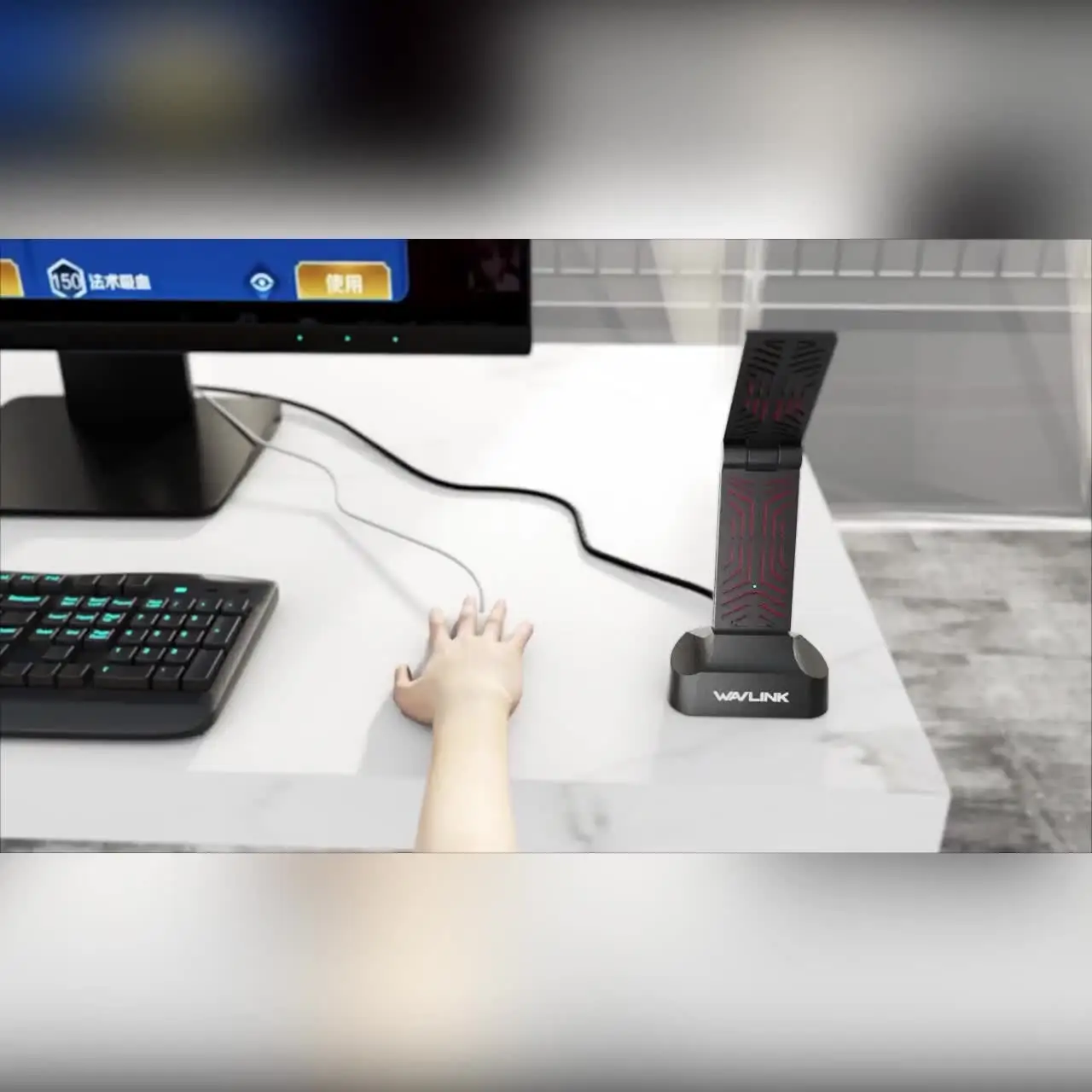
Video: Wavlink USB WiFi Adapter product overview.