1. Introduction
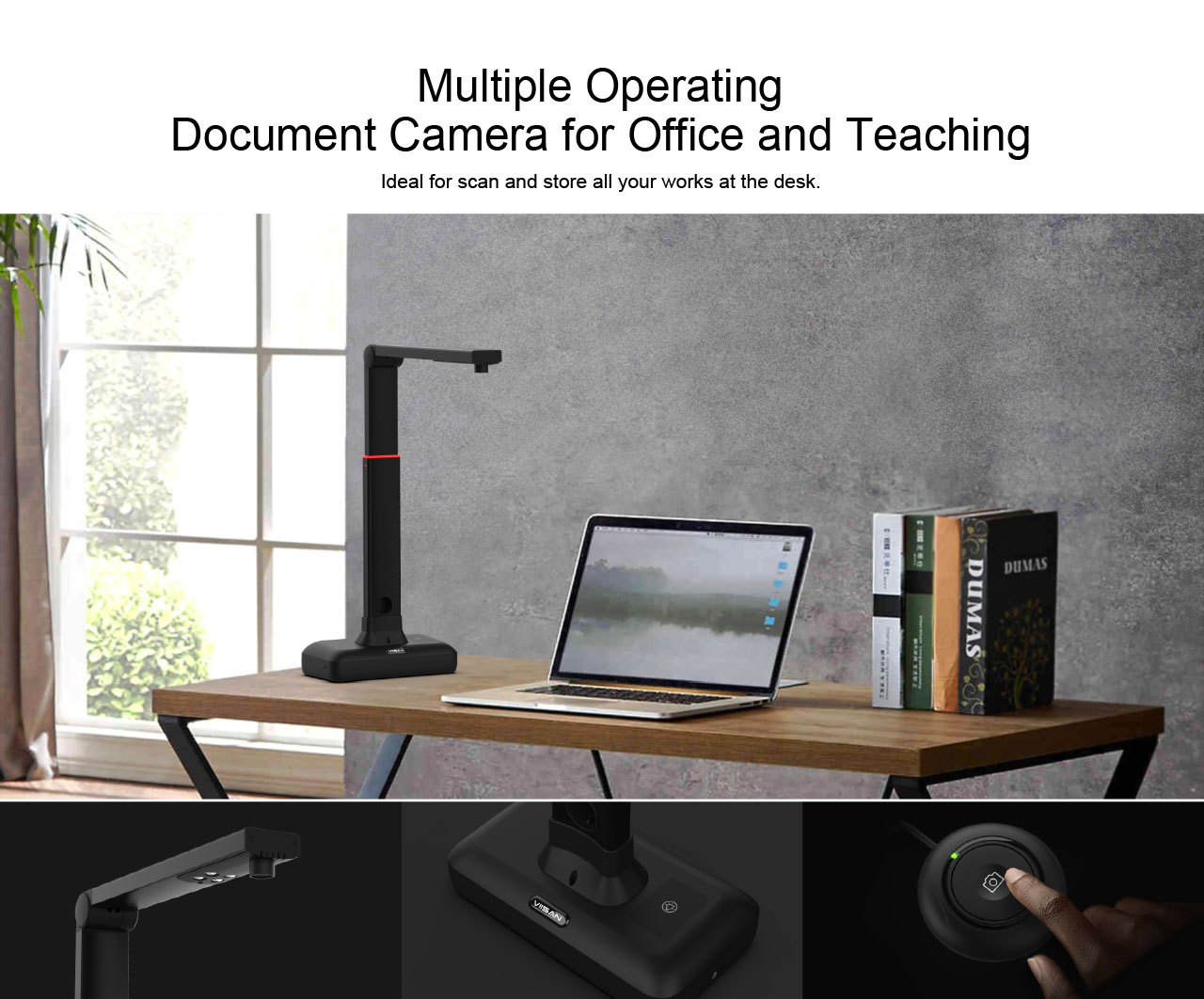
The VIISAN S21 CaptureA2 is a high-resolution overhead document camera designed for efficient digitization of various materials, including large format documents, books, and 3D objects. Featuring a 27MP image sensor and intelligent scanning software, it offers advanced image processing capabilities and multi-language OCR support.

2. Setup and Connection
2.1 Assemble the Document Camera
- Hold the camera arm and align it with the holes in the base.
- Insert the camera arm into the base.
- Secure the arm to the base using the included screw and screwdriver.
2.2 Setting Up & Connecting to a Computer
- Connect the supplied USB cable from the back of the document camera to an available USB port on your computer.
- Plug the supplied external [Hand Button] into the USB hub located on the back of the document camera.
- Place the black scanning pad directly in front of the document camera, ensuring it is in contact with the scanner base.
- Unfold the camera arm to raise the camera head to the desired height (adjustable for A2/A3 scanning).
- Before initial use, visit the official VIISAN website to download and install the compatible software:
- VIISAN OfficeCam for Windows
- VIISAN DeskCam for macOS

3. Operating Instructions
3.1 Basic Scanning Procedure
- Launch the VIISAN OfficeCam (Windows) or DeskCam (macOS) software on your computer.
- Place the document or object you wish to scan face up on the center of the black scanning pad.
- Click the [Scan] button within the software interface or use the external Hand Button to initiate the scan.

3.2 Intelligent Scanning Software Features
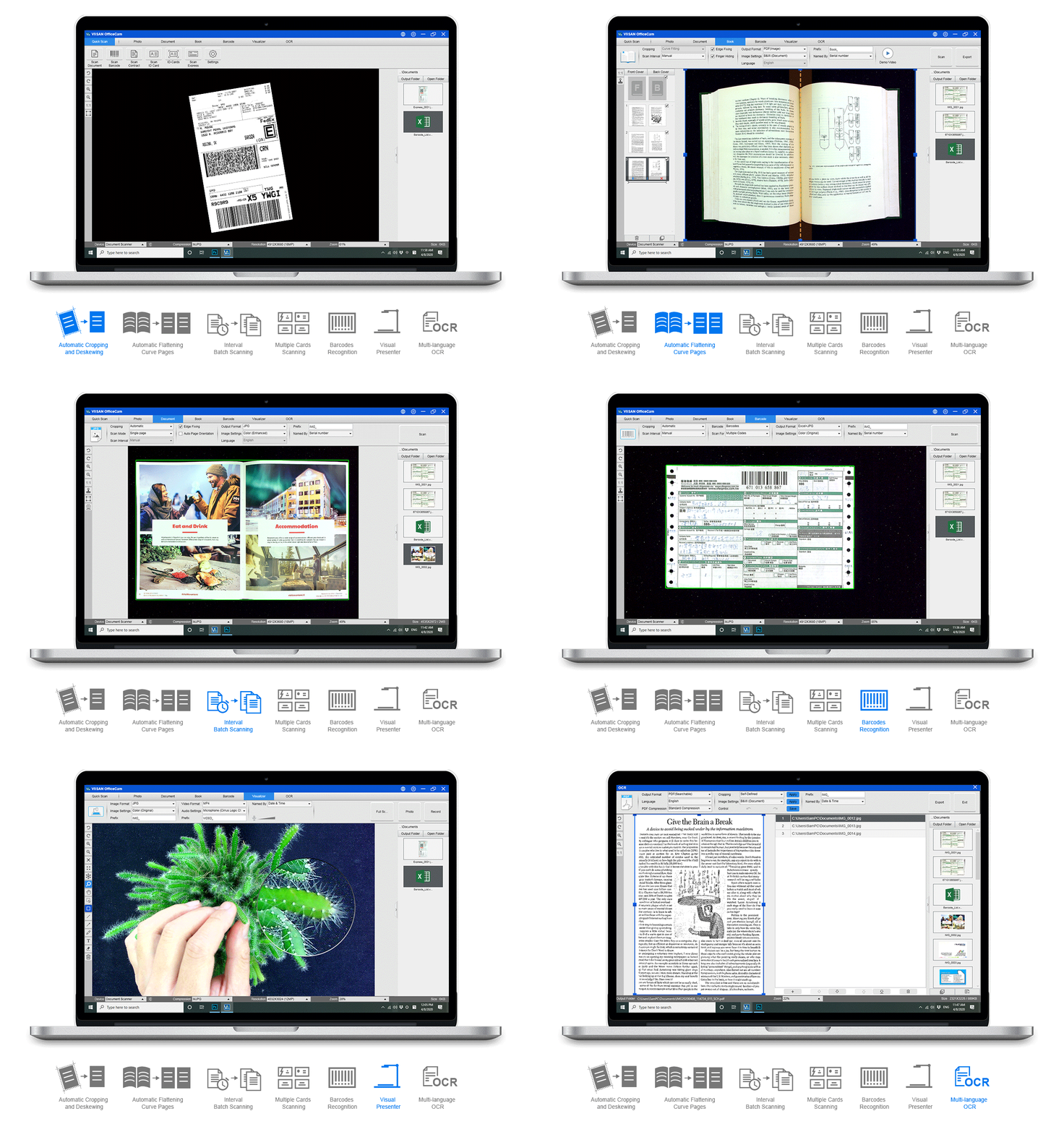
The VIISAN OfficeCam/DeskCam software provides a comprehensive suite of features to enhance your scanning experience:
- Flattening Curve Technology: Automatically flattens curled pages, removes finger images, purifies the background, and splits dual pages into two separate images.
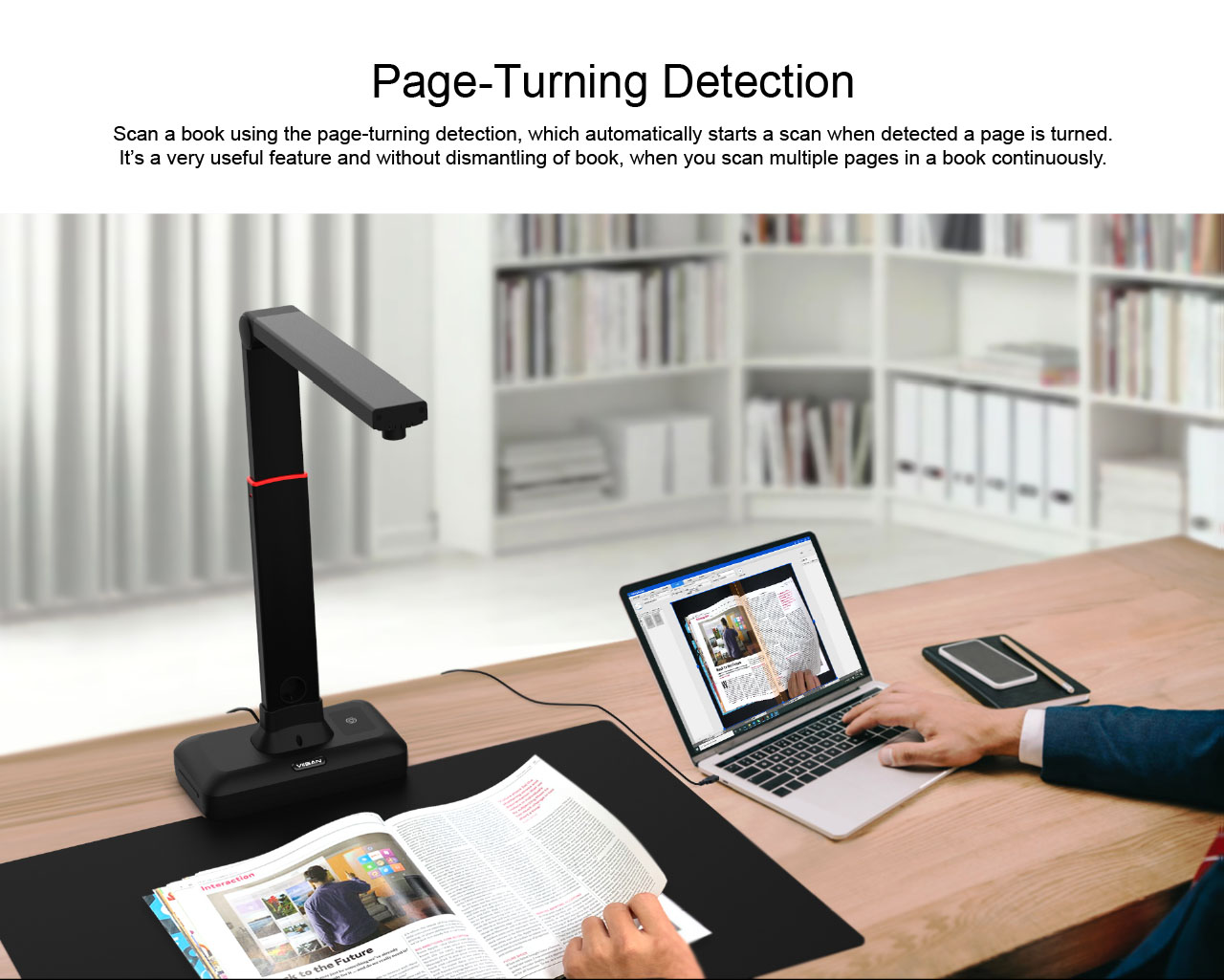
- Page Turning Detection: Automatically triggers a scan when a page is turned, ideal for continuous book scanning without dismantling the book.
- Powerful OCR Recognition: Converts scanned images into searchable PDF and editable Word, Excel, and Text formats. Supports over 130 languages.
- Barcode Recognition: Recognizes barcodes and QR codes, with the ability to output results to an Excel file format.
- Visualizer Function: Project your laptop screen to a large display (e.g., TV) using the scanner's camera, useful for presentations.
- Advanced Image Processing: Includes Automatic Cropping & De-skewing, Punch Hole Removal, Background Purification, Automatic Edge Filling, Automatic Text Orientation, Add Watermark, Color Enhancement, and Both-Side Merge for cards.




3.3 LED Lighting Control
The S21 features a built-in high-brightness LED lamp with 3-level touch control. This allows you to adjust the brightness to suit the environment and ensure clear images, even in low-light conditions. Avoid using the LED light under strong ambient light.
4. Maintenance
4.1 Cleaning
- Ensure the device is disconnected from the power source before cleaning.
- Use a soft, dry cloth to wipe the exterior of the scanner.
- For the camera lens, use a specialized lens cleaning cloth and solution to avoid scratches.
- Keep the scanning pad clean and free of dust or debris to ensure optimal scan quality.
4.2 Storage
- When not in use, fold the camera arm down to protect the lens and save space.
- Store the scanner in a cool, dry place away from direct sunlight and extreme temperatures.
5. Troubleshooting
5.1 Software Not Detecting Device
- Ensure the USB cable is securely connected to both the scanner and the computer.
- Try connecting to a different USB port on your computer.
- Restart your computer and the scanning software.
- Verify that the correct drivers and software version are installed from the official VIISAN website.
5.2 Poor Image Quality
- Check that the document or object is placed flat on the scanning pad.
- Ensure adequate lighting. Adjust the built-in LED light or ambient lighting as needed.
- Clean the camera lens and scanning pad for any smudges or dust.
- Verify that the camera arm is unfolded and positioned correctly for the document size (A2/A3).
- Check software settings for resolution and image enhancement options.
5.3 OCR Not Working Correctly
- Ensure the document is well-lit and clear, without shadows or distortions.
- Check the language settings in the OCR software to match the language of the document.
- For best results, use high-contrast documents with clear fonts.
6. Specifications
| Feature | Specification |
|---|---|
| Brand Name | VIISAN |
| Model Number | S21 |
| Product Type | Document Scanner |
| Sensor | 20.1 Megapixel CMOS |
| Max. Resolution (Software Interpolation) | 5888 x 4522 Pixels (27MP) |
| Optical Resolution | 5888x4522 |
| Max. Output Resolution | 5504 x 4128 Pixels |
| Max. Shooting Area | A2 (594x420) mm |
| Color Bit Depth | 24 Bit |
| Lens Focus | Fixed |
| Scanning Speed | 150 scans/second (approx. 1 sec. per A2 page) |
| Video Compression | MJPG |
| Power | 5V by USB-Powered |
| Net Weight | Approx. 1kg |
| Interface Type | USB 2.0 Type B x 1 (for PC Connection), USB 2.0 Type-A x 1 (for USB Extension) |
| Scanning Light Source | Natural Light + LED |
| System Requirements (Windows) | Windows 7, Windows 8.1, Windows 10, Windows 11 |
| System Requirements (macOS) | macOS 10.15 or later |
| Processor Requirement | Intel i3 processor or higher |
| RAM Requirement | 4GB RAM or more |
| Storage Requirement | Hard drive space for recorded videos |
| USB Port Requirement | USB 2.0 port (USB 3.0 compatible) |
| Video Streaming Frame Rate (Video mode) | 1920 x 1080@30fps |
| Video Streaming Frame Rate (Software Preview) | 2048 x 1536@15fps |
| OCR Languages Supported | 130+ |
| Certification | CE |
| Origin | Mainland China |
7. User Tips
- For optimal scan quality, ensure your documents are as flat as possible on the scanning pad.
- Utilize the OCR function to convert scanned text into editable and searchable documents, saving time on manual data entry.
- Experiment with the 3-level LED lighting to find the best illumination for different document types and ambient light conditions.
- Take advantage of the page-turning detection feature for efficient and continuous scanning of books and multi-page documents.
- Regularly check the VIISAN official website for software updates to ensure you have the latest features and performance improvements.
8. Warranty and Support
For detailed warranty information, technical support, additional user manuals, and video tutorials, please visit the official VIISAN website. Keep your purchase receipt for warranty claims.