1. Introduction
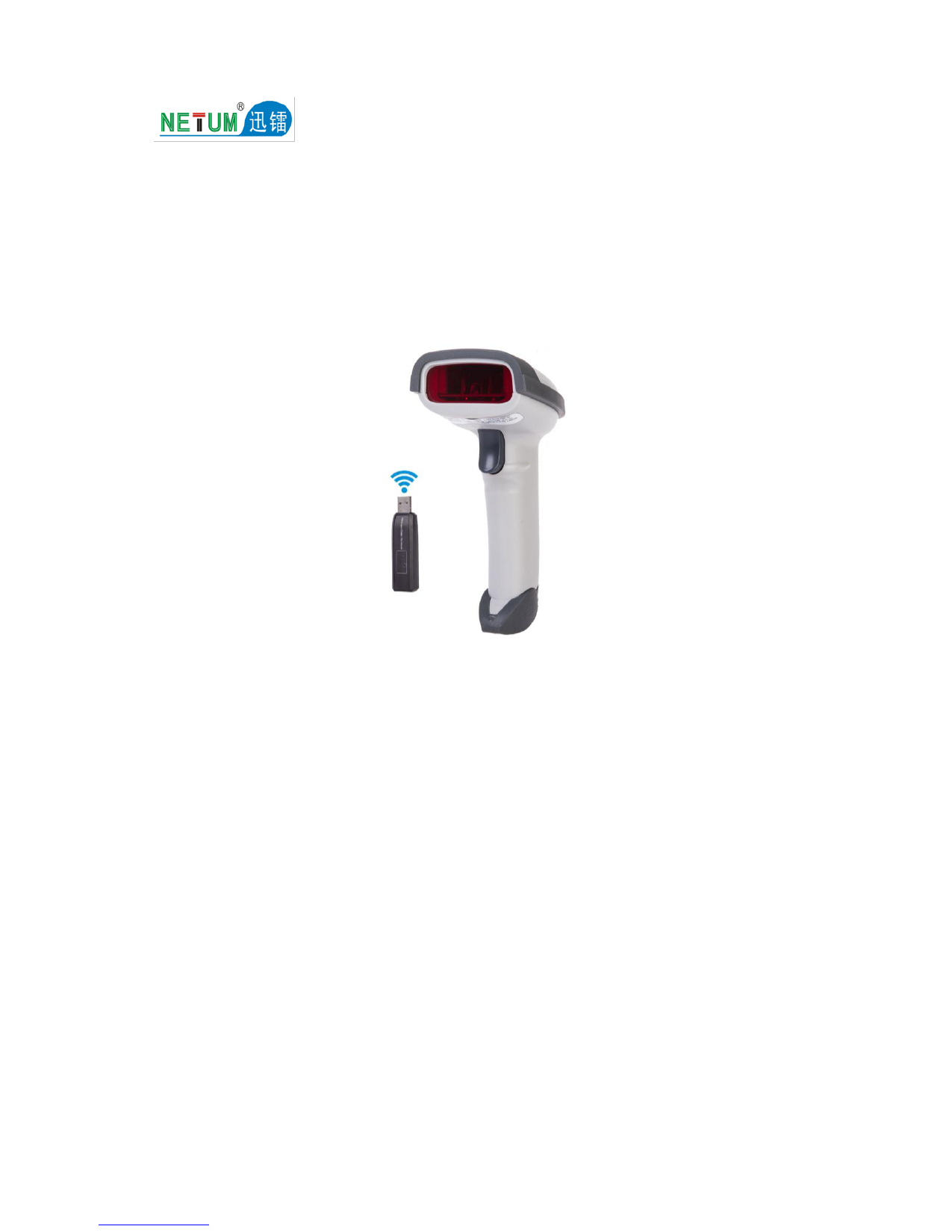
The NETUM NT-A5 is an advanced 2D desktop barcode scanner designed for efficient and hands-free scanning. Featuring omnidirectional scanning capabilities and an intelligent infrared sensor, it supports a wide range of 1D and 2D barcodes, including those displayed on screens. Its plug-and-play design ensures easy integration with various operating systems.

Figure 1: Front view of the NETUM NT-A5 2D Desktop Barcode Scanner.
2. Setup Guide
2.1 Package Contents
- NETUM NT-A5 2D Desktop Barcode Scanner
- USB Cable (integrated)
- User Manual (this document)
2.2 Connecting the Scanner
The NT-A5 scanner is designed for simple plug-and-play operation, requiring no additional drivers or software installation for basic functionality.
- Connect the integrated USB cable from the scanner to an available USB port on your computer (laptop or desktop).
- The operating system (Mac OS, Linux, Android, Windows 7/8/10/XP/11) will automatically detect and install the necessary device drivers.
- Once the installation is complete, the scanner is ready for use.

Figure 2: Plug and Play compatibility with various operating systems.

Figure 3: Scanner connected to a laptop, demonstrating plug-and-play setup.
3. Operating Instructions
3.1 Basic Scanning
The NT-A5 is an omnidirectional, hands-free scanner. Simply place the barcode within the scanning area, and the scanner will automatically detect and decode it.
3.2 Automatic Standby and Wake-Up
The scanner features an intelligent infrared sensor that allows it to enter a standby mode when not in use and automatically wake up when a barcode is presented, optimizing power consumption and convenience.

Figure 4: Automatic standby and wake-up feature in action.
3.3 Supported Barcode Types
The scanner has a strong decode ability, capable of reading most 1D and 2D barcodes, including damaged codes and those displayed on digital screens.
- 1D Barcodes: Code39, FullASCⅡ, Codebar, Industrial2of5, Interleave2of5, Matrix2of5, Code93, Code128, Code32, EAN 128, MSI, EAN 8&13, UPCA&E, Plessey.
- 2D Barcodes: PDF417, QRcode, Data Matrix, Maxicode, Aztec Code, HanxinCode, MicroQR.

Figure 5: Examples of 1D and 2D barcodes supported by the scanner.

Figure 6: The scanner's ability to read barcodes directly from digital screens.
4. Maintenance
4.1 Cleaning
To ensure optimal performance, keep the scanning window clean. Use a soft, lint-free cloth, slightly dampened with water or a mild cleaning solution, to gently wipe the surface. Avoid abrasive materials or harsh chemicals that could scratch the window.
4.2 Durability
The NT-A5 features an anti-shock design, allowing it to remain functional even after multiple drops from a height of 1.5 meters. While robust, care should still be taken to prevent unnecessary impacts.

Figure 7: The scanner's anti-shock design for enhanced durability.
5. Troubleshooting
5.1 Common Issues and Solutions
- Q: Some barcodes cannot be read. Why?
- A: This can occur due to several reasons:
- Dirty or unclear barcodes: Ensure the barcode is clean and clearly printed.
- Digital barcodes on screens: While the scanner supports screen scanning, ensure the screen brightness is adequate and there's no glare.
- Specific barcode types not activated: Some less common barcode types might require activation. Refer to the Common Function Barcodes section (if available in a separate programming guide) or contact customer support.
- Q: Is there a way to apply or remove an 'Enter' suffix after scanning?
- A: Yes, this is typically configurable. Refer to the 'Common Function Barcodes' in your programming guide or contact customer support for instructions on how to set or remove suffixes.
- Q: The scanned data is not being sent to my computer.
- A: Please ensure you have not turned off the inventory mode. If the scanner is storing scans internally instead of transmitting them, you may need to scan a specific 'Manual data upload' barcode to send the stored codes to your connected device. Check your programming guide for this barcode.
- Q: How do I resolve messy code problems when using other foreign languages?
- A: The default language is English. To change the setting, refer to the 'Language Setting' chapter in your programming guide or contact customer support.
6. Specifications
| Feature | Description |
|---|---|
| Model | NT-A5 |
| Image Sensor | CMOS |
| Interface Type | USB (Standard) |
| Supported Symbologies | PDF417, QRcode, Data Matrix, Maxicode, Aztec Code, HanxinCode, MicroQR, Code39, FullASCⅡ, Codebar, Industrial2of5, Interleave2of5, Matrix2of5, Code93, Code128, Code32, EAN 128, MSI, EAN 8&13, UPCA&E, Plessey |
| Optical Resolution | ≥4mil |
| Depth of Scan Field | 0-270mm |
| Operation Mode | Automatic Sensing / Manual Trigger |
| Decode Speed | 200 times/second |
| Light Intensity | Daylight, 4000Lux |
| Decode Error Rate | Less than 1/8 million |
| Print Contrast Signal | ≥30° |
| Scan Angle | Yaw (Skew) 72°, Pitch 82° |
| Voltage | 5V |
| Current (Operation) | 780mA |
| Current (Idle) | 255mA |
| Dimensions (L x W x H) | 105mm x 94mm x 135.5mm |
| Cable Length | 1.8m / 5.9ft |
| Certifications | CE, FCC, RoHS |

Figure 8: Scanner dimensions and cable length.
7. User Tips
- Optimal Barcode Quality: For best scanning results, ensure barcodes are clean, clear, and not excessively damaged.
- Screen Scanning: When scanning from digital screens (e.g., smartphones, tablets), ensure the screen brightness is set to a high level and minimize glare for quicker decoding.
- System Compatibility: The NT-A5 is compatible with a wide range of operating systems including Windows (7/8/10/XP/11), Mac OS, Linux, and Android.
- Application Specifics: If integrating with specialized software (e.g., pharmacy applications), verify compatibility with the NT-A5 model.

Figure 9: The NT-A5 scanner is suitable for various environments such as pharmacies, libraries, supermarkets, and cafes.
8. Warranty and Support
The NETUM NT-A5 barcode scanner is manufactured to high-quality standards and holds CE, FCC, and RoHS certifications, ensuring compliance with international safety and environmental regulations.
For any technical assistance, troubleshooting beyond this manual, or inquiries regarding warranty terms, please contact NETUM customer support directly. Refer to the product packaging or the official NETUM website for contact information.