

Introduction
The iPazzPort 2.4G Mini Wireless Keyboard with Touchpad Mouse Combo is a compact and versatile input device designed for seamless control across various platforms. This handheld keyboard integrates a full QWERTY layout with a sensitive touchpad, offering a convenient solution for navigating smart TVs, Android TV boxes, PCs, laptops, tablets, and more. Its 2.4GHz wireless technology ensures a stable and responsive connection, making it ideal for home entertainment and portable computing.

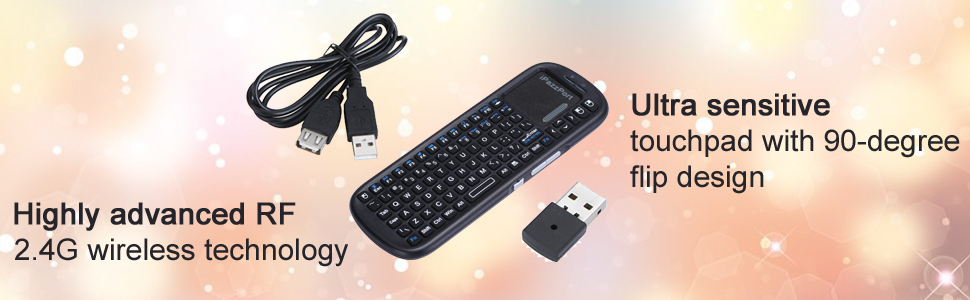
The iPazzPort Mini Wireless Keyboard, showcasing its compact design and included USB receiver.
Key Features
- 2.4GHz Wireless Technology: Provides a stable and anti-interference connection with an operating range of up to 30 feet.
- Integrated Touchpad: Ultra-sensitive touchpad with a 90-degree flip design for easy navigation and control.
- Full QWERTY Keyboard: Complete keyboard layout for efficient text input.
- Plug and Play: Simple setup with a USB receiver, requiring no additional drivers for most operating systems.
- Broad Compatibility: Works with Android TV Box, Raspberry Pi, HTPC, XBMC, PC, laptops, notebooks, and tablets.
- Portable Design: Lightweight and compact, designed for comfortable handheld use.
Package Contents
- 1 x iPazzPort Mini Wireless Keyboard
- 1 x USB Wireless Receiver
- 1 x User Manual
Note: AAA batteries are required for operation and are not included in the package.
Specifications
| Feature | Detail |
|---|---|
| Brand Name | iPazzPort |
| Model | KP-810-19s |
| Type | 2.4Ghz Wireless |
| Interface Type | USB |
| Operation Style | Capacitive |
| Keyboard Standard | Mini Keyboard |
| Full Size Keyboard | Yes |
| Backlight Type | No backlight |
| Language | English (customizable for other languages) |
| Application | Desktop, Laptop, Number, Tablet, Android TV Box, Raspberry Pi, HTPC, XBMC |
| Operating Range | Up to 25-30 feet (7.6-9.1 meters) |
| Battery Type | AAA battery (not included) |
| Dimensions (approx.) | 164mm (L) x 59mm (W) x 16mm (H) |

Approximate dimensions of the keyboard.
Setup Guide
- Install Batteries: Open the battery compartment on the back of the keyboard. Insert two (2) AAA batteries, ensuring correct polarity. Close the compartment securely.
- Connect USB Receiver: Locate the USB wireless receiver, usually stored within the keyboard's battery compartment or a dedicated slot. Plug the USB receiver into an available USB port on your target device (e.g., PC, Smart TV, Android TV Box).
- Power On: Turn on the keyboard using the power switch, typically located on the side or bottom of the device.
- Automatic Connection: The keyboard should automatically connect to the USB receiver. The RF communication indicator light on the keyboard may flash briefly and then remain solid to indicate a successful connection.
- Driver Installation (Windows 7 only): For Windows 7 operating systems, the system may take several minutes upon first use to install the necessary drivers. Please wait for the installation to complete. For other operating systems, it is generally plug-and-play.
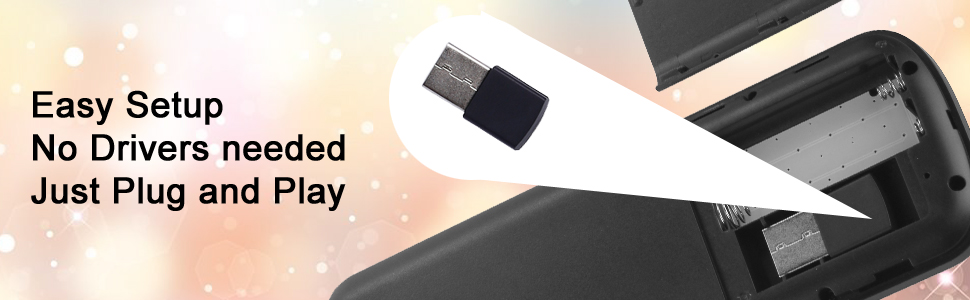
The USB receiver being inserted into a device for easy plug-and-play setup.
Operating Instructions
Keyboard Functions
The keyboard features a standard QWERTY layout. Use the keys as you would a regular keyboard for typing text, numbers, and symbols. Function keys (F1-F12) are accessible, often requiring the 'Fn' key to be pressed simultaneously for secondary functions.
Touchpad Functions
The integrated touchpad allows for mouse-like control. Refer to the diagram below for specific gestures:
Labeled diagram of the keyboard's features and touchpad gestures.
- Single Click: Equivalent to a left mouse click.
- Double Click: Equivalent to opening a file or executing an action.
- Double Fingers Click: Equivalent to a right mouse click.
- Scrolling: Use two fingers to scroll up or down on the touchpad.
The touchpad also supports a 90-degree flip design, meaning its orientation can adjust automatically or manually depending on how you hold the keyboard.
Compatibility
This mini wireless keyboard is widely compatible with:
- Android TV Boxes
- Raspberry Pi
- HTPC (Home Theater Personal Computer)
- XBMC (Kodi) systems
- Personal Computers (PC)
- Laptops and Notebooks
- Tablets (e.g., iPad, Android tablets)
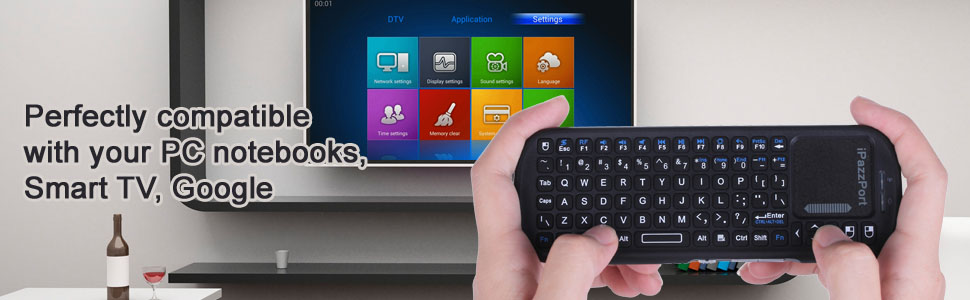
Visual representation of the keyboard's wide compatibility.
Important Note: This keyboard is NOT compatible with Samsung Smart TVs.
Product Demonstration Video
A short video demonstrating the features and ease of use of the iPazzPort Mini Wireless QWERTY Keyboard.
Maintenance
- Cleaning: Use a soft, dry cloth to clean the keyboard surface. For stubborn dirt, a slightly damp cloth can be used, but ensure no moisture enters the device.
- Storage: Store the keyboard in a cool, dry place away from direct sunlight and extreme temperatures.
- Battery Replacement: Replace AAA batteries when the keyboard's performance degrades or the indicator light suggests low power. Always use new batteries and dispose of old ones responsibly.
- USB Receiver: Keep the USB receiver stored safely, preferably within the keyboard's designated slot, to prevent loss or damage.
Troubleshooting
- Keyboard not responding:
- Ensure batteries are correctly installed and have sufficient charge. Replace if necessary.
- Verify the keyboard is powered on.
- Check if the USB receiver is securely plugged into the device. Try a different USB port.
- Ensure the keyboard is within the operating range (up to 30 feet) of the USB receiver.
- Re-pair the keyboard with the receiver if connection is lost (refer to the full user manual for specific pairing instructions if needed, though typically it's automatic).
- Touchpad not working correctly:
- Ensure your fingers are clean and dry when using the touchpad.
- Check for any physical obstructions or debris on the touchpad surface.
- Restart the keyboard and the connected device.
- Slow or erratic response:
- Move closer to the USB receiver to rule out range issues.
- Check for potential interference from other 2.4GHz wireless devices.
- Ensure the batteries are not low.
User Tips
- For optimal performance, keep the USB receiver in a clear line of sight with the keyboard, if possible.
- When not in use for extended periods, turn off the keyboard to conserve battery life.
- If using with a tablet or smartphone, ensure your device supports USB OTG (On-The-Go) and has the necessary adapter to connect the USB receiver.
Warranty and Support
This iPazzPort product comes with a One Year Warranty provided by iPazzPort, the manufacturer. For technical support, troubleshooting assistance, or warranty claims, please refer to the contact information provided in your product packaging or visit the official iPazzPort website.
Please retain your proof of purchase for warranty purposes.