1. Introduction
The TTLOCK G2 2.4G WiFi Gateway is designed to enhance the functionality of your TTLOCK smart door locks, enabling remote control and smart home integration. This gateway allows you to manage your smart lock from anywhere via the TTlock APP, change passwords remotely, view real-time door status, and integrate with voice assistants like Amazon Alexa and Google Home.

2. Package Contents
Please check the box for the following items:
- 1 x TTLOCK G2 WiFi Gateway
- 1 x USB Type-C Cable
- 1 x User Manual

3. Specifications
| Feature | Detail |
|---|---|
| Model | G2 |
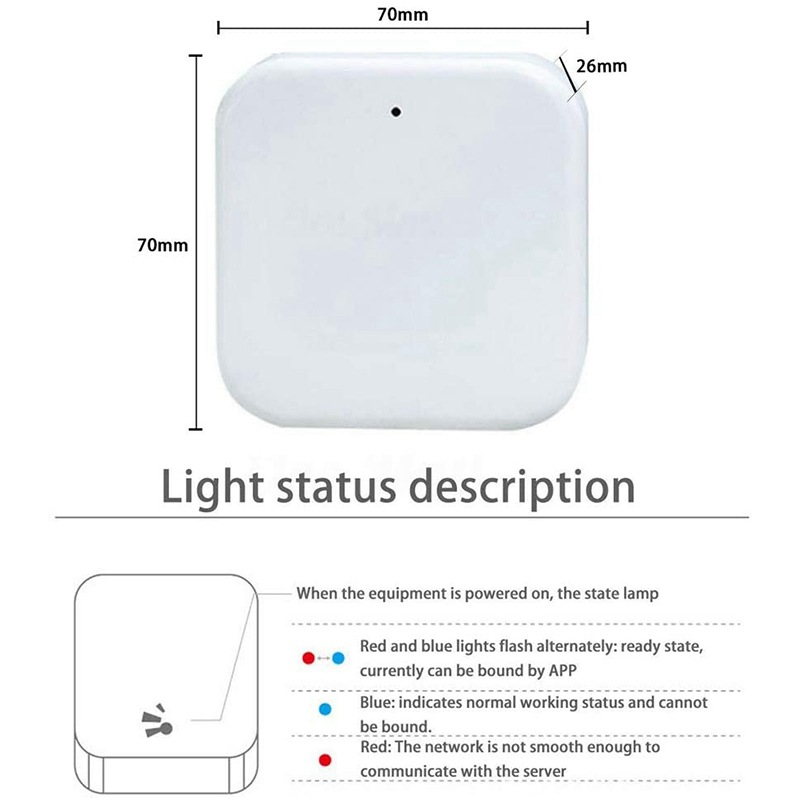
| Dimensions | 70mm x 70mm x 26mm |
| Network | WiFi 2.4G |
| IEEE Standard | 802.11 b/g/n |
| Power Interface | Type-C USB |
| Power Input | DC 5V/500mA |
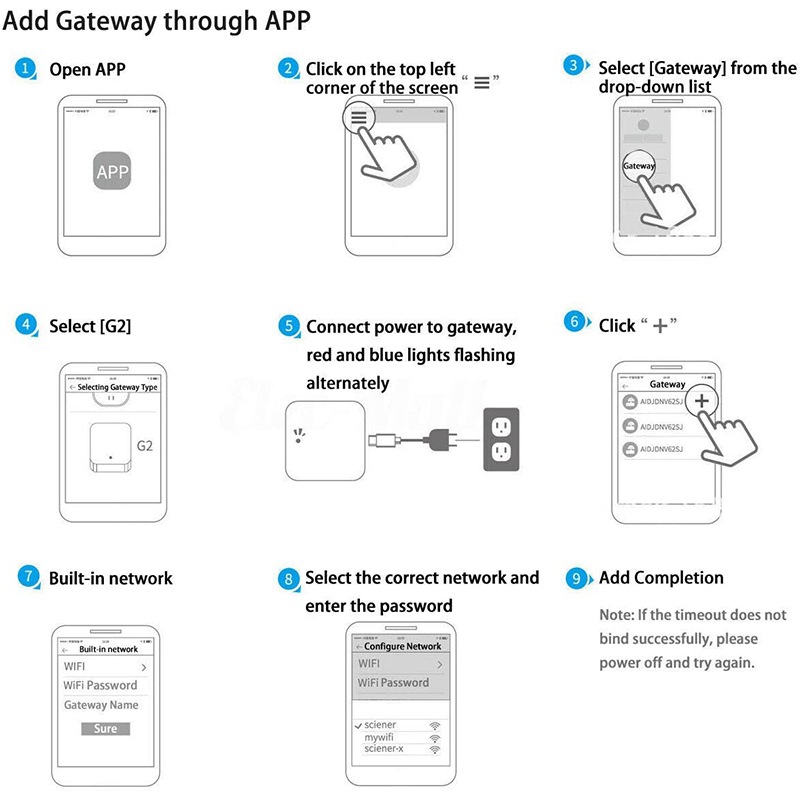
4. Setup Guide
Follow these steps to set up your TTLOCK G2 WiFi Gateway:
- **Power On**: Connect the gateway to a power source using the provided USB Type-C cable.
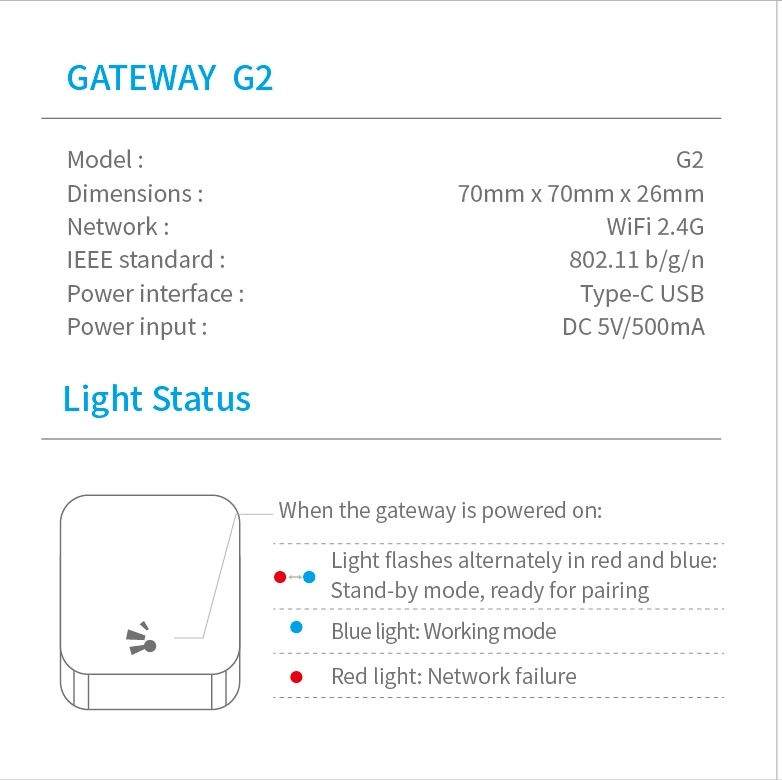
- **Observe Light Status**: When powered on, the state lamp on the gateway will indicate its status:
- **Red and Blue lights flash alternately**: The gateway is in a ready state and can currently be bound by the TTlock APP.
- **Blue light**: The gateway is in normal working mode.
- **Red light**: Indicates a network failure or insufficient network smoothness to communicate with the server.
- **Download TTlock APP**: Download and install the TTlock APP on your smartphone.
- **Add Gateway in APP**:
- Open the TTlock APP.
- Click on the top left corner of the screen (usually a menu icon).
- Select "Gateway" from the drop-down list.
- Select "[G2]".
- Ensure the gateway is powered and its red and blue lights are flashing alternately.
- Click the "+" icon to add the gateway.
- Select "Built-in network".
- Select the correct WiFi network (2.4G only) and enter the password.
- Confirm to complete the addition.
**Note**: If the timeout does not bind successfully, please power off and try again. For setup, your smartphone and the gateway must be on the same WiFi network.
- **Pair with Smart Lock**: Ensure the distance between the gateway and your smart door lock is no more than 32 inches (10 meters) for proper pairing and communication.

5. Operating Instructions
Once your G2 Gateway is successfully set up and connected to your smart lock, you can utilize the following features via the TTlock APP:
- **Remote Unlocking**: Unlock your door remotely with a single button press in the app.
- **Remote Password Management**: Change or generate new passcodes for your smart lock from anywhere.
- **View Operation Records**: Access a real-time log of all unlock events and door status (open/closed).
- **Share e-Keys/Passcodes**: Easily share temporary or permanent e-keys and passcodes with guests or family members.
- **Monitor Door Status**: Remotely check if your door is open or closed.
- **Smart Home Integration**: Connect your G2 Gateway with Amazon Alexa or Google Home for voice control of your smart lock.

6. Maintenance
To ensure the longevity and optimal performance of your G2 WiFi Gateway:
- Keep the device in a dry environment, away from moisture and extreme temperatures.
- Clean the exterior with a soft, dry cloth. Avoid using harsh chemicals or abrasive cleaners.
- Ensure proper ventilation around the device.
7. Troubleshooting
If you encounter issues with your G2 WiFi Gateway, refer to the following common problems and solutions:
- Gateway fails to bind with the APP:
- Ensure the gateway's red and blue lights are flashing alternately, indicating it's in pairing mode.
- Power off the gateway, wait a few seconds, and power it back on to reset. Then try binding again.
- Verify that your smartphone and the gateway are connected to the same 2.4G WiFi network during the setup process.
- Check your WiFi password for accuracy.
- Red light is constantly on or flashing (Network Failure):
- Check your WiFi router and internet connection.
- Ensure the gateway is within range of your WiFi router.
- Restart your WiFi router and the gateway.
- Confirm that your WiFi network is 2.4G, as the gateway does not support 5G WiFi.
- Cannot remotely control the smart lock:
- Verify that the gateway is successfully connected to the internet (blue light should be steady).
- Ensure the smart lock is powered on and its Bluetooth is active.
- The distance between the gateway and the smart door lock should be no more than 32 inches (10 meters). Relocate the gateway closer to the lock if necessary.
- Check the TTlock APP for any error messages or connection status indicators.
- Alexa/Google Home integration issues:
- First, ensure that "TTLock" is searchable in the Amazon Alexa app and "Sciener Smart" is searchable in the Google Home app. If they are not found, integration may not be supported.
- Ensure your gateway is online and connected to your smart lock.
- Follow the specific integration steps provided within the Alexa or Google Home app for connecting smart devices.
8. User Tips
Here are some helpful tips for using your G2 WiFi Gateway:
- **Optimal Placement**: For the best performance, place the gateway within 10 meters (approximately 32 feet) of your smart lock. This ensures a stable Bluetooth connection between the gateway and the lock.
- **Network Stability**: A stable 2.4G WiFi connection is crucial for remote functionality. If you experience intermittent connectivity, consider moving the gateway closer to your router or checking for WiFi interference.
- **Security**: The gateway uses AES 128-bit encryption to protect your smart lock communications. Always keep your TTlock APP and smart home accounts secure with strong, unique passwords.
9. Warranty and Support
For warranty information, technical support, or service inquiries, please contact your original retailer or the manufacturer directly. Keep your purchase receipt as proof of purchase.


