
1. Introduction
The IVIIN T6919 USB C Docking Station is a versatile 19-in-1 solution designed to expand the connectivity of your laptop, offering quadruple display output at 4K@60Hz, robust power delivery, and a wide array of ports for data transfer and peripherals. This manual provides essential information for setting up, operating, and maintaining your docking station to ensure optimal performance.
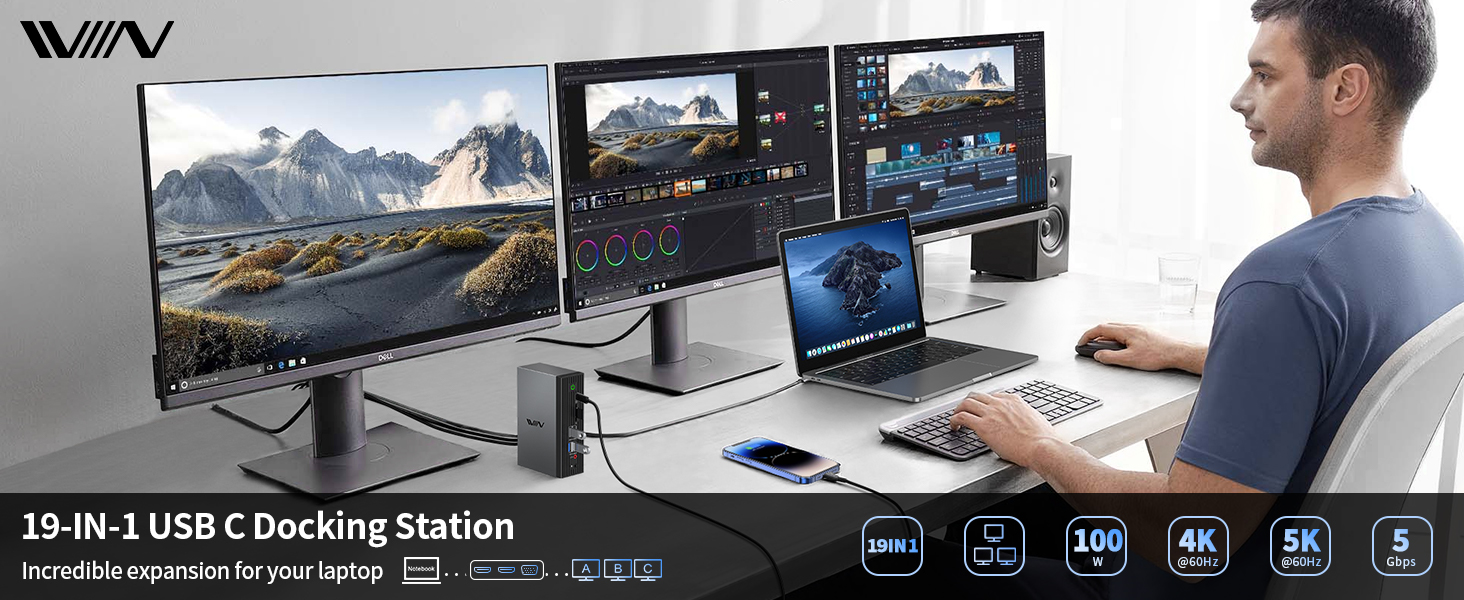
Figure 1: IVIIN T6919 USB C Docking Station in a multi-monitor setup.
2. Package Contents
Please verify that all items are present in your package:
- 1x IVIIN T6919 USB C Docking Station
- 1x USB C to C Cable
- 1x User Manual (this document)
- 1x 130W DC Power Adapter
3. Setup Instructions
3.1 Driver Installation
The IVIIN T6919 docking station requires the DisplayLink driver for full functionality, especially for multiple display outputs. Please follow these steps:
- Visit the official DisplayLink website: displaylink.com
- Navigate to the 'Downloads' or 'Drivers' section.
- Select the appropriate operating system for your laptop (Windows 7/8/10 above, Mac 10.0 above, Ubuntu, Chrome OS, Android, etc.).
- Download and install the latest DisplayLink driver.
- Restart your laptop after installation if prompted.

Figure 2: DisplayLink driver installation process.
3.2 Physical Connection
Follow these steps to connect your docking station:
- Power Connection: Connect the provided 130W DC Power Adapter to the 'DC IN' port on the back of the docking station and then to a power outlet.
- Laptop Connection: Use the supplied USB C to C cable to connect the 'To Host USB C IN' port on the docking station to a compatible USB-C port on your laptop. Ensure your laptop's USB-C port supports 'DP Alt mode' (USB 3.1 Type C Gen2/USB4/Thunderbolt 4/Thunderbolt 3) for full display functionality.
- Monitor Connection: Connect your external monitors to the available HDMI and DisplayPort outputs on the docking station. The docking station supports up to four displays simultaneously.
- Peripheral Connection: Connect your USB devices (keyboard, mouse, external drives), Ethernet cable, SD/TF cards, and audio devices to their respective ports on the docking station.

Figure 3: Overview of IVIIN T6919 ports and their functions.
4. Operating Instructions
4.1 Power On/Off
Press the power button on the front of the docking station to turn it on or off. The LED indicator will illuminate when the device is powered on.
4.2 Display Configuration
The docking station supports various display modes for Windows and macOS:
- Mirror Mode: Duplicates your laptop's screen across all connected external monitors.
- Extended Mode: Extends your desktop across multiple external monitors, allowing for increased workspace.
- Single Display 5K: Connect DP1+DP2 to one monitor for a 5K@60Hz resolution.
Adjust display settings through your operating system's display preferences.

Figure 4: Example of a laptop connected to the docking station with multiple monitors.
4.3 Data Transfer
Utilize the various USB ports and card readers for high-speed data transfer:
- USB 3.0 Ports: Two USB 3.0 ports offer data transfer speeds up to 5Gbps.
- USB 2.0 Ports: Two USB 2.0 ports provide speeds up to 480Mbps, ideal for keyboards, mice, and other low-bandwidth devices.
- SD/TF Card Slots: Insert SD or TF cards to read data simultaneously.
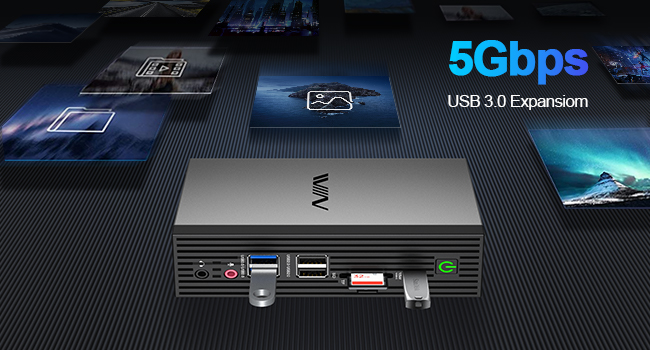
Figure 5: High-speed data transfer via USB 3.0 and card readers.
4.4 Power Delivery
- Laptop Charging: The upstream USB-C port delivers up to 100W of power to charge your connected laptop.
- Device Charging: The downstream USB C data port provides 15W for fast charging smartphones and other compatible devices.
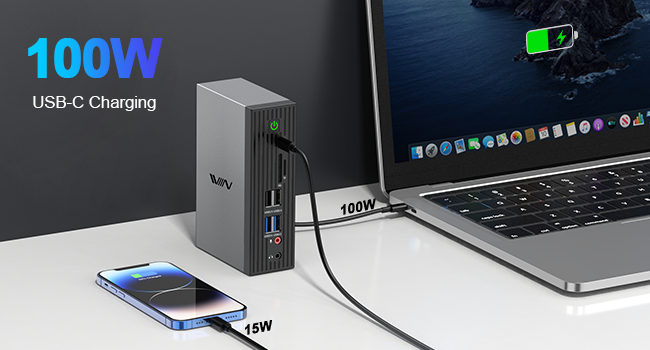
Figure 6: Simultaneous high-speed charging for laptop and phone.
4.5 Ethernet Connectivity
Connect an Ethernet cable to the RJ45 port for stable and fast network access up to 1000Mbps. The port features LED indicators:
- Yellow light flashes: Indicates network activity.
- Continuous green light: Indicates a stable network connection.

Figure 7: Ethernet port with LED indicators for connection status.
4.6 Audio Functionality
The 3.5mm audio jack supports both microphone input and audio output, allowing you to connect headphones or speakers and control volume directly.
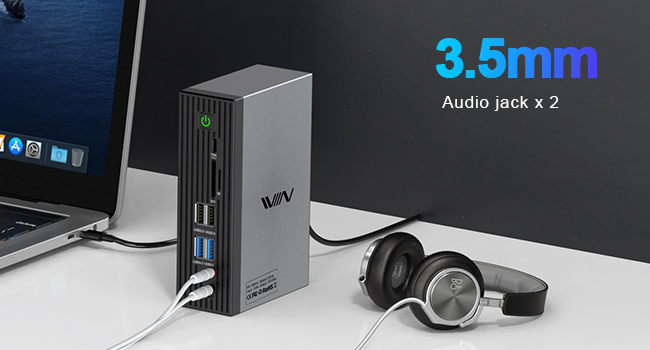
Figure 8: Connecting audio devices to the 3.5mm audio jack.
5. Features & Specifications
5.1 Key Features
- 19-in-1 Port Expansion
- Quadruple Display Output (4K@60Hz)
- Single 5K@60Hz Display Support
- 100W Power Delivery for Laptops
- 15W Power Delivery for Smartphones
- Gigabit Ethernet (1000Mbps)
- USB 3.0 (5Gbps) and USB 2.0 (480Mbps) Data Ports
- SD/TF Card Reader
- 3.5mm Audio Input/Output Jack
- Wide Compatibility with Thunderbolt 4/3, USB4, USB 3.1 Type C Gen2 (DP Alt mode)
5.2 Technical Specifications
| Feature | Specification |
|---|---|
| Model Number | T6919 |
| Brand Name | IVIIN |
| Type | DOCKING STATION |
| Ports | 2x Type-C (Host & Data), 3x HDMI, 3x DisplayPort, 2x USB 3.0, 2x USB 2.0, 1x RJ45 Gigabit Ethernet, 1x SD Card, 1x TF Card, 1x 3.5mm Audio In, 1x 3.5mm Audio Out, 1x DC IN |
| Video Output | Up to 4K@60Hz (Quadruple Display), 5K@60Hz (Single Display via DP1+DP2) |
| Power Delivery | 100W (Laptop), 15W (USB C Data Port) |
| Ethernet | 10/100/1000Mbps Gigabit Ethernet |
| USB Data Transfer | USB 3.0: 5Gbps, USB 2.0: 480Mbps |
| Card Reader | SD/TF (simultaneous read) |
| Audio | 3.5mm Stereo Audio Jack (Mic In & Audio Out) |
| Dimensions (L x W x H) | 5.82 x 3.74 x 1.77 inches (14.78 x 9.5 x 4.5 cm) |
| Weight | 1.5KG (Product Prop), 526g (Description) |
| Material | Aluminum Alloy |
| Compatibility | Windows 7/8/10+, Mac OS 10.0+, Ubuntu, Chrome OS, Android. Laptops with Thunderbolt 4/3, USB4, or USB 3.1 Type C Gen2 (DP Alt mode) ports. |
| Certifications | CE, Dot, EAC, EPA, FCC, GMP, RoHS, TGA, UL, KC, pse, weee, None |
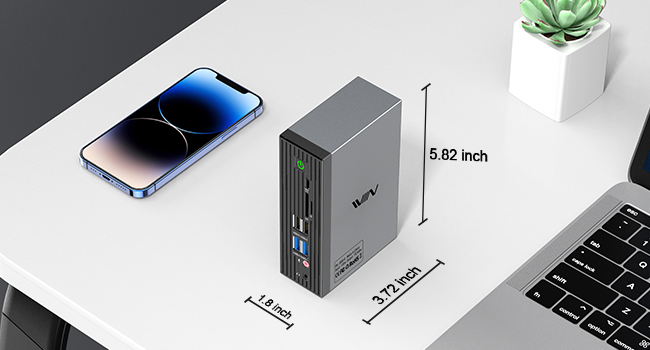
Figure 9: Physical dimensions of the IVIIN T6919 Docking Station.
6. Troubleshooting
- No Display on External Monitors:
- Ensure the DisplayLink driver is correctly installed and updated.
- Verify your laptop's USB-C port supports 'DP Alt mode' (USB 3.1 Type C Gen2/USB4/Thunderbolt 4/Thunderbolt 3). HDMI3 and DP3 ports specifically require DP Alt mode support from the host USB-C port.
- Check all cable connections between the docking station, laptop, and monitors.
- For MacBook M1/M2 users: If displays do not work after restarting, ensure DisplayLink is set to auto-login in privacy settings. Click the DisplayLink icon to configure auto-start.
- Docking Station Feels Warm:
- It is normal for the docking station to feel warm during high-speed charging or data transfer. The aluminum exterior dissipates heat, keeping the internal components cool. This is within the normal operating range.
- USB Devices Not Recognized:
- Ensure the docking station is powered on and properly connected to your laptop.
- Try connecting the USB device to a different port on the docking station.
- Test the USB device by connecting it directly to your laptop.
- Ethernet Connection Issues:
- Check the Ethernet cable connection to both the docking station and your router/modem.
- Verify the LED indicators on the Ethernet port are active (yellow flashing, green continuous).
- Ensure your network drivers are up to date on your laptop.
7. Maintenance
To ensure the longevity and optimal performance of your IVIIN T6919 USB C Docking Station, follow these maintenance guidelines:
- Cleaning: Use a soft, dry cloth to clean the exterior of the docking station. Avoid using liquid cleaners or aerosols, as they may damage the device.
- Storage: Store the docking station in a cool, dry place away from direct sunlight and extreme temperatures.
- Handling: Handle the device with care to prevent physical damage. Avoid dropping or subjecting it to strong impacts.
- Ventilation: Ensure the docking station has adequate ventilation to prevent overheating. Do not block the ventilation slots.
8. User Tips
- Verify USB-C Port Capability: Before purchasing or using, always confirm that your laptop's USB-C port supports 'DP Alt mode' (DisplayPort Alternate Mode) if you intend to use all display outputs. This is crucial for HDMI3 and DP3 ports.
- Keep Drivers Updated: Regularly check the DisplayLink website for the latest driver updates to ensure compatibility and optimal performance, especially after operating system updates.
- MacBook M1/M2 Specifics: If you experience display issues after restarting your MacBook M1/M2, ensure the DisplayLink application is configured to auto-start in your system's privacy settings.
- Cable Quality: Use high-quality USB-C cables and HDMI/DisplayPort cables to ensure stable connections and optimal video/data transfer speeds.
9. Warranty & Support
The IVIIN T6919 USB C Docking Station comes with an 18-month warranty. For any technical assistance, troubleshooting, or warranty claims, please contact IVIIN customer support. We offer 24-hour email support to address your concerns promptly.
Contact Support: Please refer to the contact information provided on the product packaging or the official IVIIN website for the most up-to-date support channels.