
1. Introduction
The OWLLON T1 Wireless Controller is a versatile gamepad designed for an immersive gaming experience across multiple platforms. It features advanced functionalities such as somatosensory control, a responsive touch function, powerful dual motor vibration, and customizable LED lighting. This controller connects wirelessly via Bluetooth and includes a 3.5mm wired headphone interface for audio.
Key Features:
- Wireless Bluetooth connectivity
- Somatosensory function for intuitive control
- Integrated touch function
- Dual motor vibration for enhanced feedback
- 12 adjustable LED lights for personalized aesthetics
- 3.5mm wired headphone jack
- Wide compatibility: PS4, PS5 (for PS4 games), PS3, PC, Laptops, Android, and iOS systems.

Image 1.1: OWLLON T1 Wireless Controller highlighting its multi-platform compatibility including PS4, PS5 (for PS4 games), PS3, PC, Android, and iOS.
2. Package Contents
Please check the package carefully for the following items:
- 1 x OWLLON T1 Wireless Controller
- 1 x USB-C Charging Cable
- 1 x User Manual

Image 2.1: The OWLLON T1 Wireless Controller, USB-C charging cable, and user manual included in the box.
3. Controller Layout
Familiarize yourself with the buttons and features of your T1 Wireless Controller:
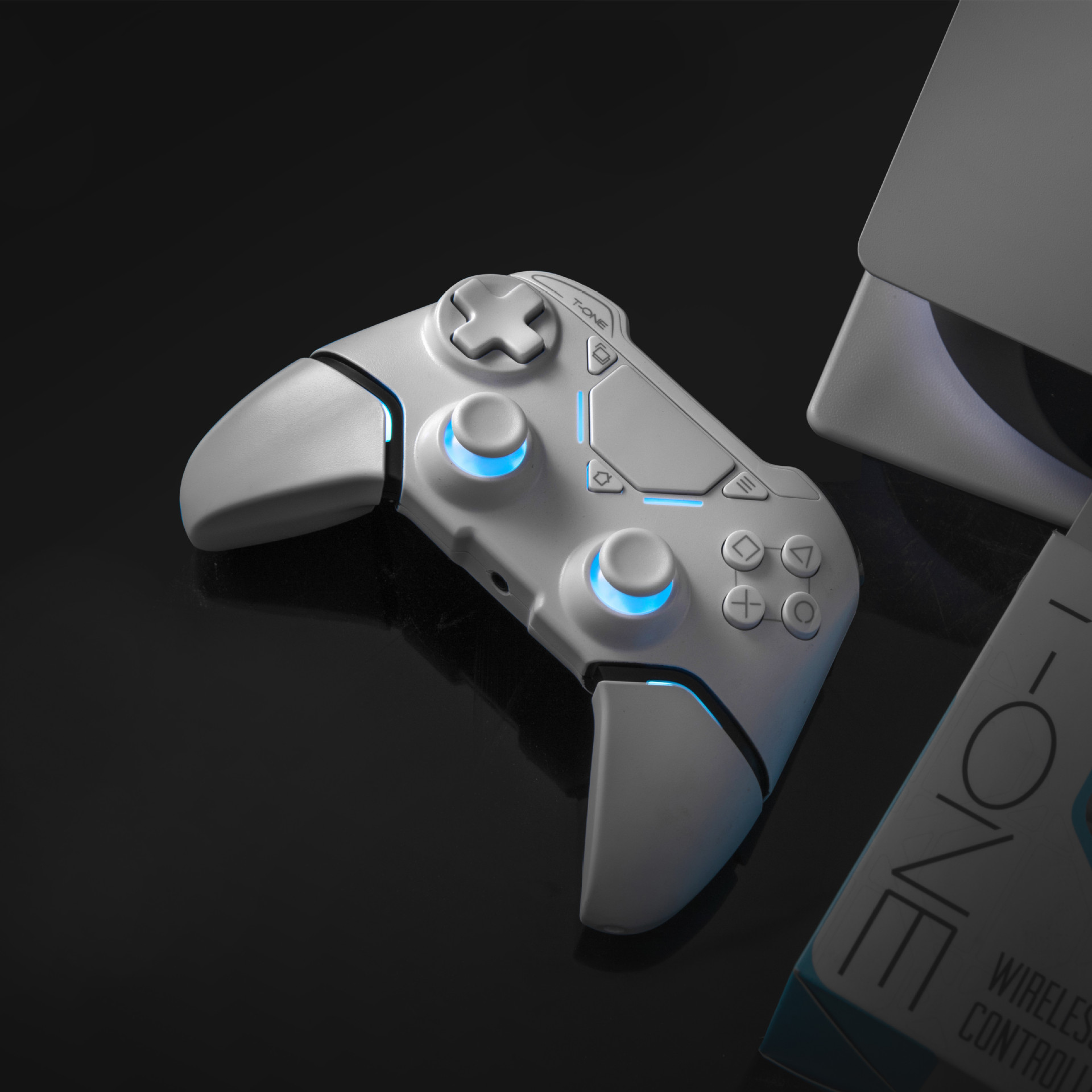
Image 3.1: Detailed diagram of the T1 Wireless Controller showing the location of buttons, joysticks, touchpad, and other features.
- Left Analog Stick
- Directional Pad (D-Pad)
- Share Button
- Touchpad
- Options Button
- Right Analog Stick
- Action Buttons (Triangle, Circle, Cross, Square)
- Home/PS Button
- L1/L2 Buttons
- R1/R2 Buttons
- USB-C Port (for charging and wired connection)
- 3.5mm Headphone Jack
- Light Bar / LED Indicators
4. Setup and Connection
4.1 Initial Charging
Before first use, fully charge the controller using the provided USB-C cable. Connect the USB-C end to the controller and the USB-A end to a compatible USB power source (e.g., console, PC, USB wall adapter).
4.2 Bluetooth Pairing
The T1 controller connects wirelessly via Bluetooth. The pairing process may vary slightly depending on your device:
- For PS4/PS3 Consoles:
- Turn on your console.
- Connect the controller to the console using the USB-C cable.
- Press the Home/PS button on the controller. The controller should pair automatically.
- Once paired, you can disconnect the USB-C cable for wireless play.
- For PC/Laptops (Windows):
- Ensure your PC has Bluetooth enabled.
- Go to Bluetooth settings on your PC.
- Press and hold the Share button and the Home/PS button on the controller simultaneously until the light bar starts flashing rapidly. This indicates pairing mode.
- On your PC, select "Add Bluetooth or other device" and choose "Bluetooth".
- Select "Wireless Controller" or "T1 Controller" from the list of available devices to pair.
- For Android/iOS Devices:
- Enable Bluetooth on your mobile device.
- Press and hold the Share button and the Home/PS button on the controller simultaneously until the light bar starts flashing rapidly.
- On your mobile device, search for Bluetooth devices and select "Wireless Controller" or "T1 Controller" to pair.
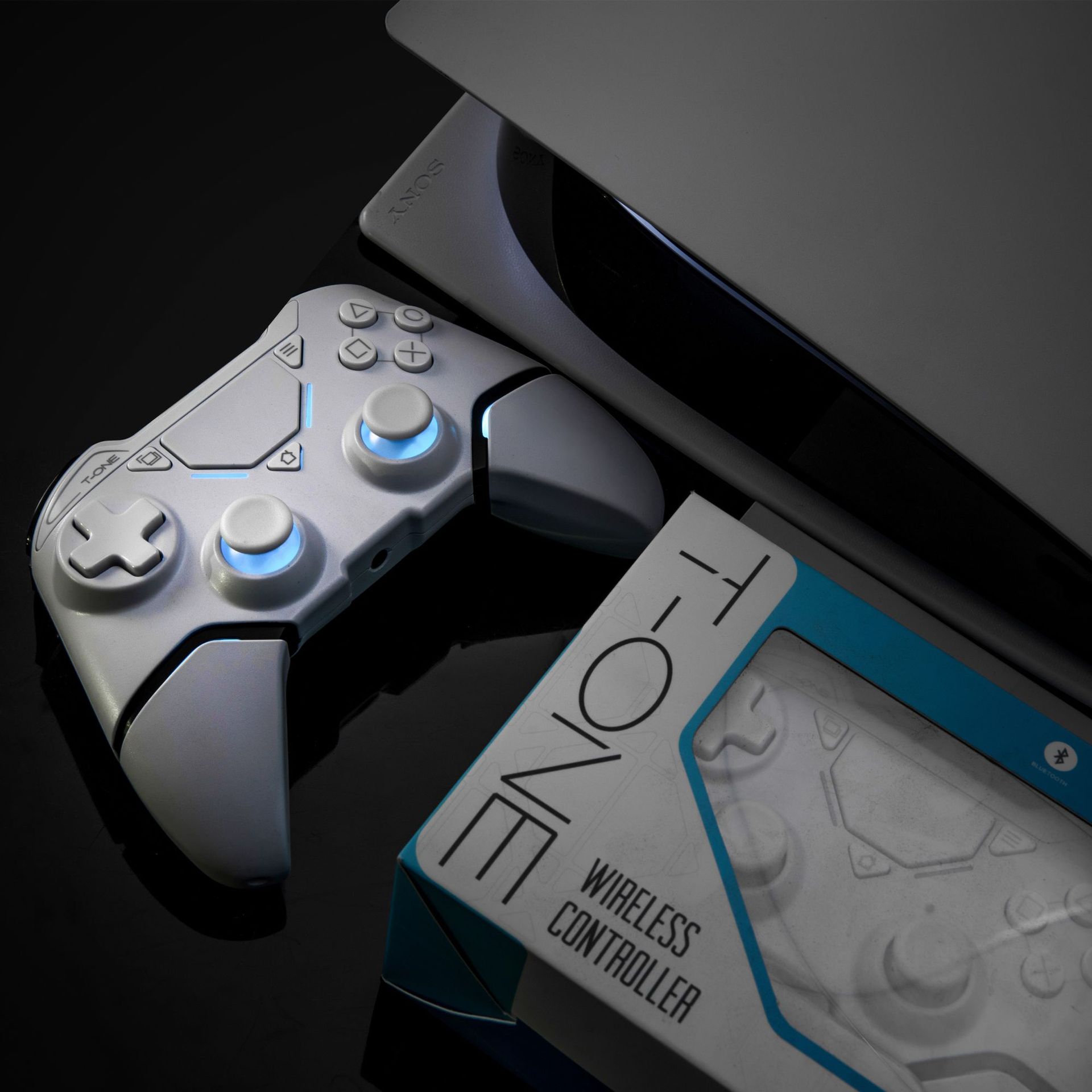
Image 4.1: The T1 Wireless Controller in use, demonstrating its wireless connectivity.
5. Operating Instructions
5.1 Somatosensory Function
The controller features a built-in gyroscope and accelerometer, enabling somatosensory control. This allows for motion-based input in compatible games. Tilt, shake, or move the controller to interact with the game environment.
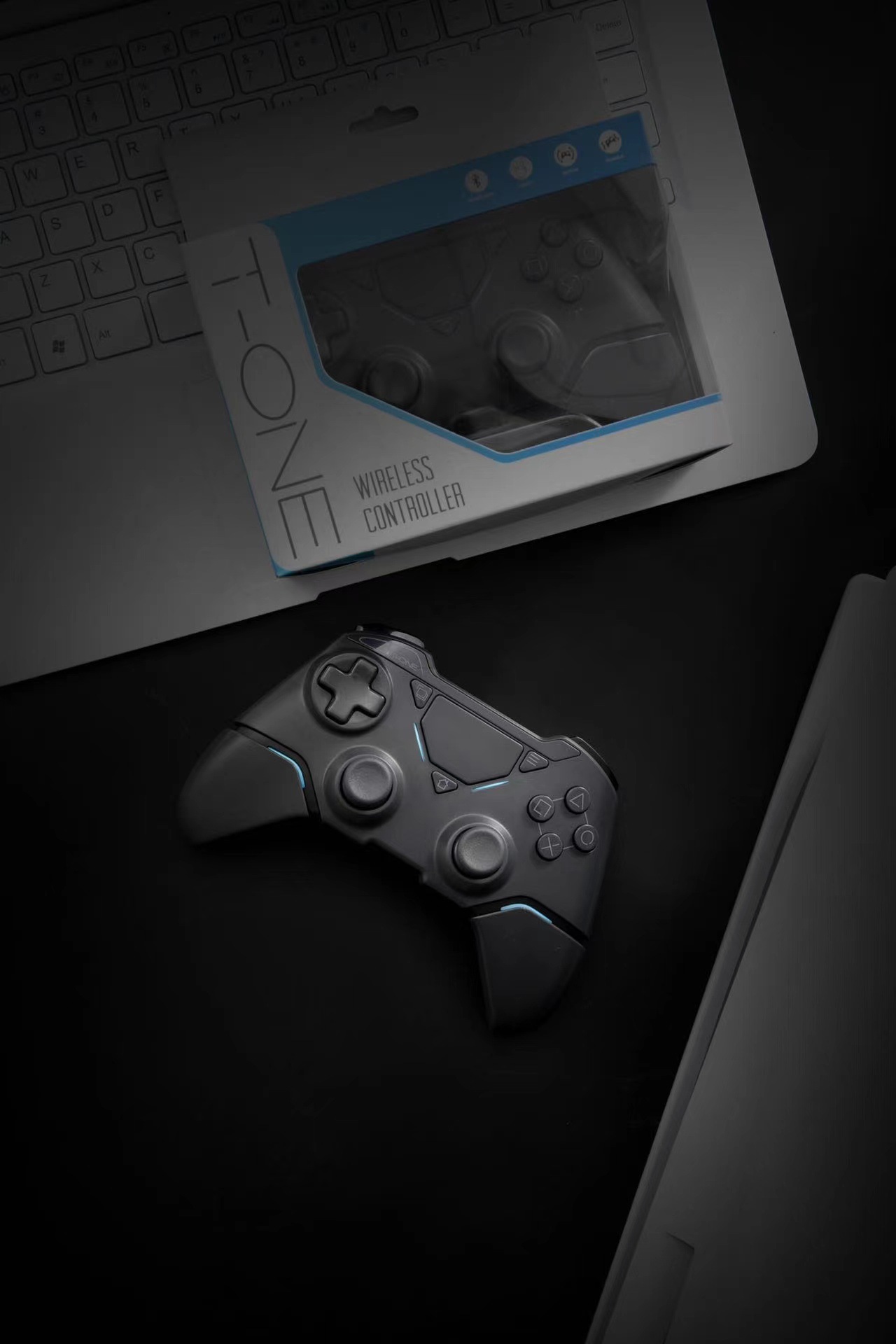
Image 5.1: Visual representation of the somatosensory function, showing how controller movement translates to in-game actions.
5.2 Touch Function
The integrated touchpad on the front of the controller supports various touch gestures, including swiping, tapping, and multi-touch input, for enhanced navigation and gameplay in supported titles.
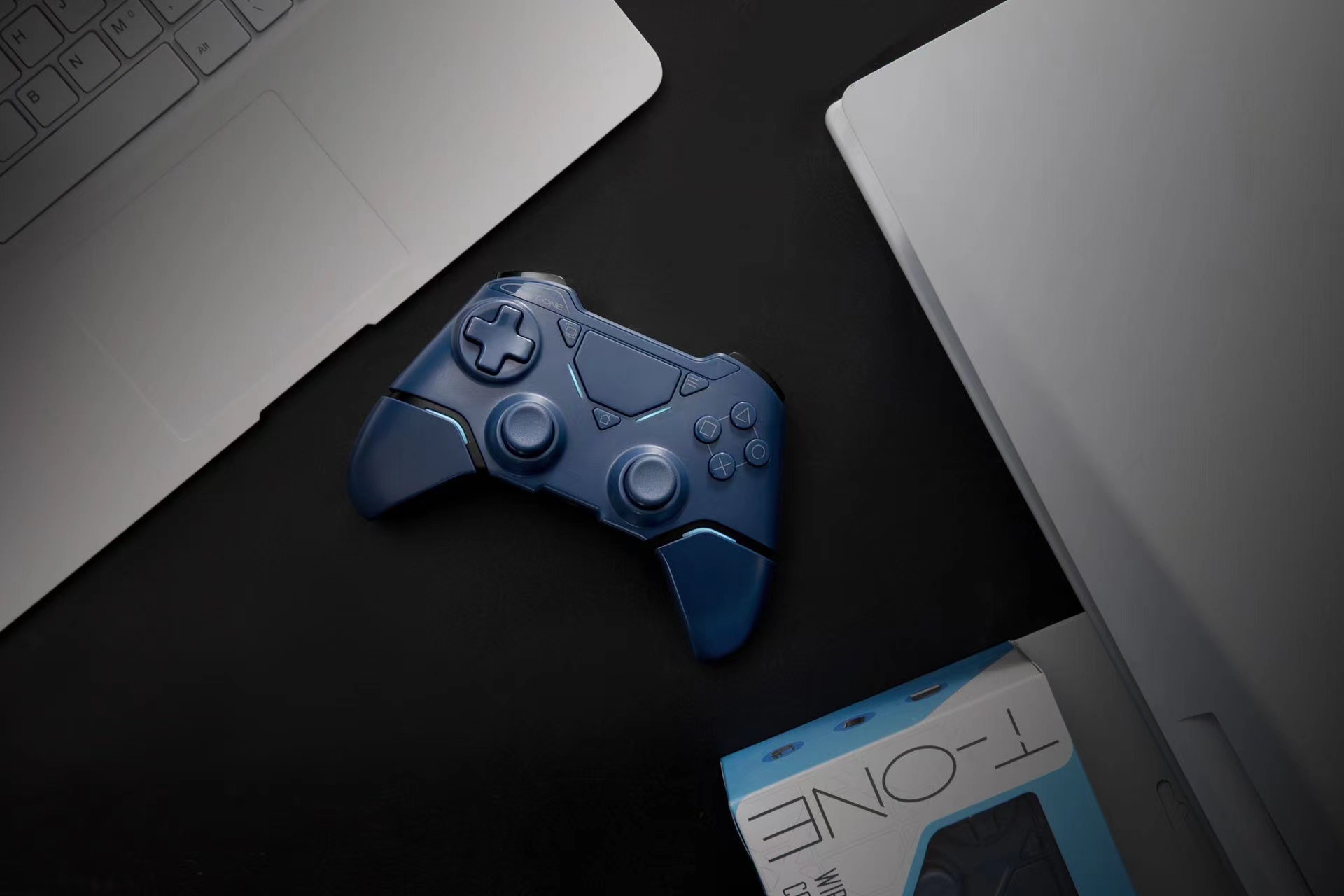
Image 5.2: Illustration of the touchpad functionality on the T1 Wireless Controller.
5.3 Dual Motor Vibration
Experience realistic feedback with the dual motor vibration system. The intensity and patterns of vibration will vary based on in-game events, providing a more immersive experience.
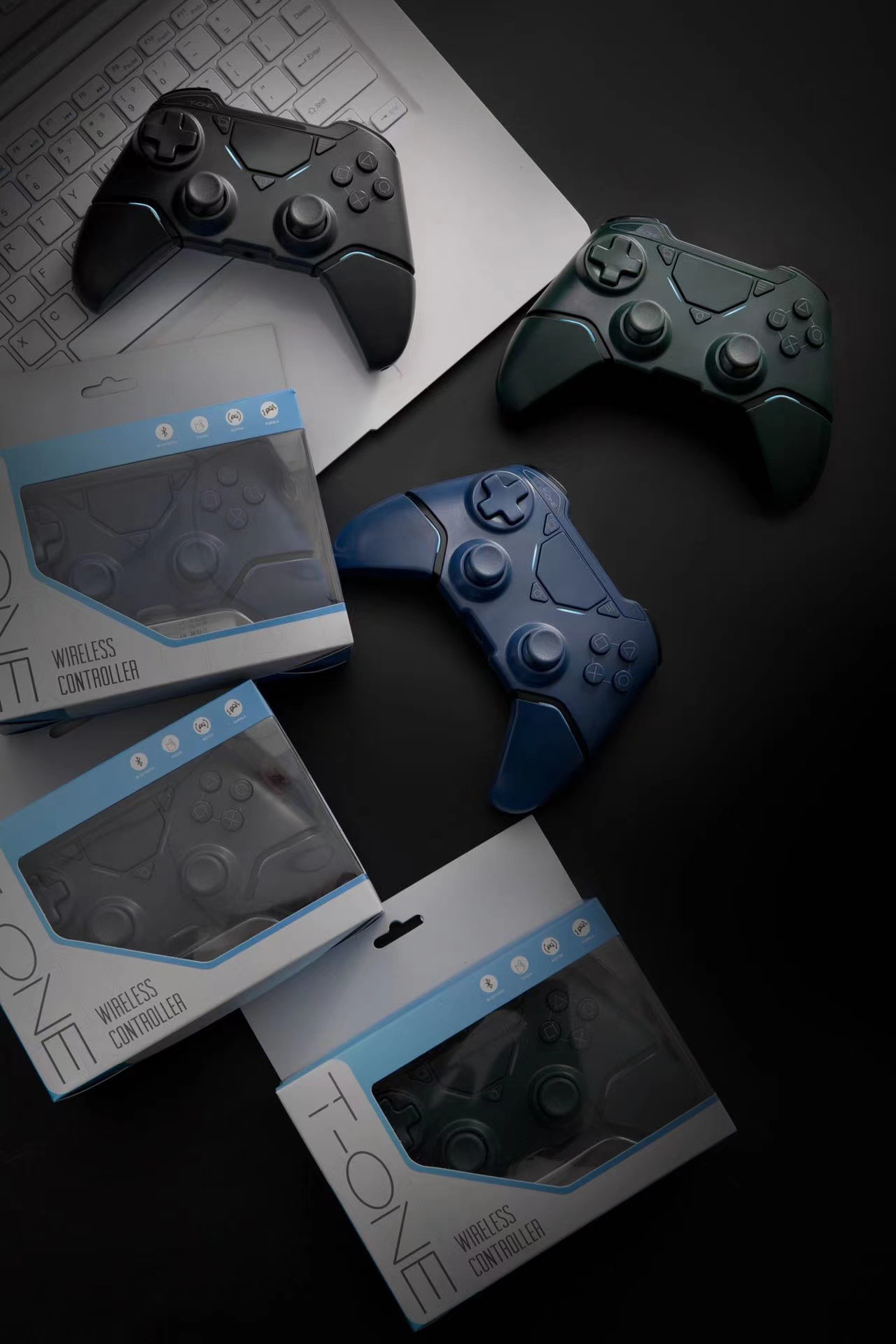
Image 5.3: Internal view of the T1 Wireless Controller, highlighting the placement of the dual vibration motors.
5.4 Adjustable LED Lights
The controller features 12 adjustable LED lights. These lights can indicate player number, charging status, or provide visual feedback during gameplay. Refer to your game or console settings for customization options.
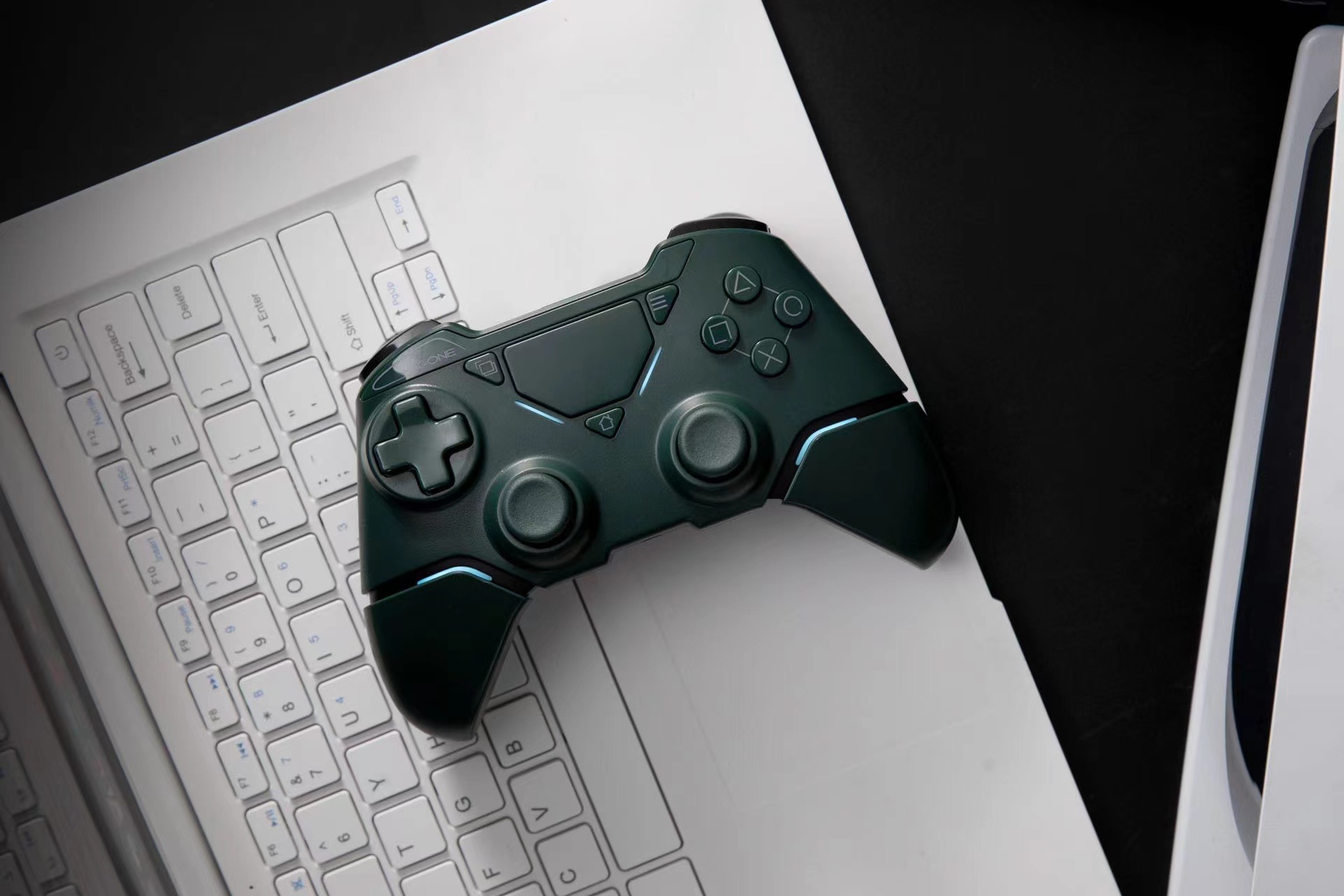
Image 5.4: Diagram illustrating the locations and functionality of the 12 adjustable LED lights on the controller.
5.5 3.5mm Headphone Jack
Connect your wired headphones or headset to the 3.5mm jack on the controller for in-game audio and voice chat (if supported by the platform and game).
6. Charging the Controller
To charge the T1 Wireless Controller, connect the supplied USB-C cable to the controller's USB-C port and the other end to a USB power source. The LED indicator lights will typically show the charging status (e.g., pulsing while charging, solid when fully charged).
- Charging Time: Approximately 2-3 hours for a full charge.
- Battery Life: Varies depending on usage and vibration intensity.
7. Troubleshooting
- Controller not connecting/pairing:
- Ensure the controller is sufficiently charged.
- Make sure Bluetooth is enabled on your device/console.
- Try re-entering pairing mode (hold Share + Home/PS button until light bar flashes rapidly).
- If connecting to a console, try connecting via USB-C cable first to establish the initial connection.
- Restart your console/PC/mobile device and try pairing again.
- No 2.4 GHz Dongle connection:
- The OWLLON T1 Wireless Controller uses Bluetooth for wireless connectivity and does not require or support a 2.4 GHz USB dongle. Please ensure your device has Bluetooth capabilities.
- Vibration not working:
- Check in-game settings to ensure vibration feedback is enabled.
- Some games or platforms may not support vibration.
- Ensure the controller's battery is not critically low.
- Headphone jack not working:
- Ensure your headphones are fully plugged into the 3.5mm jack.
- Check audio settings on your console/PC/mobile device.
- Test with another pair of headphones to rule out headphone issues.
8. Care and Maintenance
- Keep the controller dry and away from extreme temperatures.
- Clean the controller with a soft, dry cloth. Do not use harsh chemicals or abrasive materials.
- Avoid dropping the controller or subjecting it to strong impacts.
- Store the controller in a safe place when not in use to prevent damage.
9. Specifications
| Feature | Detail |
|---|---|
| Brand Name | OWLLON |
| Model | T1 |
| Type | Gamepads |
| Interface Type | Bluetooth |
| Compatible Platform | PC, Android, iOS |
| Compatible Brand/Model | Sony (PlayStation 3, PS4 Pro) |
| Trigger Button Type | None |
| Package | Yes |
| Origin | Mainland China |
| Certification | CE |
10. User Tips
- Bluetooth Connection: The T1 controller relies solely on Bluetooth for wireless connection. It does not use a 2.4 GHz USB dongle. Ensure your device has Bluetooth enabled and is discoverable during pairing.
- PS5 Compatibility: While compatible with PS5, note that the controller is designed to play PS4 games on the PS5 console, not native PS5 titles.
- LED Customization: Explore your console or game settings for options to customize the 12 LED lights, which can indicate player status or charging.
11. Warranty and Support
For warranty information and technical support, please refer to the contact details provided by your retailer or the manufacturer's official website. Keep your proof of purchase for any warranty claims.