
Introduction
This manual provides comprehensive instructions for the installation, operation, and maintenance of your Carlaoer 13-inch Universal Car Android Radio Stereo Video Player. Designed for a seamless in-car entertainment and navigation experience, this unit features a high-resolution QLED display, powerful 8-core processor, and supports advanced functionalities like CarPlay, Android Auto, GPS navigation, 4G connectivity, and various driver assistance systems.
Product Overview
The Carlaoer 13-inch Car Android Radio is a versatile multimedia system designed to upgrade your vehicle's infotainment. It features a large QLED touch screen with 1920*1200 resolution, an 8-core processor, and various connectivity options.
Key Features:
- Display: 13-inch QLED screen, 1920*1200 resolution.
- Processor: 8 Core 1.6GHz (Cortex-A53 2.0GHz for some models).
- Memory: Available in 2G+32G, 4G+64G, and 6G+128G configurations.
- Operating System: Android 11 (or Android 13 for some models).
- Connectivity: Built-in WiFi, 4G Network support (with SIM card slot), Bluetooth 5.0.
- Audio: DSP sound system with 36 equalizer settings (TCB001HQ chip).
- Integration: Wireless and USB cable support for Apple CarPlay and Android Auto.
- Navigation: Built-in GPS, supports online and offline maps (Google Maps, iGO, Navitel, Sygic, Yandex, Waze, Gaode Map).
- Driver Assistance: Supports 360 panoramic camera (without blind area), ADAS DVR (FCWS, LDWS, FVMA), and rear view camera.
- Control: Support steering wheel control.
- Other Features: Split screen functionality, video output (optional), OBD (Bluetooth) support.


Package Contents
Before installation, please verify that all items listed below are included in your package:

- 13-inch Car Android Player
- 9"/10" Frame (for universal fit)
- USB Cables
- Power Cord
- GPS Antenna
- RCA + 4G Card Slot Cable
- Microphone (MIC)
- Camera Input Cable
Setup and Installation
Professional installation is recommended. Ensure the vehicle's power is disconnected before beginning installation.
Installation Steps:
- Prepare the Vehicle: Carefully remove the existing car radio and trim panels.
- Install the Frame: The unit is designed to fit into a 9-inch or 10-inch universal frame panel. Secure the provided frame to the vehicle's dashboard opening.
- Mount the Unit: Attach the 13-inch Android Player to the frame using the four fixing holes on the back of the machine. The machine comes with 3 groups of holes in the frame for flexible mounting (6cm, 4.8cm, 3.5cm depth options).
- Connect Wiring: Connect the power cord, USB cables, GPS antenna, RCA+4G card slot cable, microphone, and camera input cable to their respective ports on the unit and the vehicle's wiring harness.
- Test Functionality: Before fully reassembling the dashboard, power on the vehicle and test all functions of the Android player, including audio, touch screen, GPS, camera inputs, and steering wheel controls.
- Final Assembly: Once all functions are verified, carefully reassemble the dashboard and trim panels.


Attention: As the screen is 13 inches, it is very large. After installation, the air conditioning outlet may be blocked in some car models. Please consider this before purchase and consult customer service if you have concerns.
Operating Instructions
Basic Operation:
- Power On/Off: The unit typically powers on with the vehicle's ignition. Use the physical power button or on-screen controls for manual power management.
- Touch Screen: Navigate the interface by tapping, swiping, and pinching on the QLED touch screen.
- OSD Language: The unit supports a wide range of OSD languages including Chinese (Simplified/Traditional), English, French, Spanish, German, Russian, Japanese, Korean, and many more. Access language settings in the system menu.
CarPlay & Android Auto:
The unit supports both Apple CarPlay and Android Auto for seamless smartphone integration.

- For Android Auto (USB Cable):
a. Connect your mobile phone to the car DVD player using a USB cable.
b. Click on "Car Link" on the unit's screen and wait for the connection. - For CarPlay (Bluetooth or USB Cable):
a. Connect via Bluetooth (BT) on your iPhone.
b. Click on "Car Link" on the unit's screen and wait for the connection.
c. CarPlay can also be connected via USB cable.
GPS Navigation:
Utilize the built-in GPS module for accurate navigation. The unit supports various online and offline map applications.

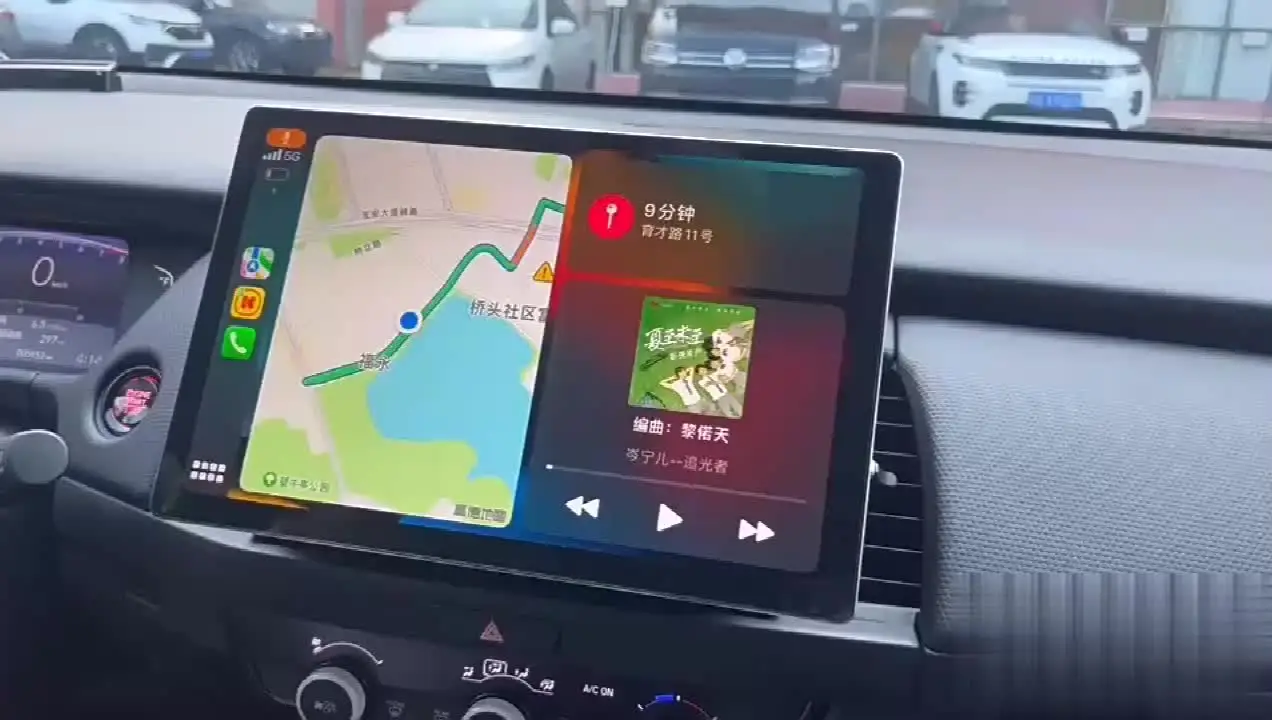
Split Screen Functionality:
The split screen feature allows you to run two applications simultaneously, such as navigation and music playback, for enhanced multitasking.

4G Network & Bluetooth 5.0:
- 4G Network: Insert a compatible SIM card into the external 4G card slot to access 4G network connectivity for online features and smooth internet browsing.
- Bluetooth 5.0: Connect your smartphone via Bluetooth for hands-free calling, phonebook access, and wireless audio streaming.


Steering Wheel Control:
The unit supports steering wheel controls, allowing you to change tracks, adjust volume, and manage calls safely without taking your hands off the wheel.

Rear View Camera & ADAS DVR:
- Rear View Camera: Connect a compatible rear view camera for automatic display when reversing, complete with parking guidelines.
- ADAS DVR: The unit supports ADAS DVR systems, providing features like Forward Collision Warning System (FCWS), Lane Departure Warning System (LDWS), and Front Vehicle Moving Alarm (FVMA) for safer driving.


OBD (Bluetooth) Support:
Connect an OBD2 scanner via Bluetooth to monitor various vehicle parameters such as cooling system, battery voltage, engine system, and exhaust gas system.

Video Output (Optional):
The unit supports optional video output for connecting external displays, such as rear-seat entertainment screens.

DSP Sound System:
Experience enhanced audio quality with the integrated DSP sound system, featuring a 36-band equalizer for precise sound customization.

Video Demonstration:
Maintenance
To ensure the longevity and optimal performance of your Carlaoer Android Radio, follow these maintenance guidelines:
- Screen Cleaning: Use a soft, lint-free cloth to gently wipe the screen. For stubborn smudges, slightly dampen the cloth with water or a screen-safe cleaner. Avoid harsh chemicals or abrasive materials.
- General Cleaning: Keep the unit and surrounding areas free from dust and debris. Use a soft brush or compressed air to clean vents and crevices.
- Software Updates: Periodically check for and install software updates to ensure the system runs efficiently and has the latest features and security patches.
- Avoid Extreme Temperatures: Do not expose the unit to extreme heat or cold, as this can affect its performance and lifespan.
- Cable Management: Ensure all cables are securely connected and not pinched or damaged.
Troubleshooting
If you encounter issues with your Carlaoer Android Radio, refer to the following common troubleshooting steps:
- No Power:
- Check all power connections to ensure they are secure.
- Verify the vehicle's fuse for the radio is intact. - No Sound:
- Check volume settings on the unit and your vehicle's amplifier (if applicable).
- Ensure speaker wires are correctly connected.
- Test different audio sources. - Touch Screen Unresponsive:
- Restart the unit by turning off and on the vehicle's ignition.
- Ensure the screen is clean and free from obstructions. - GPS Not Working:
- Ensure the GPS antenna is properly installed and has a clear view of the sky.
- Check GPS settings in the system menu.
- Verify internet connection for online maps. - CarPlay/Android Auto Connection Issues:
- Ensure your phone's operating system is up to date.
- Try a different USB cable (for wired connections).
- Re-pair Bluetooth for wireless CarPlay.
- Check permissions on your phone for CarPlay/Android Auto. - Rear View Camera Not Displaying:
- Check the camera input cable connection.
- Ensure the camera is receiving power.
- Verify camera settings in the unit's menu.
If problems persist, consult a professional installer or contact Carlaoer customer support.
Specifications
| Feature | Specification |
|---|---|
| Brand Name | Carlaoer |
| Din | Double Din |
| RAM | 2 G / 4 G / 6 G |
| Interface | 16P Universal |
| Operating System | Android 11 (or Android 13) |
| Out Power | 4*50W |
| Voltage | 12 V |
| Item Weight | 1.95kg |
| Item Size | 13 inch For 9/10 inch frame |
| Max External Memory | 256G |
| Special Features | WiFi function, Support steering wheel control, Support 3G/4G Network, Support Can-Bus, Built-in GPS, Charger, Mobile Phone, MP3 players, Voice Control, DSP, CarPlay, Android Auto, Reversing Input, Split Screen |
| Digital Media Format | CD, Mp3, MP4, WMA, JPEG |
| OSD Language | Multi-language support (Chinese, English, French, Spanish, etc.) |
| Resolution | 2K 1920*1200 13 INCH |
| Origin | Mainland China |
| For Vehicle Brands/Model | Universal |
| ROM | 32G / 64G / 128G |
| Material | Aluminium alloy |
| Certification | CE |
| Screen size | 13 inch |
| Chipset | 8 CORE |
| Is touch screen | Yes |
Warranty and Support
This product comes with a 365-day warranty from the date of purchase. For any technical assistance, troubleshooting, or warranty claims, please contact Carlaoer Official Store customer service.
User Tips
- Compatibility Check: While the unit is universal, always double-check if a specific frame is needed for your car model (e.g., Honda Civic 2014, Kia Sportage 3, Toyota Aigo 2022, Dacia Duster 2, Honda CRV 2021, Toyota Noah 2021, BMW X3 2007, HONDA N-BOX Custom 2023).
- AC Outlet Consideration: Due to the large 13-inch screen size, it might block air conditioning outlets in some car models. Plan your installation carefully or consult customer service if this is a concern.
- Language Settings: The unit supports many languages. If the default language is not preferred, navigate to the system settings to change the OSD language to Spanish or any other supported language.
- Camera Setup: If you are having trouble with camera settings, refer to the system menu for camera configuration options.