
Introduction
The EKIY 4-IN-1 Wireless CarPlay & Android Auto Adapter is designed to convert your vehicle's existing wired CarPlay or Android Auto system into a wireless experience. This compact device supports Wireless CarPlay, Wireless Android Auto, AirPlay, and Miracast, offering seamless integration with your smartphone for navigation, music, calls, and screen mirroring. It features Bluetooth 5.0 and 5GHz WiFi for stable and high-speed transmission, and supports Over-The-Air (OTA) system upgrades for continuous improvement.
Product Features
- 4-IN-1 Functionality: Supports Wireless CarPlay, Wireless Android Auto, AirPlay, and Miracast.
- Plug and Play: Easy installation with no complex setup required for most vehicles.
- High-Speed Connectivity: Utilizes Bluetooth 5.0 for pairing and 5GHz WiFi for stable, high-speed data transmission.
- Automatic Connection: Connects automatically to your device once plugged in and paired.
- Online Upgrade (OTA): Supports Over-The-Air system upgrades for bug fixes and feature enhancements.
- Compact Design: Smaller size than regular CarPlay AI boxes for easy portability and discreet placement.
- Durable Casing: Aluminum alloy casing for better heat dissipation.
Package Contents
Please check the package contents upon receipt:
- EKIY 4-IN-1 Wireless CarPlay & Android Auto Adapter
- USB A to USB C Adapter (for Type-C car ports)
- User Manual (PDF version available for download: User manual (PDF))

Compatibility
This adapter is compatible with vehicles that have a factory-original wired CarPlay system. It supports approximately 98% of car models with built-in wired CarPlay.
- Compatible Cars: Car must have factory original wired CarPlay.
- Supported iPhone: iOS 10 or above.
- Supported Android Phone: Android 11.0 system or above.
- Note: This adapter is not compatible with BMW, Tesla, or Skoda cars.

Setup Instructions
Follow these steps to set up your EKIY 4-IN-1 Wireless Adapter:
1. Connecting the Adapter to Your Car
- Locate your car's original wired CarPlay USB or Type-C data interface.
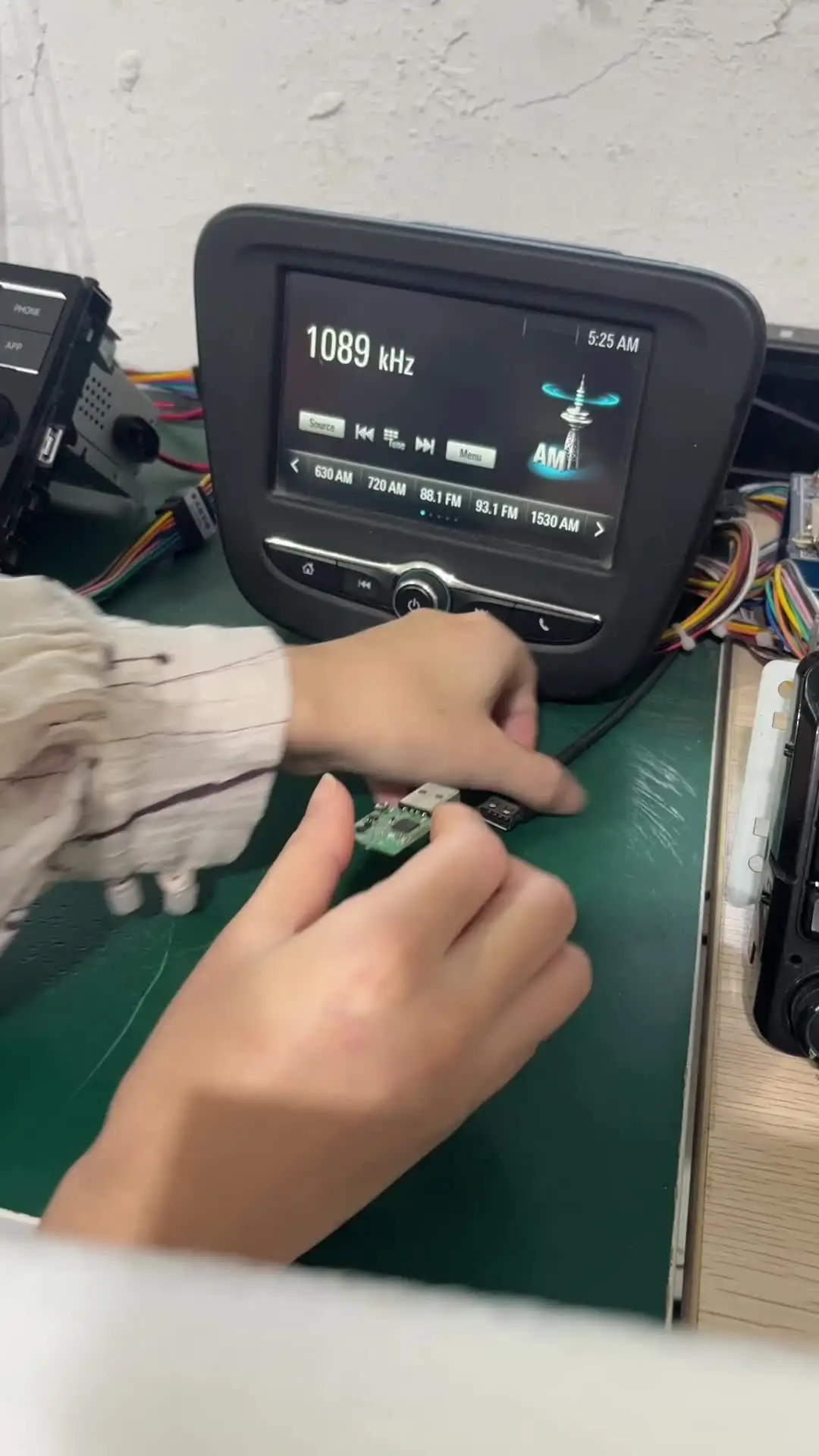
- Plug the EKIY adapter directly into the USB port. If your car has a Type-C port, use the provided USB A to Type-C adapter.
- The adapter will power on, and the car's system will read its data. Wait for a few seconds for the connection to establish.

2. Initial Setup for Wireless CarPlay (iOS Phone User)
- Ensure your iPhone's Wi-Fi is turned on.
- Turn on Bluetooth on your iPhone.
- Search for the Bluetooth device named "smartBox-****" (the last four characters will vary).
- Pair with the device and allow contact/favorites sync if prompted.
- Once paired, click "Use CarPlay" on your iPhone.
- Wait a few seconds, and the CarPlay interface will appear on your car's screen.
3. Initial Setup for Wireless Android Auto (Android Phone User)
- Ensure your Android phone's Wi-Fi is turned on.
- Turn on Bluetooth on your Android phone.
- Search for the Bluetooth device named "smartBox-****" (the last four characters will vary).
- Pair with the device. The device name will change to "Your Car MyLink" after successful pairing.
- Wait a few seconds, and the Android Auto interface will appear on your car's screen.

Operating Instructions
Wireless CarPlay
Once connected, your iPhone will automatically launch CarPlay on your car's display. You can use the car's controls (steering wheel, knob, voice, touch screen) to navigate CarPlay features such as:
- Navigation (e.g., Apple Maps, Google Maps, Waze)
- Phone calls
- Music playback
- Messages
- Other compatible apps


Wireless Android Auto
After successful connection, your Android phone will display the Android Auto interface on your car's screen. You can use the car's controls to access features like:
- Navigation (e.g., Google Maps, Waze, iGO, Sygic)
- Phone calls
- Music streaming
- Messages
- Other compatible apps


AirPlay (for iPhone) & Miracast (for Android)
The adapter also supports screen mirroring from your smartphone to your car's display. This allows you to view content from your phone directly on the car screen.
- AirPlay (iPhone): Supports iPhone AirPlay mirror projection function.
- Miracast (Android): Supports Android phone Miracast mirror projection function.


Maintenance
- Software Updates: The adapter supports Over-The-Air (OTA) system upgrades. Regularly check for and install updates to ensure optimal performance and access to new features.
- Cleaning: Use a soft, dry cloth to clean the adapter. Avoid using liquid cleaners or solvents.
- Storage: When not in use for extended periods, store the adapter in a cool, dry place away from direct sunlight.

Troubleshooting
- Connection Failure: If the connection fails, navigate to "General" > "CarPlay" > "My Car" > "Ignore historical devices" on your phone. Then, restart your phone and attempt to reconnect.
- No CarPlay/Android Auto Option: Some car systems may not require specific settings. If your car has wired CarPlay/Android Auto, the adapter should convert it automatically.
- Lag or Slow Performance: Ensure your phone's operating system is up to date. Check for any available OTA updates for the adapter. A user review mentioned lag with a different version, but for this adapter, ensuring updates and a stable 5GHz WiFi connection should help.
- Adapter Overheating: The aluminum alloy casing is designed for heat dissipation. A warm adapter during use is normal.
Specifications
| Feature | Specification |
|---|---|
| Brand Name | EKIY |
| Origin | Mainland China |
| Compatible Car | Car has factory original wired CarPlay |
| Support Phone (iOS) | For iPhone with iOS 10 or above |
| Support Phone (Android) | Android Phone with Android 11.0 system or above |
| Bluetooth Version | Bluetooth 5.0 |
| WiFi Version | 2.4 & 5 GHz |
| Function 1 | Wired CarPlay to Wireless CarPlay & Wireless Android Auto & Wireless AirPlay |
| Function 2 | OTA System Upgrade |
| Function 3 | Auto Connect |
| Function 4 | Plug and Play |
| Dimensions (approx.) | 23.3mm * 12.5mm * 26.5mm (Mini Wireless Adapter) |
| Casing Material | Aluminum Alloy |


User Tips
- Check Car Compatibility First: Before purchasing, ensure your car has factory-installed wired CarPlay. This adapter is designed to convert wired CarPlay to wireless, not to add CarPlay functionality to cars that don't have it.
- Phone OS Version: For optimal performance, ensure your iPhone is running iOS 10 or above, and your Android phone is running Android 11.0 or above.
- Bluetooth Pairing is Key: Remember that the initial connection for both Wireless CarPlay and Android Auto relies on Bluetooth pairing. Make sure Bluetooth is enabled and you select the correct "smartBox-****" device.
- Wi-Fi for Data Transfer: While Bluetooth initiates the connection, the adapter uses 5GHz Wi-Fi for high-speed data transfer for CarPlay/Android Auto functionality. Ensure your phone's Wi-Fi is enabled.
- Troubleshooting Connection Issues: If you experience connection problems, try forgetting the device in your phone's Bluetooth settings ("General" > "CarPlay" > "My Car" > "Ignore historical devices" on iOS, or similar on Android), then restart your phone and reconnect.
- Heat Dissipation: The aluminum alloy casing helps dissipate heat. It's normal for the adapter to feel warm during operation.
FCC Statement
This equipment has been tested and found to comply with the limits for a Class B digital device, pursuant to part 15 of the FCC rules. These limits are designed to provide reasonable protection against harmful interference in a residential installation. This equipment generates, uses and can radiate radio frequency energy and, if not installed and used in accordance with the instructions, may cause harmful interference to radio communications. However, there is no guarantee that interference will not occur in a particular installation. If this equipment does cause harmful interference to radio or television reception, which can be determined by turning the equipment off and on, the user is encouraged to try to correct the interference by one or more of the following measures:
- Reorient or relocate the receiving antenna.
- Increase the separation between the equipment and receiver.
- Connect the equipment into an outlet on a circuit different from that to which the receiver is connected.
- Consult the dealer or an experienced radio/TV technician for help.
This equipment complies with Part 15 of the FCC Rules. Operation is subject to the following two conditions: (1) This device may not cause harmful interference, and (2) This device must accept any interference received, including interference that may cause undesired operation.
FCC Radiation Exposure Statement
The equipment complies with FCC Radiation exposure limits set forth for uncontrolled environment. This equipment should be installed and operated with minimum distance 20cm between the radiator and your body.
Warranty and Support
For warranty information, technical support, or any questions regarding your EKIY 4-IN-1 Wireless CarPlay & Android Auto Adapter, please contact the seller or refer to the official product page. Keep your purchase receipt for warranty claims.