1. Introduction
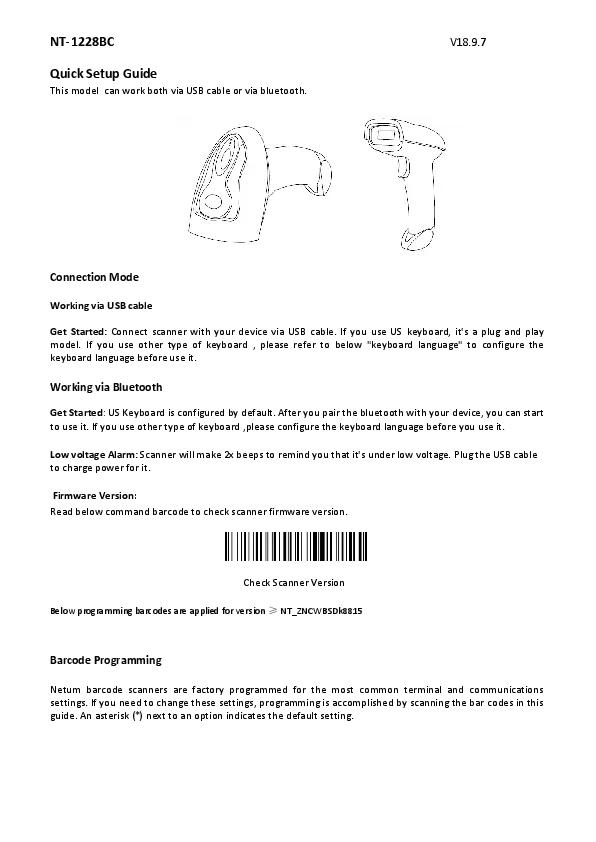
The NETUM NT-1228BC is a versatile Bluetooth Wireless CCD Barcode Scanner designed for efficient and accurate barcode reading in various environments, including retail and inventory management. This handheld scanner supports both Bluetooth and USB wired connections, offering flexibility and ease of use across multiple operating systems and devices. Its CCD sensor engine is capable of reading linear barcodes directly from computer screens and mobile phones, making it a powerful tool for modern business operations.

2. Safety Guidelines
Please read and understand these safety guidelines before operating the scanner to ensure safe and proper use.
- Do Not Stare Into Beam: The scanner emits a light beam. Avoid direct eye exposure to the beam, as it may cause eye irritation or injury.
- Handle with Care: Do not drop, hit, or subject the scanner to strong impacts. This can damage internal components.
- Avoid Liquids: Keep the scanner away from water and other liquids. Do not operate with wet hands.
- Temperature: Operate the scanner within the specified temperature range. Avoid extreme heat or cold.
- Cleaning: Use a soft, dry cloth for cleaning. Do not use abrasive cleaners or solvents.
- Disposal: Dispose of the scanner and its battery according to local environmental regulations.
3. Package Contents
Upon opening your NETUM NT-1228BC package, please verify that all the following items are included:
- NETUM NT-1228BC Barcode Scanner
- USB Charging/Data Cable
- Bluetooth Receiver (for 2.4GHz wireless connection to computers without built-in Bluetooth)
- Quick Start Guide (if applicable)

4. Setup
4.1 Charging the Scanner
Before initial use, fully charge the scanner. Connect the USB charging cable to the scanner's charging port and the other end to a USB power source (e.g., computer USB port, USB wall adapter). A full charge typically takes 3-4 hours.
4.2 Connection Modes
The NT-1228BC supports two primary connection modes: Bluetooth and USB Wired.
4.2.1 Bluetooth Connection (HID Mode)
This mode is suitable for connecting to smartphones, tablets, and computers with built-in Bluetooth. The scanner functions as a keyboard input device.
- Turn on the scanner.
- Press and hold the trigger button for a few seconds until the scanner enters pairing mode (indicator light will flash).
- On your device (phone, tablet, PC), go to Bluetooth settings and search for available devices.
- Select "NETUM Bluetooth" (or similar name) from the list to pair.
- Once paired, the indicator light on the scanner will turn solid, and your device will show it as connected.

4.2.2 2.4GHz Wireless Connection (via USB Dongle)
This mode uses the provided USB Bluetooth receiver for wireless connection to computers without built-in Bluetooth or for a dedicated wireless link.
- Plug the USB Bluetooth receiver into an available USB port on your computer. The system will automatically install the necessary drivers (Plug&Play).
- Turn on the scanner. It should automatically connect to the receiver.
- The indicator light on the scanner will turn solid once connected.
4.2.3 USB Wired Connection
For a direct and reliable connection, use the USB cable to connect the scanner to your computer.
- Connect the USB cable to the scanner's port and the other end to a USB port on your computer.
- The scanner will be recognized as a HID keyboard device, and no additional drivers are typically needed.


5. Operating the Scanner
5.1 Basic Scanning
Once connected, simply point the scanner at a 1D barcode and press the trigger button. The scanner will emit a light beam and beep upon successful scan, and the barcode data will appear on your connected device as if typed.

5.2 Supported Symbologies
The NT-1228BC is designed to read a wide range of 1D barcodes:
- UPC A / UPC E
- EAN 8 / EAN 13
- Code 128, Code 39, Code 93, Code 32, Code 11
- Codabar, Plessey, MSI
- Interleaved 2 of 5, IATA 2 of 5, Matrix 2 of 5, Straight 2 of 5
- Pharmacode
- RSS-14, RSS-14 Expanded, RSS-14 Limited
- Composite Code -A, Composite Code -B, Composite Code
The CCD sensor engine also supports reading linear barcodes directly from computer screens and mobile phones.
5.3 Battery Life and Recharging
The scanner is equipped with an 1800mAh battery, providing up to 30 hours of continuous scanning. When the battery is low, recharge it using the provided USB cable. A full charge takes approximately 3-4 hours.

6. Maintenance
6.1 Cleaning
To maintain optimal performance, keep the scanner's scanning window clean. Use a soft, lint-free cloth, slightly dampened with water or a mild, non-abrasive cleaning solution. Do not spray cleaners directly onto the scanner.
6.2 Storage
When not in use, store the scanner in a cool, dry place, away from direct sunlight and extreme temperatures. Ensure the battery is partially charged if storing for extended periods to prolong battery life.
7. Troubleshooting
Here are solutions to common issues you might encounter:
- Q: Some barcodes cannot be read, why?
- A: Possible reasons include:
- The barcode is dirty, unclear, or damaged.
- Digital barcodes displayed on phones or computers can be read by the CCD sensor, but some might require specific settings.
- The scanner might not be configured to read that specific barcode type. Refer to the full user manual for programming barcodes to enable/disable specific symbologies. Contact customer service if you need assistance identifying the barcode type.
- Q: Is there any way to apply or remove an 'Enter' suffix after scanning?
- A: Yes, you can refer to the 'Common Function Barcodes' in the full user manual to configure this setting. This typically involves scanning specific programming barcodes.
- Q: The data cannot be sent to my computer. Why?
- A: Please ensure you have turned off the inventory mode. If the scanner is in inventory mode, it will store scans internally instead of transmitting them immediately. You need to scan the 'Manual data upload' barcode (found in the full user manual) to send the stored codes to your connected device.
- Q: How to solve the messy code problem encountered while using other foreign languages?
- A: The default language setting for the scanner is English. Please refer to the 'Language Setting' chapter in the full user manual to change the output language encoding if you are experiencing messy codes with non-English characters.

8. Specifications
| Feature | Specification |
|---|---|
| Brand Name | NETUM |
| Model Number | NT-1228BC |
| Product Type | Bar Code Scanner |
| Scanning Light Source | CCD Sensor Engine |
| Scan Element Type | CMOS |
| Optical Resolution | 600dpi |
| Scan Speed | 260 scans/second |
| Signal Connection Type | Bluetooth 4.0 (HID, SPP modes) |
| Interface Type | USB 2.0 |
| Colour Depth | 32 Bit |
| Scan Breadth | A4 |
| Battery Capacity | 1800mAh |
| Continuous Scanning Time | Up to 30 hours |
| Charging Time | 3-4 hours |
| Bluetooth Transmission Range | 10m/33ft (with obstacles), 50m/164ft (barrier-free) |
| 2.4GHz Wireless Transmission Range | 30m/99ft (with obstacles), 100m/330ft (barrier-free) |
| Compatible Systems | Android, iOS, Windows 7/8/10, Mac OS, Linux |
| Certifications | CE, FCC, RoHS, UL |

9. User Tips
- Optimizing Mobile Screen Scanning: For the best scanning speed and accuracy when reading barcodes from mobile screens, ensure the screen brightness is high and the barcode is clearly displayed without glare. The NT-1228BC's CCD sensor is well-suited for this task.
- Bluetooth Reconnection: If the scanner disconnects, simply press the trigger button briefly to attempt reconnection to the last paired device.
- Power Saving: The scanner will automatically enter a power-saving mode after a period of inactivity. Press the trigger button to wake it up.
10. Warranty and Support
NETUM products are manufactured to high-quality standards. For warranty information, technical support, or service inquiries, please contact your retailer or the official NETUM support channels. Keep your purchase receipt as proof of purchase for warranty claims.